
Introduction to Cisco Webex App#
Overview#
Cisco Webex is a cloud-based business collaboration service that allows employees to message, meet, and call instantly in order to strengthen relationships and increase productivity.
Cisco Webex combines mobile devices and other communications tools to provide instant communications and live meetings to ensure a professional and effective collaboration experience.
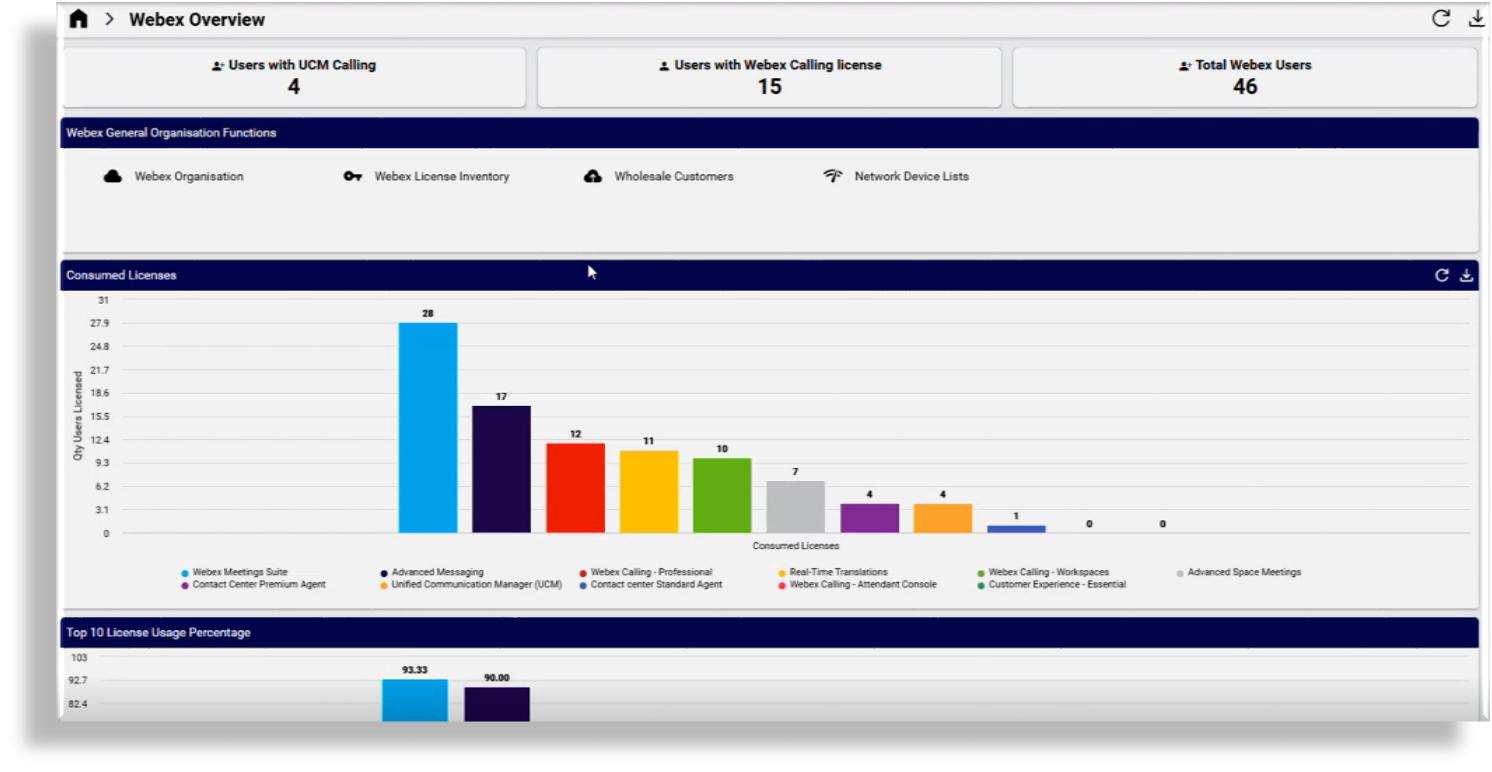
The image displays the Webex Overview dashboard:
The table describes the main Cisco Webex features:
Feature |
Description |
|---|---|
Messaging |
Business messaging allows users to prepare, share, and repeat content, and it facilitates one-on-one or team messaging facilities in virtual rooms. |
Meeting |
Connect teams and meet customers easily with the added benefits of messaging and content sharing before, during, and after a meeting. |
Call |
The service enables voice and video communications via mobile, desktop, and room-based devices. Connect your existing PSTN1 services to Cisco Webex to enjoy one-touch directory dialing and join meetings from anywhere on any device. Mobile users get features such as single number reach, single voicemail service, video services, and the ability to seamlessly move between devices during a call. |
Related Topics
Add Cisco Webex services (See Webex Application Access (Webex Organization) in the Core Feature Guide)
Cisco Webex Users:
Add a user (Webex App tab)
Cisco Webex Workspaces:
Cisco Webex Locations
Cisco Webex App Devices
Webex Contact Center
Introduction to Webex Contact Center
Automate workflow for Cisco Webex#
Webex App sync#
Default Webex Calling data sync#
Note
From release 25.1, Webex Contact Center sync excludes an updated device model instances list for Webex Calling sync - see the exclusion list at: Webex Contact Center sync. In particular, device models have been added to support call handling over trunks to Webex supported devices:
device/spark/DialPlansdevice/spark/RouteGroupsdevice/spark/Trunks
The default Webex Calling sync that is used to sync Webex Calling data and is available from the Data Sync list applies:
Model type list:
SparkDataAllMTLSynchronization order:
SparkDataSyncOrder
This list type contains an empty ``exclusion`` list, that is, all device model instances are synced. If you need to exclude any models then you can update this list.
Default synced models
device/spark/Organization
device/spark/Role
device/spark/License
device/spark/CallingProfile
device/spark/LocationFloor
device/spark/Location
device/spark/User
device/spark/UserConfig
device/spark/Place
device/spark/Group
device/spark/Team
device/spark/Room
device/spark/Number
device/spark/AutoAttendants
device/spark/CallPickup
device/spark/LocationCallingDetails
device/spark/CallParkGroup
device/spark/Announcements
device/spark/Schedules
device/spark/CallParkExtensions
device/spark/HuntGroup
device/spark/WorkspaceCallSettings
device/spark/ActivateDevice
device/spark/Floor
Sync existing Cisco Webex users for a customer#
A default sync schedule has the following name format: SyncSpark-SCHED-XXX
Two sync methods
On the Customer Access page, click Action > Sync Webex App Users
On the Data Sync page, execute SyncSpark[Customer] to run a sync
Important
To properly sync in calling behavior settings, ensure the sync setting Quick Import is set to False (disabled), and Refresh Existing (Changed) Data is set to True (enabled) on all data syncs that include the device/Spark/user model. By default, these are:
SyncSparkUsersXXX, and
SyncSparkXXXX
These are the default settings for the device/spark/User syncs, but it is important to ensure they correctly configured before syncing in users.
Note
When syncing in Webex data to Automate from the Control Hub, Automate’s device models apply
the WebexAppCallingLicenseNameWKSP macro in the provisioning workflows and syncs to check for the
following license types, both of which are considered valid calling licenses:
Webex Calling - Workspaces
Webex Calling - Professional
The license checks allow the system to determine whether a device or number should be retained in a sync, preventing unintended deletions.
Synced in Webex numbers
Webex numbers are synced in and maintained in device/spark/Number and the Number Inventory.
The numbers of synced in Cisco Webex users display the following settings and values in the Number Inventory (see Number status and usage):
Setting |
Value |
|---|---|
Status |
Used |
Usage |
User |
Vendor |
Webex Calling |
Synced in licenses
Licenses are synced and maintained in device/spark/License.
Synced in locations
Locations are synced - see Webex locations.
Synced in Rooms, Teams, Groups
Rooms, Teams and Groups details are synced in as read-only data to device/spark/Room, device/spark/Team,
and device/spark/Group, respectively.
Synced in Calling
Calling is synced in to device/spark/UserConfig, where the settings can be managed per user if the
assigned license of which is “Webex Calling - Professional”.
Synced in devices
Devices are associated either with a person or with a workspace. For users associated with a device, the person ID (converted to an email address) is used to sync the device to the correct hierarchy. See Webex devices.