
Schedule dashboard export report#
This procedure schedules the export of a dashboard report and defines the type of data to export in the schedule.
Note
Entire dashboards can be exported, or per widget.
Report data is permissions-based for the user who owns the dashboard export, at their hierarchy and below.
Prerequisites:
Add a dashboard export. See Dashboard Exports
To add a schedule for a dashboard export report
Go to Schedules.
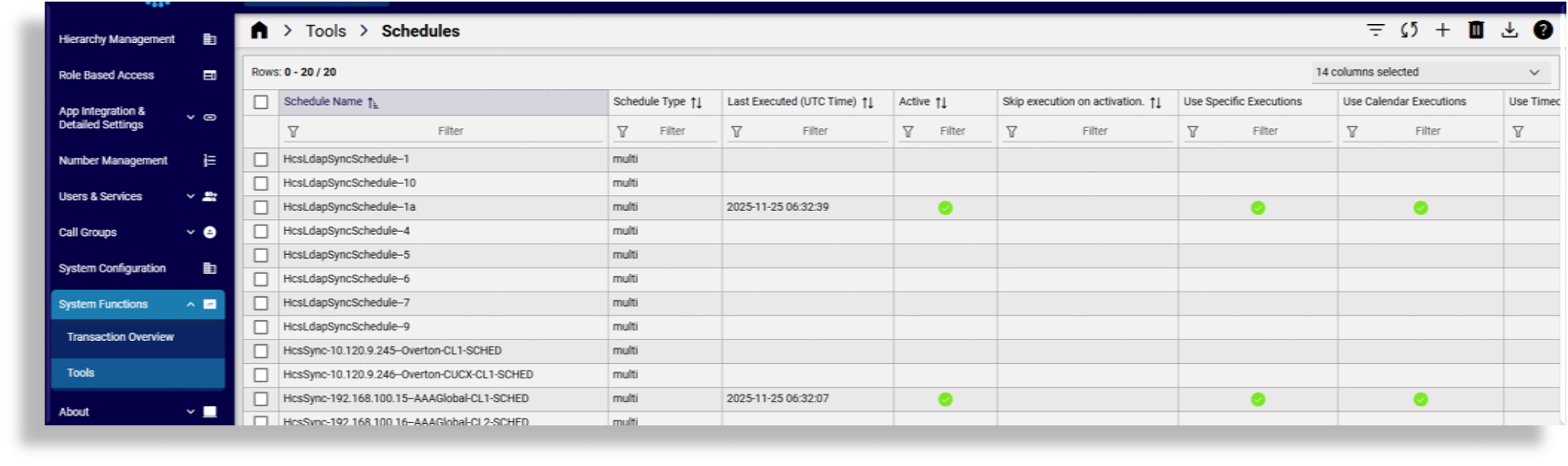
Click the Plus icon (+) to create a schedule.
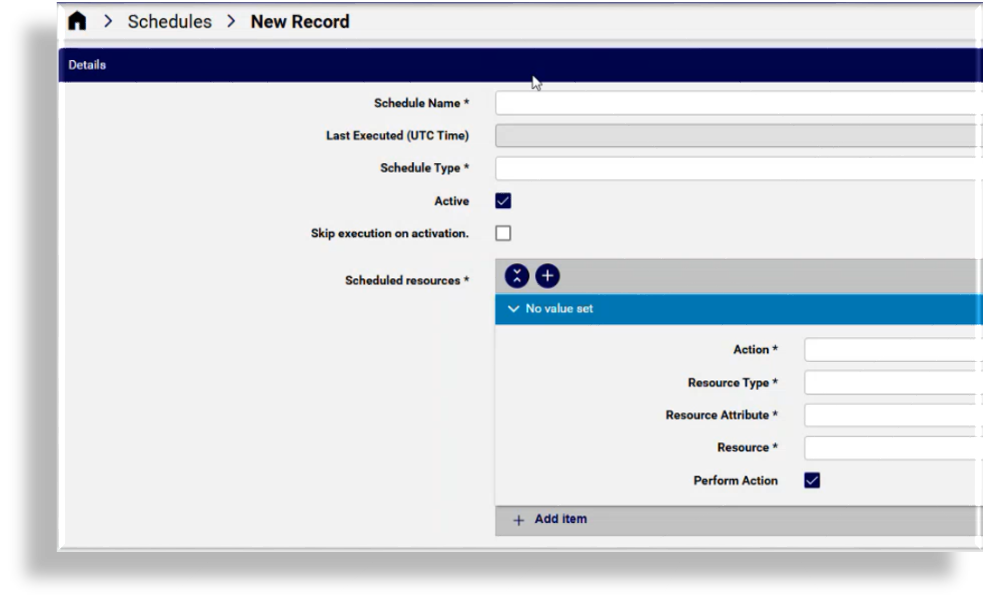
Fill out schedule details:
Schedule name (mandatory)
Schedule type (mandatory), either single execution or multi execution
If selecting multi execution as schedule type, define whether to:
Use specific executions
Use calendar executions: Define schedule execution frequency by calendar month, day, hour, minute, and execution timezone (local)
Use timed executions
Define whether the schedule is active
Define whether to skip execution on activation
Add scheduled resources, one or more (mandatory), and provide the following details for each scheduled resource:
Action (mandatory): Select Execute
Resource type (mandatory): Select the model (for example,
data/DashboardExport) to which the schedule will applyResource attribute (mandatory): Select the resource attribute (for example,
name)Resource (mandatory): Select the dashboard export you set up
Define whether to perform the action (Execute)
Note
Last executed (UTC time) is a read-only field to display the time the schedule was last executed.
Save the schedule.
Related topics