
Update the metadata file on a SSO IdP entry#
This procedure changes the metadata file on a SSO IdP (Identity Provider) entry.
Note
You’ll need to update the metadata file if your SSO configuration changes.
Upload the updated SSO IdP metadata file:
In the Admin portal, go to Role Based Access, then click Upload SSO IDP Metadata to open the list view for your SSO IdP metadata files.
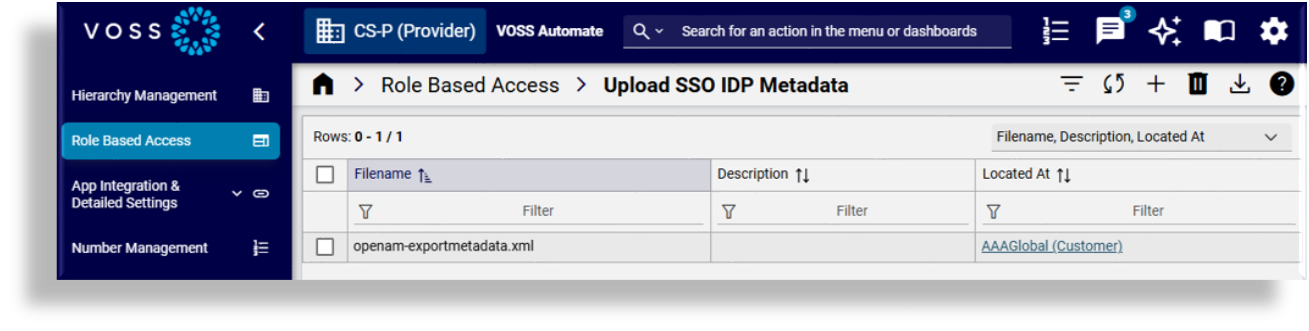
Click the Plus icon (+) to add a new record.
Click Choose File to upload the file from your local computer or a network location, and optionally, add a description.
Note
The metadata file must be unique across the system and must match the requirements for your SSO setup, including correct entity ID, UID attribute name, and other parameters.
Click Save to upload the file.
Change the metadata file on the IdP entry:
In the Admin portal, choose the relevant hierarchy.
Note
Only one instance of an SSO IdP can be configured for a hierarchy node. While an IdP may exist at more than one hierarchy in Automate, a user will only be permitted to log in if the user exists at or below the hierarchy of a single IdP.
Go to Configure SSO IDP to open the configuration settings for the IdP entry where you’re changing the metadata file.
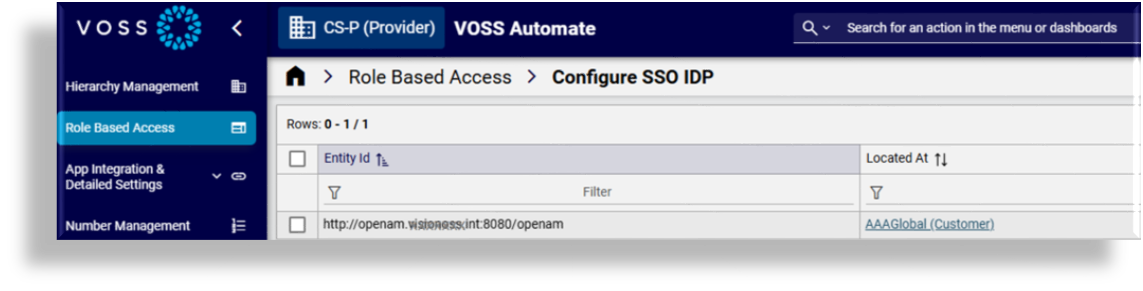
Click on the IdP entry to open its configuration settings.
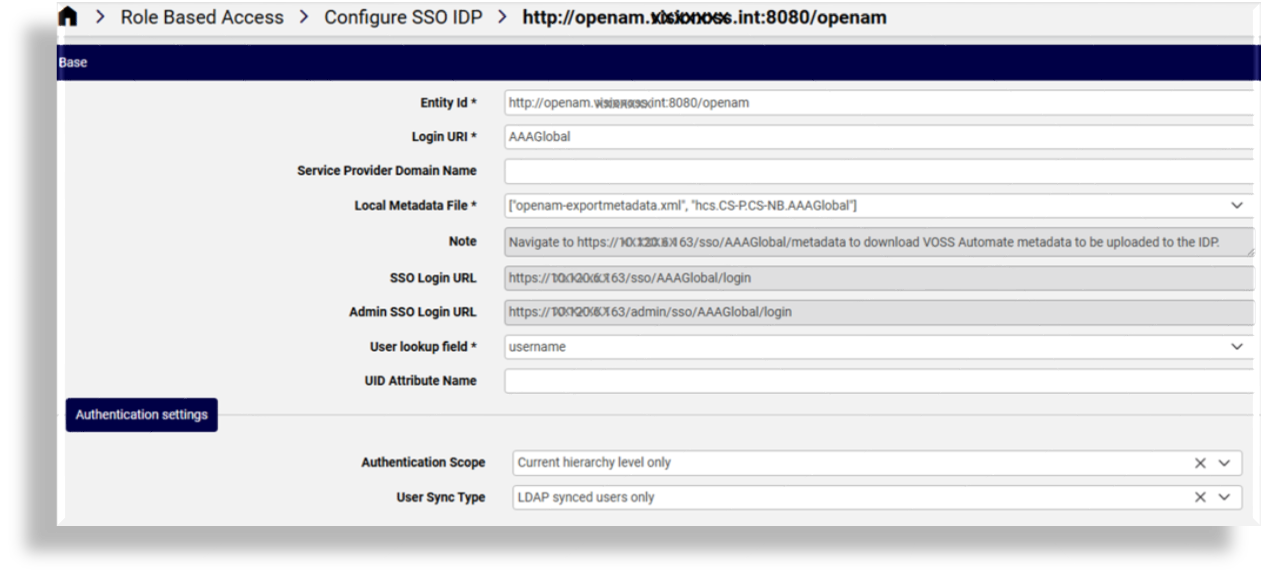
At Local Metadata File, select the updated metadata file from the drop-down.
Pay attention to the Note field, which displays an instruction for downloading the Automate metadata so that you can upload it to the IdP.
Save your changes.
Re-upload the Automate metadata to the IdP, if required:
Remove previous metadata records from the IdP.
Download the Automate metadata at the location specified in the Note field on the IdP configuration settings page, then upload it to the IdP.
Note
If the Service Provider (SP) metadata has been updated (for example, due to a domain name or certificate change), download the updated SP metadata from the Automate system and upload it to the IdP to ensure that the IdP and SP configurations remain synchronized.
Verify the configuration:
Test the SSO login URLs to ensure that the updated metadata file works as expected. The URLs typically include:
Related topics