
Microsoft - Move user & services#
Overview#
Automate allows you to move a non-hybrid, Microsoft-only user from one site to another site, with their services and a new line assigned.
You can do this in two ways:
Use the Move User & Services page in the Admin Portal
Use Flow through provisioning (FTP) along with a manual or scheduled sync to update a user in Automate that has been updated on the Microsoft cloud.
Number types supported for moving a Microsoft-only user site-to-site:
Direct routing
Operator Connect
Calling plan
Teams Phone Mobile
The table describes how Automate processes various workflow elements in Microsoft-only user move:
Element |
Description |
|---|---|
Lines |
The line can be moved along with the user, or assign a new line. If the number is shared, the “shared line policy” is removed prior to the move and re-assigned after the move. |
Policies |
Any policies previously assigned to the user that are not overwritten by the new site, remain unchanged. |
Licensing |
Licensing and usage location remain unchanged. If the user licenses don’t match the supported new number type, a system message warns you that the user can’t be moved. |
Enterprise Voice |
If Enterprise Voice is enabled at the source site and the target site is non-Enterprise Voice enabled, then Enterprise Voice is also disabled for the moved user at the target site. |
Failure handling |
If the target site does not support the move, the transaction fails with a descriptive error message. |
Related topics
Manually move a Microsoft user#
This procedure manually moves a Microsoft user from one site to another site, with their existing or new services, and a new line.
Prerequisites:
Ensure you have available lines at the target site. In this case, available lines for Microsoft users.
To apply settings for the target site via a user profile, ensure the user profile is correctly configured for the services the user requires at the target site.
Move the user:
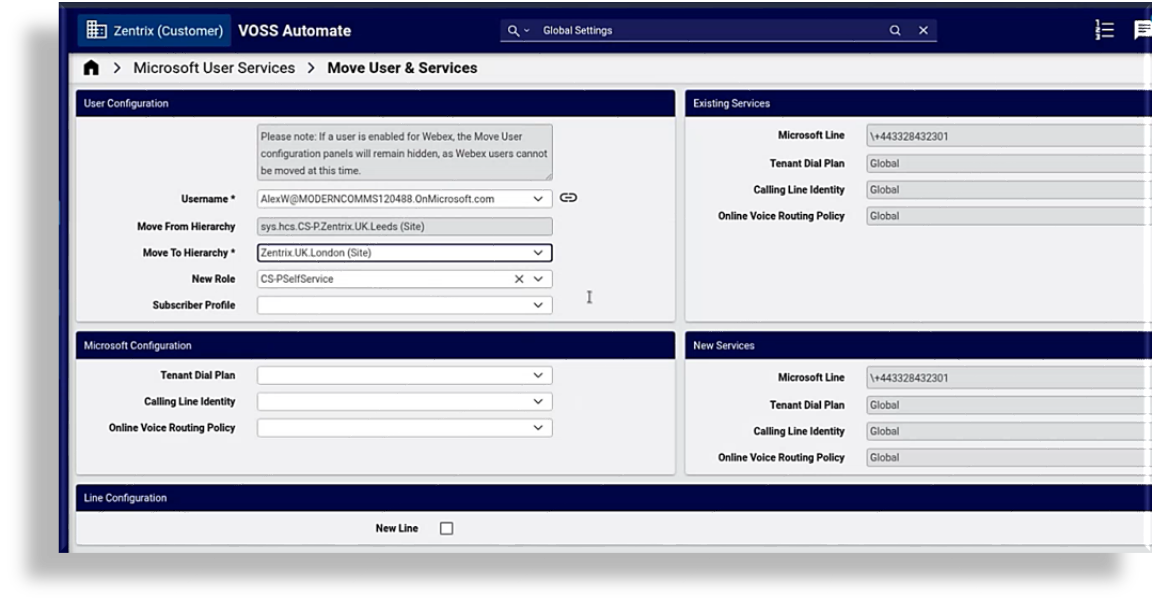
In the Admin Portal, go to Move User & Services.
Select a username to populate the page with the user’s details and existing services.
Select an option at Move to Hierarchy. Existing services populate on the page.
Optionally, select a user profile. The read-only New Services fields update with the services assigned via the user profile.
Note
Values you select in the fields on the Move User & Services page override any settings updated by the user profile settings (if you selected a user profile).
Using a user profile to move the user allows you to apply the relevant Quick Add Group, policies, and configuration templates to update the user at their new location.
If you don’t select a user profile, the user moves with their current settings, except for the line, since Automate either assigns the next available line at the new site, or you can choose a new line for the target site.
Optionally (valid for direct routing only), select a tenant dial plan, calling line identity, and an online voice routing policy.
Note
Values you select for these fields override values from the user profile for the new services.
At Line Configuration:
Select New Line to create a new line at the target hierarchy, or leave the checkbox clear to use the existing line.

To have the system find the next available line, select Use next available line, and optionally, select Inventory Filter so that the system can choose a line from a predefined pool of filtered numbers to be assigned, for example, only unused numbers with associated E164s, or unused numbers at the site only.
Note
By default, Automate selects the next line available at the current site (checks locally first). If no lines are available at the current site, the system looks up the hierarchy to the customer level and if an available line is found, the read-only Microsoft Line field populates with the selected line.
Alternatively, manually select a line from the Line URI field, with or without a line inventory filter applied.
Note
The Line URI drop-down displays available lines for Microsoft users. No additional filtering is applied. The line you choose populates the New Line field at New Services.
Save your changes to move the user with their new services and line.
Related topics
Move Microsoft user using flow-through provisioning#
This procedure automatically moves an existing and already provisioned Microsoft user from one site to another site (the target site), with their existing or updated services (based on the user profile), and including a new number (line) at their new location.
Note
This scenario assumes the user’s location (for example, their city or other geographic location) has been updated on the Microsoft Cloud portal (Microsoft 365 admin center) and you want to sync in this user to Automate and automatically update their location and services for the site they’re moving to.
Configure model filter criteria for the Msoluser (Microsoft online user) for the target geographic location move.
Configure the site defaults.
Go to Defaults for the site. Verify the required model filter criteria is selected in the Move Filter Criteria pane (at the MS 365 User Model Filter Criteria drop-down).
Configure Global Settings.
Go to Global Settings, and select the Flow Through Provisioning tab/panel.
Set Enable Move & Provisioning after Update Sync to Yes (enabled) to allow the user to be provisioned and moved following a data sync.
Optionally, select an option at Flow Through Provisioning Criteria for the flow through provisioning criteria set up to move the user/users to their new location.
Sync in the user:
Execute manual sync:
In the Automate Admin Portal, go to the Microsoft Tenant list view, and open the configuration page for the relevant tenant. From the overflow menu, select Sync New Users.
Wait for scheduled sync:
You can sync in and move the user via the automatic, scheduled sync (and not manually via Sync New Users in the tenant settings).
When the sync runs (manual or scheduled sync), Automate syncs in the user, moves that user to the target site with their new services (line, policies) from the user profile. If the user profile is set up to send the user a welcome email, the user receives an email with their new location and service details.
Related topics