
Hyper-V#
The steps below are for MS Windows Server with Hyper-V (Generation 1).
Requirements#
Download the install file#
Download for your release from the New Installation folder on the client portal.
automate-hyper-<version>.zip containing:
.vhdxfilePlatform install
.isoAutomate
.template
Note
The following procedure utilises Hyper-V Manager
Prepare the OS Disk#
Copy the .vhdx file to the Hyper-V Settings/Virtual
Hard Disks location of your choice.
For a Single Unified Node rename the disk to your requirements.
For a Modular Deployment, an example using 2 Application nodes and 3 Database Nodes is shown:
Copy
.vhdxfile for each node and name it to your requirements, e.g.:C:\Users\Administrator\Virtual Disks\automate-app-1\automate-os-disk-app-1.vhdxC:\Users\Administrator\Virtual Disks\automate-app-2\automate-os-disk-app-2.vhdxC:\Users\Administrator\Virtual Disks\automate-db-1\automate-os-disk-db-1.vhdxC:\Users\Administrator\Virtual Disks\automate-db-2\automate-os-disk-db-2.vhdxC:\Users\Administrator\Virtual Disks\automate-db-3\automate-os-disk-db-3.vhdx
Create the VM#
In Hyper-V Manager, go to
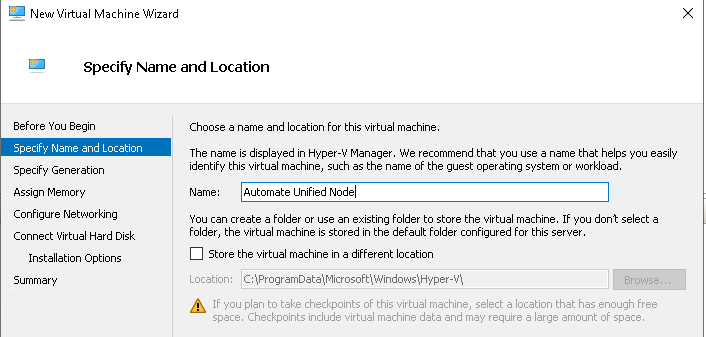
New>Virtual MachineSpecify Name and Location: Assign a suitable name to the VM.
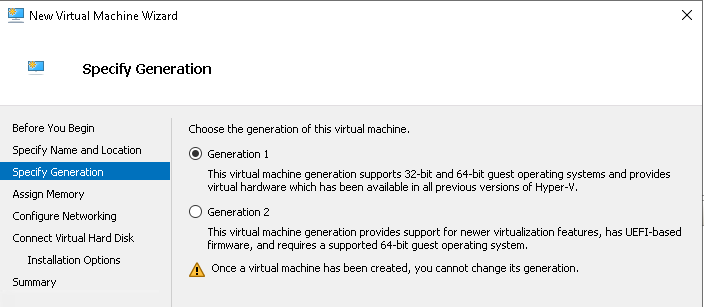
Specify Generation: Select Generation 1
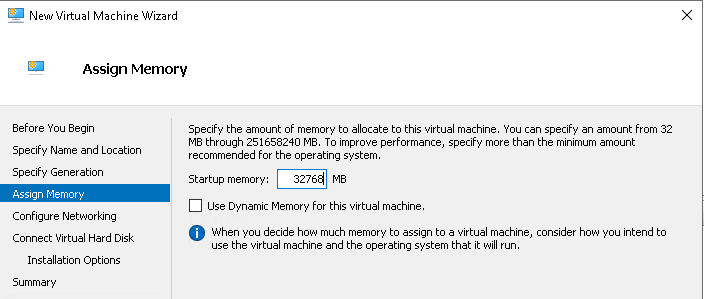
Assign Memory: 32768 MB
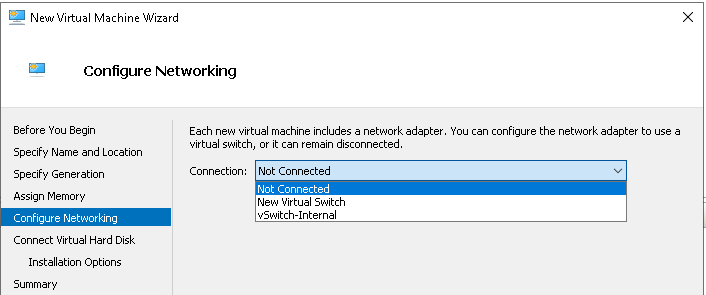
Configure Networking: Select the required Virtual Switch
Connect Virtual Hard Disk:
Select
Use an existing virtual hard diskand select the.vhdxfileClick
Finish
Configure the VM#
Right-click the VM in the list > Settings
Attach the Platform install
.isotoIDE Controller 1
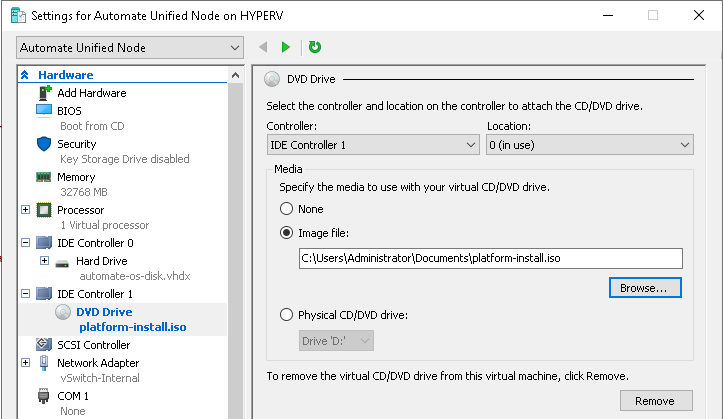
Add the required disks#
The screenshot example below is for the application disk.
Add the system/application disk. Right-click VM > Settings.
Select SCSI Controller > Hard Drive > Add
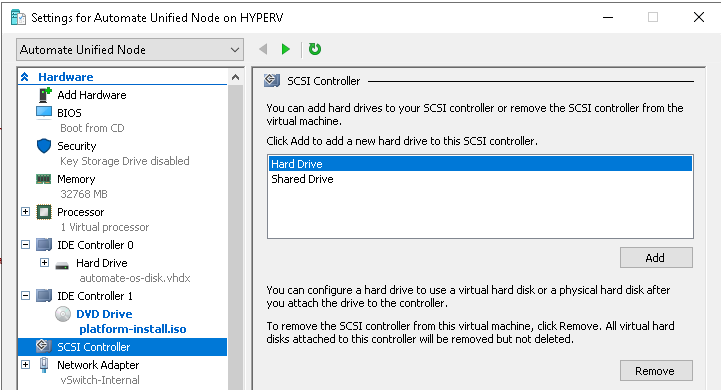
Select New
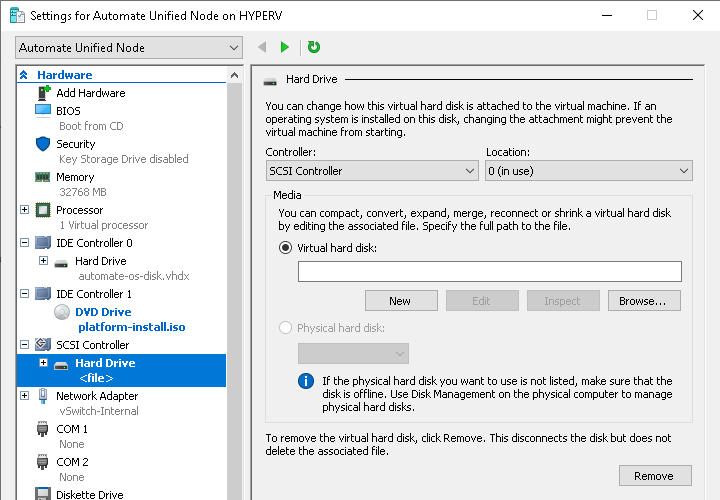
Format Type:
VHDX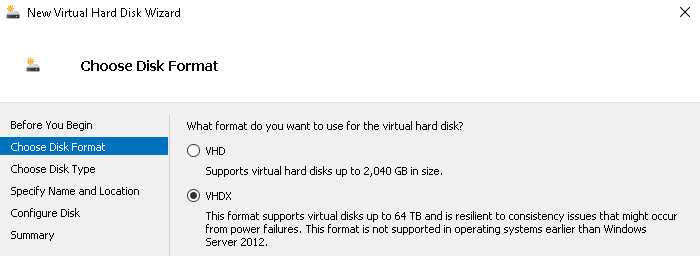
Disk Type:
Fixed Size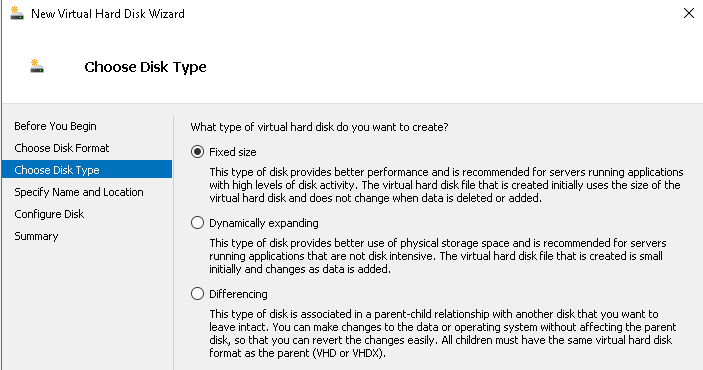
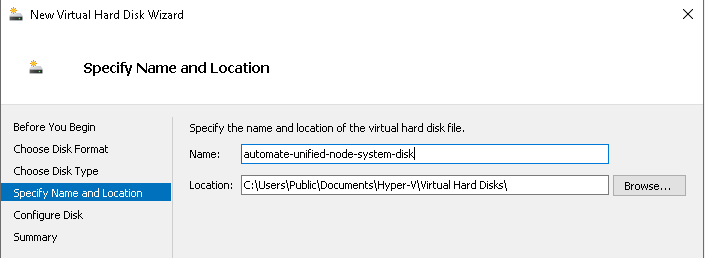
Name and Location
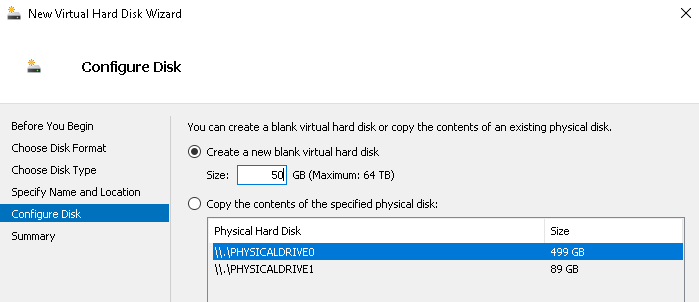
Disk Size
Reference: Disk configurations for deployment types#
Single Unified Node#
Application Disk:
Location 0:
Choose Disk Format:
VHDXChoose Disk Type:
Fixed SizeSpecify Name and Location:
Name: give it an appropriate name. Example:
automate-02-app-disk
Configure Disk: Size:
50GB
Backup Disk:
Location 1:
Choose Disk Format:
VHDXChoose Disk Type:
Fixed SizeSpecify Name and Location:
Name: give it an appropriate name. Example:
automate-03-backup-disk
Configure Disk: Size:
50GB
Database Disk:
Location 2:
Choose Disk Format:
VHDXChoose Disk Type:
Fixed SizeSpecify Name and Location:
Name: give it an appropriate name. Example:
automate-04-database-disk
Configure Disk: Size:
250GB
Insights Disk:
Location 3:
Choose Disk Format:
VHDXChoose Disk Type:
Fixed SizeSpecify Name and Location:
Name: give it an appropriate name. Example:
automate-05-insights-disk
Configure Disk: Size:
70GB
Modular - Application Node#
Application Disk:
Location 0:
Choose Disk Format:
VHDXChoose Disk Type:
Fixed SizeSpecify Name and Location:
Name: give it an appropriate name. Example:
automate-02-app-disk
Configure Disk: Size:
50GB
Modular - Database Node#
Application Disk:
Location 0:
Choose Disk Format:
VHDXChoose Disk Type:
Fixed SizeSpecify Name and Location:
Name: give it an appropriate name. Example:
automate-02-app-disk
Configure Disk: Size:
50GB
Backup Disk:
Location 1:
Choose Disk Format:
VHDXChoose Disk Type:
Fixed SizeSpecify Name and Location:
Name: give it an appropriate name. Example:
automate-03-backup-disk
Configure Disk: Size:
50GB
Database Disk:
Location 2:
Choose Disk Format:
VHDXChoose Disk Type:
Fixed SizeSpecify Name and Location:
Name: give it an appropriate name. Example:
automate-04-database-disk
Configure Disk: Size:
250GBInsights Disk:
Location 3:
Choose Disk Format:
VHDXChoose Disk Type:
Fixed SizeSpecify Name and Location:
Name: give it an appropriate name. Example:
automate-05-insights-disk
Configure Disk: Size:
70GB
Configure the total processors#
Set the number of virtual processors to 4

Connect and start the VM#
The VM will take a while to boot up.
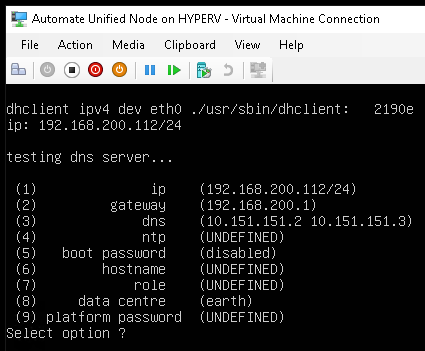
Next steps: Step 2: Run the installation wizard on the VM.