
Model Type Lists (MTL)#
Overview#
A model type list (MTL) is a list of device models associated with the device type, for example, phone and line device models that are associated with the Cisco UCM device.
MTLs can improve sync performance as they allow you to control type of data synced in to Automate from devices from vendors such as:
Cisco (UCM, Unity Connection)
Microsoft
Pexip
Webex
The table describes potential types of MTLs:
Model type list |
Description |
|---|---|
Include Selected Model Types |
This list represents the device models to explicitly include in the data sync. |
Exclude Selected Model Types |
This list represents the device models to explicitly exclude from the data sync. |
Ordered List |
This list represents the device models to explicitly include in the data sync in the order they must be synced. |
A data sync created with an empty MTL attribute results in the subsequent import(s) syncing all device models for the corresponding device.
The image shows an example of an include MTL:
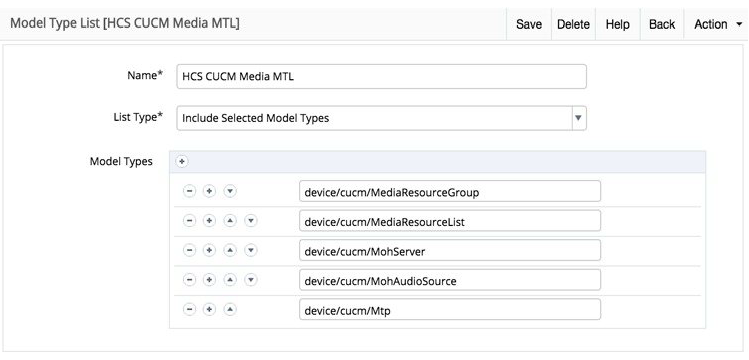
A data sync using this MTL will sync all Media Resource Group, Media Resource Lists, Music on Hold servers and audio sources, and Media Termination Points. No other data will be synced from Cisco UCM.
It is recommended to define MTLs for sets of data that are being modified on the device directly. An example is Cisco UCM because this is where the bulk of the configuration data for each customer resides.
By defining MTLs that target specific data sets rather than doing a full sync, the performance of Automate can be maintained with better response times and quicker transaction execution.
Note
To prevent a lengthy data sync operation due to potentially large numbers of these device models in the Cisco UCM, it is recommended that you avoid the following Cisco UCM device models, unless needed:
Users
Phones
Lines
Data sync overhead can be further reduced if you want to sync only new and deleted instances of the device model and not updates to existing instances. To achieve this, clear (disable) the Refresh Existing (Changed) Data checkbox on the Data Sync configuration page. This setting defines whether existing device model instances are updated in Automate in addition to importing new instances and removing deleted instances:
When enabled, all device model instances must be synced and examined.
When disabled, only new and deleted instances need to be imported and the data sync will run considerably faster.
Create a targeted MTL#
This procedure creates a targeted model type list (MTL).
Note
A targeted MTL and data sync is useful if you’re regularly managing data on vendor devices directly - perhaps for configuration orchestrated outside of Automate (such as media resources). In this case, it is recommended that you create a MTL and data sync specifically targeting the data items you’re managing. This will ensure that each data sync is highly optimized for the data being changed on the device directly, and minimizes the load on Automate.
To create a targeted model type list:
Log in as Provider level admin or higher.
Go to Model Type Lists, then click the Plus icon (+) to add a new record.
Specify the name of the model type list.
It is recommended that you use a naming convention that makes it easy to identity the MTL in a list view, for example “Cisco UCM Media Resources”.
From the List Type drop-down, choose the list type:
Choose Include Selected Model Types if the list of device models you want to sync is relatively short.
Choose Exclude Selected Model Types if the list of device models you want to sync is relatively long. Exclude device models that tend to have lots of instances (like users, phones, and lines in Unified CM).
Choose Ordered List if the list of device models you want to sync is relatively short and the order in which they are synced matters.
Note
A data sync will fail if the List Type of the model type list does not match the Device Type of the data sync.
Add model types to the list of device models that are to be included or excluded according to the List Type selected.
See View list of device models for information on how to see a list of available device models for vendor devices.
Click Save.
View list of device models#
This procedure displays the device models available to use in model type lists (MTLs) for custom data syncs from vendor devices.
Option A:
Log in on the VOSS Customer Portal [
https://voss.portalshape.com].Select the Documentation & Resources menu.
Access the API Reference from the documentation release landing page.
Inspect the list of devices available from the Model Index link in the reference to obtain device model names.
Option B:
On your system, open the URL:
https://<IP>/api/choices/?format=jsonFrom the returned list, identify the device model with
device/in the endpoint, for exampledevice/cucm/BillingServer.
Next steps
When including the device model in a MTL, use the format
device/<device_type>/<device_model>, for example, device/cucm/BillingServer.