Role-based dashboards and menus#
Overview#
New installs of Automate ship with a collection of pre-defined, default roles and associated elements to deliver a set of experience-based layouts for the Automate user interface:
Automate also ships with these additional, special-purpose roles:
HcsAdmin - This role is defined for the user who logs in on first install to create a provider admin, and optionally, to create admin users for the other hierarchies (customer, site, reseller) out of the cloned default roles created when adding a provider. Alternatively, the newly created provider admin user can now log in to create the other admin users out of the cloned roles at the provider level, and can hand over further configuration of each hierarchy to the relevant admin users, or configure Automate for all hierarchies.
selfservice - Visible only to
sys(System) administrators. This is the default system resource role for Self Service. Since critical data sync workflows and configuration templates make use of this system level role for provisioning new or updated users, do not modify or remove this role.
Default roles
Each of the shipped, experience-based roles is assigned a GUI layout, comprising a Home dashboard (landing page), and a set of predefined dashboards and menus offering access to features designed for their user experience. The role-based layouts follow best practices and serve as a starting point for common personas. While they offer a strong foundation, you should customize them to fit your needs - for example, you’ll be able to adjust actions and fields exposed via field display policies, customize naming conventions, and modify help text and descriptions to align with your user base. This ensures an optimized experience, reduces adoption challenges, and minimizes training requirements. Contact your account manager if you need guidance towards developing an operationally sustainable approach.
Roles are combined with a number of elements (such as permissions, menus, dashboards, access profiles, and themes)
to define the look and feel of the system for particular user experiences.
The hcsadmin user can clone and customize the pre-built layouts to create custom layouts.
Note
Some menus and pages have been renamed in 25.1. It is recommended that you use the toolbar Search functionality to search for models, functionality, and other entities so that you won’t need to remember any particular menu paths. For example, to search for page by its name, use the Action search. Refer to Use the Action search to navigate Automate. For details on all the Global and Filter search, refer to Search in Automate
Hierarchy considerations
Automate’s default roles can typically be assigned to users at any level in the hierarchy to pair the role capabilities with a given scope. For example, a specific customer in a Provider environment, or specific sub-unit in a business for Enterprise.
Dashboards may need to be adjusted to reflect the appropriate hierarchy level. For example, change group from Customer, which is useful for Provider, to perhaps, by Site.
GUI layouts in earlier versions of Automate
Earlier versions of Automate (pre-25.1) shipped with three sets of pre-built menus:
Default menu layouts
Best practice menus (enhanced menus)
Menu layouts for a Business Admin role
Important
If you’re upgrading to Automate 25.1 from an earlier version, your GUI layout remains unchanged unless you choose to configure your role and access profiles to switch to the new GUI layouts.
Related topics
For the full list of reference dashboards, see Introduction to the default reference menus and dashboards
Automate - Admin role#
The Automate - Admin role is an experience designed for application administrators. This role provides broad access to setup, settings, and system actions. It serves as a model for advanced admins and offers insight into overall functionality.
Automate - Admin: Home dashboard#
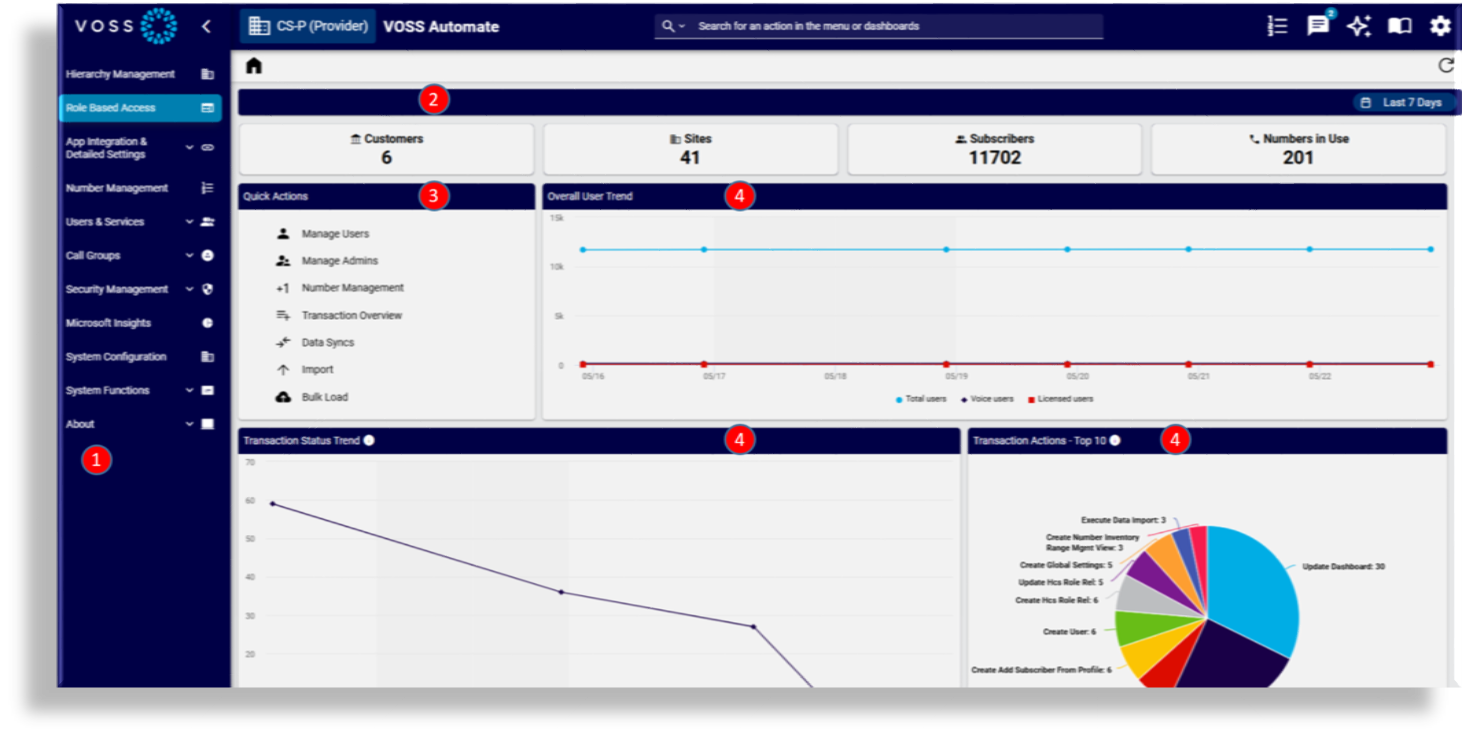
The Automate - Admin role’s Home dashboard is Automate - Admin Home, which displays a selection of counters, quick actions, and charts curated for the role.
Menu layout
Counters
Quick Actions
Charts
Automate - Admin GUI layout#
By default, the Automate - Admin role is assigned a theme, a Home dashboard, a menu layout, and an access profile, and is available for a selection of hierarchies:
Theme: default
Home dashboard: Automate Admin Home
Menu layout: Automate - Admin
Access profile: Automate - Admin
Hierarchies: Provider, Reseller, Customer, Hcs, Intermediate
Automate - Service Desk role#
The Automate - Service Desk role is an experience tailored for users performing typical, day to day system operations, including set up and configuration, and requiring access to data for troubleshooting and other operational tasks. This role is suitable for help desk/service desk users, delegated administrators in Provider environments, or business sub-units in enterprises.
Automate - Service Desk: Home dashboard#
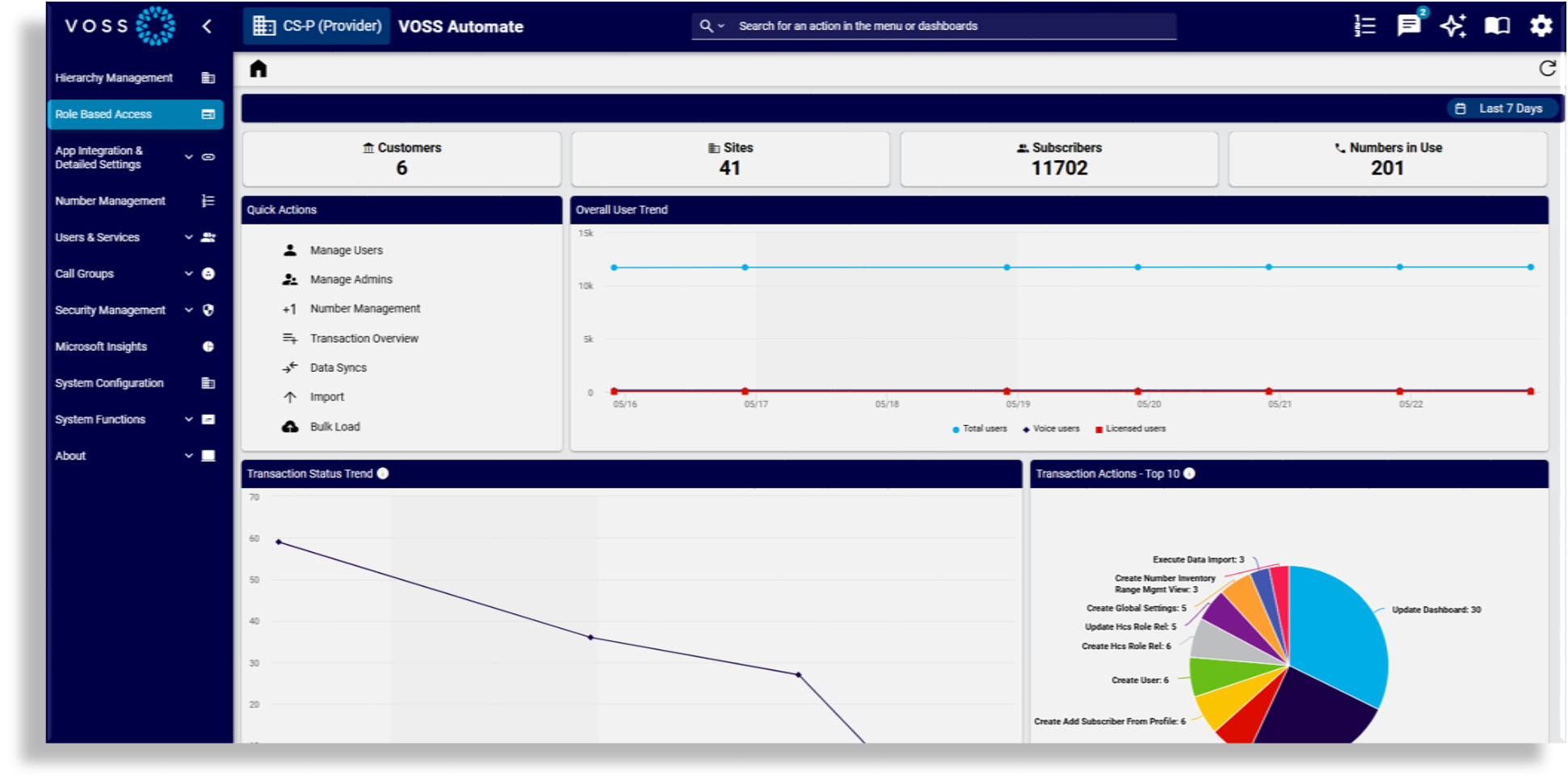
The Automate - Service Desk role’s Home dashboard is Automate - Admin Home, which displays a selection of counters, quick actions, and charts curated for the role.
Menu layout
Counters
Quick Actions
Charts
Automate - Service Desk GUI layout#
By default, the Automate - Service Desk role is assigned a theme, a Home dashboard, a menu layout, and an access profile, and is available for a selection of hierarchies:
Theme: default
Home dashboard: Automate - Admin Home
Menu layout: Automate - Service Desk
Access profile: Automate - Service Desk
Hierarchies: Provider, Reseller, Customer, Hcs, Intermediate, Site
Automate - Analyst role#
The Automate - Analyst role is an experience intended for users who need system visibility without making changes. It enables access to data for consuming dashboards, for performing searches, and for completing other analytical tasks, and is designed for stakeholders that need visibility of key metrics and information while offering more dynamic insights than traditionally static reports.
Automate - Analyst: Home dashboard#
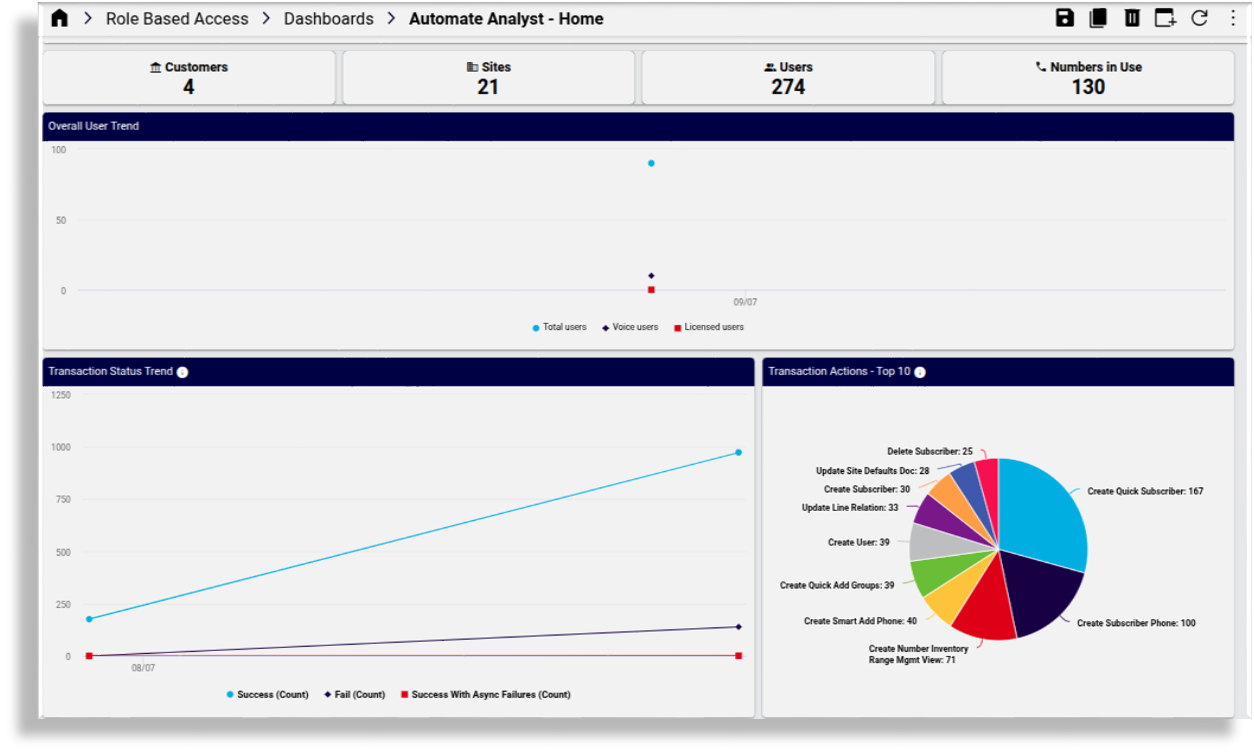
The Automate - Analyst role’s Home dashboard is Automate - Analyst Home, which displays a selection of counters, quick actions, and charts curated for the role.
Menu layout
Counters
Charts
Automate - Analyst GUI layout#
The default GUI layout for the Automate - Analyst role is assigned the following:
Theme: default
Home dashboard: Automate Analyst - Home
Menu layout: Automate - Analyst
Access profile: Automate - Analyst
Hierarchies: Provider, Reseller, Customer, Intermediate, Site
Microsoft-only roles#
Microsoft-only roles ship with Automate, and while they’re based on Automate’s default, experience-based roles (including the Automate - License Manager role) these roles aren’t enabled or assigned by default and are intended only as working examples for Microsoft-only deployments:
You can use Automate’s customization tools to further refine these dashboards so that they are optimized for use cases in your organization:
Automate - Admin - Microsoft Only#
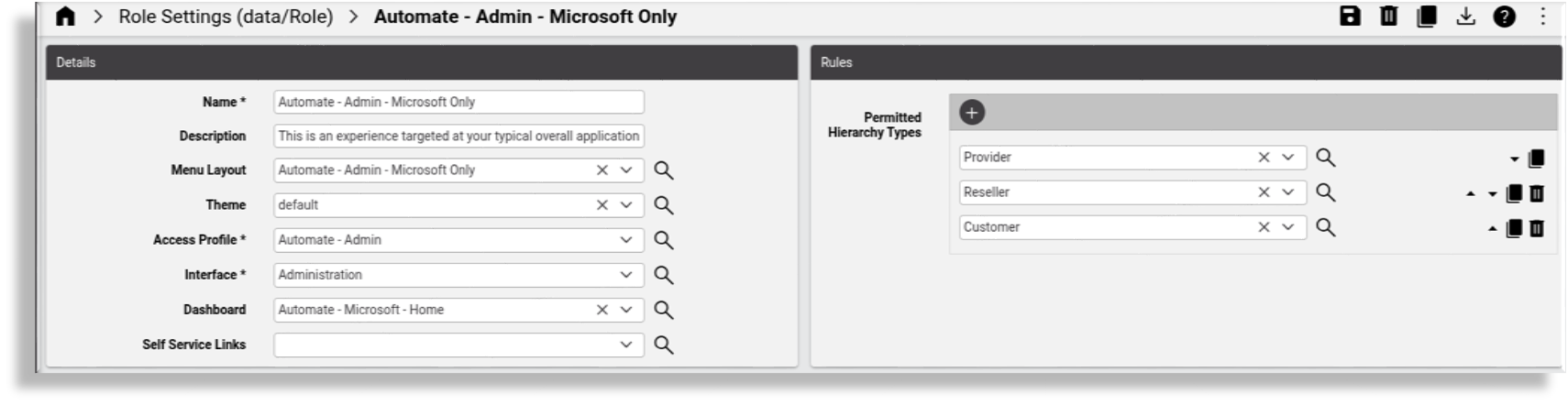
The Automate - Admin - Microsoft Only role ships with menus and dashboards customized for a Microsoft-only environment:
Menu layout: Automate - Admin - Microsoft Only
Theme: default
Access profile: Automate - Admin
Home dashboard: Automate - Microsoft - Home
Permitted hierarchy types: Provider, reseller, customer
Role settings: Automate - Admin - Microsoft Only
The image displays the settings for the Automate - Admin - Microsoft Only role:
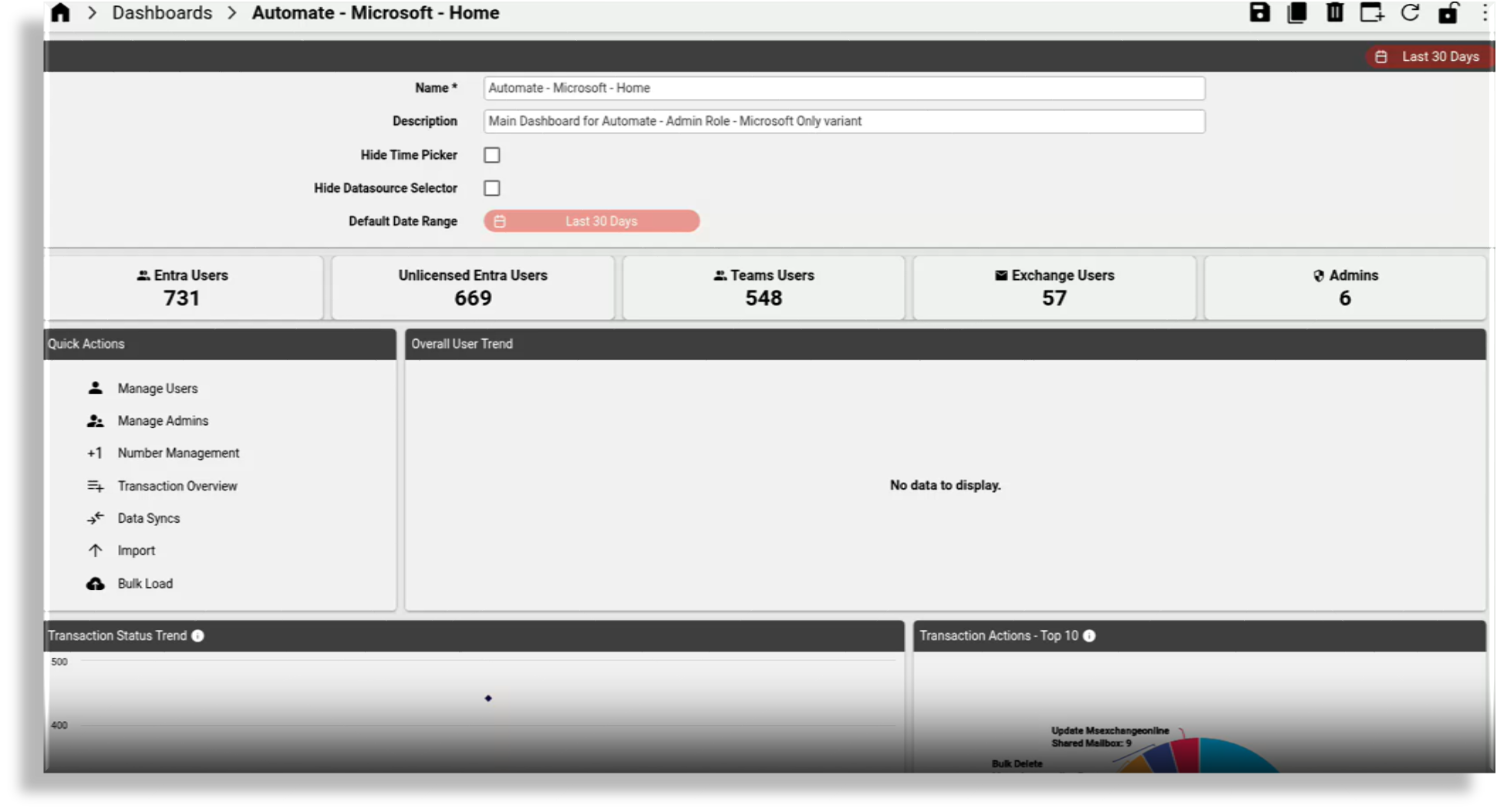
Home dashboard: Automate - Admin - Microsoft Only
The image displays the Home dashboard for the Automate - Microsoft Only role:
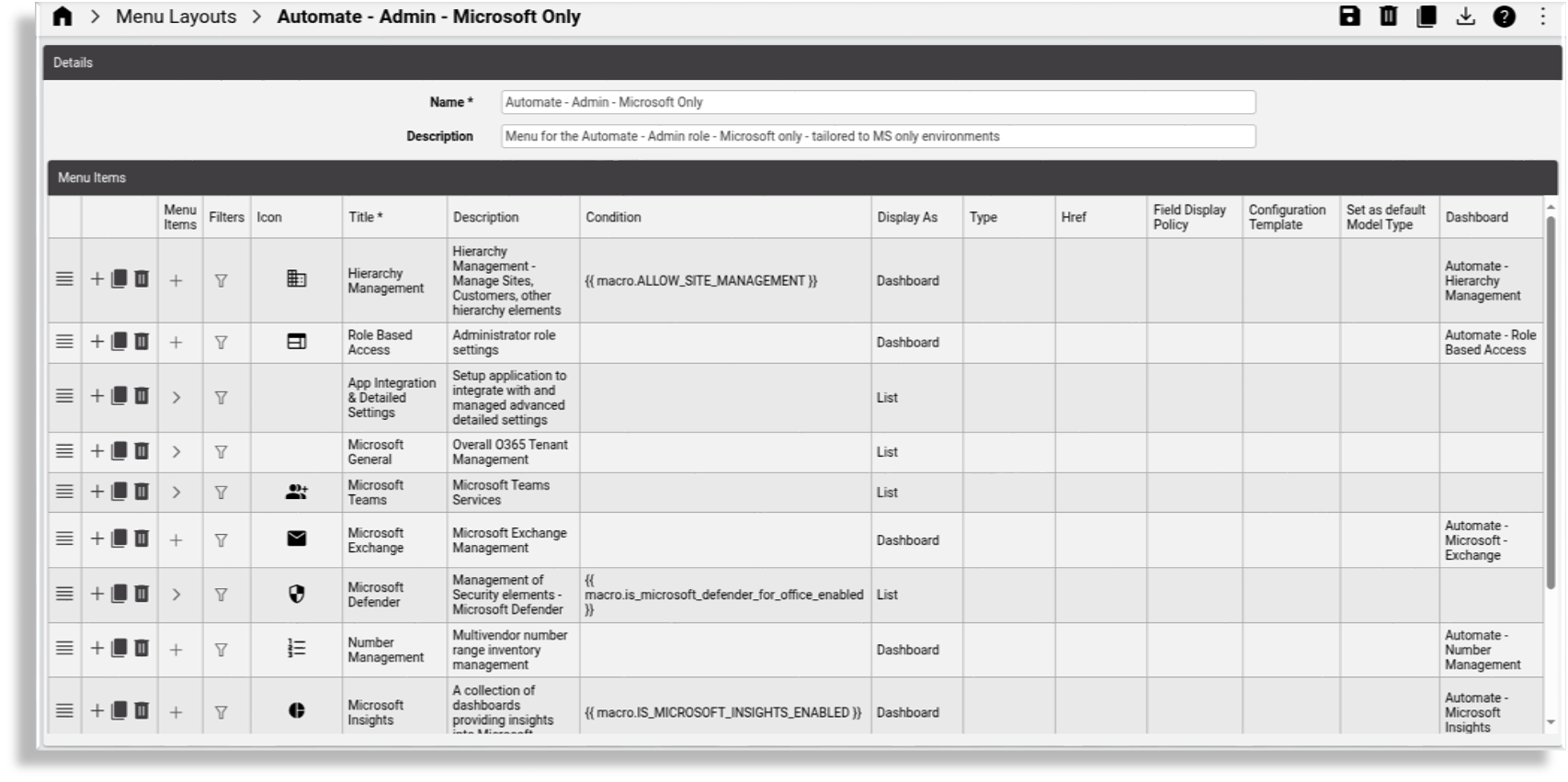
Menu layout: Automate - Admin - Microsoft Only
The image displays the menu layout settings for the Automate - Admin - Microsoft Only role. To view details for the menu layout, see:
Dashboards: Automate - Admin - Microsoft Only
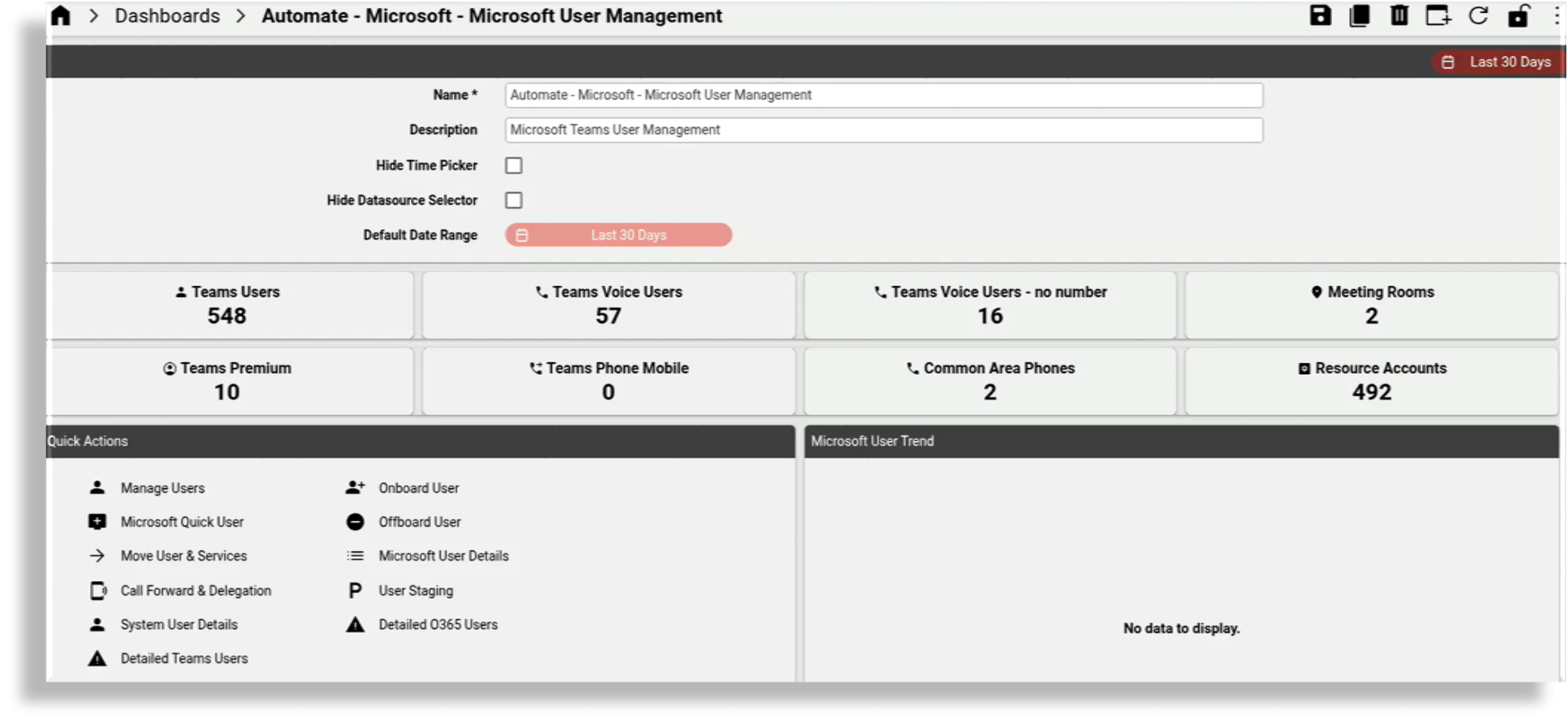
This section provides some examples of the dashboards that ship with the Automate - Admin - Microsoft Only role.
The image displays the Microsoft-only Microsoft User Management dashboard that ships with Automate:
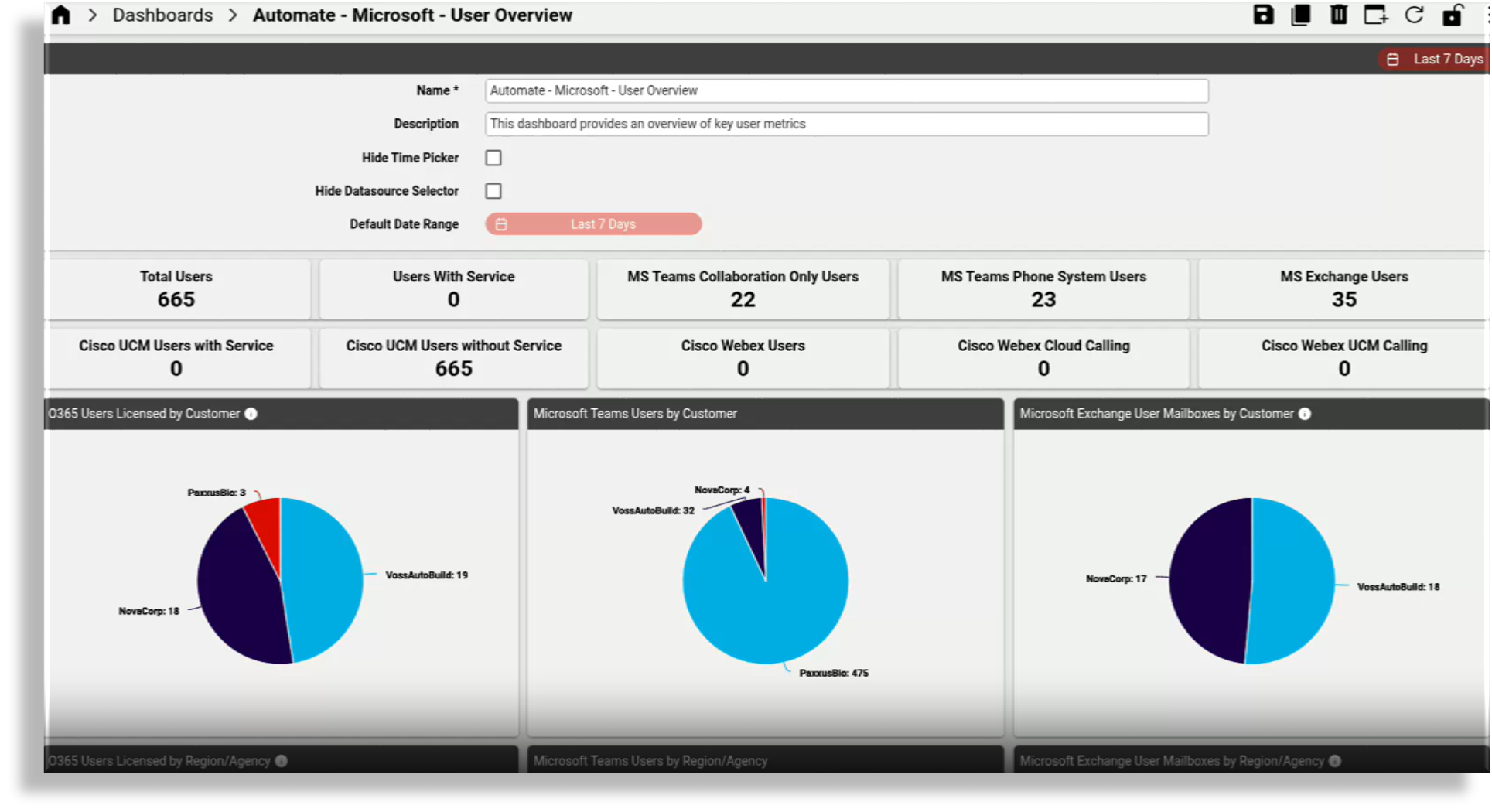
The image displays the Microsoft-only Microsoft User Overview dashboard that ships with Automate:
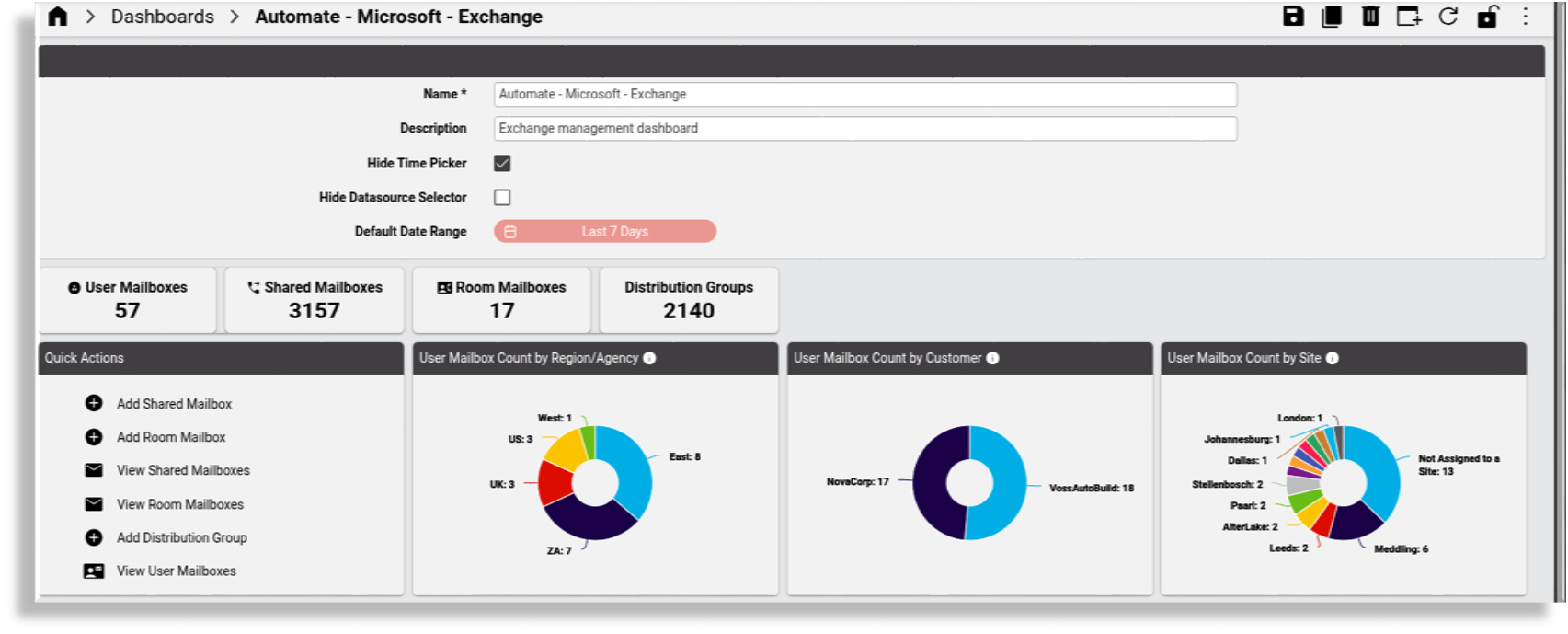
The image displays the Microsoft-only Microsoft Exchange dashboard that ships with Automate:
Automate - Service Desk - Microsoft Only#
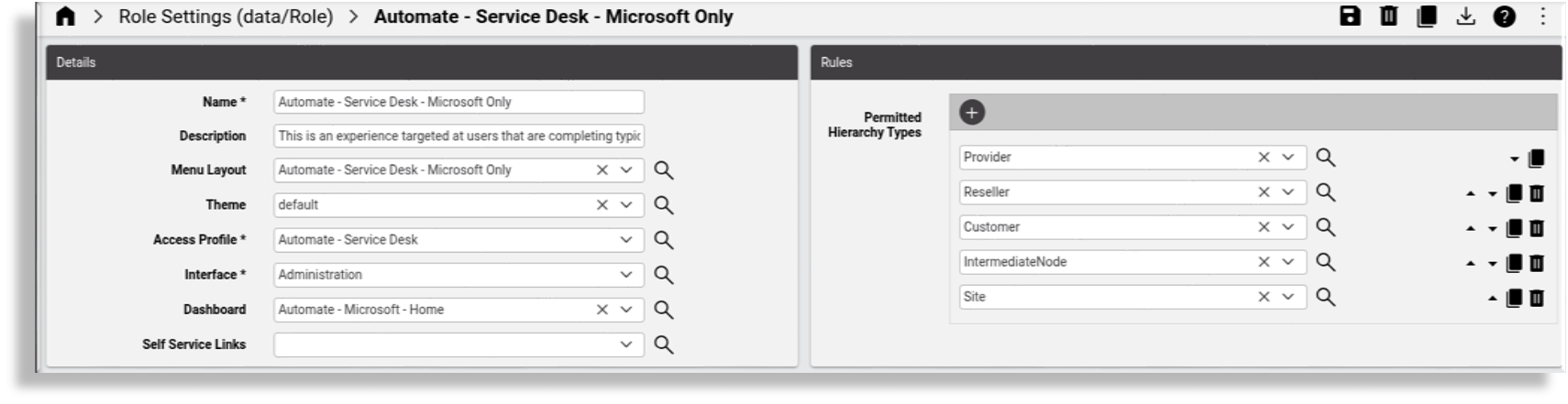
The Automate - Service Desk - Microsoft Only role ships with menus and dashboards customized for a Microsoft-only environment:
Menu layout: Automate - Service Desk - Microsoft Only
Theme: default
Access profile: Automate - Service Desk
Home dashboard: Automate - Microsoft - Home
Permitted hierarchy types: Provider, reseller, customer, intermediate node, site
Role settings: Automate - Service Desk - Microsoft Only
The image displays the settings for the Automate - Service Desk - Microsoft Only role:
Menu layout: Automate - Service Desk - Microsoft Only
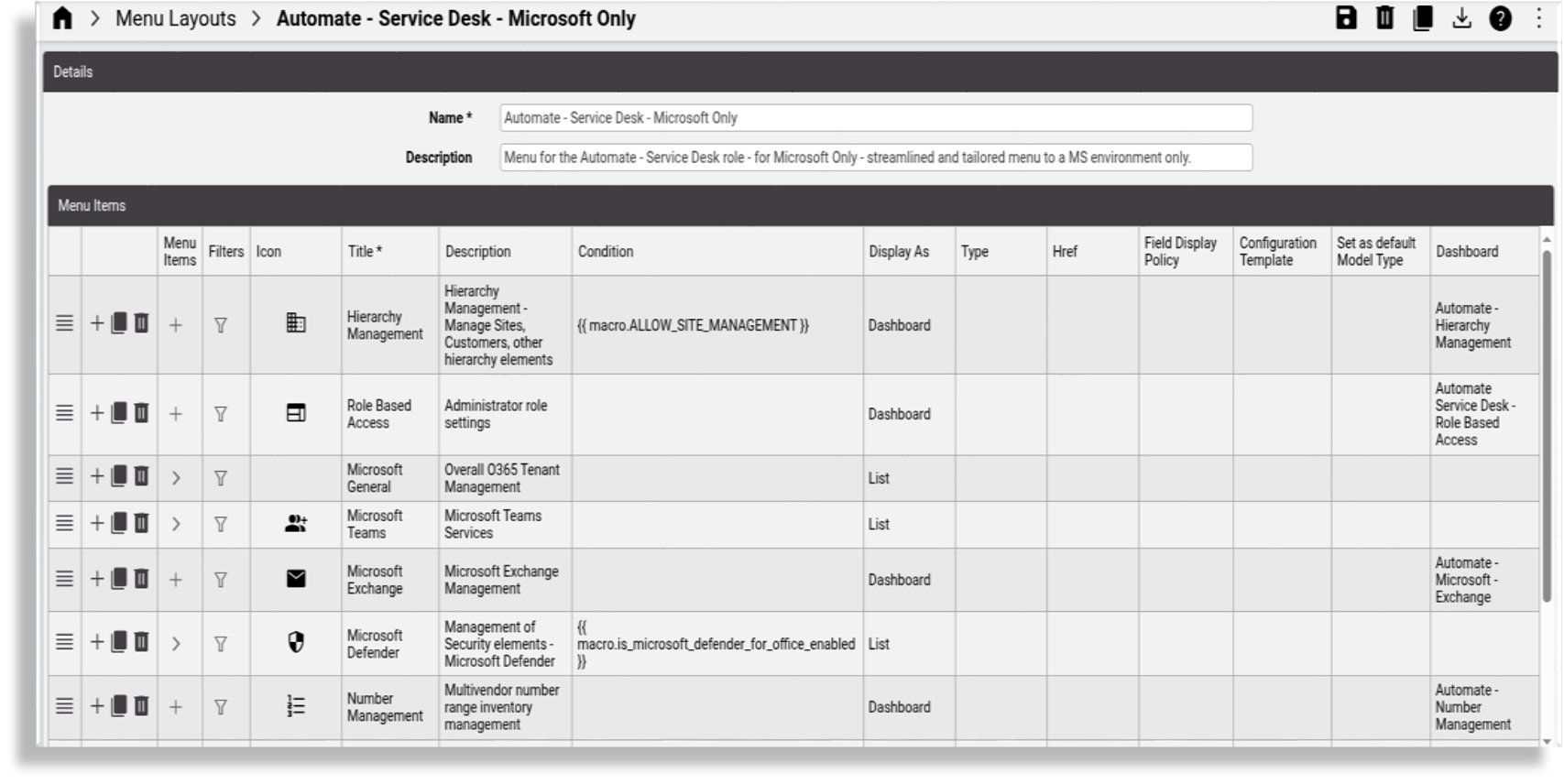
The image displays the menu layout settings for the Automate - Service Desk - Microsoft Only role. To view details for this menu layout, see:
Automate - License Manager#
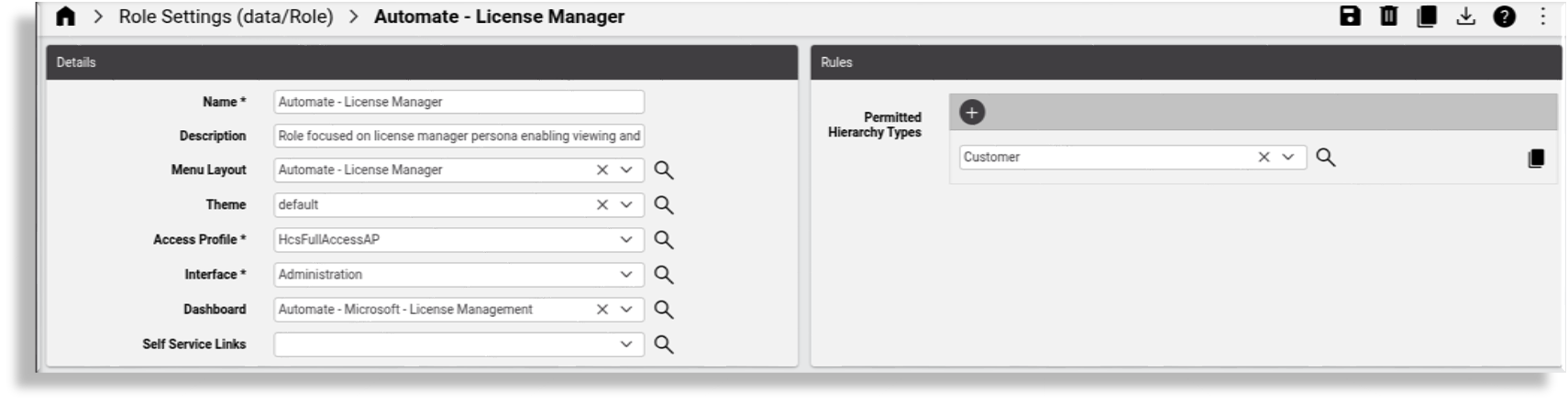
The Automate - License Manager role ships with menus and dashboards focusing on managing licenses and allocations for a license manager persona in a Microsoft-only environment:
Menu layout: Automate - License Manager
Theme: default
Access profile: HcsFullAccessAP
Home dashboard: Automate - Microsoft - License Management
Permitted hierarchy types: Customer
Role settings: Automate - License Manager
The image displays the settings for the Automate - License Manager role:
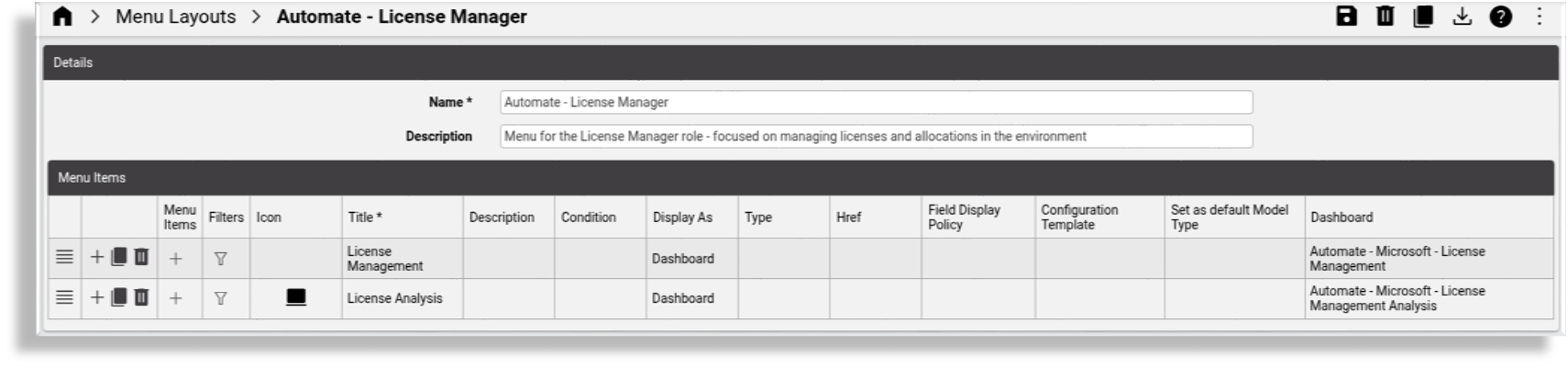
Menu layout: Automate - License Manager
The image displays the menu layout settings for the Automate - License Manager role.
Dashboards: Automate - License Manager
The Automate - License Manager role ships with a menu with two pre-defined dashboards:
Automate - License Manager: A menu providing access to two dashboards for managing licenses and license allocation in the environment:
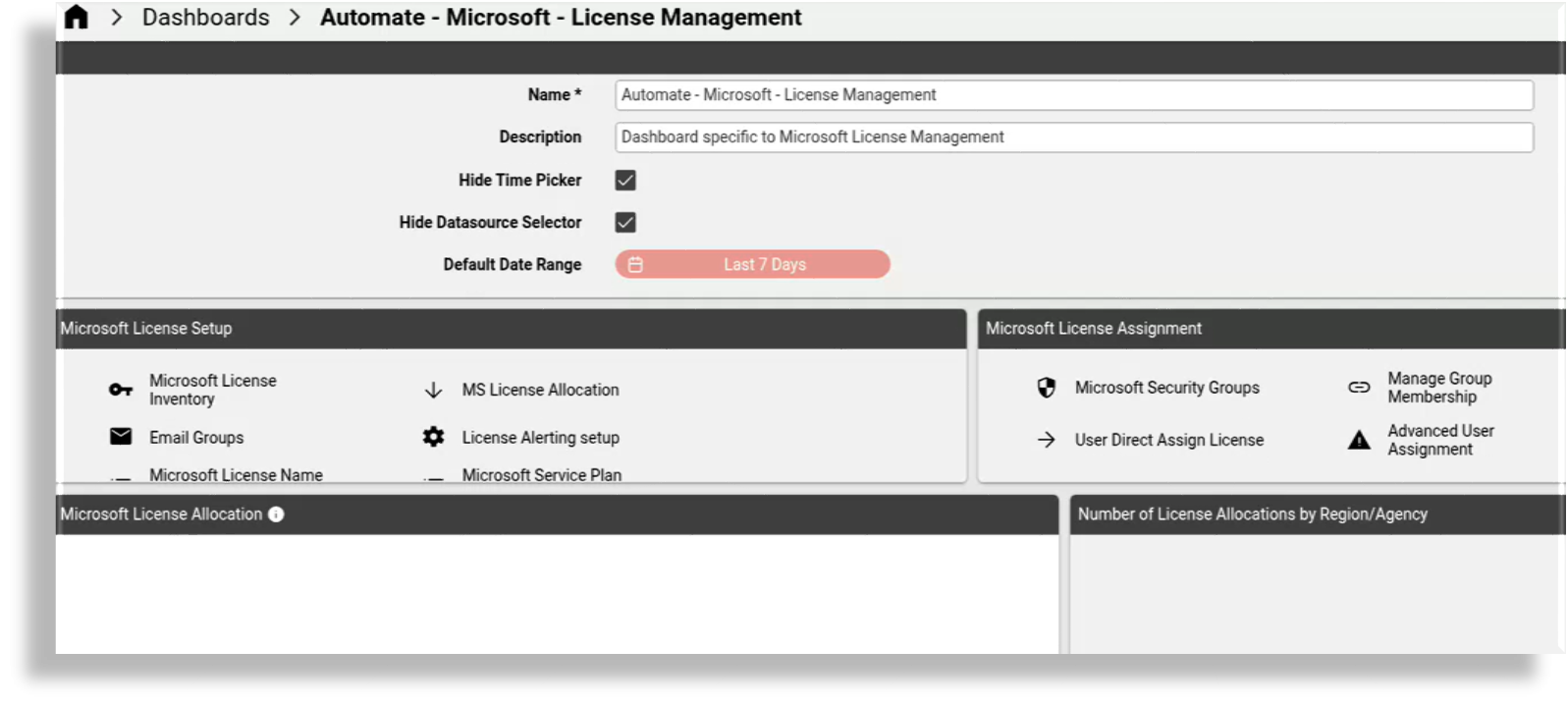
License Management - a dashboard for managing licenses
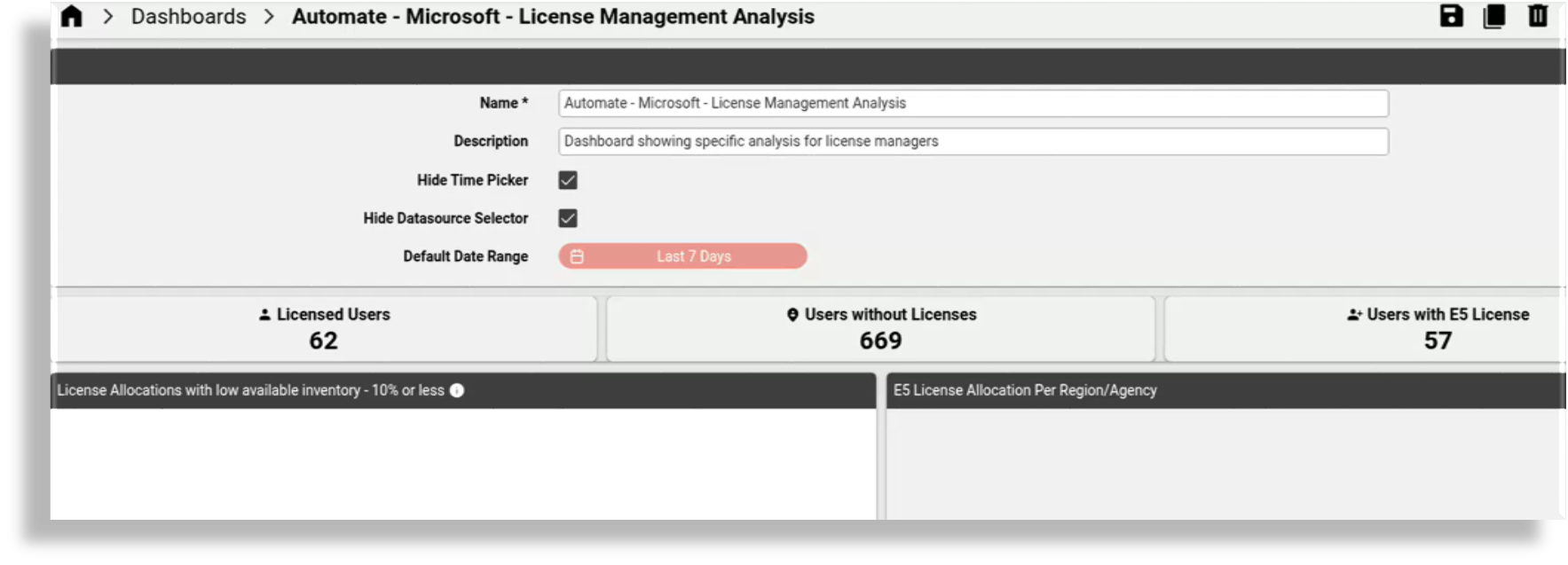
License Analysis - a dashboard for analyzing licenses in your environment
The image displays the Microsoft-only License Management dashboard that ships with Automate:
The image displays the Microsoft-only License Analysis dashboard that ships with Automate:
Automate - License Manager menus and dashboards
The Automate - License Manager experience comprises a Home dashboard, menus, and a collection of experience-based, role-focused dashboards. To view details for this menu layout, see:
Automate - Self Service role#
The Automate - Self Service role provides an experience targeted at general end users that make use of the Self-service interface.
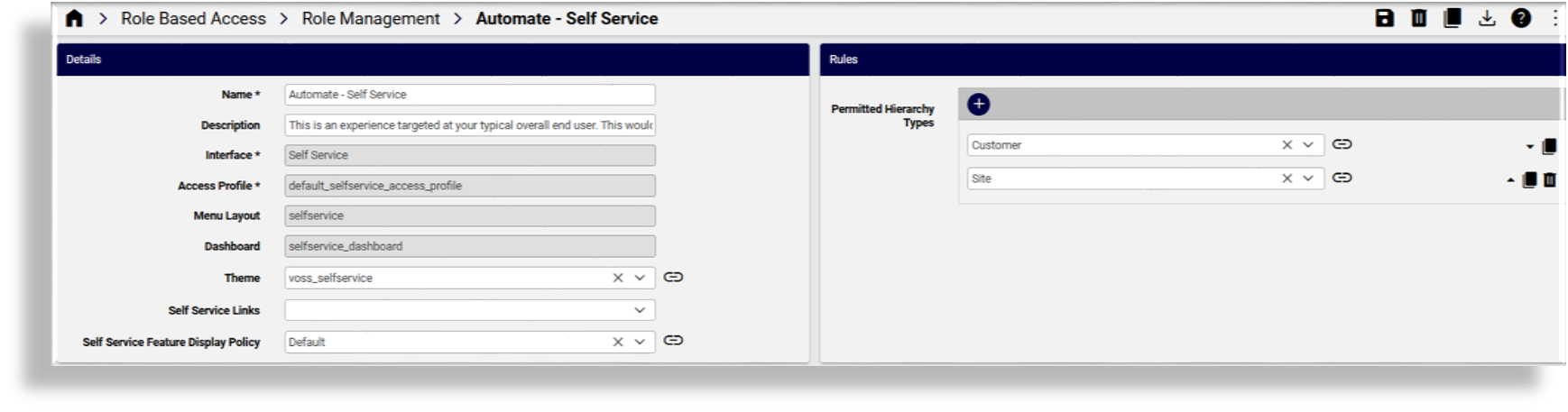
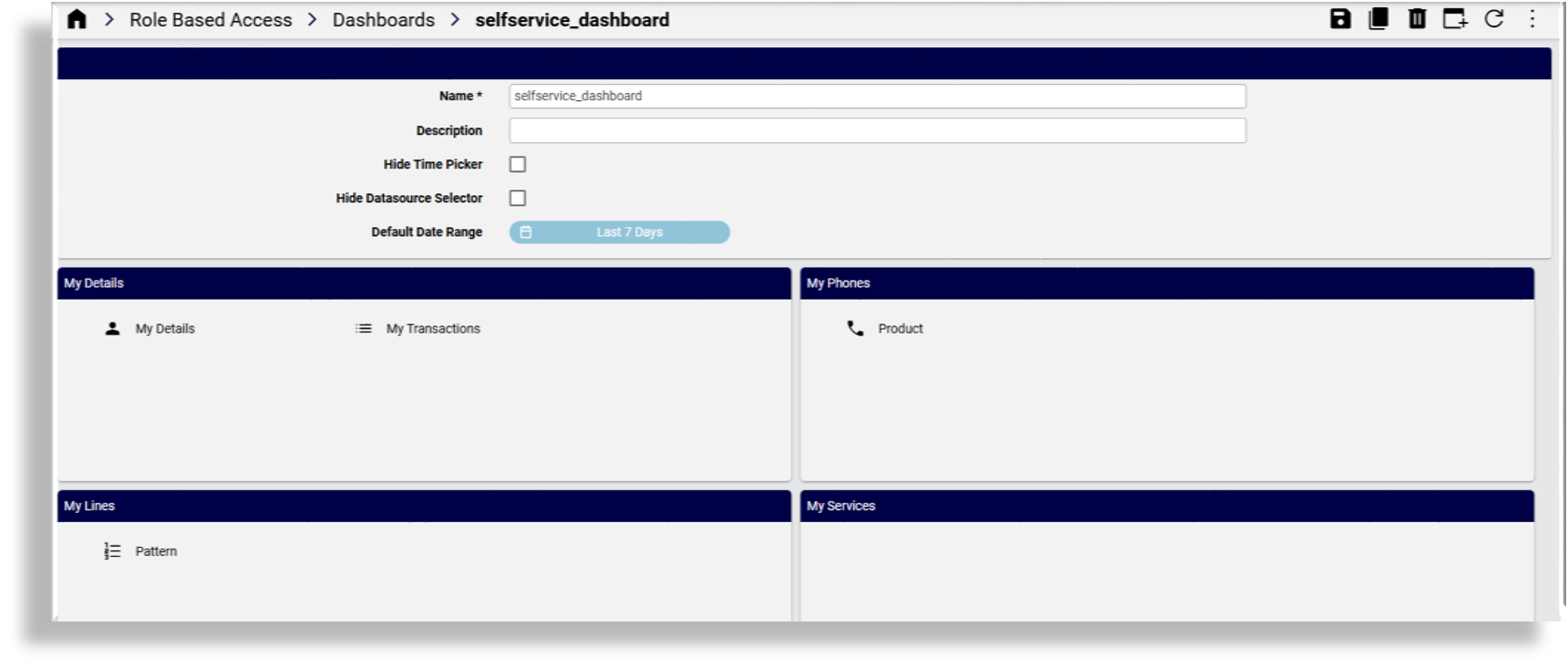
Home dashboard: selfservice_dashboard
Access profile: default_selfservice_access_profile
Theme: voss_selfservice
Interface: Self Service
Hierarchies: Customer, Site
Note
When setting the Interface on any role to Self Service, the following fields become read-only and are populated with the default values for a Self Service role. These fields are also read-only when editing an existing Self Service role:
Interface
Access Profile
Menu Layout
dashboard
Insights - Admin role#
The Insights - Admin role provides an experience targeted at a typical, overall Insights application administrator. This role has wide access to the application setup and settings as well as a full range of actions in the system. These are typically advanced admins in the system but also provides a good guide and example of overall functionality in the system for other user types.
Insights - Admin: Home dashboard#
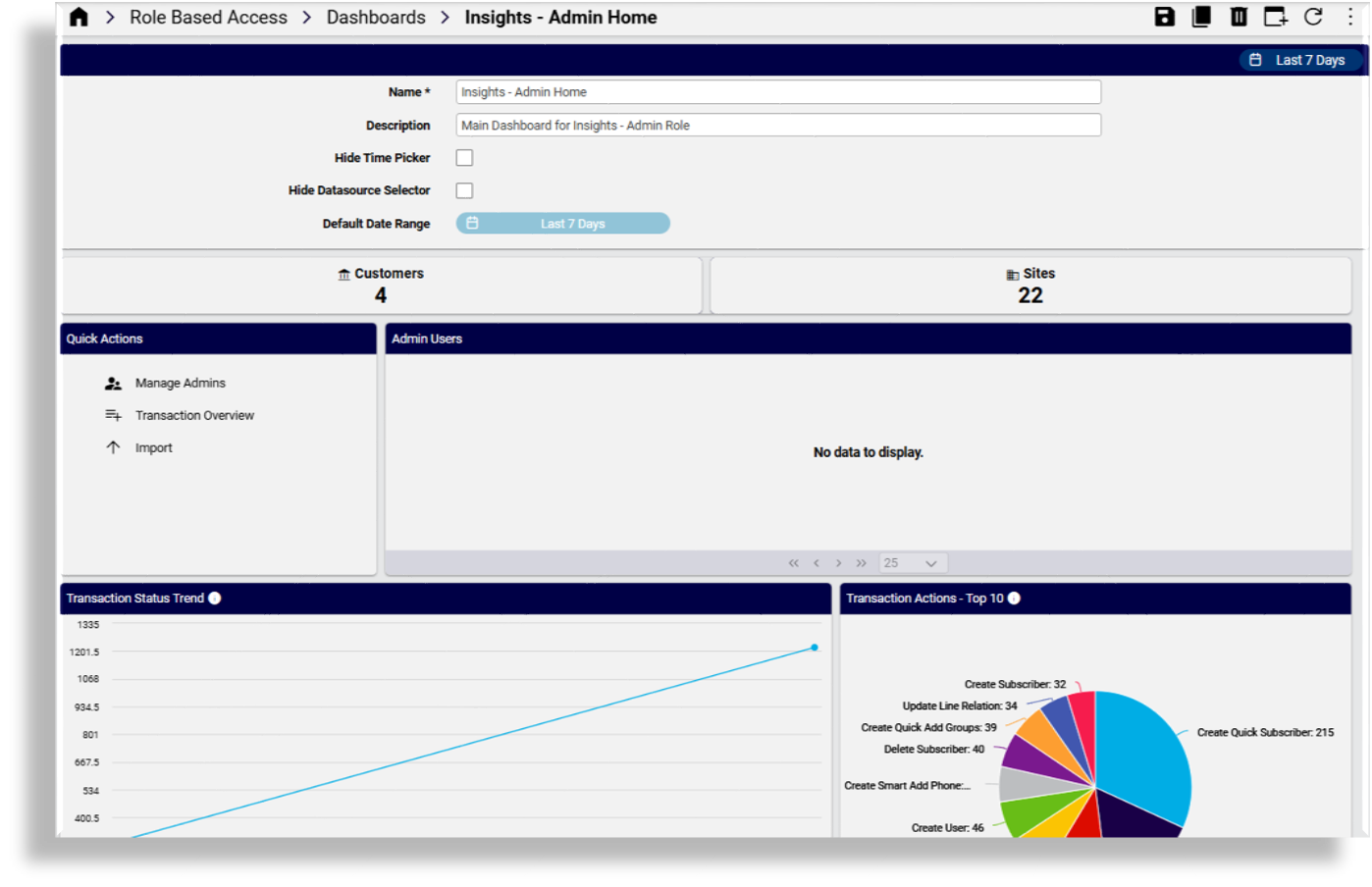
The Insights - Admin role’s Home dashboard is Insights - Admin Home, which displays a selection of counters, quick actions, and charts curated for the role.
Insights - Admin: GUI layout#
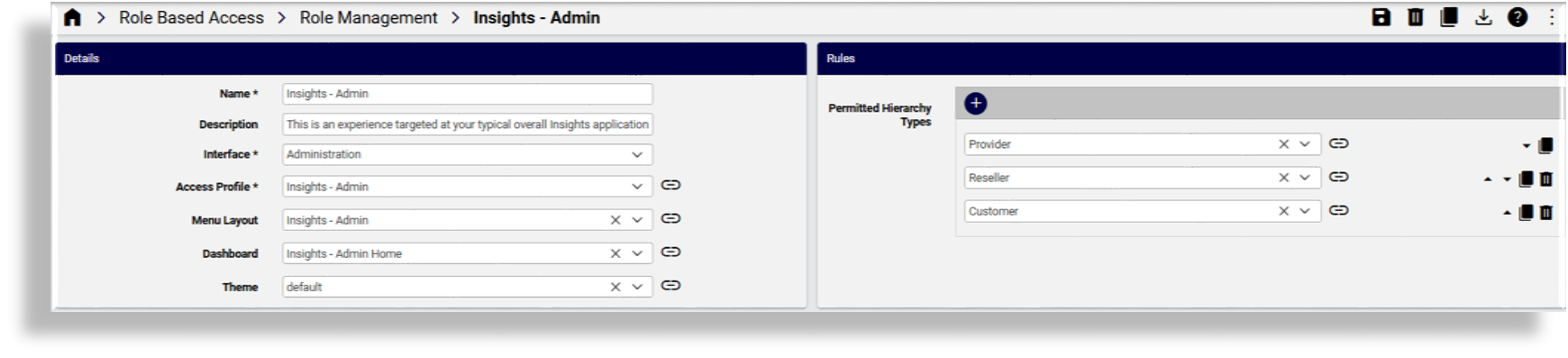
By default, the Insights - Admin role is assigned a theme, a Home dashboard, a menu layout, and an access profile, and is available for a selection of hierarchies:
Home dashboard: Insights - Admin Home
Access profile: Insights - Admin
Theme: default
Interface: Administration
Hierarchies: Provider, Reseller, Customer
The image shows the Insights - Admin role settings: