
Alerts#
Overview#
Alerts in Automate are messages that are triggered by back-end processes when certain conditions are met. While alerts typically indicate that the system is in an error state, the conditions that trigger alerts can be related to system performance, task completion, or any metrics that are important to the functioning of the system.
Note
You’ll only be able to view alerts if your access profile permissions allow it (read permissions on
data/Alert).
Alert notifications display via the Messages icon, and all active alerts are listed on the Alerts page. You can click the icon to open the list, or use the Search bar to locate the Alerts page in your system.
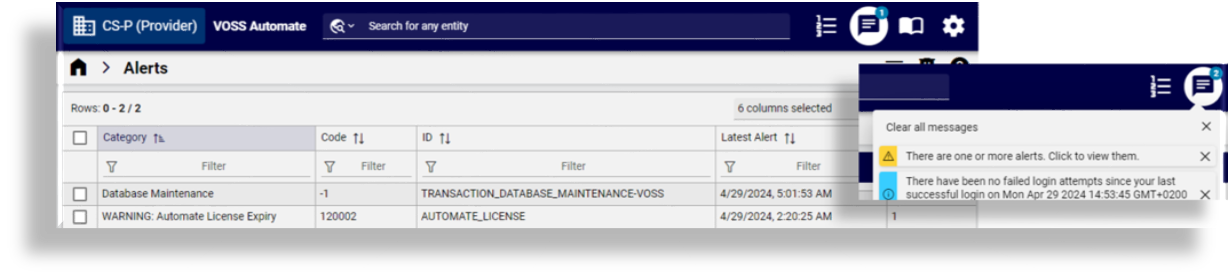
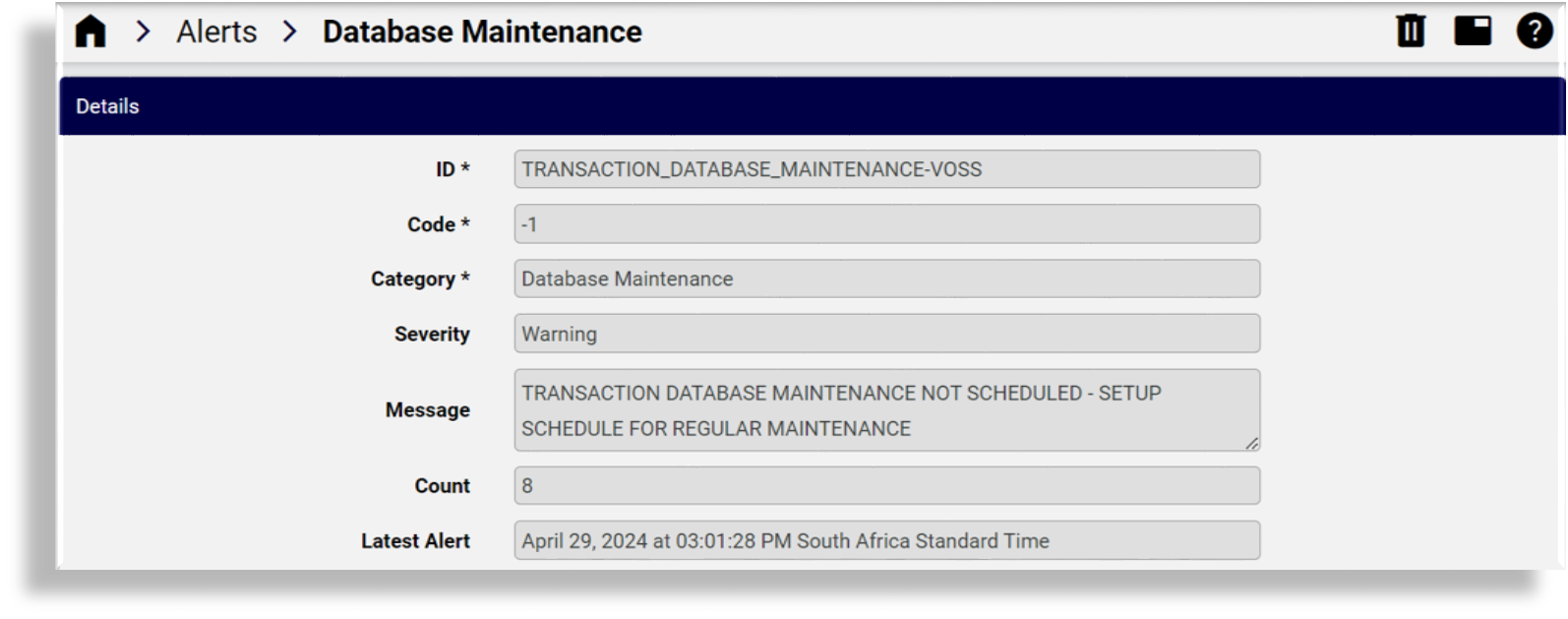
You can click on an alert in the list on the Alerts page for more information about the alert.
Alerts can be customized for the needs of the organization to ensure that relevant parties are notified promptly when specific events occur.
Alerts are enabled by default for the following functionality:
Database maintenance
Licensing
Change notifications
Number inventory availability
Provider admins can view all alerts, including alerts related to the database or licensing. Once any user clicks on an alert link via the Messages icon, the flag no longer displays in the notifications lists of other users. The alert will appear in the list until its deleted.
Related topics
View alerts#
This procedure displays the alerts page list, and allows you to inspect the details of a selected alert.
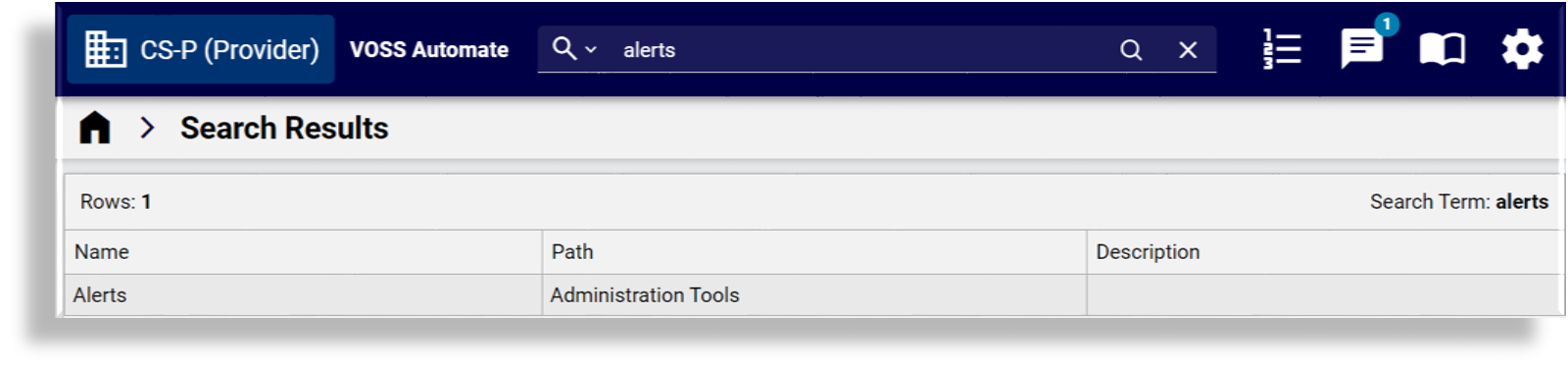
To open the Alerts page, click the toolbar Messages icon, or locate the page via the Search bar.
On the Alerts page, review currently active alerts.
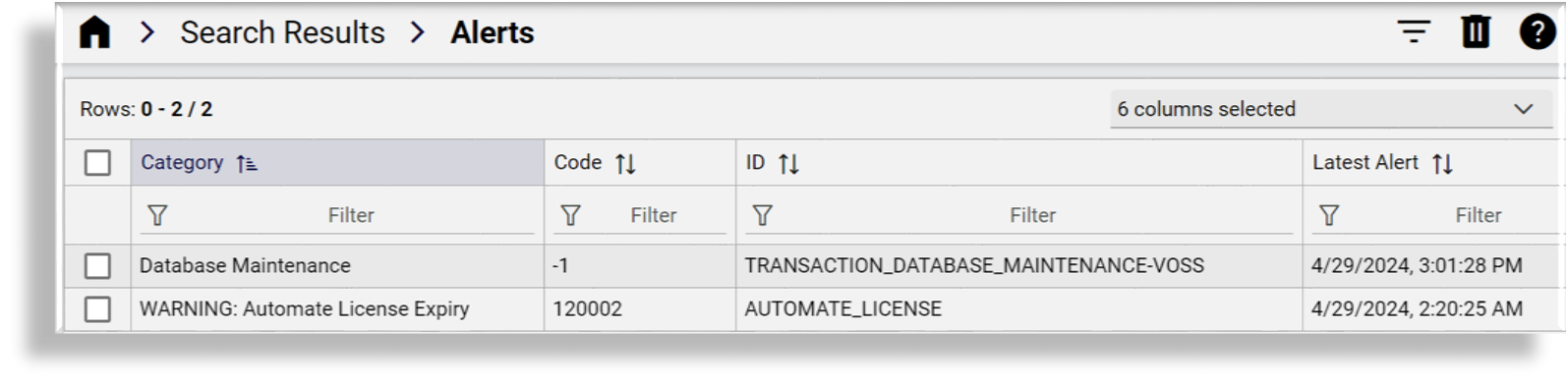
The table describes the columns on the Alerts page summary list view:
Column
Description
Category
The alert category - either Database Maintenance, Licensing, Change Notification, or Number Inventory
Code
The error or warning code associated with the alert.
ID
The unique identifier, referencing the source of the alert.
Latest Alert
A timestamp for the last time this alert occurred.
Count
The number of times the same alert has occurred for a specific device. Alerts with the same ID and code updates the count of this alert as well as the last time that the alert occurred. This means that a single alert is shown on the list for each alert with the same ID and code.
Click on an alert that you want to inspect to open its Details page.
View the alert severity level (either Error, Warning, or Info), and in the Message field, view information around how to resolve the alert, for example, to renew a license, or to schedule database maintenance.
Once you’ve resolved the issue that raised the alert, you can delete the alert from the Alerts list.
Alert types#
For alert codes also see:
Error Messages and SNMP Traps in the Platform Guide.Database maintenance alerts#
If database maintenance schedules have not been set up from the Command Line Interface (CLI), alerts are shown at the provider level hierarchy for each required schedule.
The schedules are required to periodically:
Archive or delete database transaction logs (CLI: voss transaction archive or voss transaction delete)
Refer to the Platform Guide topic “Enable Database Scheduling ” for details.
The format of the alert is:
ID: A generated identifier:
TRANSACTION_DATABASE-<hostname>
Note
The
<hostname>will be a primary unified node. These are where alerts are generated.Code: An error or warning code associated with the alert. (
-1)Alert category:
Database MaintenanceSeverity:
WarningMessage:
TRANSACTION DATABASE MAINTENANCE NOT SCHEDULED
Count: Displays the number of times the alert has occurred.
Latest Alert: Displays the last time this alert occurred.
Alert Code |
Alert ID |
Alert Category |
|---|---|---|
-1 |
TRANSACTION_DATABASE-<hostname> |
Database Maintenance |
-1 |
CACHE_DATABASE-<hostname> |
Database Maintenance |
Licensing alerts#
Alert Code |
Alert ID |
Alert Category |
|---|---|---|
36200 |
Hierarchy Resolution Failure |
Licensing |
36100 |
License Audit File Transfer or data/SmtpDestination, data/HttpDestination, etc. |
License Audit File Transfer |
Change Notification (CNF) alerts#
Alert Code |
Alert ID |
Alert Category |
|---|---|---|
calling exception code: 40000-40006, 40008 |
device pkid OR business key |
Device Change Notification Collector <model type> |
Number inventory alerts#
If alerts have been enabled on available number inventory numbers in global settings, alerts are raised when the availability threshold is exceeded. See: Global settings.
Alert Code |
Alert ID |
Alert Category |
|---|---|---|
110000 |
Number Inventory Threshold of {{ pwf.INI_ALERT_THRESHOLD }}% Exceeded … |
Number Inventory |
In the GUI, the alert Message field also provides details on the INI threshold, availability, hierarchy, count and a CSV list of nodes and numbers, as shown in the alert message template below. (Long message strings are truncated). For details on macro references, refer to Email HTML templates:
{{ pwf.INI_ALERT_HIERARCHY_NODE_TYPE }} [{{ pwf.INI_ALERT_HIERARCHY_NAME }}].
Hierarchy full path = {{ pwf.INI_ALERT_HIERARCHY }}
Total INI Available = {{ pwf.INI_ALERT_TOTAL_INI_AVAILABLE }}
Total INI count = {{ pwf.INI_ALERT_TOTAL_INI_COUNT }}
Total percent available = {{ fn.as_string pwf.INI_ALERT_TOTAL_PERCENT_AVAILABLE }}%

{{ pwf.INI_ALERT_NODES_EXCEEDED_THRESHOLD_DATA_ALERT }}
Important
If alerts have been enabled, a schedule called “InternalNumberInventoryAlert” is also created that is by default set to run daily if the availability threshold in the global settings is exceeded. For schedule management, see Schedules.
Cisco UCM Change Notification (CNF) alerts#
Overview#
The Cisco UCM Change Notification Feature (CNF) is enabled to display alerts.
CNF alerts don’t need to be manually configured in Automate. Admin users receive alerts when the collector process is in an error state.
Admins can view and delete alerts at the hierarchy they’re logged in at and at lower hierarchies. For example, Provider, Reseller, and Customer administrators can view alerts raised at the Customer level (sys.hcs.provider.reseller.customer), but a Site admin cannot view such alerts.
When a CNF alert is raised, you’re notified of the alert via the toolbar Messages icon in the Admin Portal. Click the Messages or Notifications toolbar button to view the alerts, or go to Alerts.
CNF alert properties#
Change notification (CNF) alerts have the following properties:
Property |
Description |
|---|---|
ID |
A generated unique identifier of the target device of the collector. For CUCM, the ID displays the host name, port, and hierarchy. |
Code |
An error or warning code associated with the alert. |
Category |
The alert category - Device Change Notification Collector |
Severity |
Automate displays severity codes and messages as follows (“{}” indicate device or number placeholders in the messages). Each alert has some properties, for example, severity (Error, Warning or Info), the number of times that the same alert has been raised, and the time stamp of the last alert instance. |
Message |
Displays error message description and the statement to fix the error. |
Count |
Displays the number of times the alert has occurred for a specific device. |
Latest Alert |
The last time this alert occurred. |
Note
Administrators can filter alerts by any of the alert fields.
CNF error scenarios#
Automate displays CNF alerts for the following error scenarios:
Warning:
45000: Unprocessed changes at 75% of limit for device {}. Please configure and run the necessary data syncs.
Error:
40000: Device change notifications are not supported for device {}.
40001: Device change notification data for device {} has been lost. Tracking data has been repaired and collector process will continue. Some changes may have been lost, please run a full sync on the device.
40002: Device change notification tracking data for device {} has become corrupted. Tracking data has been repaired and collector process will continue. Some changes may have been lost, please run a full sync on the device.
40003: Device change notification tracking DB write for device {} failed. The collector process will continue to attempt DB writes. Please investigate the database write failure.
40004: Device change notification data DB write for device {} failed. The collector process will continue to attempt DB writes. Please investigate the database write failure.
40005: Unable to repair device change notification tracking data for device {}.
40006: Too many unprocessed changes recorded for device {}. No new changes will be recorded until at least {} changes are processed. Please configure and run the necessary data syncs.
40008: Could not update pending changes data for device {}. {}.
The administrator reads, inspects, acts on (for example, run a full sync on the device), and then manages alerts of the CNF collection service. The administrator can delete the alert from the list only when the issue that raised the alert has been resolved.
Note
If the Administrators forget to remove the CNF alert after resolving it, the alert will still be shown when they log in to Automate. We strongly recommend removing the alert after resolving it.
Alerts field reference#
The field Title is indicated in bold. An asterisk * indicates the field is mandatory.
If the field Type is an array, its the Field Name has a .[n] suffix, where n is the array index placeholder.
Object and array names are listed to provide the context of fields.
If a field belongs to an object or an array, the full name is in dot separated notation.
Where cardinality is shown, the range is [MinItems..MaxItems].
If a field has a Default value, the value is shown.
If a field has a Pattern, the regular expression pattern is shown.
ID * |
|
Field Name |
alert_id |
Description |
The unique ID of the alert |
Type |
String |
Code * |
|
Field Name |
alert_code |
Description |
The code of the alert |
Type |
String |
Category * |
|
Field Name |
alert_category |
Description |
The category of the alert |
Type |
String |
Severity |
|
Field Name |
alert_severity |
Description |
The severity of the alert |
Type |
String |
Choices |
[“Error”, “Warning”, “Info”] |
Message |
|
Field Name |
alert_message |
Description |
The message describing the alert |
Type |
String |
Count |
|
Field Name |
alert_count |
Description |
The number of times this alert has occurred |
Type |
Integer |
Latest Alert |
|
Field Name |
alert_timestamp |
Description |
The last time this alert occurred |
Type |
String |
Format |
date-time |