
Bulk load sheets#
Overview#
A bulk load template is a Microsoft Excel .xlsx format spreadsheet workbook that contains
a single sheet, and is used for bulk loading data into Automate.
A tabbed workbook may contain two or more template sheets (one sheet per model). When using a tabbed workbook, bulk load transactions are carried out from left to right, starting with the far left tab, and ending at the far right tab. For example, when adding a site under a customer in a bulk load, ensure you add the customer sheet to the left of the sheet containing details of the associated site, so that the customer detail is loaded before the site.
You can use any filename for the bulk load workbook, but since the same file can be loaded multiple times, it is recommended that you use unique names to differentiate bulk uploads.
Bulk load limitations#
Automate’s bulk load automation templates employ advanced features, such as configuration templates (CFTs), customizable field display policies (FDPs), and GUI rules.
For some resources, generated bulk load templates won’t produce the provisioning results that may be achieved when using the GUI to upload and configure data. This topic provides an overview of the bulk load limitations to consider for such scenarios.
Note
See the Bulk Load Reference Guide for more information around the specific resources where these limitations apply, the impact of the limitations, and for best practice advice for using generated loaders for various resources.
The list below describes the general bulk load limitations:
Certain fields link together different resources
These fields might be hidden in the GUI, or they may be read-only. In generated bulk load templates, these field are currently exposed as mandatory fields. The fields and the specific conventions that are used in the template to link the fields together are highlighted in notes specific to the resource. For example, the value for remote destination name should be specified as
RDP-<username>.Certain fields are derived from other system data
Notes specific to the resource highlights where to obtain possible values for such fields. Examples are key-value type fields of a phone’s vendor configuration settings.
Restricting data to a specific set of fields on a sheet for modification purposes may not always succeed. Instead, use all the data for a bulk loader where possible.
Exporting an instance as a bulk loader and changing the relevant columns is advisable for most complex cases.
Due to the workflows and logic included with relations when using a modify loader, the loader may not only include the field(s) that you wish to change.
For instance,
relation/MicrosoftSubscriberdoes work with this approach. If you need to create a modify loader on a relation, test your use case by using only the fields you want to change and validate that the resulting configuration is correct.If the use case is not supported, you can potentially modify the data or device model(s) that make up the relation instead. However, be aware that you are not changing a field that has dependencies on the workflow updating related entities (like assigned numbers and number inventory).
If you have any questions, please contact your local VOSS teams or VOSS support for assistance.
GUI rules defined in the user interface that aren’t replicated in the backend workflow must be considered in the loader to achieve the same provisioning results as the GUI.
Examples - GUI rules may:
Set a default value for a visible field (fixed value or derived from other data in the system). Include this column and corresponding value in the loader for this to be provisioned.
Set a value for a hidden field. Include the column and corresponding value in the loader for this to be provisioned. Note that this means that fields may be included in the loader that would not be visible in the user interface.
Make a field visible depending on some condition such as the value of another field (for example, a checkbox being selected). Include the column in the loader, and populate it under the appropriate conditions.
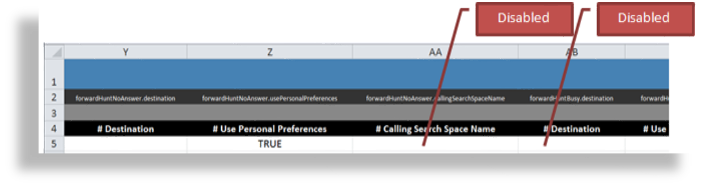
The image shows that a GUI rule may, for example, disable input fields based on the state of a checkbox. On the worksheet, the selected checkbox is represented as TRUE in the column. Columns associated with the disabled fields should not be filled.
Note
A set of sample bulk load sheets can be obtained from your VOSS account manager. These may assist with complexities around the use of the bulk load feature. These generated sheets allow users to get started quickly and to leverage recommended best practices for bulk loading.
Bulk loading files#
This procedure uploads two or more .xlsx worksheets in a bulk upload.
Prerequisites:
File formats must be
.xlsx.Ensure any referenced configuration templates are available.
Verify details in each file, and ensure they contain all required information.
Remove any comments from the worksheets, for example, comments showing as a marker in the cell with a pop-up.
To send empty values, in the relevant cell of the value column:
type
<NULL>in the cell
Note
Spreadsheet formulas in data are ignored, for example: '=7+2'
To bulk load files
In the Admin Portal, go to the Bulk Load page.
Set the hierarchy to the level where you want to add bulk data.
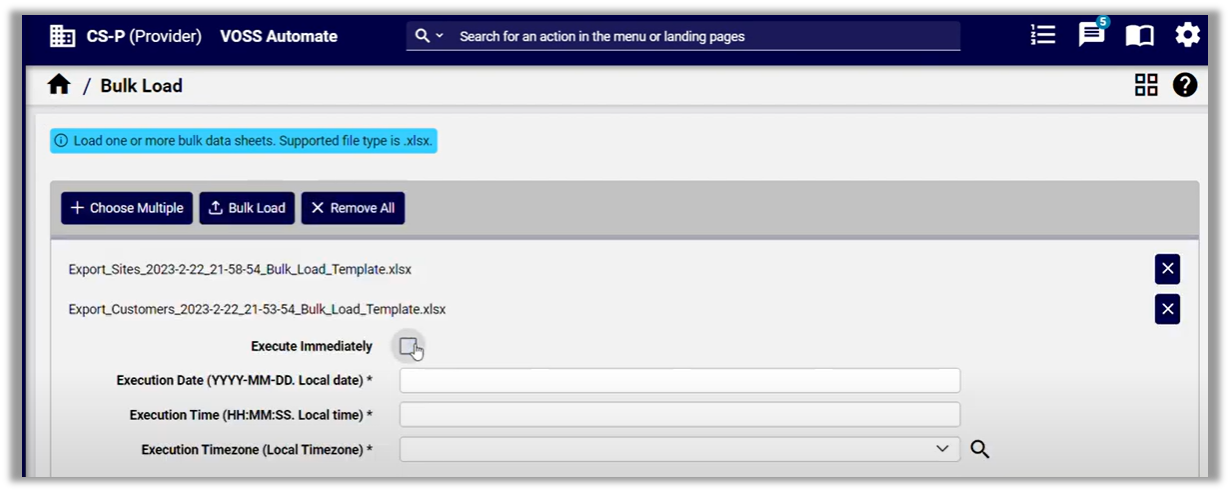
On the Bulk Load page, click Choose Multiple; then, browse to the files you wish to upload.
Choose an option:
To remove any files, click the X icon adjacent to the filename.
To remove all files, click Remove All, and if required, choose alternative files.
To execute the bulk load transaction immediately, select Execute Immediately, else, clear the checkbox and specify an execution date, time, and timezone.
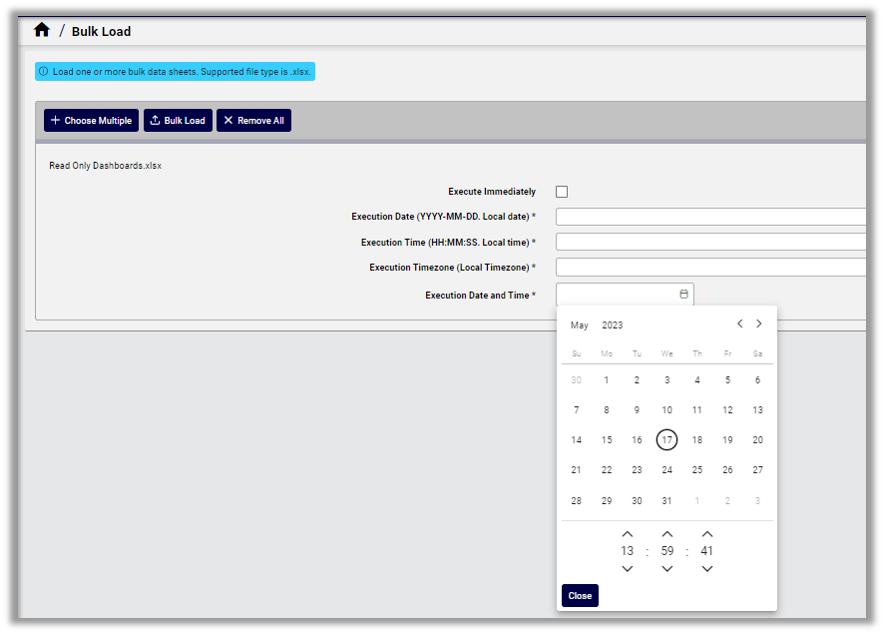
Click Bulk Load.
Wait for the transaction to complete, then view results.
Note
The Execute Bulk Load sub-transaction list will show the transaction for each row of the sheet.
If the transaction is scheduled for a future date, you’ll need to check on it at the scheduled execution date and time. Scheduled bulk loads display in the list view of the schedule, with the name and upload date of the sheet.
The Bulk Load button is temporarily disabled until the sheets that have been bulk loaded and are in progress have completed. To continue bulk loading while sheet loading is in progress, clear (remove) the current sheet or choose Remove All and select a new sheet to load.