
Use the Action search to navigate Automate#
Overview#
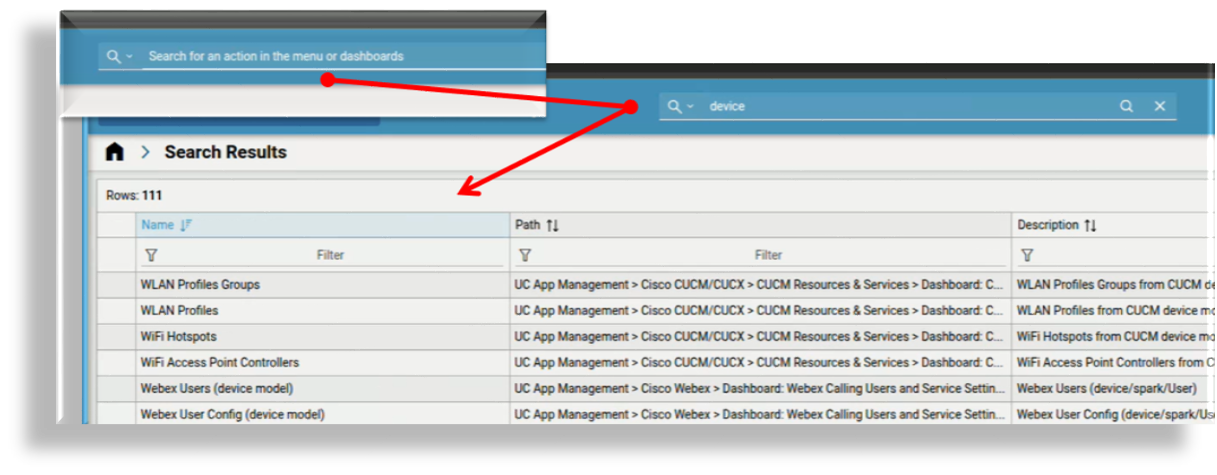
Automate’s toolbar Action search helps you to quickly find functionality, dashboards, and menu items in the Automate GUI. It’s the default search method and is especially useful when searching for functionality in a role-based dashboard layout.
Related topics
How to use Action search#
Type the name of the page, dashboard, or action you’re looking for,
Press Enter or click the Search icon.
Select the relevant result to open the page.
Result handling#
Action search uses title text from menus, dashboards, and actions, and also matches against model names, even if those names aren’t visible in the result string. This improves relevance but may occasionally surface unexpected results. To ensure clarity, queries that match only the underlying model type (without a friendly label) are excluded from results.
The result set includes functionality that makes it easier to manage large result sets and to quickly locate a desired action:
Sortable and filterable column headers: You can sort results alphabetically or reverse-alphabetically.
Keyword filters: Enter filter criteria to narrow down long result lists.
Clear filters: Reset filters to view the full result set again.
Result formats#
Menu entries appear as: Menu > Submenu
Dashboard entries appear as: Dashboard: Name
Search tips#
To improve your Action search results:
Use singular keywords, for example, “phone” instead of “phones”, or add subscriber instead of add subscribers.
Avoid filler words like “the”, “a”, or “an”.
Use specific verbs like “create”, “add”, “update”, “edit”, “delete”, or “remove”.
Note
Verbs in the search phrase return results that match the same word in a menu or dashboard, based on your role permissions.
Include device names, such as “Cisco UCM”, to find related models and actions.
Abbreviations are supported. For example, “QAS” finds “QAS - MS Teams” and “Quick Add SIP Gateway”.
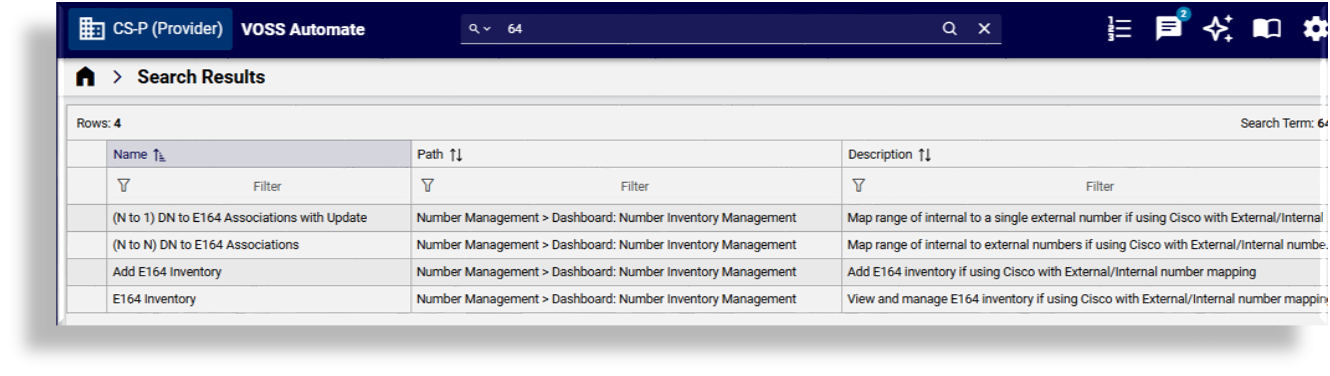
Include digits to find menus with numbers in their names, for example, “E164 Inventory”.
Example use cases#
Searching for “SIP Gateway” filters out unrelated models unless explicitly named.
Typing “Cisco” and sorting results helps quickly locate all Cisco-related actions and dashboards.
Filtering by “add” or “edit” helps isolate tasks based on operation type.
Best practices for admins#
To ensure meaningful search results with Action search:
Use familiar and descriptive terms when naming menus, dashboards, and actions.
Configure dashboards based on user roles for faster access.
Action search can be used to locate tasks not visible in dashboards or menus.
Regularly review naming conventions to align with user expectations and improve discoverability.