
Datasync Builder#
Introduction to the Datasync Builder#
The Datasync Builder enables an admin to create data syncs against any device type, using data sync templates.
The Datasync builder is modular and vendor-agnostic, providing an admin with full control over the data syncs they’re building, which is particularly useful when needing to build data syncs for multiple customers with different sync requirements. For example, for Webex customers you can build a relevant template for the customer, and the Datasync builder builds all required components for the data sync for the customers you execute it against.
Automate 25.3 ships with predefined example data sync templates, including templates based on Microsoft use cases that are integrated with the Microsoft tenant.
Datasync Builder integration with the MS tenant#
The Datasync Builder tool is integrated with the Microsoft tenant by default so that you can choose it as the sync type for the tenant.
On the MS tenant, the Datasync Builder uses a custom data sync template to create the required data syncs for the tenant, based on a single enabled solution. You can use the Datasync Builder on the tenant with a data sync profile or select one or more data sync templates based on your requirements.
Datasync templates available on the tenant are filtered by the solutions enabled on the tenant, for example, UC Automation or Email.
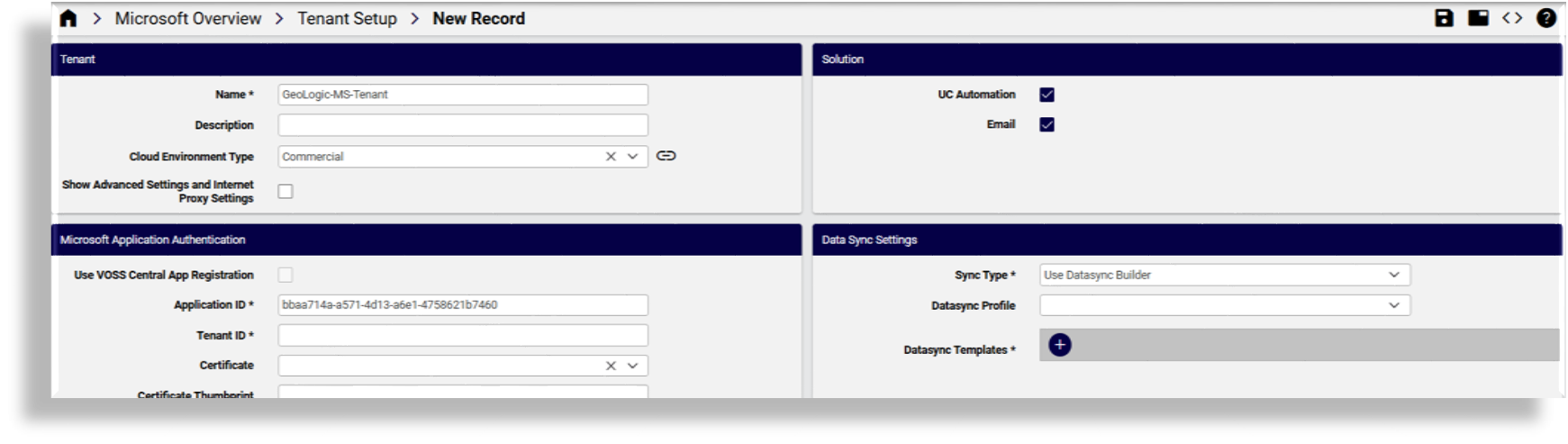
Using Datasync Builder on the tenant
There are two options for using the Datasync Builder sync type on the Microsoft tenant:
Option 1: Use Datasync Builder and choose templates
Select as the sync type, Use Datasync Builder.
At Datasync Templates, add the templates you want to use.
If the template you selected is for recurring syncs you’ll be able to select a first execution date and time.
The templates available for this option are filtered by the solution enabled on the tenant. The advantage with this option is that for recurring syncs, you can set the first execution date and time on the tenant screen for the sync. The scheduling configured on this form applies to the tenant you’re configuring and is not added to a template or profile. Start dates earlier than the current date are considered invalid.
Option 2: Use Datasync Builder with a data sync profile
Select as the sync type, Use Datasync Builder.
At Datasync Profile, select one of the predefined data sync profiles. Each data sync profile groups a number of data syncs.
The workflow will execute the data sync builder as many times as there are data syncs in the profile, including MTLs, MIFs and other configuration components you may have in the profile.
The disadvantage with this option is that there is no way to add the start time for each of the recurring syncs in the tenant form. This means that when using the data sync profile, the schedules can be built but you’ll need to configure the first execution date and time and recurrence options into each of the scheduled syncs in the profile.
Related topics
Create data syncs using the Datasync Builder#
This procedure uses the Datasync Builder to build out a set of data syncs and associated configuration.
In the Admin Portal, set the hierarchy to the relevant customer.
Go to Datasync Builder.
Select a template.
Select a shipped template, or create your own at this hierarchy so that it will be available in the drop-down.
If this is a non-purge sync, select the first execution date and time.
Note
Schedules aren’t relevant for Purge syncs since they’re executed “on demand”. Creating data syncs from a template allows you to define the first execution date and time for syncs that should execute regularly, and to define the execution frequency (for example, daily or weekly) when configuring the template.

Click Save.
The workflow executes and creates the following:
One data sync. You’ll need to run the Datasync Builder tool for each additional data sync you need.
Model type lists (MTLs) to define the sync order.
Model instance filters (MIFs)
A schedule
Note
Model instance filter (MIF) templates can be used in the Microsoft tenant, where you can select a predefined MIF template. MIF templates aren’t mandatory but if you’re creating many data sync templates, it’s useful to pre-configure one or more MIFs. You can also explicitly create MIF templates for specific purposes.
Next steps
Configure the data sync builder template. See Datasync builder templates