
Quick Add Groups#
Overview#
A Quick Add Group (QAG) is a collection of configuration templates (CFTs) and features for onboarding users. This grouping allows admins to quickly and easily configure users.
Note
If you need to view or modify a CFT in a QAG, you can easily go directly to a CFT selected in a drop-down on a QAG form via an automatically generated URI link that will display next to that drop-down, provided you have appropriate access permissions to that CFT. See Navigate to related entities from drop-downs.
Related topics
- Configuration templates
- Create a configuration template
- Quick Add Group customization
Introduction to Microsoft Teams policies in the Core Feature Guide
Example: Using CFTs and QAGs to add users#
Example 1 - Two user groups with different phones and services
In this example we’re adding a group of 100 back office users, and a group of 50 sales users. Each group will be assigned a specific phone type, and either has or does not have specific services:
User group? |
Using which phones? |
And which services? |
|---|---|---|
Back office users |
All using 7965 phone with SCCP protocol |
No services |
Sales users |
All using 8865 phone with SCCP protocol |
Single number reach service (SNR) |
To configure the Example 1 scenario:
Create two configuration templates (CFTs):
For the back office users, create a CFT for the 7965 phone, with no services.
For the sales users, create a CFT for the 8865 phone, with SNR service
Create two Quick Add Groups:
For the back office users, create a QAG that references the CFT you created for the back office users.
For the sales users, create a QAG that references the CFT you created for the sales users.
Example 2 - Users with phone type 6911 and SCCP protocol
In this example we’re adding back office users with a 6911 phone type using SCCP protocol and a voice account.
User group? |
Using which phones? |
And which services? |
|---|---|---|
Back office users |
Phone type 6911 using SCCP protocol |
Voice account |
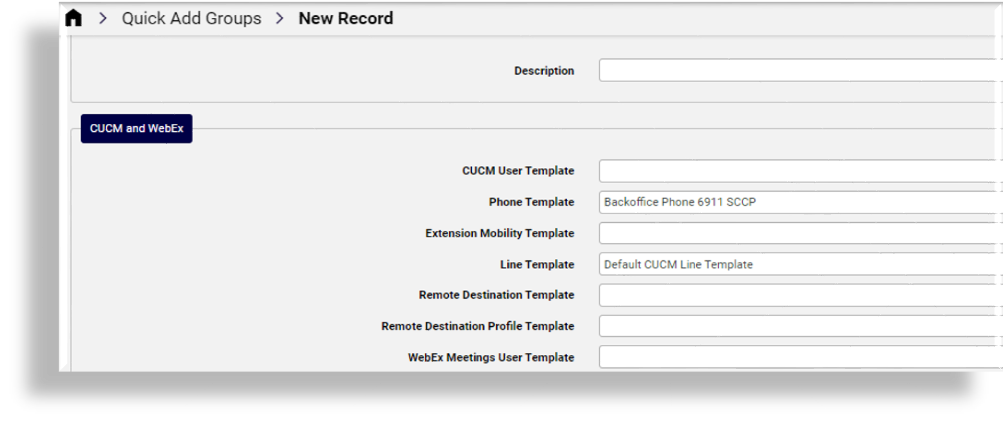
To configure the Example 2 scenario, add the Quick Add Group, and choose these configuration templates from the Cisco UCM and Webex template group on the form:
Phone Template - select the Backoffice Phone 6911 SCCP CFT from the drop-down of available CFTs
Line Template - select the Default UCM Line Template CFT from the drop-down of available CFTs (this CFT associates a line with the phone)
Note
You can also use customized CFTs to assign to a Quick Add Group. The custom CFT can be at the same level in the hierarchy as the Quick Add Group, or higher.
Naming convention for Quick Add Groups#
The best practice naming convention recommendation for Quick Add Groups may use the following pattern:
<friendly hierarchy name>-QAG-<user type>-<phone-template-name>-[description]
For example, GeoLogic-QAG_BasicUser - 69XX SIP - CallWaiting
Quick Add Groups named macros for Quick User#
When using Quick User (for Microsoft, Cisco, Webex Teams, or Hybrid users) you’ll choose a Quick Add Group that assigns services and sets up the user.
Quick Add Groups contain one or more configuration templates that defines how the user is assigned services. Named macros are used in the configuration templates. A default named macro is associated with each of the following Quick User scenarios:
Where used? |
Named Macro |
|---|---|
Cisco Quick User |
|
Microsoft Only Quick User |
|
Webex Teams Calling Only Quick User |
|
Hybrid Quick User |
|
By default, the values of these macros are set to be the first Quick Add Group found up in the hierarchy:
{{ fn.one data.QuickAddGroups.group_name | | direction:up }}
However, these named macros can be cloned to a hierarchy and modified in order to provide a reference to a specific default Quick Add Group to apply, as required.
Note
See the Advanced Configuration Guide for further details on macros.
When adding users, choose the appropriate Quick Add Group for the user you’re provisioning.
All user services use configuration templates that belong to a Quick Add Group.
Related topics
Configuration templates for Microsoft in a Quick Add Group#
A group of configuration templates are available for Microsoft in the Quick Add Group form.
Note
You can show or hide fields on a Quick Add Group form via a field display policy (FDP).
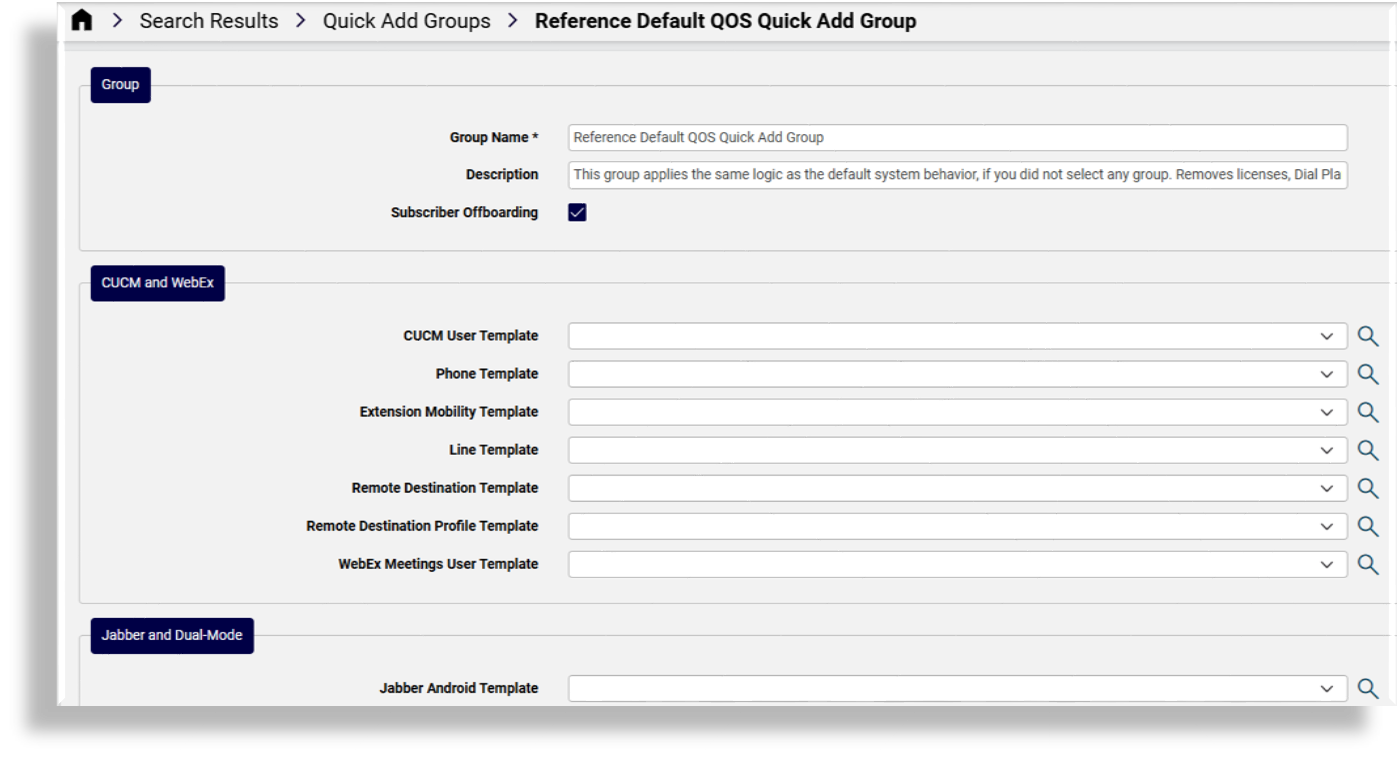
The image displays a Quick Add Group used for offboarding, where the Subscriber Offboarding checkbox is configured via a FDP to display on this form, and the setting is enabled, which means that this Quick Add Group is available for selection when running Offboard user (Microsoft or Webex).
The flag acts as a filter so that only Quick Add Groups with this flag enabled display on the Offboard User page. By default the Subscriber Offboarding checkbox is clear (set to False).
Quick Add Groups designed for user offboarding function in a similar way to how configuration templates are configured to drive onboarding. For offboarding however, an admin configures the CFTs to drive offboarding. For example, defining CSOL CFTs to reset policies to some default, to clear Enterprise Voice or to clear the LineUri.
Only QAG’s flagged for subscriber offboarding display in the Offboarding Quick Add Group drop-down. However, these QAGs are still valid as options on normal Quick User forms, so it is recommended that clear and descriptive names are used to identify the purpose of the QAG.
For more information around the system behavior for offboarding Microsoft users, see Offboarding (Microsoft).
The table describes configuration template options for Microsoft on Quick Add Group forms:
Note
Automate ships with reference and system configuration CFTs that you can clone and customize, if required. The CFTs available for selection in the template fields on Quick Add groups may be defaults or custom CFTs.
CFT Template Type |
Description |
|---|---|
MS 365 User Template |
. |
MS Teams User Template |
CFTs for MS Teams User Template can define the Microsoft Teams policies to be included. |
MS Groups Add Template |
CFTs available for MS Groups Add Template and MS Groups Remove Template can be selected to assign or unassign MS 365 group membership to a user when a Quick Add Group with this CFT selected is used during Microsoft Quick User. This functionality allows for group licensing, typically used in large enterprises. |
MS Groups Remove Template |
CFTs available for MS Groups Add Template and MS Groups Remove Template can be selected to assign or unassign MS 365 group membership to a user when a Quick Add Group with this CFT selected is used during Microsoft Quick User. This functionality allows for group licensing, typically used in large enterprises. |
MS Exchange Online User Mailbox Template |
These CFTs are used to set default values and import of the MS Exchange user mailbox. The selected CFT then applies to the Microsoft Quick User and User Profile. Automate also ships with a default CFT called Reference MS Exchange Online User Mailbox Template. |
MS Exchange Online Convert Mailbox Template |
The CFT you choose for MS Exchange Online Convert Mailbox Template is used when the Quick Add Group settings are applied, for example during the Quick Offboard User process if mailbox conversion to a shared mailbox is required. In the default reference CFT for this template type (Reference MS Exchange Online Convert Mailbox Template), the Convert to Type field also allows the conversion of a mailbox to a regular mailbox. |
Note
You can also use the Update Group Membership multi-vendor quick action to manage a user’s group membership. See Multi vendor users and Enable multi vendor users.
Related topics
Microsoft Licenses in the Core Feature Guide
Introduction to Microsoft Teams policies in the Core Feature Guide
- Configuration Templates
- Field Display Policies
Add a Quick Add Group#
This procedure adds a Quick Add Group (QAG).
Note
You can also create a new Quick Add Group by cloning (copying) an existing one, then customizing it for your requirements.
Log in as Provider, Reseller, Customer, or Site administrator.
Go to Quick Add Groups.
Click Add, then fill out details for the new Quick Add Group.
(Mandatory) At Group Name, fill out a name for the new Quick Add Group.
Fill out a description.
Choose the required configuration templates to use in this Quick Add Group.
Note
Configuration templates (CFTs) available for selection are grouped per vendor scenario. You can choose one or more CFTs for:
Cisco UCM and Webex
Jabber and Dual-mode
CUC (Unity)
Webex App
Pexip Conference
Microsoft
Additional services
If you wish to use the Quick Add Group for user offboarding, select the Subscriber Offboarding checkbox so that this Quick Add Group is available for selection when running offboard. Also ensure that the offboarding configuration template is configured to offboard and de-provision as required, and associate the CFT with this Quick Add Group. See Offboard user (Webex or Microsoft)
Save your changes.
Related topics
Delete a Quick Add Group#
The default Quick Add Group resides at the sys (system-level) hierarchy node.
Note
A Quick Add Group is required for the Quick User function to work.
Go to Quick Add Groups.
Select the checkbox at the Quick Add Group you want to delete.
Click Delete, then click Yes to confirm.
Quick Add Groups, default model#
Default group model for Quick User and Add User Wizard functions:
Title |
Field Name |
Configuration Template Name |
|---|---|---|
Group |
||
Group Name* |
group_name |
N/A |
UCM and Webex |
||
UCM User Template* |
default_cucm_user_template |
Default UCM User Template Also used for vendor filtering. [1] |
Phone Template |
default_cucm_phone_template |
Default UCM Phone Template |
Extension Mobility Template |
default_cucm_device_profile_template |
Default UCM Extension Mobility Template |
Line Template |
default_cucm_line_template |
Default UCM Line Template |
Remote Destination Template |
default_cucm_rd_template |
Default UCM Remote Destination Template |
Remote Destination Profile Template |
default_cucm_rdp_template |
Default UCM Remote Destination Profile Template |
Webex User Template |
default_webex_user_template |
Default Webex User Template |
Jabber and Dual-Mode |
||
Jabber Android Template |
default_cucm_jabber_android_template |
Default UCM Jabber Android Template |
Jabber CSF Template |
default_cucm_jabber_csf_template |
Default UCM Jabber CS Template |
Jabber iPad Template |
default_cucm_jabber_ipad_template |
Default UCM Jabber iPad Template |
Jabber iPhone Template |
default_cucm_jabber_iphone_template |
Default UCM Jabber iPhone Template |
Carrier Integrated Mobile Device Template |
default_cucm_jabber_cim_template |
Default Carrier Integrated Mobile Device Template |
CTI Remote Device Template |
default_cucm_jabber_ctird_template |
Default CTI Remote Device Template |
CUC(Unity) |
||
CUC User Template |
default_cuc_user_template |
Default CUC User Template |
CUC User Password Template |
default_cuc_user_password_template |
Default CUC User Password Template. Quick User applies this template and overrides CUC user template settings on CUC. |
CUC User PIN Template |
default_cuc_user_pin_template |
Default CUC User PIN Template. Quick User applies this template and overrides CUC user template settings on CUC. |
Webex App |
||
Default Webex App User Template |
default_spark_user_template |
Default Webex App User Template |
Default Webex App Calling Template |
default_spark_calling_template |
Default Webex Teams Calling Settings Template Also used for vendor filtering. [1] |
Default Webex App User CTI Device Template |
default_spark_user_cti_device_template |
Default Webex App User CTI Device Template |
Default Webex App User iPhone Device Template |
default_spark_user_iphone_device_template |
Default Webex App User iPhone Template |
Default Webex App User Android Device Template |
default_spark_user_android_device_template |
Default Webex App User Android Template |
Default Webex App User Tablet Device Template |
default_spark_user_tablet_device_template |
Default Webex App User iPad Template |
Default Webex App User CSF Device Template |
default_spark_user_csf_device_template |
Default Webex App User CSF Template |
Default Webex App Wholesale for wholesale user |
default_webex_app_wholesale_template |
E.g. Default Webex Wholesale user - webex_calling for Webex calling package. Any package can be set and only wholesale package templates are available to be set. A template must be set for wholesale customers. |
Pexip Conference |
||
Pexip Conference Template |
default_pexip_conference_template |
Reference Pexip Conference Template |
Microsoft |
||
MS 0365 User Template |
Also used for vendor filtering. [1] |
|
MS Teams User Template |
Also used for vendor filtering. [1] |
|
MS Groups Add Template |
Add one or more entries to the Group list to provide group membership to a user. [2] |
|
MS Groups Remove Template |
Add one or more entries to the Group list to remove group membership from a user. [2] |
|
MS Exchange Online User Mailbox Template |
Used for default MS Exchange user mailbox settings. |
|
Additional Services |
||
Phone User Template |
Fields marked with * are mandatory.
Quick Add Groups and vendor filtering#
Quick Add Group selection in the Automate portal takes place for Quick User management. In these cases, the list of available Quick Add Groups to select will be filtered in accordance with populated entries in the Quick Add Groups themselves.
The following list shows the corresponding Quick Add Groups fields to allow filtering for each activity:
Cisco Quick User: UCM User Template
WebexApp Quick User: Default Webex App Calling Template
Microsoft Quick User: MS 365 User Template and MS Teams User Template