
Datasync builder templates#
Overview#
A data sync template is a collection of data syncs containing predefined configuration, based on the sync requirements for one or more solution capabilities selected for the template.
The template defines the data to be synced (whether add, update, or purge) and whether the sync is executed on demand or is a recurring sync, to be executed daily or weekly for example. The data sync template defines the model related to the sync and one or more model instance filters (MIFs, which can also be created as templates) that apply to the sync so that you can control the type and volume of data imported or purged in a sync.
Data sync templates can be executed individually or as a collection in a data sync profile.
The Datasync builder uses the templates to create predefined data syncs against any device type. If you have Webex customers for example, you can build a relevant template for the customer and use the Datasync Builder to build all required components for the data sync for the customers you execute it against.
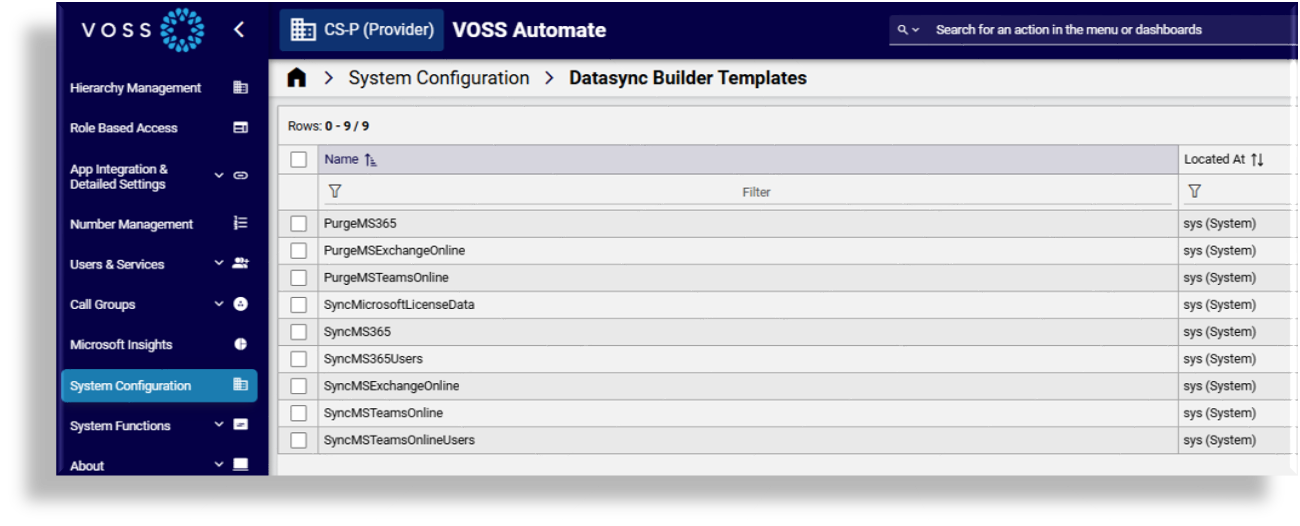
Automate ships with a collection of predefined data sync templates, including templates based on Microsoft use cases that are integrated with the Microsoft tenant.
You can use the default data sync templates or clone and customize the templates as required.
Related topics
Datasync Builder in the Core Feature Guide
Microsoft tenant setup in the Core Feature Guide
- Global Settings (Enabled Solutions)
Configure a datasync builder template#
Go to Datasync Builder Templates, then click on the template to configure.
At Template:
Optionally, modify the template name, description, and prefix, if required.
Select solutions, one or more.
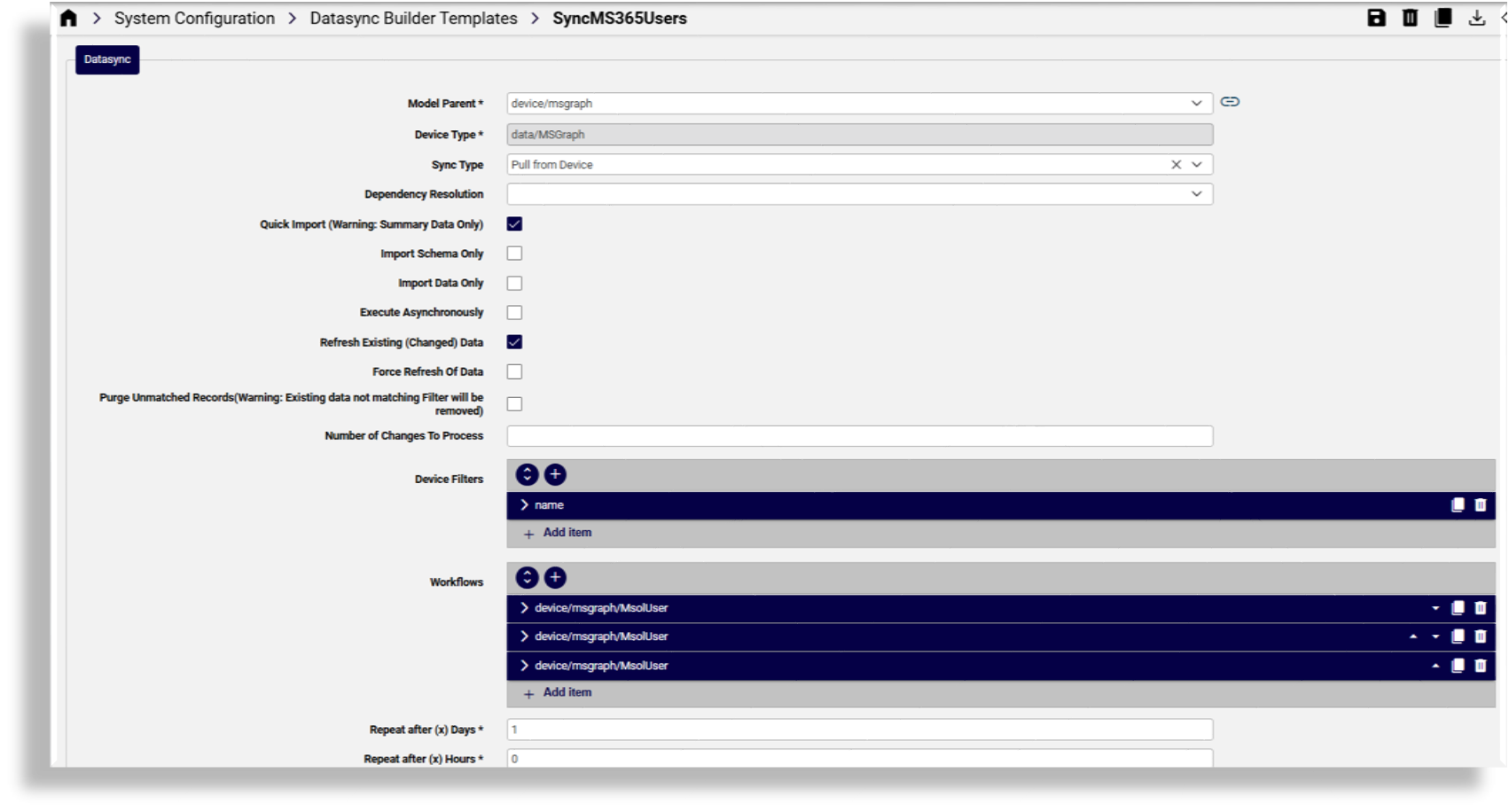
At Datasync, configure settings:
Select the model parent.
Select the device type.
Select the sync type.
Select the dependency resolution.
Define whether this data sync is for Quick Import (Warning: Summary Data Only).
Define whether Import Schema Only.
Define whether Import Data Only
Define whether Execute Asynchronously
Define whether Refresh Existing (Changed) Data
Define whether Force Refresh of Data
Define whether Purge Unmatched Records (Warning: Existing data not matching Filter will be removed)
Define Number of Changes to Process.
Add Device Filters (one or more).
Add Workflows (one or more).
Define daily frequency (Repeat after (x) Days. If the value is greater than zero (0), a start date and time is requested for the schedule.
Define hourly frequency (Repeat after (x) Hours)
Define Transaction Log Level (eg Debug).
At Disabled Operations, optionally, select operations to disable, any of the following: Add, Update, or Remove
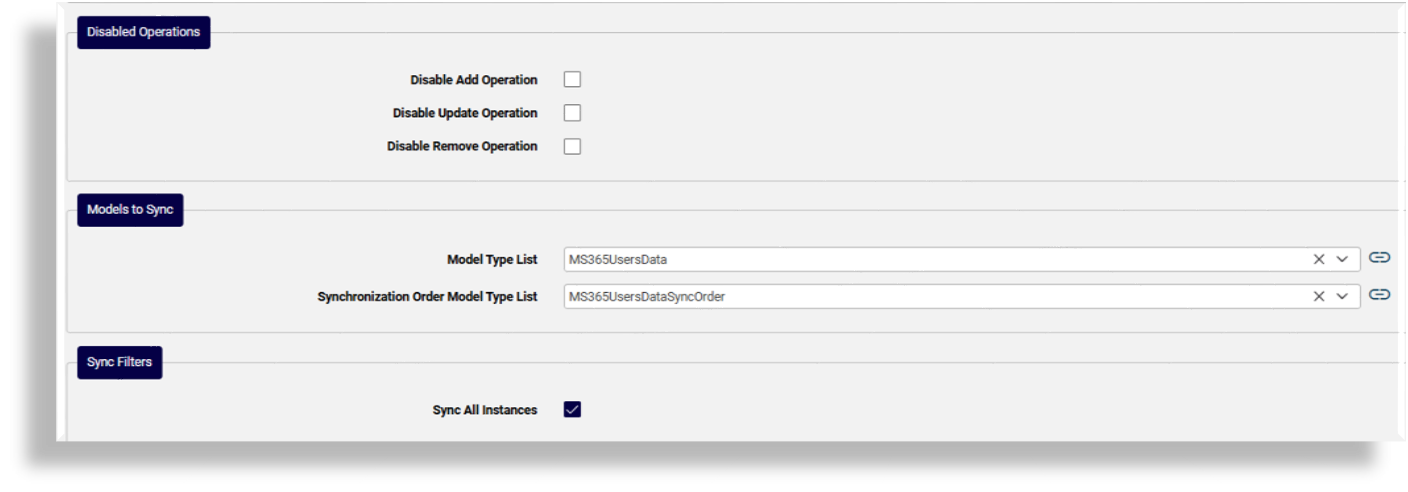
At Models to Sync:
Optionally, select a Model Type List, List Type, and/or add Model Types (one or more).
Note
You can choose an existing MTL from higher in the hierarchy to use in this data sync. In this case, the workflow won’t build it, but will reference it in the data sync.
Alternatively, choose List Type, for example, an option to Include Selected Model Types, in which case you add Model Types (one or more) to create new Model Type Lists (MTLs).
You can leave Model Type List, List Type, and Model Types blank to exclude MTLs completely in the sync.
Select a Synchronization Order Model Type List.
Add Synchronization Order Sequence (one or more).
At Sync Filters, configure model instance filters:
Define whether to Sync All Instances.
Select a Model Instance Filter.
Select a Filter Type (for example, Include Matching Instances)
Add User Filters (one or more) - either predefined filters (select from Filter Name), or create custom filters.
The Datasync Builder will look up the definitions of predefined filters so that you can create these filters and re-use them across data sync templates, instead of creating custom filters in each Datasync Builder template.
Save the template.