
Wingman#
Overview#
Automate provides a Wingman Chat AI assistant in the Admin portal that can be activated by a user from any form.
Enabling Wingman Chat#
Wingman Chat is enabled by default, and can be disabled and enabled sysadmin users
and admins with access to the data/Settings model.
For details, see Enable Wingman chat:
Wingman requires internet access (to Microsoft Azure) and
supports connecting via a web proxy. This can be configured by sysadmin users
and admins with access to the data/Settings model and the Web Proxy menu.
For details, see Wingman web proxy and Set up a Web Proxy.
Note
A user role should also be associated with an Access Profile that has Wingman Chat enabled under the Miscellaneous Permissions. From release 24.1, default administrator roles have this permission enabled and an upgrade to 24.1 enables this permission on all existing access profiles.
In order to first use Wingman, an initial manual sync step is required - See: Insights Analytics in the Platform Guide.
For details on Access Profiles and the required administrator level to manage these settings, see:
Using Wingman#
Note
While we strive to ensure and will continue to improve on chatbot accuracy in future releases, the correctness, completeness, or reliability of all results and documentation links is not guaranteed.
Click the Wingman icon on the Automate Admin Portal toolbar to launch the chat pane.

In the chat pane, select the Menu icon (3 dots) adjacent to the New Chat title to display chat history, size and help options for using Wingman Chat:
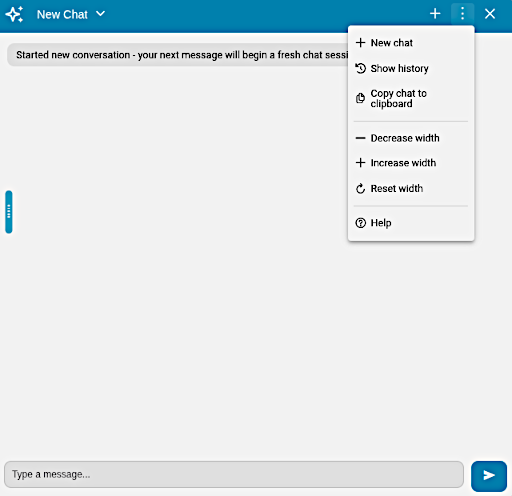
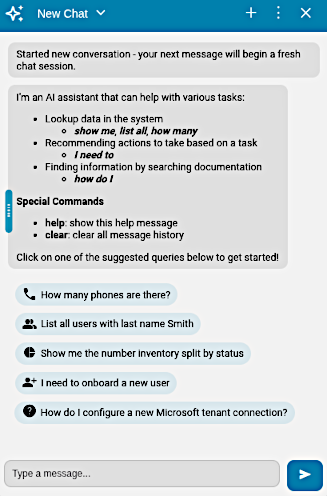
You can also resize the chat pane by dragging the resize button in the left frame. The help menu item opens a list of instruction types and examples that can be selected to test the Wingman response.
Conversation context and chat history#
Wingman retains the context of the current conversation when follow-up questions are asked. For example, if a question is: “many phones?”, then a follow-up question: “by site” will be interpreted within the context of phones, in other words, “how many phones by site”.
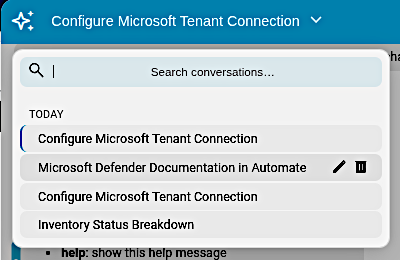
A user’s chat history (up to 100 conversations) is available to the user in the Chat History drop-down.
This user chat history is persistent across sessions and is grouped in TODAY, THIS WEEK and OLDER lists.
Chat history entries can be searched and managed (deleted and re-used), allowing for access to useful and repeatable queries.
Wingman task types#
Three types of tasks can be carried out - each selected by using an appropriate prefix phrase in your chat input:
Show me/List all/How many/Troubleshooting#
Look up data on the platform.
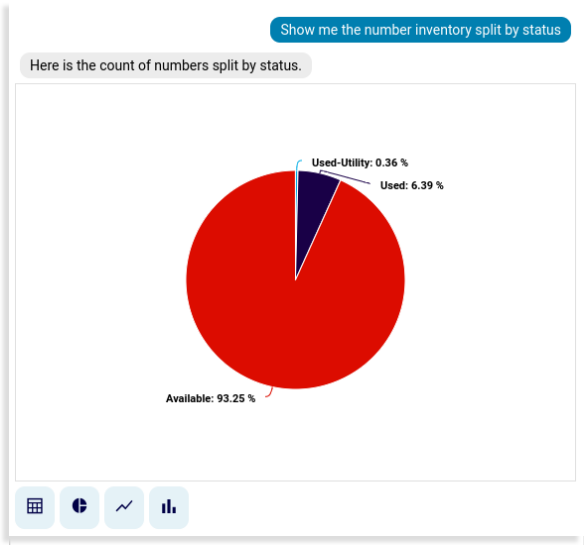
For “Show me” questions, the reply can be rendered in a chart.
Date ranges can also be included into questions, for example: “show me transactions for this week”. The list below provides an indication of the calculation of the date range based on the phrase in the question:
today: from 00:00:00 (UTC) to 23:59:59 (UTC) of the current day.
yesterday: from 00:00:00 (UTC) to 23:59:59 (UTC) of the previous day, in other words, the full 24 hour period of the previous day.
last week: from 00:00:00 (UTC) last Monday to Sunday 23:59:59 (UTC).
last month: from 00:00:00 (UTC) of the first day of the preceding month to 23:59:59 (UTC) of the last day of the preceding month.
last year: from 00:00:00 (UTC) of the first day of the previous year to 23:59:59 (UTC) of the last day of the previous year.
this week: from 00:00:00 (UTC) of the first day of the current week to 23:59:59 (UTC) of the last day of the current week.
this month: from 00:00:00 (UTC) of the first day of the current month to 23:59:59 (UTC) of the last day of the current month.
this year: from 00:00:00 (UTC) of the first day of the current year to 23:59:59 (UTC) of the last day of the current year.
since <specified date>: from 00:00:00 (UTC) of the specified date to 23:59:59 (UTC) of the current day.
since <phrase>: Match start date time to the phrase, but end date must be today’s date time. Examples:
since last week: from 00:00:00 (UTC) last Monday to today’s date.
since yesterday: from 00:00:00 (UTC) to 23:59:59 (UTC) of the previous day to today’s date.
When queries are made without an explicit date range, the default behaviour is “since last week”, for example, if a query was made on September 6th, 2024 at 12:55 UTC:
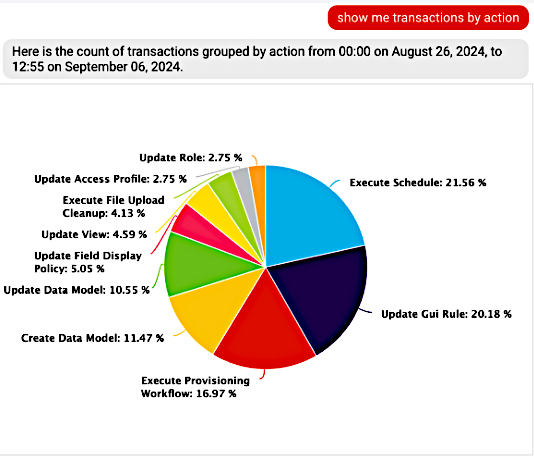
Icons below replies show options to change the chart or output format.
For “How many” questions, Wingman by default responds by showing a bar chart with the count of the data found.
For “List all” questions, Wingman by default responds by showing a table with the data found.
Questions can also be asked about transactions, for example:
Are there any failed transactions?
Why did it fail?
Which transactions are there?
Show me the logs of all severities
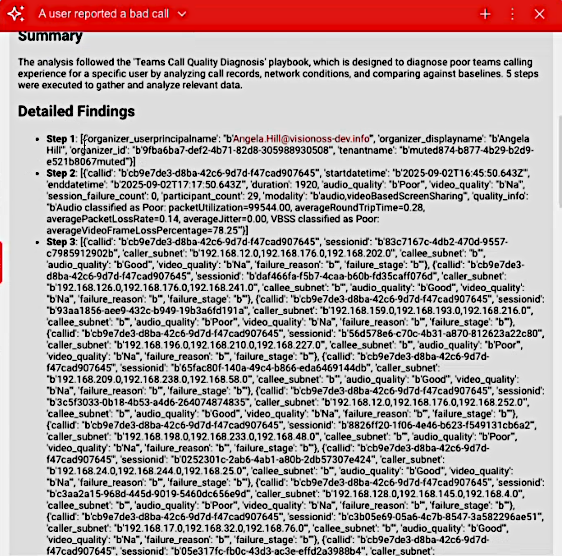
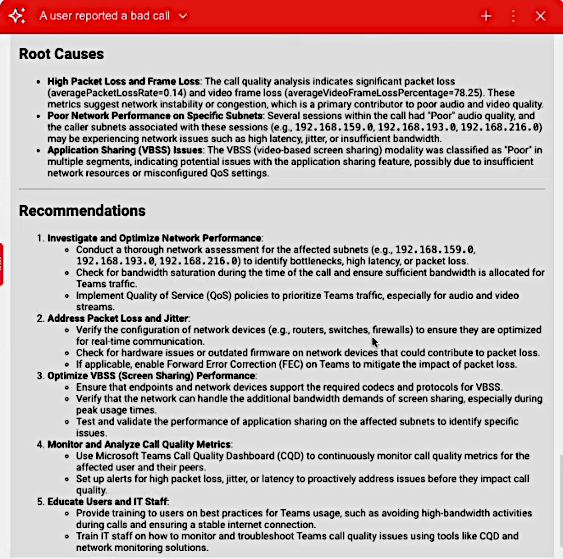
Troubleshooting questions can be asked whereby Wingman will follow a detailed playbook to provide a structured problem diagnosis and report. For example, a question such as:
“Investigate bad call for user Angela Hill over 365 days”
This will return a detailed report for the period as well as troubleshooting steps and possible solutions, as shown in the images below:
Note
Wingman will use the permitted dashboard resources in a user’s access profile as valid data lookup options.
Data sources are: Wingman data sources. If a question does not refer to these sources, Wingman responds with the friendly names of these sources as available data sources.
Count results (in tables or charts) are dependent on the hierarchy at which the user is, as well as the user role permissions when using the Wingman chat interface.
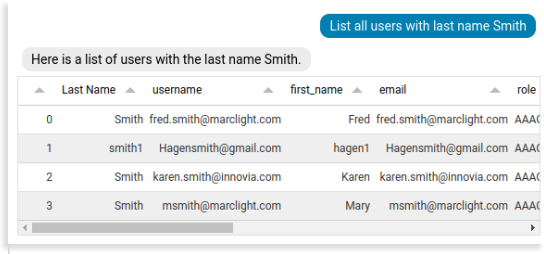
The example below shows responses where an admin user navigates down to a site level hierarchy and asks: “List all users with last name Smith” (result: No Data to display.) and then navigates to a provider level and repeats the question (result: table):
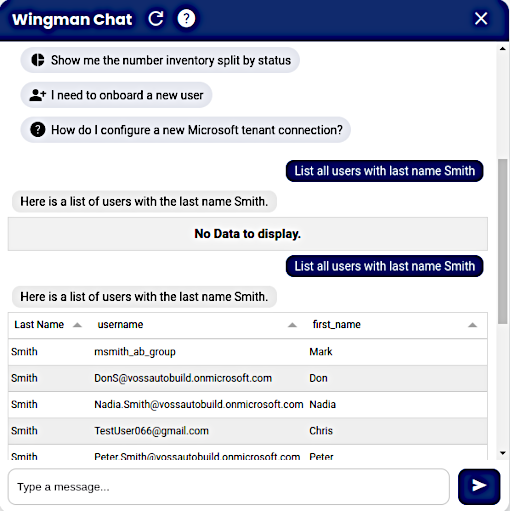
“How many” and “Show me” questions use the Insights data source that is available from release 24.1 and is also used to create dashboard widgets. For details, see: Introduction to Automate dashboards. This means that while questions for data can be refined by also specifying a single provider, reseller or customer or site hierarchy name in the question, questions do not return data when a question specifies all hierarchies.
I need/want to#
Wingman Chat responds with action recommendations or instructions and with a Go now link - based on user’s menu layout - to the appropriate form, dashboard or feature.
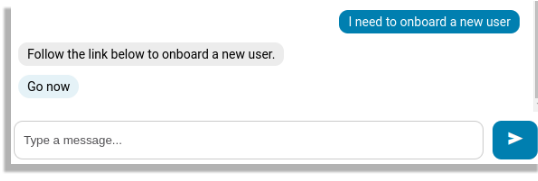
The Go now links use the following models for the matching tasks:
Onboard a new multi-vendor user
view/AddSubscriberFromProfileOnboard a new Microsoft user
view/MicrosoftSubscriberQasOnboard a new Cisco user
view/QuickSubscriberCreate a new Cisco phone
view/AddPhoneAdd a range of numbers to the number inventory
view/NumberInventoryRangeMgmtVIEW
How do I/What is/Tell me about/Explain#
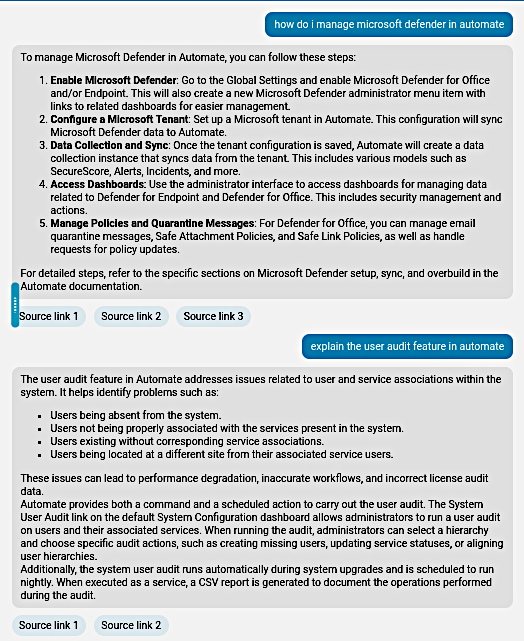
Formulate questions that start with these words to ask documentation questions about the product.
Wingman responds with:
a summarized answer
a set of generated reference links to the full documentation on the documentation portal that may be relevant
Wingman data sources#
The table describes the list of Automate data sources that are available to Wingman when Show me/List all/How many - type questions are asked.
model_type |
friendly_name |
|---|---|
data/MonitoringCluster |
Monitoring Platform Cluster |
data/MonitoringQueue |
Monitoring Transaction Queue |
data/MonitoringSessions |
Monitoring Sessions |
data/MetricDatabaseCollectionStats |
Monitoring Database Stats |
data/LicenseAuditCounts |
Automate License Counts |
data/BaseSiteDAT |
Site |
data/CountLimit |
Subscriber Count Limit |
data/HcsDpDNE164AssociateDAT |
E164 Number Association |
data/HcsDpE164InventoryDAT |
E164 Number Inventory |
data/HcsEntitlementProfileDAT |
Entitlement Profile |
data/HierarchyNode |
Hierarchy |
data/InternalNumberInventory |
Number Inventory |
data/MicrosoftSubscriberQasStaging |
Microsoft Subscriber Staging |
data/User |
User |
device/cuc/User |
Cisco CUC User |
device/cuc/UserLicense |
Cisco CUC User License |
device/cuc/Callhandler |
Cisco CUC Call Handler |
device/cucm/CallPickupGroup |
Cisco UCM Call Pickup Group |
device/cucm/DeviceProfile |
Cisco UCM Device Profile |
device/cucm/Gateway |
Cisco UCM Gateway |
device/cucm/GatewaySccpEndpoints |
Cisco UCM Gateway SCCP Endpoints |
device/cucm/HcsLicense |
Cisco UCM License |
device/cucm/HuntList |
Cisco UCM Hunt List |
device/cucm/HuntPilot |
Cisco UCM Hunt Pilot |
device/cucm/LicensingResourceUsage |
Cisco UCM Licensing Resource Usage |
device/cucm/Line |
Cisco UCM Line |
device/cucm/LineGroup |
Cisco UCM Line Group |
device/cucm/Phone |
Cisco UCM Phone |
device/cucm/PhoneType |
Cisco UCM Phone Type |
device/cucm/RemoteDestination |
Cisco UCM Remote Destination |
device/cucm/RemoteDestinationProfile |
Cisco UCM Remote Destination Profile |
device/cucm/User |
Cisco UCM User |
device/pexip/Conference |
Pexip Conference |
device/pexip/ConferenceAlias |
Pexip Conference Alias |
device/msexchangeonline/UserMailbox |
Microsoft Exchange Online User Mailbox |
device/msgraph/MsolAccountSku |
Microsoft O365 User SKU |
device/msgraph/MsolUser |
Microsoft O365 User |
device/msteamsonline/CsAutoAttendant |
Microsoft Teams Auto Attendant |
device/msteamsonline/CsCallQueue |
Microsoft Teams Call Queue |
device/msteamsonline/CsOnlineUser |
Microsoft Teams User |
device/msteamsonline/CsTeamsClientConfiguration |
Microsoft Teams Client Configuration |
device/spark/Announcements |
Webex Calling Announcements |
device/spark/AutoAttendants |
Webex Calling Auto Attendants |
device/spark/CallParkExtensions |
Webex Calling Call Park Extensions |
device/spark/CallParkGroup |
Webex Calling Call Park Group |
device/spark/CallPickup |
Webex Calling Call Pickup |
device/spark/Device |
Webex Calling Device |
device/spark/HuntGroup |
Webex Calling Hunt Group |
device/spark/Group |
Webex Calling Group |
device/spark/License |
Webex Calling License |
device/spark/Place |
Webex Calling Place |
device/spark/Number |
Webex Calling Number |
device/spark/Schedules |
Webex Calling Schedule |
device/spark/Team |
Webex Calling Team |
device/spark/User |
Webex Calling User |
device/uccx/Agent |
Cisco UCCX Agent |
device/webex/User |
Cisco Webex User |