
Webex Application Access (Webex Organization)#
This procedure adds the Cisco Webex service (Webex Control Hub instance).
Prerequisites:
To allow Automate to connect to the Cisco Webex Control Hub, obtain the Webex Control Hub Account Organization ID from the Cisco Webex page.
Important
For users upgrading to release 21.4-PB2, existing access tokens must be refreshed in order to update permissions for newly added
workspace_locations.
Note
You won’t need to create Network Device Lists (NDL). When importing from Webex Control Hub the first time, the Automate workflow creates a blank NDL at the customer if no other NDL exists. When the sites are auto created based on the imported Webex Locations, the sites will use this new blank NDL.
Create the Cisco Webex service:
Log in to the Automate Admin portal as a provider or reseller administrator.
Select the relevant customer hierarchy.
Go to Webex Application Access or Webex Organization to open the list view of all configured Webex organizations.
Note
Existing accounts added before Automate 21.4-PB3 will show the internal account ID as the Organization Account Number, while accounts added from Automate 21.4-PB3 onwards, show the external account ID.
Click the Plus icon (+), then, on the new record page:
Fill out the Webex App customer name (the default is the Automate customer name).
If the added service is Webex for Wholesale, enable Wholesale Customer.
Note
The Webex for Wholesale service can only be configured when adding an instance under Webex Application Access / Webex Organization.
If the added customer service is for a Webex Contact Center, enable Contact Center Customer. This also enables the Contact Center Region dropdown list (mandatory) to select a customer’s region in order to allow for access to the available API endpoint at the region. Options are:
US
ANZ
UK
EU (Frankfurt)
Japan
Canada
Singapore
Fill out your Webex Control Hub Account Organization ID (external account ID).
Note
Obtain this value from the Webex Control Hub admin portal (under the Account menu).
Fill out the admin account email for the administrator managing the account.
Note
This field value is informational only.
At HTTP Proxy and HTTPS Proxy, values are mandatory only if a proxy server is required to connect to the Cisco Webex Control Hub API. Example format:
http(s)://[user:password]@host:port/. Special characters in either the user or password must be URL encoded. Verify the required format with the proxy administrator.
Note
You’ll need to add the Webex organization account details to Automate before access tokens can be obtained.
Click Save.
Note
When adding a new Webex Control Hub Access entry for a customer, data syncs and schedules are automatically created. Deleting a customer’s Webex Control Hub Access automatically deletes these data syncs and schedules.
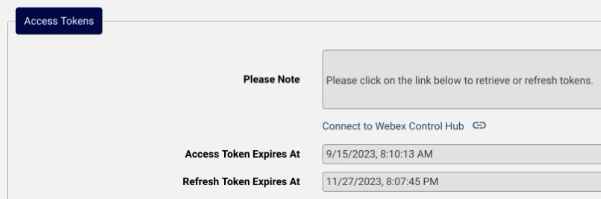
Once the new Webex organization is saved, return to the created account to view (in the Access Tokens section), the Connect to Webex Control Hub link that is used to request the tokens.
Click the Connect to Webex Control Hub link to obtain the access tokens (Webex Wholesale tokens for Customers and Users if Wholesale Customer is enabled) for the Webex Control Hub account, and to be redirected to the Automate Transactions page.
Note
When first using this link, a Webex admin user (with sufficient privileges) must log in and accept the API authorization scope that Automate requires for integration.
On the Transactions page, monitor progress for retrieving the access tokens.
Note
Roles and licenses are synced in to Automate.
When the transaction completes, view expiry times for the access token and refresh token.
Automate automatically refreshes the access tokens every 7 days for 90 days, that is, until the expiry of the Refresh Token.
The Refresh Token is valid for 90 days. Use the Connect to Webex Control Hub link to refresh it. Automate General Settings provide options for Webex App Tab to send impending expiry notifications and messages. See: Global settings.
For more information around access token management, see https://developer.webex.com/docs/integrations
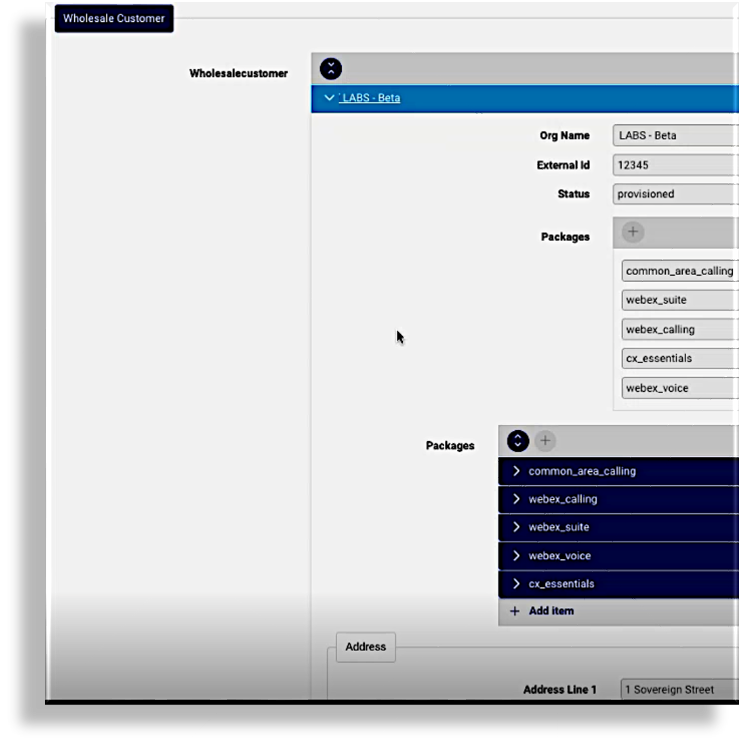
If Wholesale Customer was enabled, the Wholesale Customer section of the Webex Control Hub Access form shows Wholesalecustomer instance(s) associated with the Webex organization account.
Customer details and associated calling and collaboration packages can then be managed if needed:
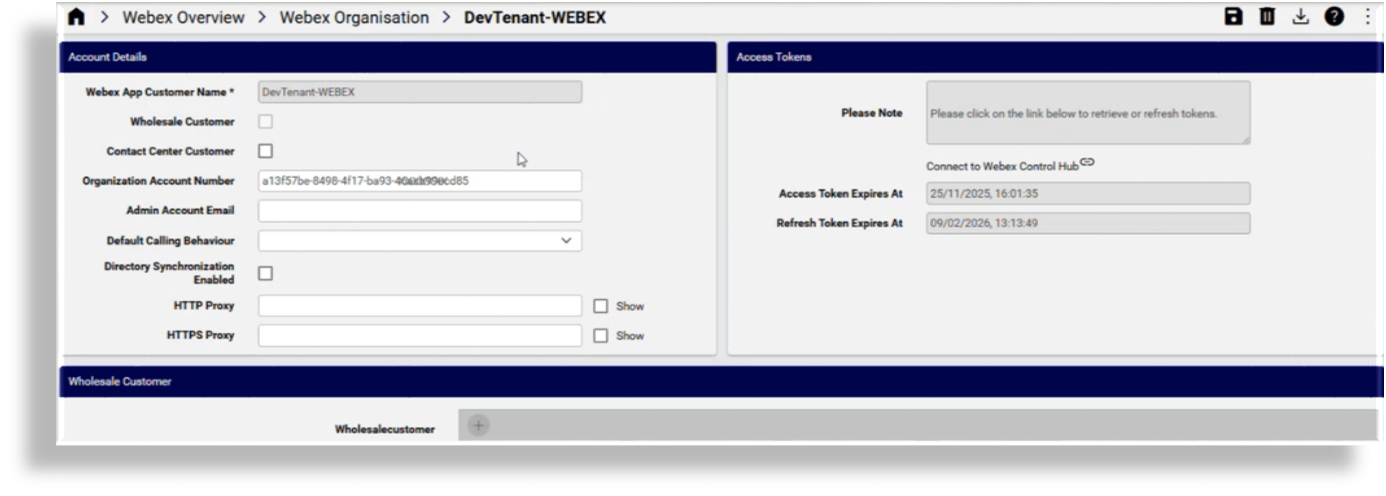
The list view item for the Webex for Wholesale control hub will show Wholesale Status as true.
Related topics