User field mapping#
Overview#
User field mapping in Automate refers to the alignment of data fields between Automate user data and other applications. The field mapping is required when syncing data between Automate and other systems.
To view available field mappings at the current hierarchy and below, go to User Field Mappings.
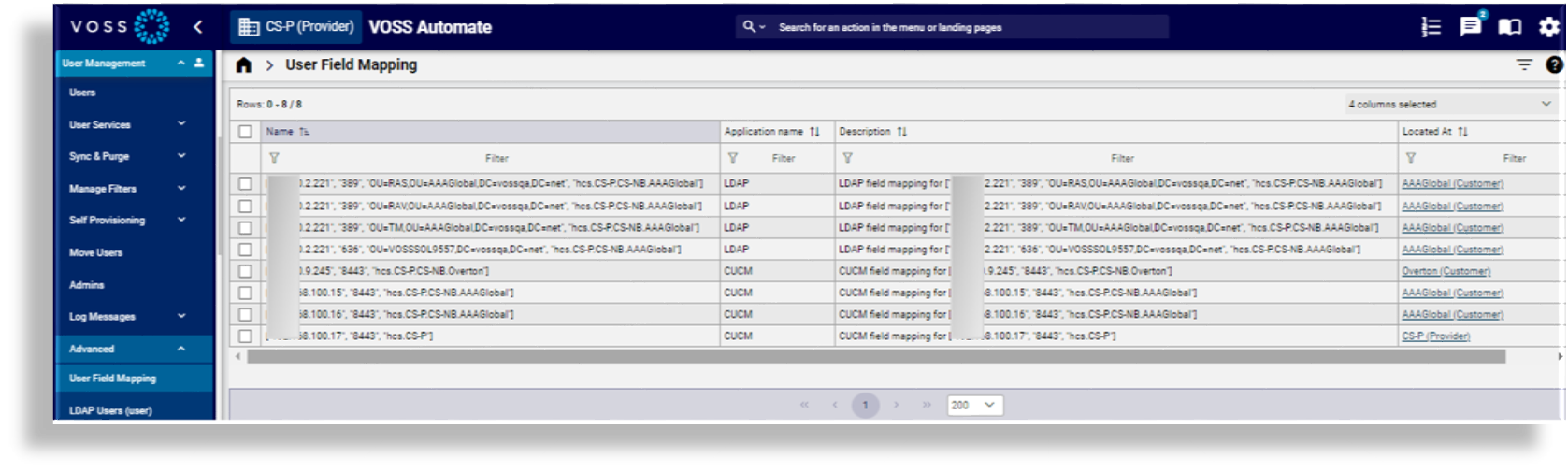
Automate provides a set of default (read-only) field mappings (named default) at the system level (sys) hierarchy. The
default user field mappings are cloned and given an application name whenever an application is added at a
hierarchy. For example:
For CUCM applications, the name may be the IP address
For LDAP applications, the name may be the business key of the LDAP server
Note
Users are only sourced from CUCM and LDAP (MS LDAP and OpenLDAP) instances so only these instances are
created. The default instances are only visible at sys level.
When a CUCM cluster or LDAP server is added at, for example, customer level, these default mappings are cloned down to that customer level, and then become editable.
LDAP is used for both Microsoft AD and OpenLDAP
The cloned mapping displays on the User Field Mappings page and applies to user management at the hierarchy.
The mapping that applies at the sync hierarchy is used when values are written to Automate user data (for an application that is the sync source).
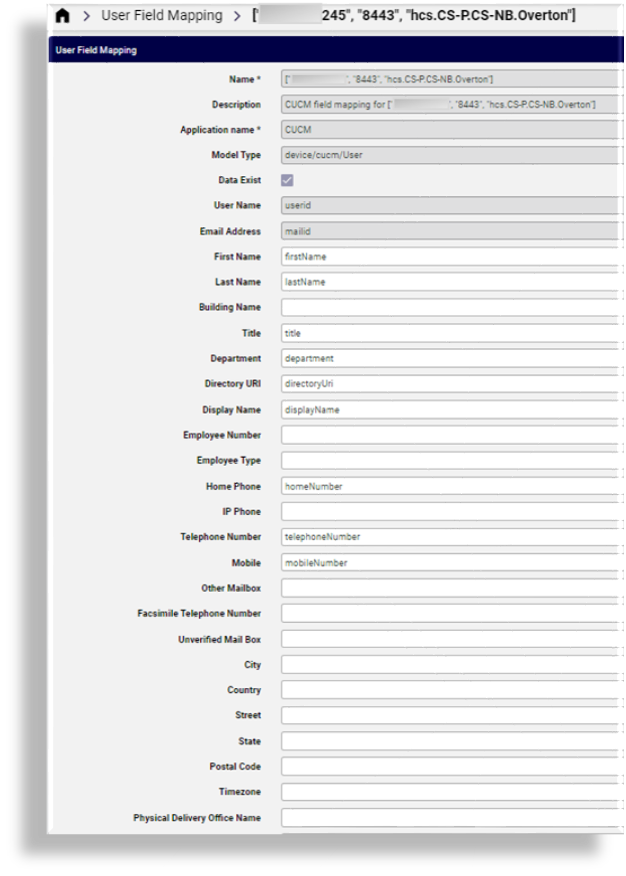
For example, the default CUCM mapping contains a mapping between the Automate “User Name” and the
CUCM userid. When syncing user data from a CUCM source, the sync updates the Automate user.
The table describes mapping for applications stored in the data/UserFieldMapping model. These
applications create cloned instances at the server level:
Application Name |
Model Type |
UC Source |
|---|---|---|
CUCM |
|
CUCM |
LDAP |
|
MS Active Directory |
LDAP |
|
OPEN_LDAP |
When syncing user data from a CUCM source, where this default CUCM field mapping applies at the
hierarchy, the sync updates the Automate user. You can view the sync source for these users in the Sync
Source column in the list view of the Users page. In this case, the sync source is CUCM.
Important
If application users related to a custom field mapping exist in Automate, existing mapped fields are read-only and can’t be updated.
You can define up to ten custom values for each of the following field types, which can also be mapped:
Up to 10 custom strings
Up to 10 custom list of strings
Up to 10 custom booleans
After a sync, custom values display on the Custom tab of an entry on the Users/username page.
Related topics
For MS_365, see: Microsoft mappings
LDAP mappings#
LDAP Username
For Microsoft Active Directory, this is typically the
sAMAccountName.For AD LDS (ADAM), the
sAMAccountNameattribute is not part of the default schema, but can be added if required. Confirm with the LDAP server administrator. Alternatively, useuid.For OpenLDAP, this is typically the
uid.
Sn (Surname)
Microsoft mappings#
This section lists the user mappings from Microsoft users (device/msgraph/MsolUser) to Automate
users. This default mapping instance in data/UserFieldMapping is not available for further configuration.
Note
For email, Automate captures and stores the primary email address from Microsoft 356 (0365) data where
the value for the proxy address field starts with SMTP (case-sensitive, all caps).
If a value is unavailable (the user
doesn’t have an Exchange mailbox), the value for UPN
(UserPrincipalName) is used. If the user later obtains an Exchange mailbox, since
PrimarySmtpAddress is on the device/msgraph/MsolUser allowlist, a user sync workflow is
triggered to update the user’s email address. See Allowlists and denylists.
"name": "default"
"description": "Default MS_365 field mapping"
"application": "MS_365"
"model_type": "device/msgraph/MsolUser"
"username": "UserPrincipalName"
"email": "PrimarySmtpAddress"
"first_name": "FirstName"
"last_name": "LastName"
"country": "Country"
"department": "Department"
"display_name": "DisplayName"
"city": "City"
"mobile": "MobilePhone"
"physical_delivery_office_name": "Office"
"postal_code": "PostalCode"
"state": "State"
"street": "StreetAddress"
"telephone_number": "PhoneNumber"
"title": "Title"
View user field mappings#
To view LDAP and CUCM user field mappings:
Log in to the Admin Portal.
Choose a hierarchy.
Go to User Field Mappings.
View the list of mappings at the hierarchy.
Click on a user field mapping to view its details.
Important
Some fields in the hierarchy-specific field mapping are read-only. Any changes you make apply only to new users (field mapping changes won’t apply to existing user data at this hierarchy).