
Manage themes#
Overview#
You can use the Themes page in the Admin Portal to create or modify a theme.
You can select the following tabs on the Themes page in the Admin Portal:
Theme Details
Branding
Login Page Details
Theme settings#
Theme details tab#
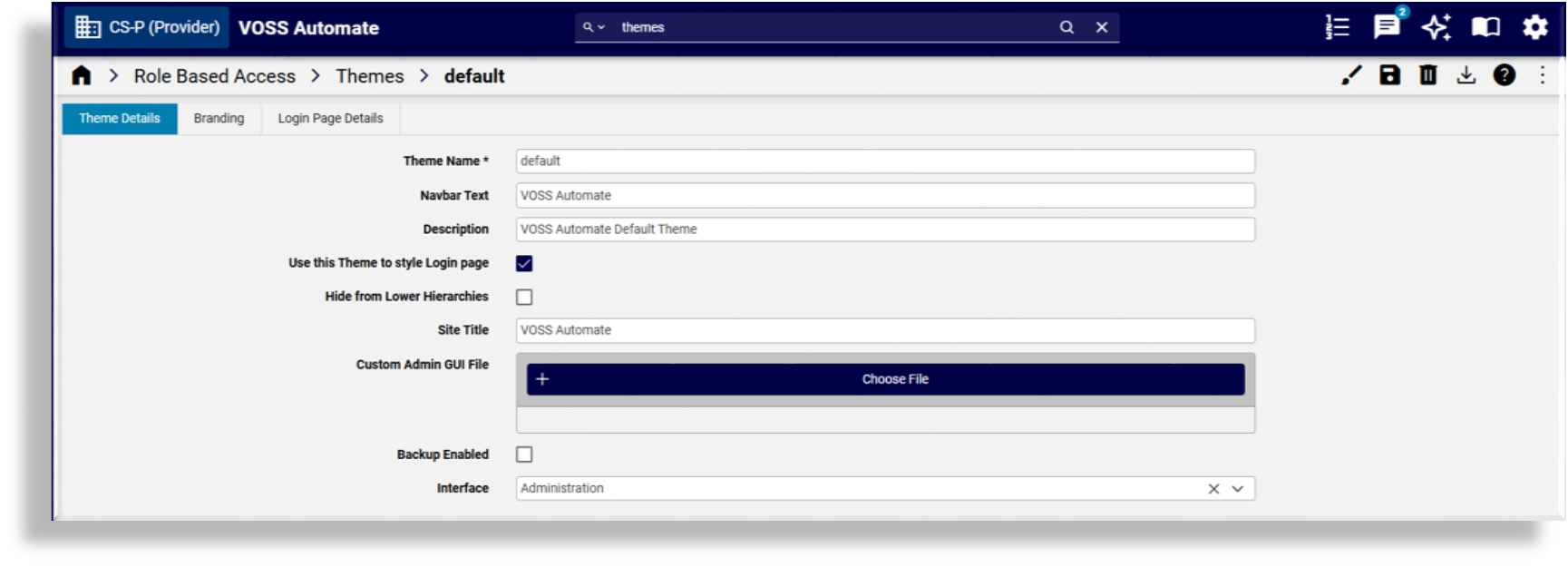
On the Theme Details tab of the Themes page you specify theme details:
Theme Name: Mandatory. The name of the theme. Valid characters are in the range of
a-zA-Z0-9_.Navbar Text: Text to display on the navigation bar, adjacent to the organization level.
Description
Whether to use the theme to style the Login page.
Whether to hide the theme from lower hierarchies.
Site Title: The title of the site, displays on the browser tab
Custom Admin GUI File: Upload a custom theme file, if applicable
Whether to enable a backup of the theme (images and other custom elements)
Interface: The interface where the theme is applied (Administration or Self-service)
Branding tab#
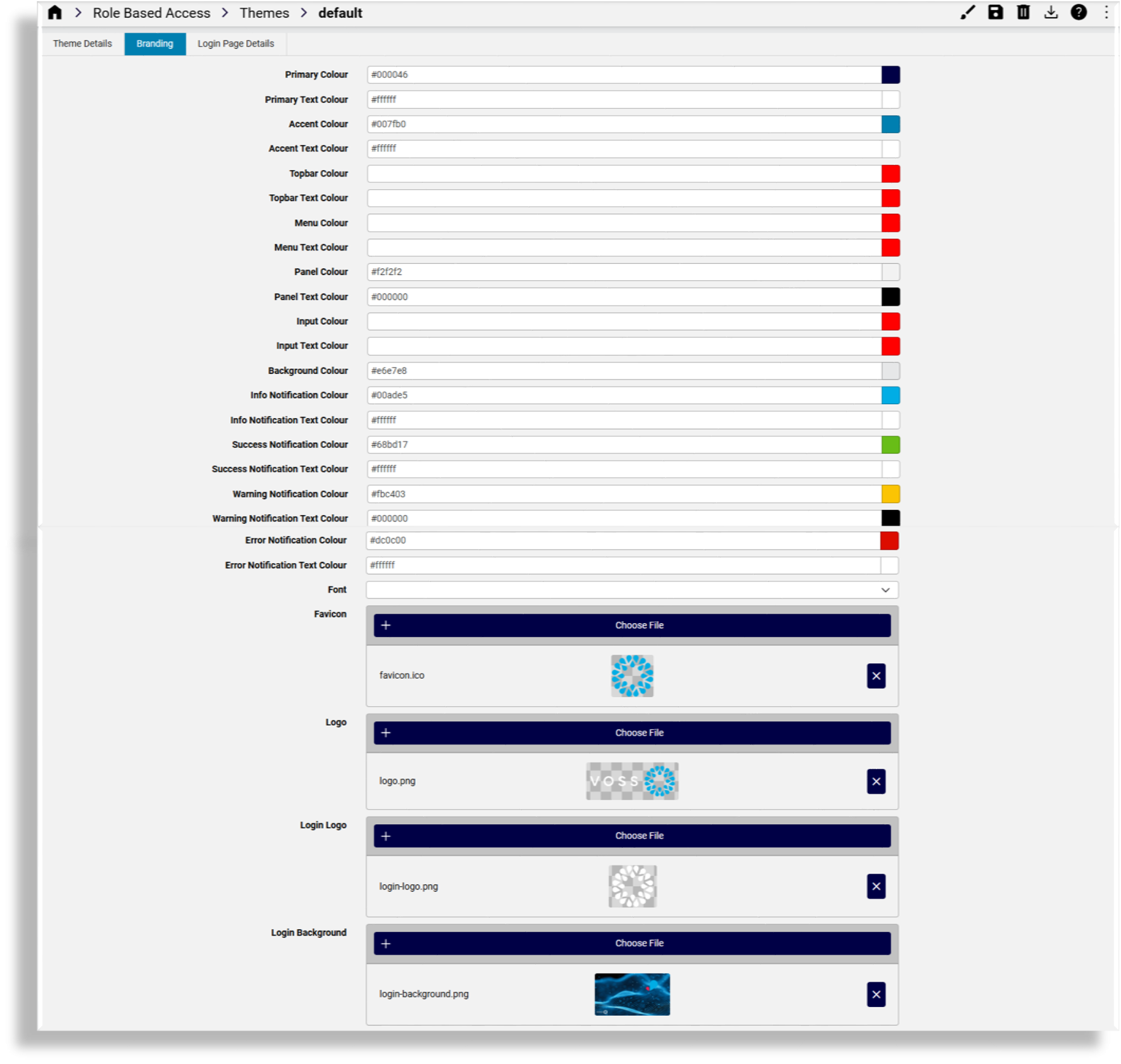
On the Branding tab you can customize a theme for your organization. You can change colors via the color picker or by typing in the color hex value. When no colors are chosen in this tab, the defaults apply.
Fonts
The Font dropdown allows for a selected font to override the global default Roboto font. The selected font is then applied to all text, including the login screen.
Uploading images
When uploading images for the theme:
Note file size and width x height pixel dimension size restrictions. A system message displays if the image is too large.
Only PNG files are supported for the Logo image. Other images can be PNG or JPEG.
For image filenames, you can use the following characters and character types:
ALPHA / DIGIT / "-" / "." / "_" / "~"/ "#"
Image details
Favicon: The favicon for the site. Shown on the tab and when the site is bookmarked.
Type: PNG image or with
.icoextensionMaximum dimensions: 256x256 pixels
Logo: This image is used for the logo in the top left of the menu bar.
Type: PNG image with a transparent background
Maximum file size: 0.5MB
Maximum dimensions: 600 pixels in width and 192 pixels in height
Login Logo: This image is used for the logo on the login page
Type: PNG image with a transparent background
Maximum file size: 0.5MB
Maximum dimensions: 600 pixels in width and 192 pixels in height
Login Background: This image is used for the login screen background
Type: PNG or JPEG image
Maximum file size: 5MB
Maximum dimensions are 1920 pixels in width and 1080 pixels in height
Menu Background: This image is used for the side menu background
Type: PNG or JPEG image.
Maximum file size: 2MB
Maximum dimensions: 240 pixels in width and 1040 pixels in height.
Login page details tab#
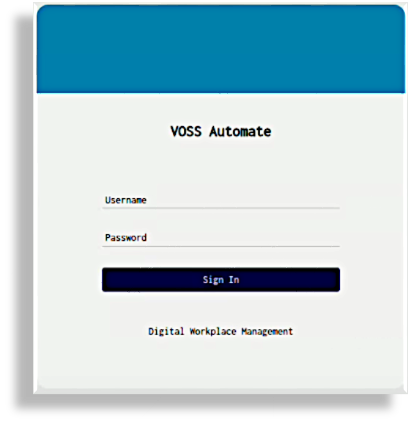
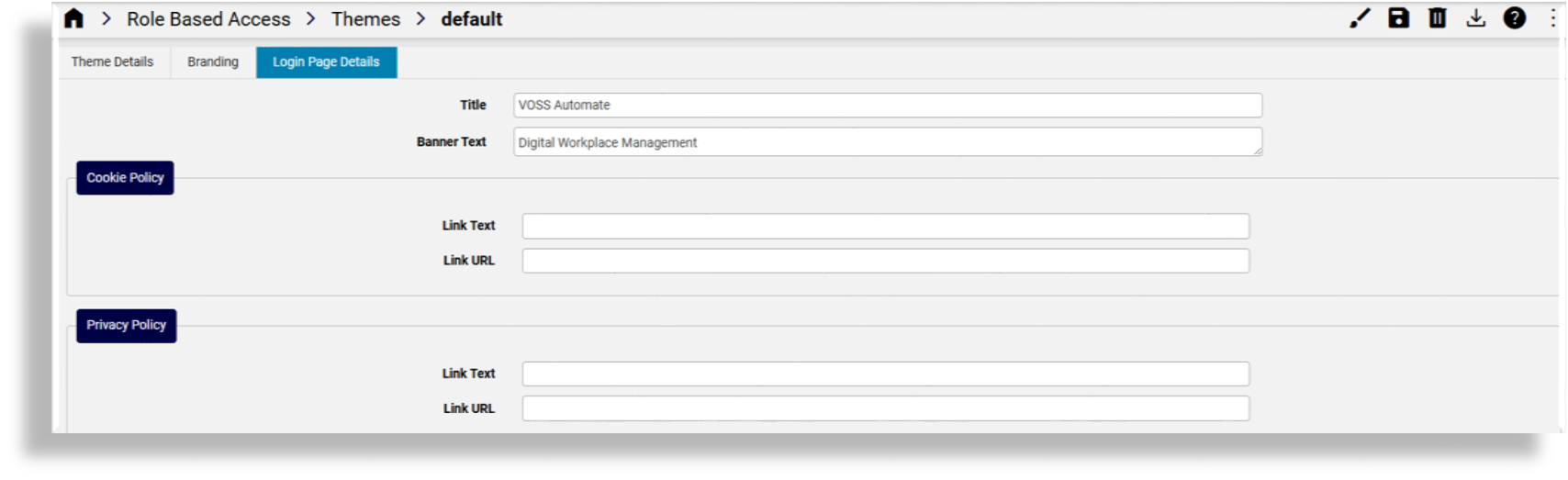
The Login Page Details tab defines the theme for the Login page, including the title and banner text, cookie policy and privacy policy details.
If you add banner text (limited to 2048 characters), this is used at the bottom of the Login page.
References to the cookie policy and privacy policy in the Banner Text field should be added as placeholders, which will then resolve to the Cookie Policy and Privacy Policy data entered. The placeholders are:
{{cookie_policy}}{{privacy_policy}}
Note
You can add multiple lines for the banner text, including paragraphs. Banner text displays exactly as you add it to this field. Cookie and security references show as links that open in a new browser tab.
Custom themes#
You can create a custom theme to change the following properties of the Admin Portal:
Primary and accent colors
Logo image
Login screen background image
If the background image also contains logos, it is recommended that these be placed on the bottom of the image.
Background image for menu
Browser tab title
Themes created in the Admin Portal can’t be exported in full.
Preview a theme#
When creating a theme, you can use the toolbar Preview icon  (Paintbrush)
to preview your theme look and feel (colors and images) before assigning it to a role and having it
apply to the GUI.
(Paintbrush)
to preview your theme look and feel (colors and images) before assigning it to a role and having it
apply to the GUI.