
Flow through provisioning (FTP)#
Overview#
Automate’s Flow Through Provisioning (FTP) feature enables auto-provisioning of users and services without manual administrative input, during user sync from devices. When users are synced into Automate, their user records are inspected and attributes are evaluated against predefined criteria, checking for matching criteria to determine if they should automatically receive telephony services, phone numbers, group memberships, and more.
Note
Sync with flow through provisioning supports Cisco Webex, Microsoft, and several additional scenarios, including LDAP top down and LDAP/CUCM bottom up. While the legacy sync, move, and provisioning functionality remains available for compatibility purposes, flow through provisioning is the recommended procedure.
Flow through provisioning Add syncs enable complete onboarding of users, while an update sync is available for Microsoft users that already exist at site level, to move these users from one site to another when changes are detected on their user records in Azure.
FTP Example Scenario: Acme Corp#
Consider a fictional company, Acme Corp, which uses Microsoft Voice Services for their employees. As a global organization experiencing rapid growth, Acme’s IT and Voice Services teams face increasing pressure to provision new employees efficiently and to keep up with changing roles and functions for existing employees. Traditionally, Automate admins would manually assign users to sites and apply profiles that provisioned their services and numbers. With Flow Through Provisioning, even these steps can be automated, eliminating the need for manual intervention entirely.
How it works
Administrators provide logic to determine how new users should be processed automatically, using model filter criteria and flow through provisioning criteria.
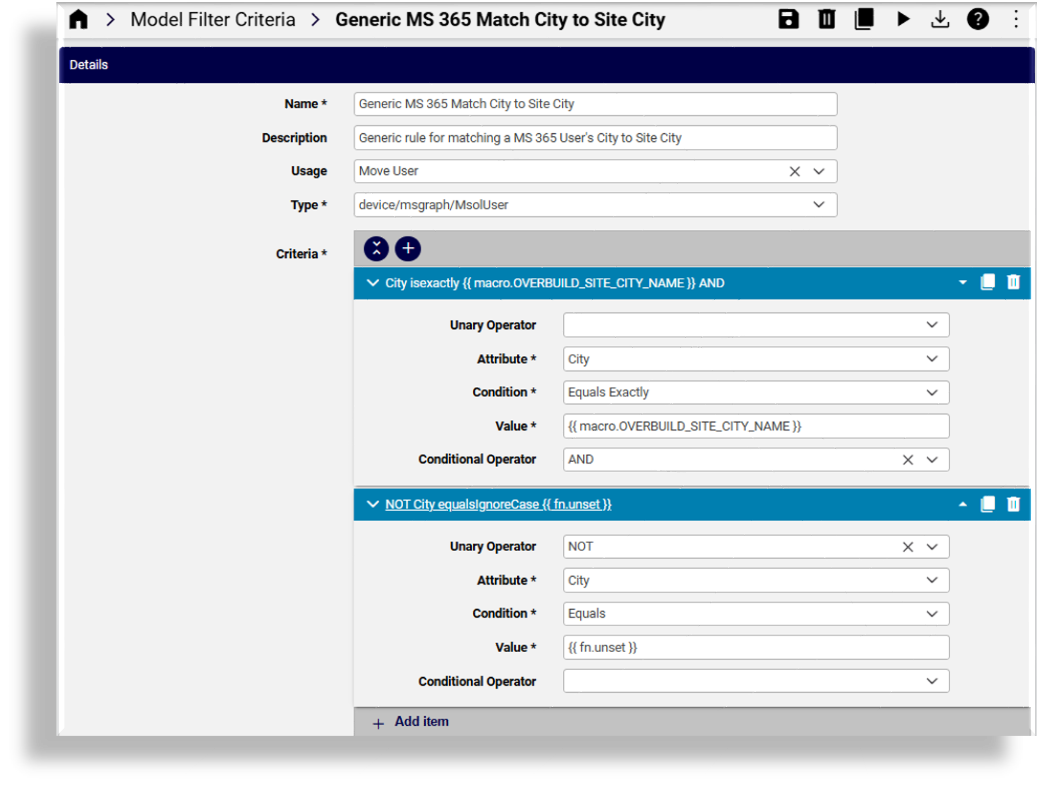
Example: New MS 365 user, Joe Adams, has their City attribute set to “Chicago”, and they’re in the “Engineering” department.
The admin creates model filter criteria with:
Usage set as Move User
Criteria attribute set to City, with a value of “Chicago”.
In the Site Defaults for the Chicago site, select this model filter criteria for Joe’s user type (MS 365 in this case).
Automate now has instructions to automatically move any users synced in to the Chicago site, if they have matching criteria (City value of “Chicago”).
The admin can create model filter criteria with:
Usage set as Flow Through Provisioning
Criteria attribute set to Department with a value of “Engineering”.
This model filter criteria, combined with a pre-existing user profile used to provision “Engineering” users, can be used to set up the flow through provisioning criteria.
Criteria is now defined to match user locations based on their “City”, and to match user persona, based on their “Department”.
Finally, the administrator must enable automatic provisioning in the Global Settings:
In the Global Settings, on the Flow Through Provisioning tab:
Set Enable Move & Flow Through Provisioning to Yes.
Set Enable Move & Provisioning (Add Sync) to Yes.
At Flow Through Provisioning Criteria (Add Sync), select the criteria created to match “Engineering” users.
Once enabled, Automate will:
Inspect any Microsoft users synced in to Automate for City attribute matching “Chicago”.
Move users with a City value of “Chicago” to the Chicago site.
Only after a user is moved to a site, their “Department” is evaluated for provisioning.
Flow through provisioning is triggered only after a user is matched and moved to a site. Any combination of model filter criteria with Usage set to Move and Flow Through Provisioning can be configured to automatically move users to their respective sites and to automatically provision users at sites, with a profile that matches their provisioning criteria. No further administrator involvement is needed, provided sufficient licenses are available, and that settings such as profiles and numbers are correctly configured and assigned.
Related topics
Flow through provisioning onboard users (Add sync)#
This section describes the steps for setting up your system to enable a seamless sync in of users to Automate from the hierarchy where the sync source device is set up (typically, Customer level), and the flow through provisioning of services to users at your sites.
To move users to sites, the flow through provisioning references move filter criteria, and attributes set up as Model filter criteria (such as a user’s department, division or city address).
Flow through provisioning uses the move filter criteria in the site defaults (SDD) to determine whether to move users to site. Flow through provisioning won’t run if the user is not moved to the site.
To create a user and provision resources and services, the flow through provisioning references user profiles. See User profiles.
You will need a user profile and Quick Add Group (QAG) with device configuration templates (CFTs) set up before using FTP.
Each flow through provisioning criteria (one per customer) consists of one or more pairs of model filter criteria, and a user profile.
Related topics
- Model filter criteria
- User profiles
- LDAP integration
- Add CUCM server
- CUCM configuration
- Microsoft overview
- Sync to site with flow through
- Sync Webex App users with flow through provisioning
- Global Settings
- Site defaults
- Introduction to role-based access control
Flow through provisioning workflow#
Before you start: Add a server as sync source#
Users are imported from the server sync source to the Customer level in Automate. The flow through provisioning is generic functionality and supports a number of scenarios, including Microsoft, LDAP, CUCM, Cisco Webex and other models (depending on predefined model criteria).
Note
See the Core Feature Guide for details around adding and setting up a server for your flow through provisioning scenario. For example, see Microsoft Quick Start Guide for Automate, LDAP server, Cisco UCM servers
Step 1: Add model filter criteria#
Flow through provisioning references model filter criteria set up for each user type (for example, Microsoft, LDAP, or CUCM).
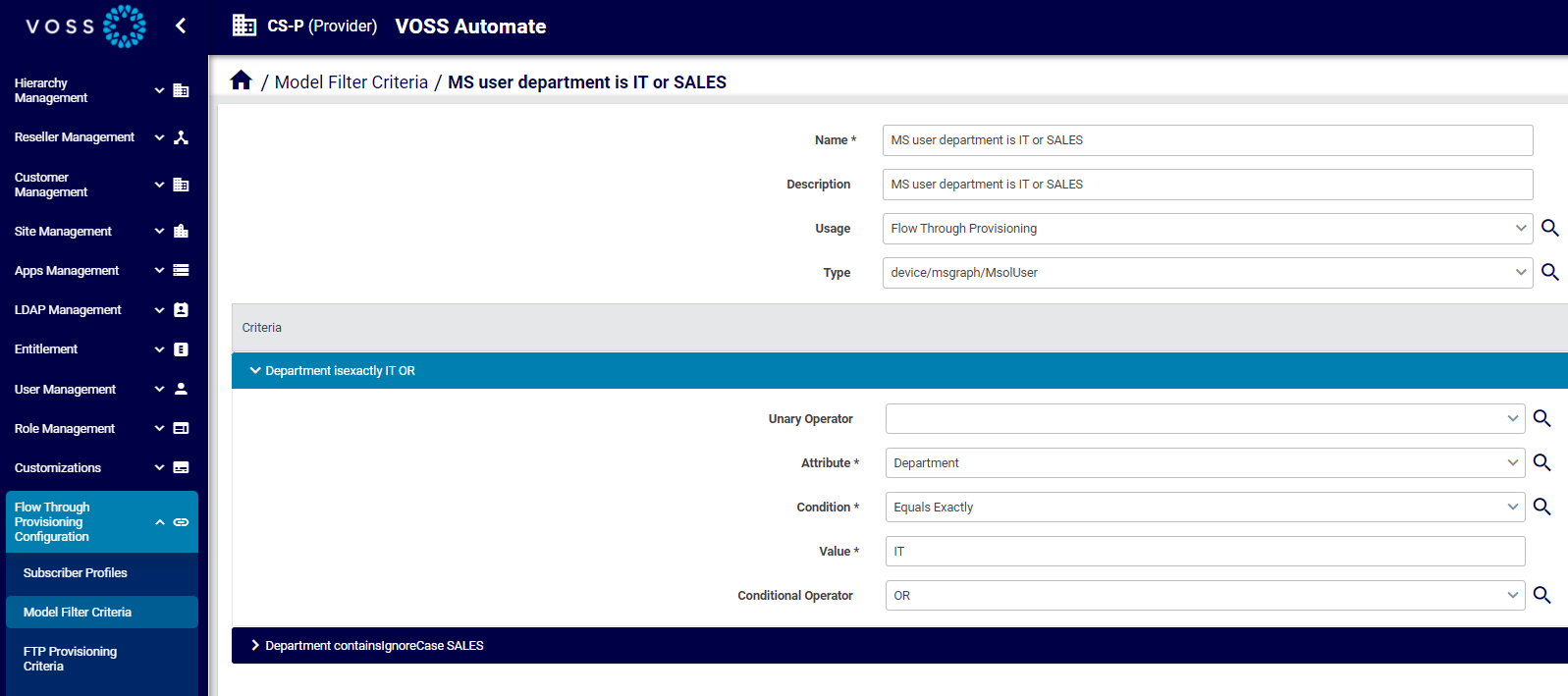
When setting up the Model filter criteria, you will specify usage, either flow through provisioning, or move user:
To move a user to the site on import, configure model filter criteria with Move User selected as the value for the Usage field.
To provision a user once they’re at the site, configure model filter criteria with Flow Through Provisioning selected as the value for the Usage field.
Note
The flow through provisioning process runs only if the user is at the site.
Related topics
Step 2: Add user profiles#
Flow through provisioning uses the user profile to determine the services to be assigned to a user once they’re moved to the site.
Related topics
Step 3: Add flow through provisioning criteria#
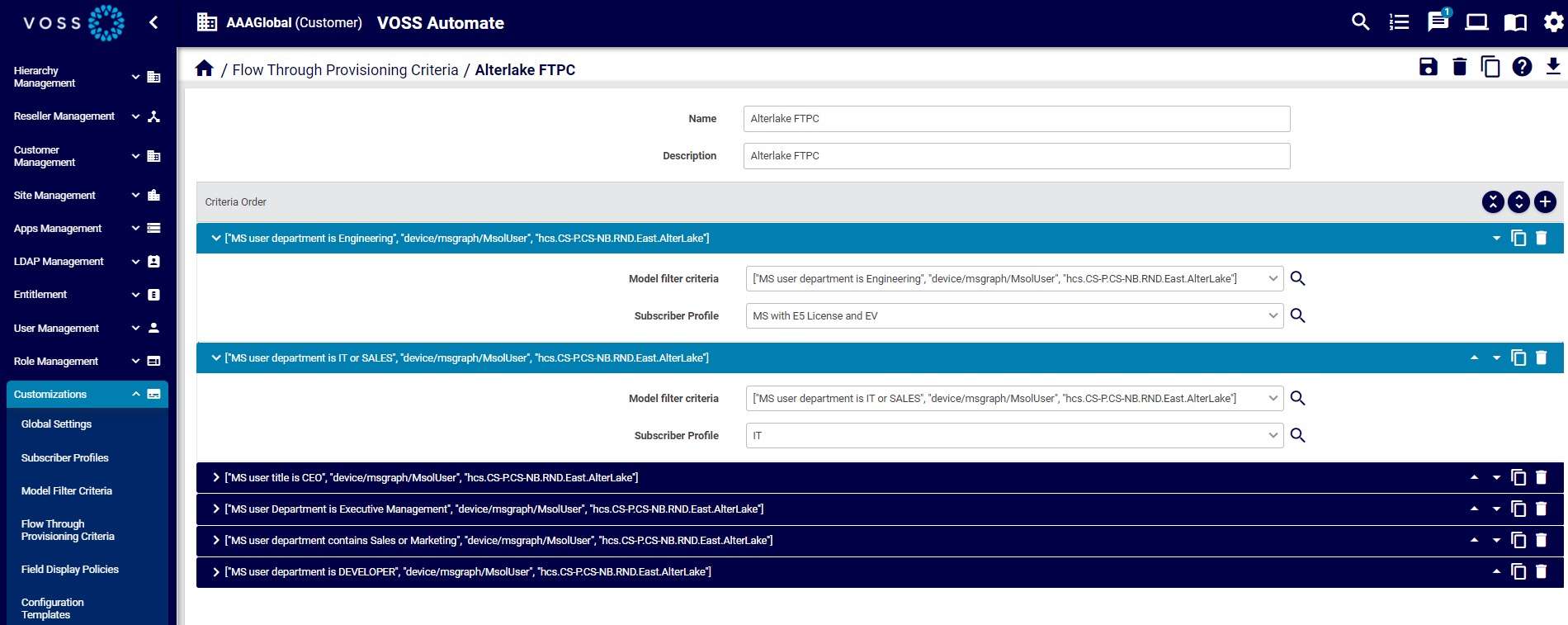
Flow through provisioning criteria is a type of model filter criteria used for provisioning. One named flow through provisioning criteria can be added at each Customer level.
Each flow through provisioning criteria is a collection of one or more pairs of model filter criteria and user profile combinations. The flow through provisioning criteria defines how users are matched to both sites and user profiles, allowing the tool to seamlessly move users to the sites (based on model filter criteria) and to create a user and assign services from the user profile.
Flow through provisioning uses the first match to execute the move and service assignment operation.
You can use a single flow through provisioning criteria to match any number of user profiles for this customer and its sites. For example, if you have ten different user profiles, you can add ten pairs of model filter criteria and user profile combinations.
Note
Flow through provisioning criteria is configured via the Flow Through Provisioning Criteria page.
Before setting up flow through provisioning criteria, configure the following:
Server sync source
Step 4: Choose move criteria#
To allow users to be moved in a flow through provisioning, you need to choose move filter criteria for the user type (Microsoft, LDAP, and/or CUCM). Move filter criteria defines how the system moves users to the correct site once they’re synced in; that is, it matches each user to the relevant site.
Note
The system uses the existence of the move filter criteria from the site defaults to determine if the user must be moved. Flow through provisioning will not work if a user is not moved to a site.
Prerequisites:
Server sync source
Model filter criteria (set Usage field to Move User)
Flow Through Provisioning Criteria
To choose move criteria …
Select the relevant site hierarchy.
Go to the Defaults page.
On the Move Filter Criteria tab, choose the criteria for the user types you’re importing (Microsoft, LDAP, and/or CUCM).
Save your changes.
Step 5: Enable flow through provisioning#
Enabling your system for flow through provisioning in the Global Settings allows Automate to perform a seamless sync in, to move users to the correct site (based on move filter criteria and model filter criteria), and to provision these users with appropriate services (based on the user profile).
Prerequisites:
Server sync source
Flow through provisioning criteria
Move criteria selected
To enable flow through provisioning …
Log in to the Admin Portal as Provider admin or higher.
Set the hierarchy to the level where the sync source device is installed. Typically, this is at the customer.
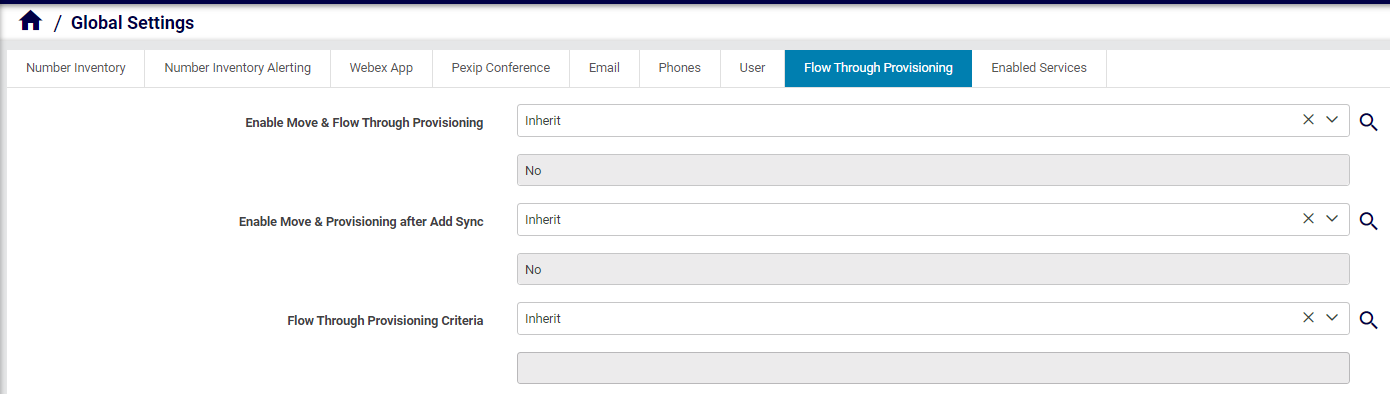
Go to Global Settings, then select the Flow Through Provisioning tab.
At Enable Move & Flow Through Provisioning, select Yes.
At Enable Move & Provisioning after Add Sync, select Yes.
At Flow Through Provisioning Criteria, choose the flow through provisioning criteria to use at the customer level (for all sites at the customer).
Save your changes.
Step 6: Sync with flow through provisioning#
This section describes the general workflow in a generic sync with flow through provisioning.
You can run the sync directly, or via a schedule.
Ensure you have the following set up before a sync:
Server sync source
Flow through provisioning criteria
Move criteria selected
Sync with flow through provisioning workflow steps
The flow through provisioning workflow is executed per user and runs in parallel:
Imports user.
Creates a corresponding LDAP user (for LDAP scenario), and a local VOSS user.
Moves users to the sites (based on model filter criteria). If no criteria in place, user remains at Customer level.
Updates the user’s role for the site.
Executes Add User from Profile to create the user, and checks the flow through provisioning criteria to match it to a user profile.
Provisions the users with appropriate services, from the user profile.
Sends a welcome email to users if the following applies:
The global setting to allow an email message to be sent to a user is enabled. See the Email Tab topic at Global settings.
An SNMP server has bee set up. See Add a SMTP Server.
The user has an email address.
See also Email HTML templates.
You can monitor the progress of the transaction via the Transaction Log. When complete, verify the user’s move and provisioning status:
Go to the Users list view and verify that synced in users are at the correct sites.
On the Users list view, check that users exist at the sites, with relevant services.
Flow through provisioning move users (Update sync)#
This section describes an update sync with flow through provisioning that is designed to sync in changes on user accounts from Microsoft Azure to move users from one site to another.
Note
The update sync with flow through only supports moving users that already exist at a site, to move these users from that site to another site. To onboard new users with flow through provisioning in an add sync, see Flow through provisioning onboard users (Add sync).
Handling updates and user moves#
Flow through provisioning supports dynamic updates. For example, scenarios where users are frequently moved between locations and their assigned number or settings must be re-configured.
In this case, in the Global Settings (Flow Through Provisioning tab/panel), set Enable Move & Provisioning (Update Sync) to Yes to allow Automate to re-evaluate existing users at the site level for attribute changes.
For example, if user Jane Murphy’s city changes from “Chicago” to “Dallas” in Microsoft Entra, the next time a sync occurs, Automate searches for any site with matching model filter criteria in the Site Defaults Doc, and a matching city value. If it finds a match, Jane is moved to the “Dallas” site along with all their services.
Additional controls for number assignment and settings
Admins have the ability to control default behavior for the assignment of numbers and for the user’s services and configured settings during user moves in update syncs:
Number Assignment Control (Update Sync):
Assign New Number (default)
Keep Existing Number (for edge cases)
User Profile Control (Update Sync):
Select the user profile to be applied after a move.
When onboarding in an add sync, a user profile defines settings and services for new users. In an update sync for moving existing users, a user profile is configured for the services and settings to be assigned once they’re moved to the new site.
To move Microsoft users between sites in an update sync with FTP
Configure model filter criteria to use in the user profile for the move in an update sync.
Configure the default user profile to apply after a move in the update sync.
Enable flow through provisioning on update sync in the Global Settings:
Related topics