
Global settings#
Overview#
Administrators (Provider level and up) may configure global settings for customizations that apply at a specific hierarchy only or across all hierarchies in the system.
On each tabbed page in Global Settings, a read-only field below the choice drop-down displays the current setting for your system. Options are:
Inherit |
The service is enabled/disabled based on the setting at the hierarchy above the current one. |
Yes |
The service is enabled at the current hierarchy. |
No |
The service is disabled at the current hierarchy. |
To change inherited settings, see Changing inherited settings.
Update Global Settings#
Global settings are configured on the tabs of the Global Settings page:
Pexip Conference
Email
Phones
Voicemail
User
Flow Through Provisioning
Enabled Services
Number Inventory#
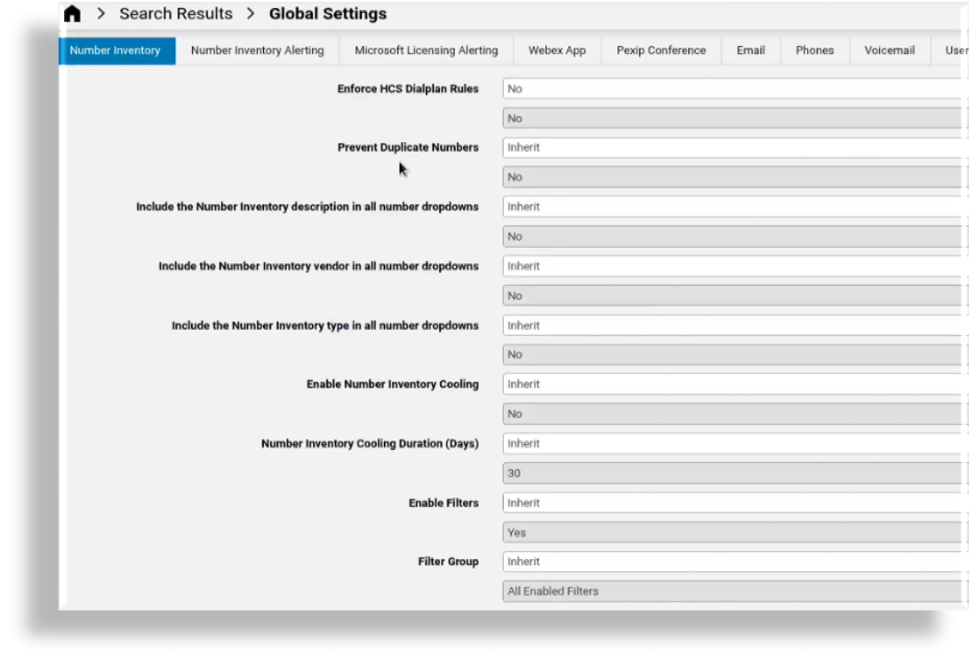
The table describes the global settings for the Number Inventory:
Field |
Description |
|---|---|
Enforce HCS Dialplan Rules |
When enabled, dial plan workflows enforce HCS Rules when provisioning Customers, Countries, Site and so on. Default = Inherit. If your deployment uses a custom or specific dial plan that does not conform to the HCS rules, this setting should be set to No (False). |
Prevent Duplicate Numbers |
This setting displays only at hierarchies above site or or linked site levels, and only when Microsoft is enabled for your system (via the Enabled Services tab in Global Setting). When available, the setting is enabled only when Enforce HCS Dialplan Rules is set to No (disabled), else, the field is read-only. In Microsoft environments, defines whether to allow the creation of duplicate numbers at sites in Automate when syncing in and provisioning users, or when creating number ranges. Default is No (duplicate numbers are allowed). The system checks the setting for Enforce HCS Dialplan Rules before applying the Prevent Duplicate Numbers logic. When enabled, the system enforces unique number validation throughout the hierarchy. |
Include the Number Inventory description in all number drop-downs |
Defines whether descriptions for the numbers (which can be added when the number inventory is managed via Number Management), display along with the numbers in the drop-down lists. For example, let’s say you have a number and its description as follows: 1000 - CEO Internal. When this setting is enabled (Yes), both the number (1000) and its description displays in the lists (when using features such as Quick Add User). The default is No. |
Include the Number Inventory vendor in all number dropdowns |
Defines whether vendor names for the numbers show in number dropdown as an option. For example, a number |
Field |
Description |
|---|---|
Include the Number Inventory type in all number dropdowns |
Defines whether number types for the numbers show in number drop-down as an option. For example, a number |
Enable Number Inventory Cooling |
Defines the availability of numbers in the system when a phone, user, or service associated with the number is deleted, and the number is no longer associated with these entities. Options are:
|
Number Inventory Cooling Duration (Days) |
When number inventory cooling is enabled (Yes/True), this field defines the period (number of days) the number is kept in a cooled state and unavailable for association with a phone user, or service. The default is 30 days. |
Enable Filters |
Enables/disables custom number inventory filters at the current hierarchy. Shipped inventory filters can’t be enabled or disabled as these reside at sys level. When enabled, custom and shipped inventory filters display in a drop-down list on forms such as Quick Add User, Onboard User (to add a user from a profile), Multi vendor service user move, Cisco Advanced User, Phones, Extension Mobility, and Single Number Reach. Options are:
|
Field |
Description |
|---|---|
Filter Group |
When Enable Filters is set to Yes, the selected filter defines the number inventory filters available in the the drop-downs for choosing a number inventory filter. Options are:
When set to Inherit, the value displays for the filter group that will be used from a higher level in the hierarchy. Custom enabled filters will only display in the drop-downs if these exist and are enabled at the hierarchy you’re working at. All Enabled Filters includes all custom and shipped filters, provided they are enabled at the hierarchy you’re working at. |
Related topics
Number Inventory Alerting#
This tab configures the global settings for number inventory alerting, which defines how alerts may be raised once the number inventory is running low.
The table describes the settings on this tab:
Field |
Description |
|---|---|
Enable Alert on Available Numbers |
By default, this setting is set to Inherit. However, it will not inherit the setting from higher up the tree unless it is explicitly set to Yes or No. Inherit in this instance just means it is not configured. Change to Yes to enable alerting. |
Alert Aggregate Level |
Choose a hierarchy level at which the aggregate of available numbers should be calculated (Provider, Reseller, Customer, Site), and displayed in the body of the alert. The shown data in the body for this hierarchy level is:
Data is also included for lower hierarchies (as tables and in CSV format). For details, see the following topics:
|
Availability Threshold Percentage |
Select or enter a percentage available of the total numbers at which point alerts will be raised. Sample percentages are available to choose from. If available numbers drop below this percentage, alerts will be raised. |
Enable Email Group |
Set to Yes to send email alert notifications to an email group. The email group needs to be available or should be set up. |
Alert Email Group |
If Enable Email Group is set to Yes, select the email group. |
Ignore Hierarchies With No Numbers |
If set to Yes, hierarchy levels with no numbers are excluded from reports. |
Note
The email alert message also includes an attachment file NumberThreshold.csv, which
contains the alert report in CSV format. See: Email HTML templates.
Related topics
- Number Inventory Alerts
SNMP Traps: Number Inventory Alerting in the Platform Guide
Microsoft Licensing Alerting#
The table describes the global settings for the Microsoft Licensing Alerting:
Field |
Description |
|---|---|
Enable Alert on Microsoft Licenses |
When enabled, alerts will be raised and optionally emailed if the Microsoft license availability threshold is reached at the hierarchy. Default = Inherit.
Refer to Availability Threshold Percentage below. |
Availability Threshold Percentage |
Defines a percentage of remaining Microsoft licenses at which an alert is raised. Percentages are available in the drop-down lists: 10, 15, 20, 25. Default = Inherit. |
Enable Email Group |
Defines whether an email group will receive alerts. Default = Inherit. If set to Yes at the hierarchy, the Alert Email Group drop-down list provides available email groups. |
Alert Email Group |
The selected email group to receive alerts for Microsoft licenses consumption above the defined threshold. Default = Inherit. |
Related topics
Webex App#
This tab configures the global settings for Webex App.
The table describes the fields on this tab:
Field |
Description |
|---|---|
Retain a Webex App User when a subscriber is deleted |
Defines whether to delete Webex App user when a user is deleted. Default is No. |
Send notification when the Webex App Refresh Token expires |
Defines whether a notification is sent when the Webex App refresh token expires for a specified customer. A SNMP trap and Webex App message is sent to recipients configured in the email group. |
Webex App Refresh Token expires threshold (in seconds) |
The max threshold (in seconds) for when to send a SNMP trap to the SNMP
(if Send SNMP trap message when the Webex App Refresh Token expires
is enabled). The default is |
Automatically apply default calling behavior on Webex App user data sync |
Whether to apply default calling behavior (set up in Customer settings), to new Webex App users synced in to Automate. Default is No. |
Generate and send Webex App User CSV file via Webex App message |
Whether to generate a CSV file on create/update of Webex App user. Default is No. If enabled (Yes), the CSV file is sent via Webex App to a predefined list of recipients. |
Email group containing recipients of the generated Webex App user CSV file |
The group of recipients of the Webex App message with the generated CSV file. The email group is set up on the Email Groups menu. |
Send manual Webex App Workspace configuration steps via Webex App message |
Whether manual configuration steps (on Webex App Control Hub) are to be sent on create/update of a Webex App workspace. Default is No. If enabled, the steps are sent via a Webex App message. |
Email group containing recipients of the manual Control Hub steps |
Email group recipients of the Webex App message containing the manual configuration steps. |
Quick Add Group for Hybrid Calling Workspace Unified CM users |
The Quick Add Group to use when creating dummy CUCM users with line and device for Webex App workspace hybrid calling. |
Enable Cisco Webex Contact Center Model References |
Defines whether to enable retrieval and display of Cisco Webex Contact Center device model references from the Webex Control Hub. It is recommended that you enable this setting in the Global Settings only for any customer where you want to retrieve the reference details. This is to prevent a performance impact on customers where the setting is not required. |
Related topics
Pexip Conference#
This tab configures the global settings for Pexip Conference.
The table describes the settings on this page:
Field |
Description |
|---|---|
Retain a Pexip Conference when a user is deleted |
Defines whether the Pexip conference set up from the user interface is to be removed when the user is deleted. By default the setting is inherited from the hierarchy level directly above the current one. |
Email#
This tab configures the global settings for Email.
The table describes the settings on this page:
Field |
Description |
|---|---|
Allow welcome email to be sent to user after Quick Add User |
Defines whether an email is sent to a user when added via Quick Add User. The default is No. When set to Yes, and a SMTP server is set up via Apps Management), then selecting the option to send an email when using Quick Add User, a welcome email is sent to the new user. |
Related topics
Phones#
This tab configures the global settings of phones for a site.
Note
These settings only apply to phones within the same site; both the re-added phone and the existing phone must be on the same site.
The table describes the phone global settings on this tab:
Field |
Description |
|---|---|
Delete existing Unassigned Phone when re-adding an identical phone |
Defines whether to delete an existing, unassigned phone (a phone without an owner), when re-adding a phone with the same name and product type (duplicate phone). Default is Inherit (No, inherited from the hierarchy above), which triggers a transaction failure if you try adding a duplicate phone, for example, in a Quick Add User bulk load or when updating a user. When set to Yes, a system check verifies whether the phone exists and/or if it is already assigned (whether ownerUserName field is populated):
|
Retain Desk Phones when Subscriber is deleted |
Defines whether a user’s associated desk (hard) phones (phones prefixed with SEP or BAP) are deleted or retained when that user is deleted. When set to Yes:
Default is Inherit (set to No). This setting defines hard phone delete/retain behavior for any method of deleting a user, for example, delete user via the User’s list view, or delete user in LDAP import, purge or sync (where delete or purge mode is automatic). You can view the hard phones associated with the user on the Phones tab in the user settings. |
Update the Retained Desk Phone with Configuration Template |
This field displays only when Retain Desk Phones when user is deleted is set to Yes (True). Defines whether to update retained hard phones via a configuration template (CFT) when the associated user is deleted. This feature ships with a default CFT (RemoveOwnerFromPhoneCFT), which clears the phone’s Owner User ID if the phone is retained when deleting the associated user. You can choose a different CFT for the update step, if required. |
Field |
Description |
|---|---|
Include additional information in Phone dropdowns |
Options are Yes, No, Inherit. Default is Inherit (inherited from the hierarchy above) Set to Yes to enable. You will need to save this update then refresh the tab to display an additional configuration field (Additional information in Phone dropdowns). |
Additional information in Phone dropdowns |
Options are Yes, No, Inherit. Default is Inherit. Additional information options are Description, First Line, and Description + First Line. The default, Description, means that the phone description (if defined) displays in the phone selection drop-downs on the Replace Phone configuration page (Existing Phone tab, Device Name drop-down), and on Quick Add User, allowing you to search by phone description when choosing a phone from the drop-down. In the same way, when the additional information option is set to either First Line or Description + First Line, you can search for or choose phones based on this criteria. |
Prevent Duplicate MAC Addresses for Cisco Phones |
Options are Yes, No, Inherit. Default is Inherit. For any transaction adding a Cisco phone, if this setting is enabled, the transaction will fail with a message:
if any phone is found containing the same MAC address within all clusters in a customer or reseller. |
Related topics
Voicemail#
This tab configures the global settings for voicemail.
The table describes the settings on this tab:
Field |
Description |
|---|---|
Retain a (Cisco) Voicemail Account when a user is deleted by data sync only |
Defines whether to retain a Cisco (UCM) user’s voicemail account when the user is deleted. Default is Yes (true). When set to Yes, the CUCM user’s voicemail account is retained when the user is deleted and user sync is executed. |
User#
This tab configures the global settings for users.
Note
When a user is either synced into or added manually on Automate, these settings apply by default. The settings can however be modified when adding a user via User Management.
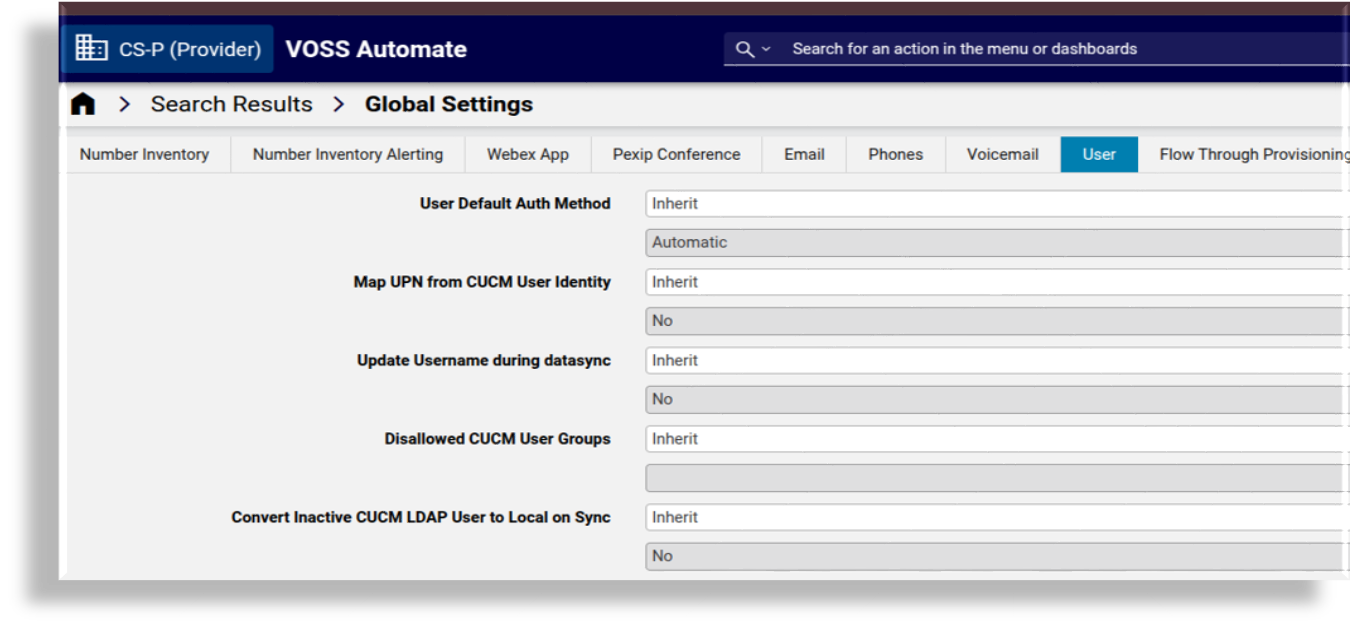
The table describes the settings on this tab:
Field |
Description |
|---|---|
User Default Auth Method |
The default authentication method to use when a user is synced in or added manually. The default is Local (inherited). |
Map UPN from CUCM User Identity |
Maps the Microsoft Azure UserPrincipalName (UPN) attribute to CUCM userIdentity attribute - used in Cisco-Microsoft hybrid configurations where the same user ID is on every user account (MS Teams, CUCM, etc.). If enabled, the CUCM user’s userIdentity attribute is used for the import of MS teams CsOnlineUser and MS 365 Msol user instances. The default is No (inherited). |
Update Username during datasync |
Defines whether to update the existing VOSS username when a new associated user is imported via a sync. |
Disallowed CUCM User Groups |
Defines the user groups (one or more) that admins will not be allowed to assign to user. This is to prevent users being incorrectly assigned elevated permissions to system resources that are reserved for users in the groups you specify here. Fill out the user group names in a colon-separated format, for example, Standard CUCM SuperUser:MyGroupName |
Enable Microsoft User License Enforcement |
Defines whether to Microsoft license allocation is enforced at hierarchy levels. Refer to the related topic below. Default is Inherit. |
Convert Inactive CUCM LDAP User to Local on Sync |
Defines whether to convert CUCM users that would normally be automatically deleted by the CUCM, to be converted into CUCM Local users during a data sync of CUCM. When disabled (default), users that have been in status “Inactive LDAP Synchronized User” for more than 24 hours are automatically deleted by the CUCM. These users and their services are then deleted from Automate on the next CUCM data sync. When enabled, users that have changed their status to “Inactive LDAP Synchronized User” are converted to “Enabled Local Users” on the next CUCM data sync. The data sync of the CUCM must occur within 24 hours of the users becoming inactive otherwise, CUCM will still delete them. |
Retain User at Site after MS Offboard User |
Defines whether to retain a user at a site instead of moving the user back to customer level when performing the task: Quick Offboard User. The default is No (inherited). |
Related topics
Flow Through Provisioning#
This tab defines global settings for sync with flow through provisioning.
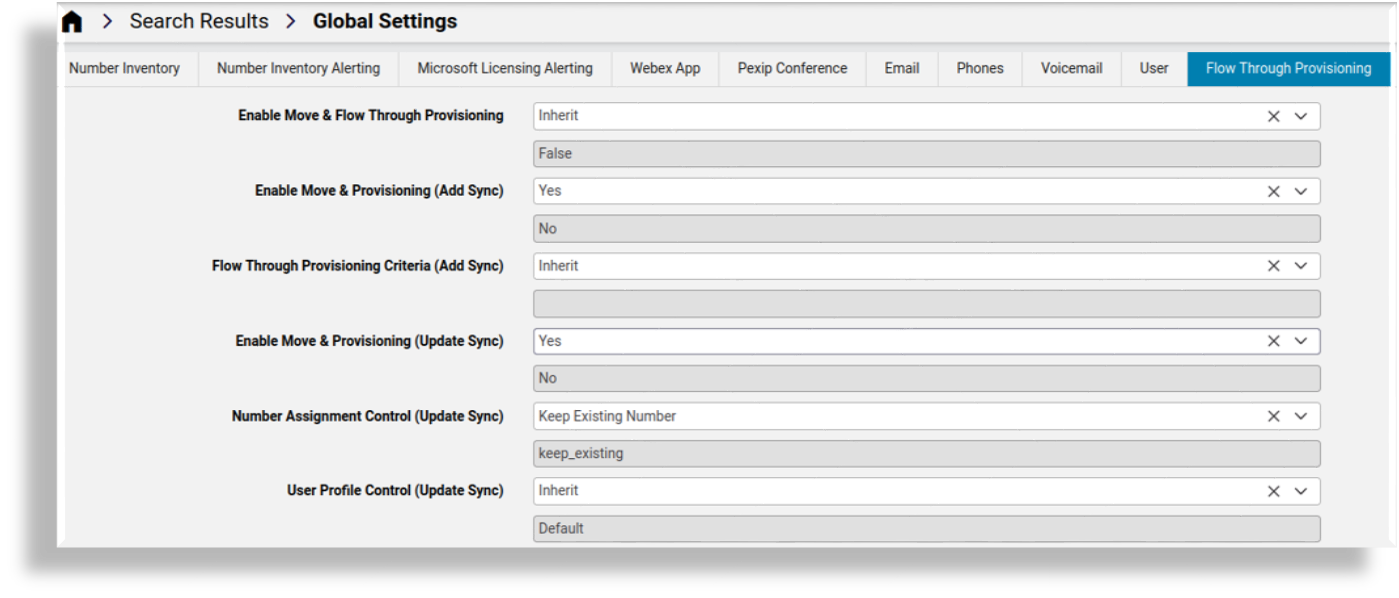
The table describes the settings on the Flow Through Provisioning tab/panel:
Field |
Description |
|---|---|
Enable Move & Flow Through Provisioning |
Defines whether move and flow through provisioning is enabled. The default is No. |
Enable Move & Provisioning (Add Sync) |
Enabled only when Enable Move & Flow Through Provisioning is enabled. Defines whether move and flow through provisioning on Add sync is enabled. The default is No. |
Flow Through Provisioning Criteria (Add Sync) |
Enabled only when Enable Move & Flow Through Provisioning is enabled. Used only for adding and onboarding users. Defines the default criteria applied in an Add sync when moving and provisioning a user with flow through provisioning. The user is synced in, moved to a site, and provisioned with relevant serves in one step, based on the flow through provisioning criteria. |
Enable Move & Provisioning (Update Sync) |
Microsoft users only. Allows the system to automatically move an existing non-hybrid, Microsoft-only user, from one site to a new site, with their services and a new line, in a scheduled or manually triggered sync. When set to Yes, triggers display of these additional fields to apply controls for move using between sites, and provisioning in an update sync:
Important Update syncs for move and flow through provisioning execute only on users that are already at Site level. These are users who have already been provisioned at a site and their settings on Azure have changed, therefore requiring a move to another site and, if relevant, changes to their provisioning at the new site. Users synced in at Customer level as Msol users aren’t eligible for flow through provisioning. To move and automatically provision these users you can either purge them and sync them in again in an Add sync with flow through provisioning, or manually configure and move them. |
Number Assignment Control (Update Sync) |
Displays only when Enable Move & Provisioning after Update Sync is set to Yes. Update sync only. Defines whether a user keeps their existing number or is assigned a new number when moved from one site to another site. Options are Inherit (from the hierarchy settings above this one), Keep Existing Number (default), or Assign New Number. Note that this is a global setting at the hierarchy where you’re applying the setting so all users updated in this move and sync will either inherit settings, or keep their numbers, or be assigned new numbers. |
User Profile Control (Update Sync) |
Displays only when Enable Move & Provisioning after Update Sync is set to Yes. Update sync only. A single default profile used only in update syncs with flow through provisioning to apply criteria for moving the user. In an update sync, only this user profile applies for the move. The Flow Through Provisioning Criteria setting on this tab/panel applies only for add syncs. |
Related topics
Enabled Services#
This tab defines the global settings for enabling/disabling services for different vendors, such as Cisco or Microsoft. Options are Inherit, or Yes/No (True/False).
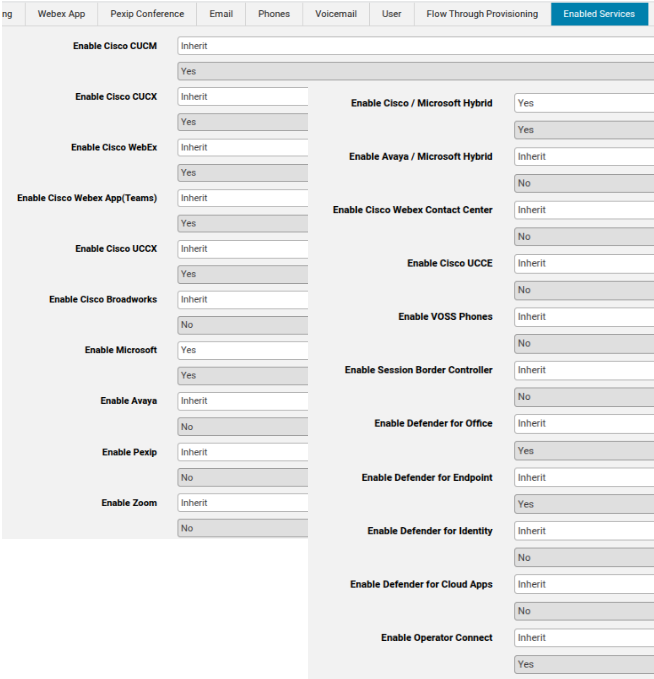
Services that are available to users and enabled on this tab display on the Services tab of the user’s management page. When enabled, an admin can click the link to the service details to view and update the settings for that service. For services that the user isn’t using, you can disable the service (select No) on this tab so that it won’t display on their user management Services tab/panel.
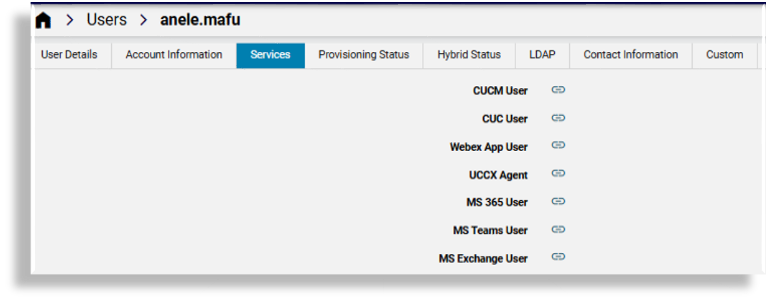
When provisioning services from two or more vendors, the global setting is the first of a number of system verification checks. For example, when the Enable Cisco CUCM global setting is set to Yes (enabled), the administrator can provision a user with new CUCM services (such as a Cisco phone, Jabber, and extension mobility), only if the CUCM device check (server installed), entitlement profile check, and field display policy check all pass the verification check. In the same way, if for example, the Enable Microsoft global setting is set to No (disabled), and all other checks are set to enabled, existing Microsoft services can be viewed but new Microsoft services cannot be provisioned.
Note
By default, for new installs, the global setting for the following services are inherited from higher levels in the hierarchy (Inherit set to True/enabled):
Cisco CUCM
Cisco CUCX
Cisco WebEx
Cisco Webex App
Cisco CCX
When upgrading to a version of the system that allows multi vendor and hybrid users, the default setting for services other than these 5 services is Inherit (False).
To provision services to new users (added after an upgrade), you will need to enable the vendor service in global settings.
The table describes services that can be enabled/disabled on this tab:
Setting |
Description |
|---|---|
Enable Cisco CUCM |
Enables/disables Cisco CUCM services. The default is Yes. When set to Yes, allows an admin user to provision a user with new CUCM services, such as a Cisco phone, Jabber, and Extension Mobility, provided the server is installed, and the entitlement profile and field display policy pass a verification check. |
Enable Cisco CUCX |
Enables Cisco CUCX (Unity) services. The default is Yes. |
Enable Cisco WebEx |
Enables/disables Cisco WebEx services. The default is No. |
Enable Cisco Webex App (Teams) |
Enables/disables Cisco WebEx App (Teams) services. The default is No. |
Enable Cisco UCCX |
Enables/disables Cisco UCCX (Contact Center Express) services. The default is No. |
Enable Cisco Broadworks |
Enables/disables Cisco Broadworks services. The default is No. |
Enable Microsoft |
When enabled, allows provisioning of Microsoft services. The default is No. |
Enable Avaya |
Enables/disables Avaya services. The default is No. |
Enable Pexip |
Enables/disables Pexip services. The default is No. |
Enable Zoom |
Enables/disables Zoom services. The default is No. |
Enable Cisco/Microsoft Hybrid |
Enables/disables Cisco/Microsoft hybrid services. The default is No. When enabled, Automate allows for provisioning users and services from both Cisco and Microsoft devices, and makes available an admin user parent menu called Hybrid Cisco-Microsoft Management, and associated access profiles. For details, see Hybrid Cisco-Microsoft Management in the Core Feature Guide. |
Enable Avaya/Microsoft Hybrid |
Enables/disables Avaya/Microsoft hybrid services. The default is No. |
Enable Cisco Webex Contact Center |
Enables/disables Cisco Webex Contact Center services. The default is No. |
Enable Cisco UCCE |
Enables/disables Cisco UCCE services. The default is No. |
Enable VOSS Phones |
Enables/disables VOSS phones services. The default is No. |
Enable Session Border Controller |
Enables/disables Session Border Controller services. The default is No. |
Enable Defender for Office |
Enables Microsoft Defender for Office - security services for Office 365 |
Enable Defender for Endpoint |
Enables Microsoft Defender for Endpoint - various devices |
Enable Defender for Identity |
Enables Microsoft Defender for Identity - for identity related threats |
Enable Defender for Cloud Apps |
Enables Microsoft Defender for Cloud - cloud security tools |
Enable Operator Connect |
Enables Microsoft Operator Connect for Providers in Automate. When set to Yes (enabled), displays Operator Connect settings in Additional Apps |
Related topics
Enabled Solutions#
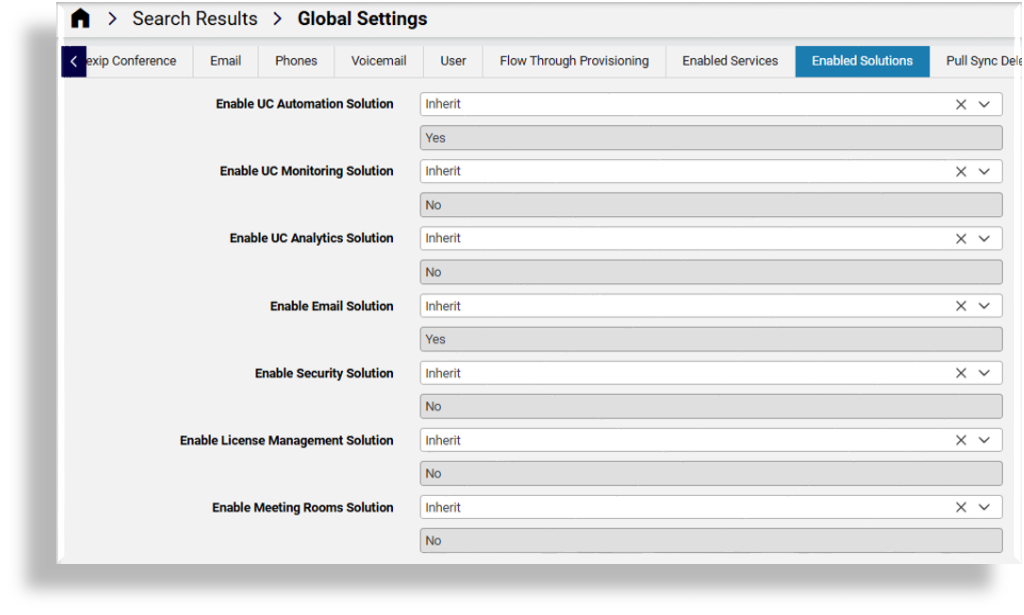
This tab lists solutions that can be enabled in your system, provided you have the necessary licenses.
Note
As at the release of 25.3, the following solutions are available and enabled by default (provided you have the required licenses):
UC Automation: Offers the same functionality as shipped in Automate pre-25.3.
Email: Relevant for Microsoft customers using Automate for MS Exchange pre-25.3.
Deployment of the following solution capabilities is reserved for future development: UC Monitoring, UC Analytics, Security, License Management, Meetings Rooms
From 25.3, admins setting up a Microsoft tenant can add the tenant, select required solutions, and add the permissions for these solutions to a single application (app) registration directly in the customer tenant. When enabling two or more solutions, you will need to create your own app registration in this way, and add permissions to the app registration in the form of an uploaded certificate and/or a secret. Some solutions will require a certificate and others will need a secret.
Permissions required, by solution:
UC Automation: Certificate
Email: Certificate
UC Monitoring: Secret
UC Analytics: Secret
Security: Certificate
License Management: Certificate
Meetings Rooms: Certificate
At the time of writing (25.3), shared central app registration can still be used provided you only have a single solution enabled; that is, UC Automation or Email.
Pull Sync Delete Thresholds#
The Pull Sync Delete Threshold settings on the Enabled Services tab allow you to define the maximum number of items that may be deleted during a sync to protect against unwanted sync deletions. You can adjust the default values if needed. Sync will fail if the threshold is reached.
Setting |
Description |
|---|---|
Pull Sync Delete Threshold for CallManager |
Blocks CallManager deletes if calculated number of local deletes exceeds the threshold. Default is 50. |
Pull Sync Delete Threshold for LDAP |
Blocks LDAP deletes if calculated number of local deletes exceeds the threshold. Default is 50. |
Pull Sync Delete Threshold for MSExchangeOnline |
Blocks MSExchangeOnline deletes if calculated number of local deletes exceeds the threshold. Default is 50. |
Pull Sync Delete Threshold for MSGraph |
Blocks MSGraph deletes if calculated number of local deletes exceeds the threshold. Default is 20. |
Pull Sync Delete Threshold for MSTeamsOnline |
Blocks MS-TeamsOnline deletes if calculated number of local deletes exceeds the threshold. Default is 20. |
Pull Sync Delete Threshold for Spark |
Blocks Spark deletes if calculated number of local deletes exceeds the threshold. Default is 50. |
Pull Sync Delete Threshold for UnityConnection |
Blocks UnityConnection deletes if calculated number of local deletes exceeds the threshold. Default is 50. |
Pull Sync Delete Threshold for Zoom |
Blocks Zoom deletes if calculated number of local deletes exceeds the threshold. Default is 50. |
Related topics
General#
This tab defines general global settings to manage system behavior.
The table describes services that can be enabled/disabled on this tab:
Setting |
Description |
|---|---|
Quick Add Group & User Profile lookup level |
Specifies the hierarchy level up to which Quick Add Groups
and user profiles will be searched for. The default
is Provider level.
( When a lookup level is set, selections of available QAGs and user profiles will be restricted upwards to this lookup level. If you have hybrid customers (customers using both Cisco and Microsoft, for example), you can create hybrid-specific user profiles for those hybrid customers, then set the lookup level for those customers to Customer level so that they will have available a hybrid user profile in the drop-down at that customer hierarchy. |

Changing inherited settings#
For numeric inherited values, for example, for “Number Inventory Cooling Duration (Days)” or “Webex App Refresh Token expires threshold (in seconds)”), you can overwrite the word “Inherit” with the required value, for example, 45, and save your changes. If the inherited value is already overwritten, for example, the value is already 45, then overwrite this value with the new value.
For inherited values that are Yes/No (True/False), select an alternative from the drop-down (either Yes, No, or Inherit). This may change the current value.