
Microsoft Defender setup, sync, and overbuild#
Microsoft
Automate provides a consolidated view and management of the Microsoft Defender suite, including the partitioning of and role-based access to Microsoft tenant data.
Setup#
Perform these tasks to enable and use Microsoft Defender:
Set Enable Defender for Office and/or Enable Defender for Endpoint to Yes in the Global Settings.
See Global SettingsOnce enabled, a Security Management menu is added to the GUI. The menu contains Defender-related submenus and management dashboards.
For details, see the Microsoft Defender management topic below.
Configure a Microsoft tenant in Automate.
This configuration will sync Microsoft Defender data to Automate. Refer to the collection and and sync details below.
See Microsoft tenant setup
Data collection and sync#
When a tenant configuration for Microsoft Defender is saved, Automate …
Creates a data collection instance in Automate that is then synced from the tenant.
For the data collection, if a Microsoft Defender for Endpoint instance is added to the model called
data/DataCollection, its name is of the format: Defender for Endpoint Data Collection <hierarchy name> and collects all instances from the tenant for the following models in a batch:device/msgraphsecurity/SecureScoredevice/msgraphsecurity/Alertdevice/msgraphsecurity/Incidentdevice/mssecurity/Machinedevice/mssecurity/MachineActiondevice/mssecurity/ExposureScoreByMachineGroups
Syncs Microsoft Defender collection data to Automate and creates sync schedules.
Microsoft Defender data is synced to the tenant hierarchy.
For the schedules, these are created (according to Global Settings enabled Microsoft Defender suite items) and by default run every 30 minutes. The schedules can sync data according to the relevant created collection and a batch sync of data takes place.
For the schedule instance, the Resource Type of the created schedule is
data/DataCollection, while the selected Resource naming format is:Defender for Endpoint Data Collection <hierarchy name>
Defender for Office Data Collection <hierarchy name>
The collected data at the tenant hierarchy is then also available when Overbuild for Microsoft is run to partition and move the data to the relevant sites in Automate.
Note
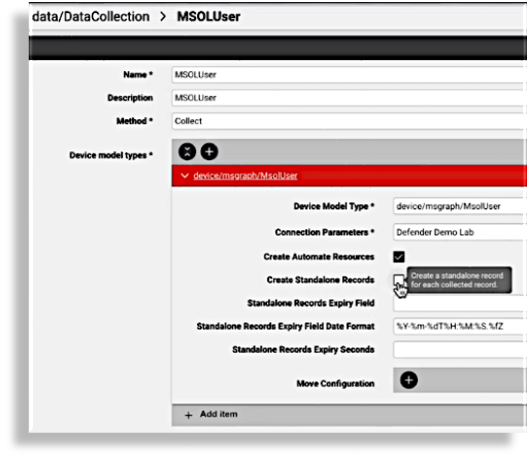
The default MSOLUser data collection does not apply the setting, Create Standalone Records, since this collection is used only for the Insights database in order to provide time series data for trends and charting.
Related topics
Microsoft Defender for Office and Endpoint overbuild#
Automate’s Overbuild for Microsoft allows for the partitioning of the synced Microsoft Defender data to relevant sites in Automate. This includes:
Incident alerts
Quarantine messages
Microsoft Defender policies
Data partitioning is done according to the Model Filter Criteria (MFC) created during tenant setup.
For details on Microsoft Defender for Office and Endpoint overbuild, see: Run Overbuild with Model Filter Criteria (with Microsoft Defender).
Managing Microsoft Defender data#
Microsoft Defender data can be viewed and accessed in Automate from dashboards, allowing for further analysis as well as management from policy, incident, and alert management interfaces.