
Introduction to access profiles#
Overview#
Access profiles determine which model types a user can view or manage. They are assigned to users through the Access Profiles page.
Access profiles control user permissions in the system. They define:
Which model types a user can access
What operations they can perform
Whether permissions apply broadly (using wildcards) or specifically to certain models
Default access profiles#
Default profiles follow a hierarchical permission structure:
Provider -> Reseller -> Customer -> Site
Higher levels have more permissions.
Customer profiles, for example, include fewer permissions than Provider-level profiles.
By default, most system-provided access profiles (except Operator profiles) allow:
Read and Export rights on all multi vendor subscriber quick actions and service card “view” actions
Examples:
view/DeleteCucmHuntGroupAllMembers(Quick Action)view/AddExtensionMobility(service card action)
Cloned access profiles#
When you clone an access profile:
It inherits equal or fewer permissions than the profile of the admin performing the clone.
During system upgrades:
Default access profiles are automatically updated.
Cloned profiles are not updated. You must update them manually or re-clone from the latest default profile.
Managing access profiles#
Admins above Provider level can create, edit, and delete access profiles.
View access profiles
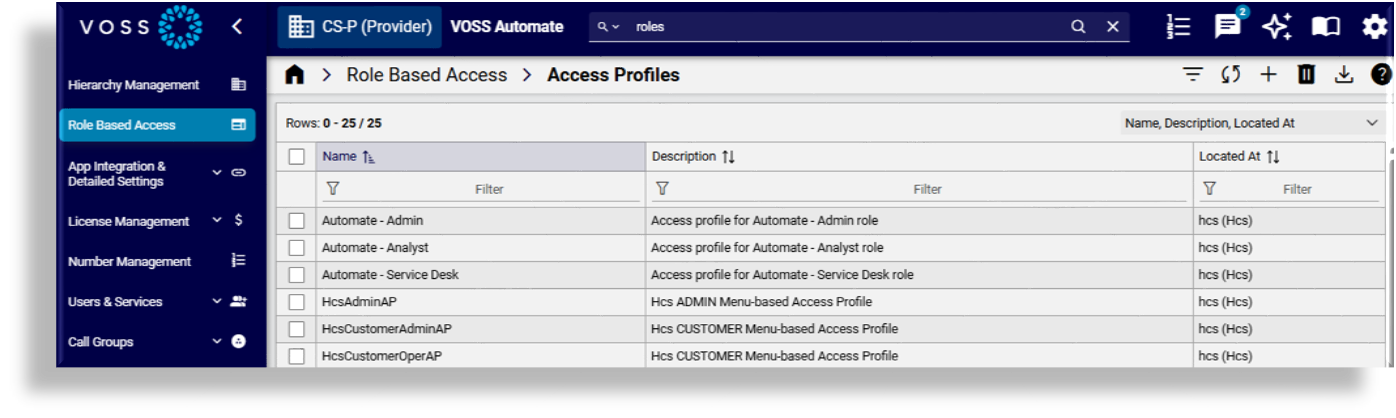
The Access Profiles list view page lists all existing profiles. From here you can view, add, update, or delete access profiles.
Add an access profile
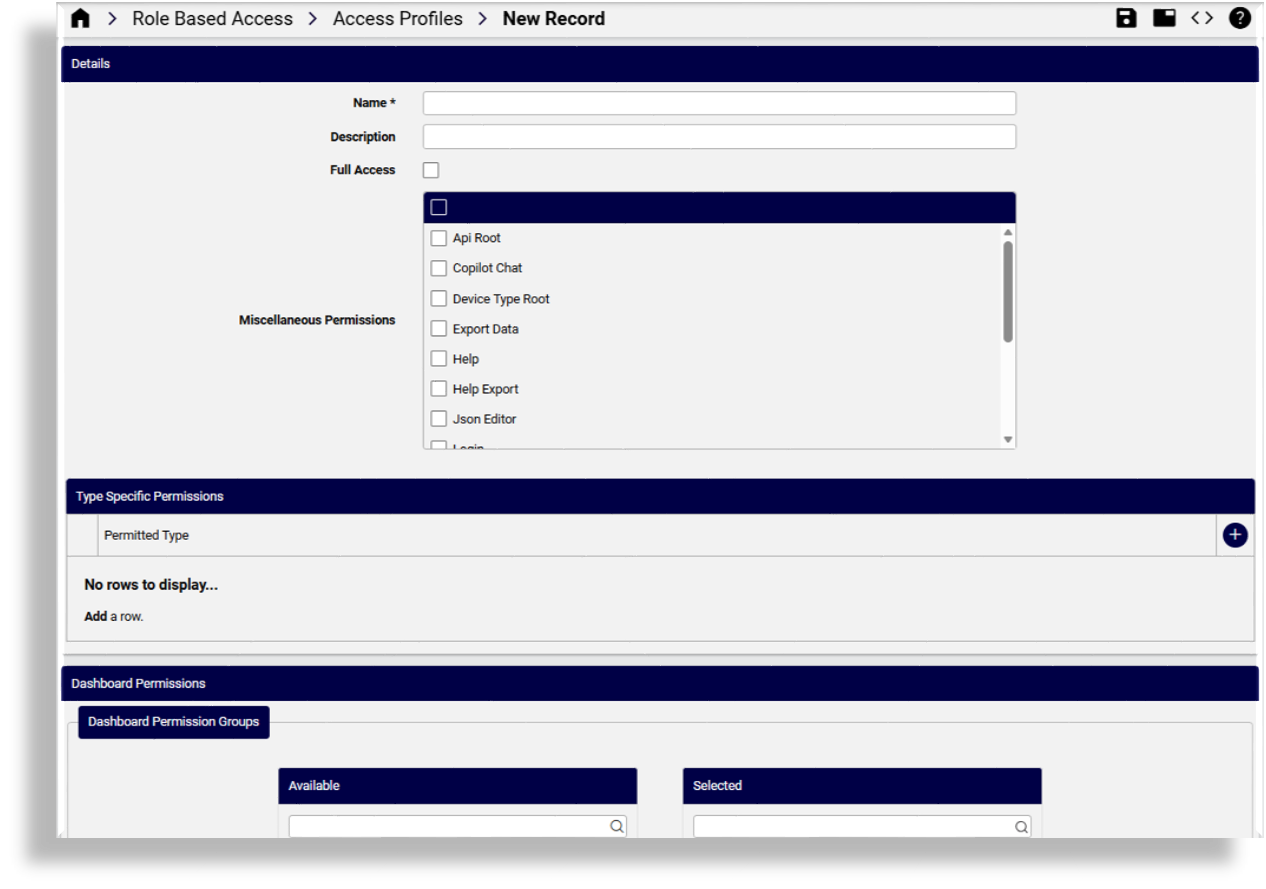
To add an access profile:
Go to the Access Profiles list view.
Click the Plus (+) icon from the Access Profiels list view.
Fill out the configuration fields.
Save your changes.
Edit an access profile
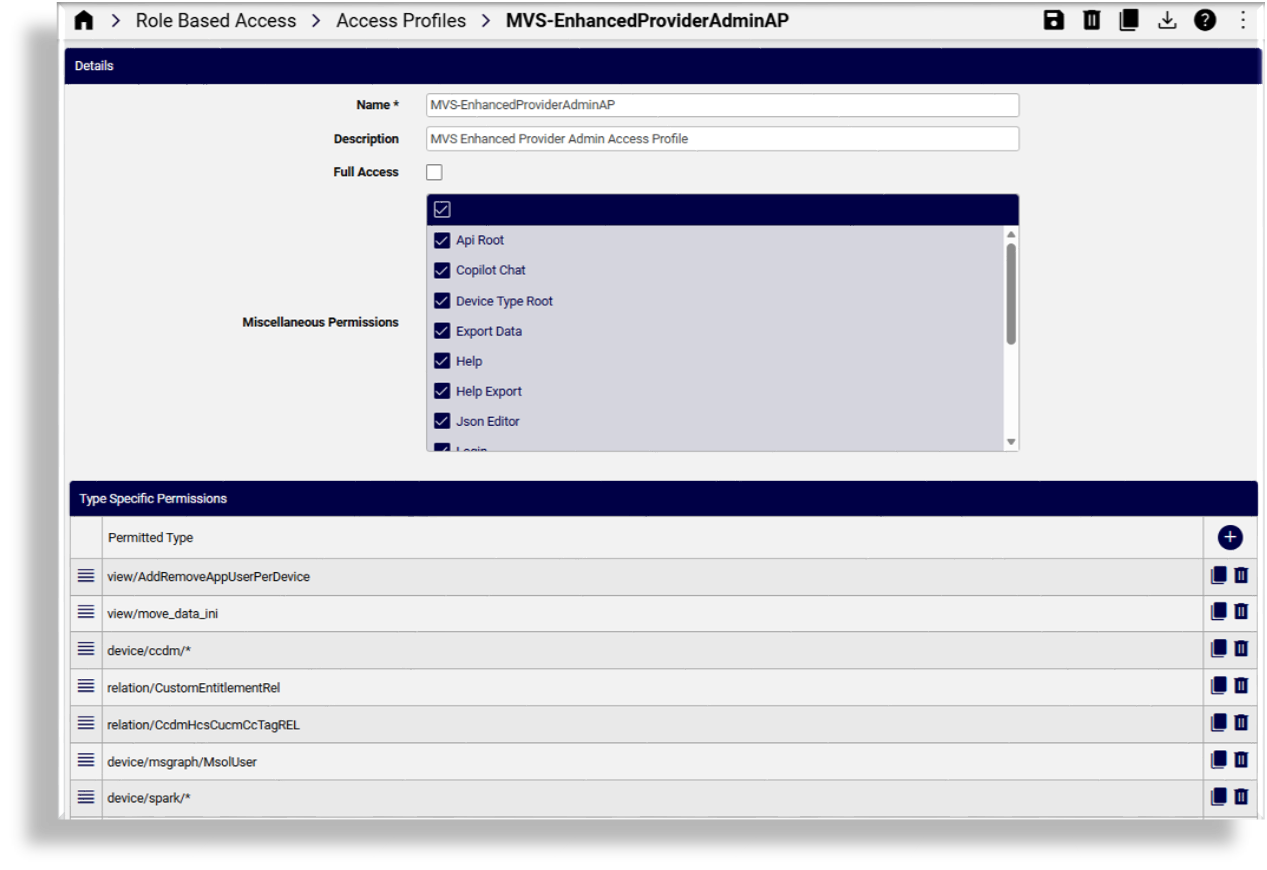
To edit an access profile:
Go to the Access Profiles list view.
Click on the access profile you want to edit to open the configuration screen.
Update the access profile.
Save your changes.
Delete an access profile
Go to the Access Profiles list view.
Select the access profile you want to delete.
Click the Delete icon to delete the access profile.
Related topics
Access profile configuration reference#
Details
The table describes access profile configuration fields in the Details tab/panel
Title |
Field Name |
Description |
|---|---|---|
Name * |
name |
A unique name for the access profile. |
Description |
description |
Details about what this access profile is for. |
Full Access |
full_access |
Grants complete system access, if enabled. |
Miscellaneous Permissions |
miscellaneous_permissions |
Additional permissions not tied to a specific model type. |
Type Specific Permissions
Type-specific permissions define what actions are allowed per model type. They override wildcard permissions of the same type.
The panel lists the model types the profile can access (supports wildcards *). Click on a permission
to update it for the access profile.
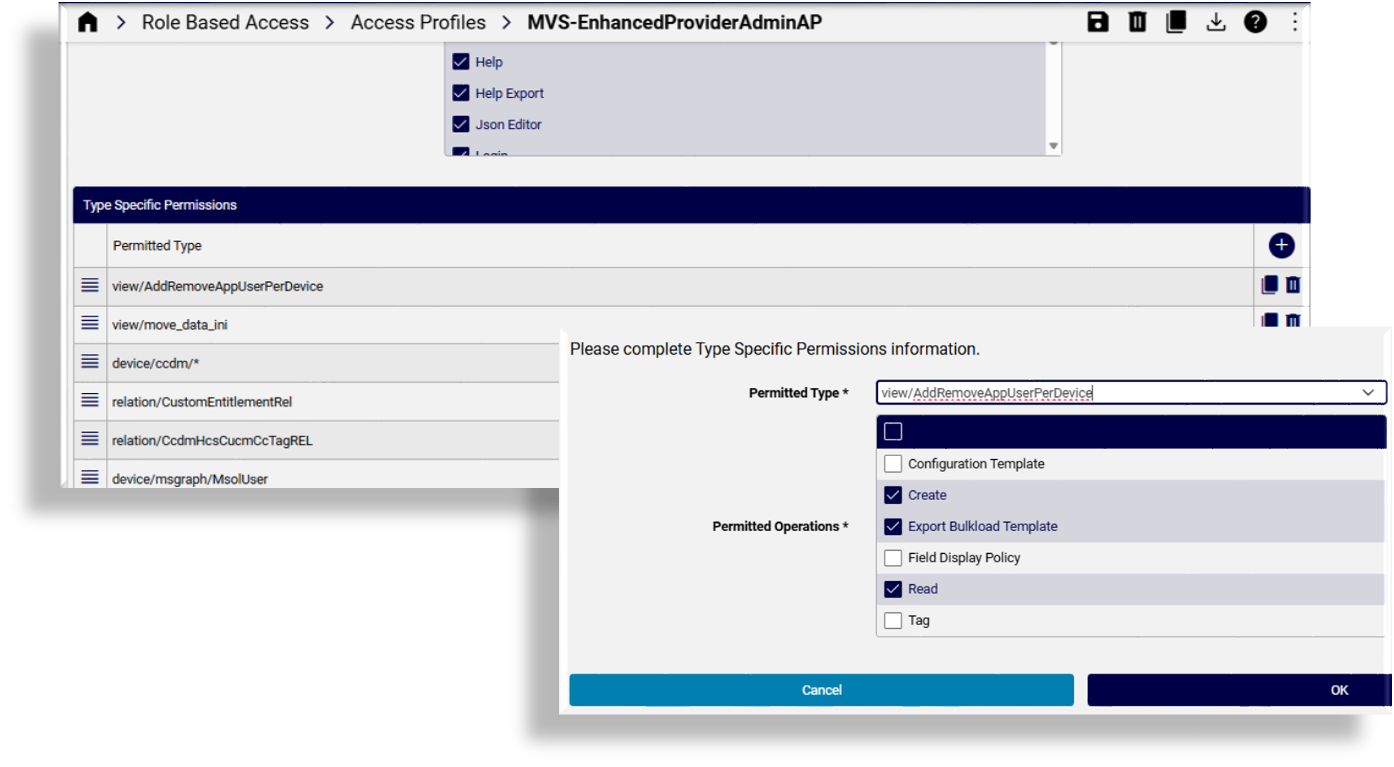
The table describes the fields in the type-specific permissions configuration screen.
Title |
Field Name |
Description |
|---|---|---|
Permitted Type |
type |
The model type permitted by this
access profile (supports use of a
The wildcard can be restricted by a type-specific permission of the same type. |
Permitted Operations |
operations |
Actions allowed for this model type. |
Related topics