
Webex locations#
Overview#
Webex locations allow you to organize users and workspaces based on a physical location.
Note
With Workspace locations, the latitude and longitude of the location is also recorded.
You can configure both calling and workspace management functions into the same location.
PSTN calling can be enabled or disabled directly in VOSS when creating or updating a Webex location using the Enable Webex Calling setting. PSTN calling must be enabled on a location before configuring calling settings such as trunks or route groups. The PSTN calling status is automatically synchronized with Webex and reflected in the location settings.
Disabling PSTN calling removes the calling capability from the location, and any existing PSTN configuration (such as trunks or route groups) is removed.
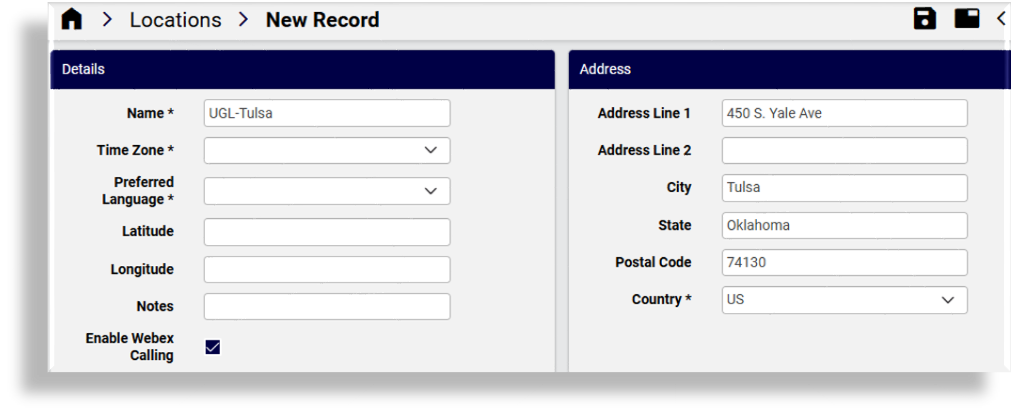
Webex locations are synced in from a Webex Control Hub and maintained in device/spark/Location.
Site names for a sync is determined by the Site Defaults setting Webex Location ID. See the Webex tab under Site defaults.
Upon data sync at customer level, sites are automatically created or updated in VOSS if no site exists with a matching name, in accordance with a Webex Control Hub Location.
Important
To ensure that Webex data sync can be executed successfully, the Webex Location ID in the respective Site Defaults needs to exist.
Synced Cisco Webex users and numbers of synced Cisco Webex users are automatically
moved to the site matching the Location.
For data sync at intermediate hierarchy level, see: Webex Location to Hierarchy Mapping.
name of the Intermediate node according to the matching rules set up in the
data/WebexLocationNodeMapping model, a site is created under this intermediate node.
Otherwise, the site will be created under the customer hierarchy.
This model needs to be exposed in the administrator’s menu in order to manage the mappings. The model allows for matching to be configured between Intermediate Node and Search String values. The entered Search String should be as specific as possible to match the Intermediate Node string.
The list view of the Webex Locations menu shows the Webex location name and the corresponding VOSS hierarchy name in the Located At column
Webex locations can also be added and managed from the Webex Locations menu in VOSS, to be synced to the Webex Control Hub
For example, the Latitude, Longitude and Notes fields can be added or updated. Upon adding, these show as Webex Location ID on the site’s site defaults, and upon sync of Webex Locations, these will then also reflect in Workspace Locations.
Webex location calling details#
Synced Webex location calling details are maintained in VOSS in the
device/spark/LocationCallingDetails and relation/WebexCallingLocationDetails models,
thereby providing access to a single interface to the manage a location’s calling settings
via the Webex Location Calling Details page.
Note
If the
outsideDialDigitvalue needs to be reset toNone, this reset must be carried out on the Webex Control Hub and the data sync for location calling details executed to refresh the value.For any new update of the PSTN Access Network Info in Webex Location Calling Settings, this will only be applied if the location’s country is: Belgium, Germany, or France. Changes to other countries or to existing connection details are ignored. This functionality is in accordance with a Webex API change starting April 11, 2024.
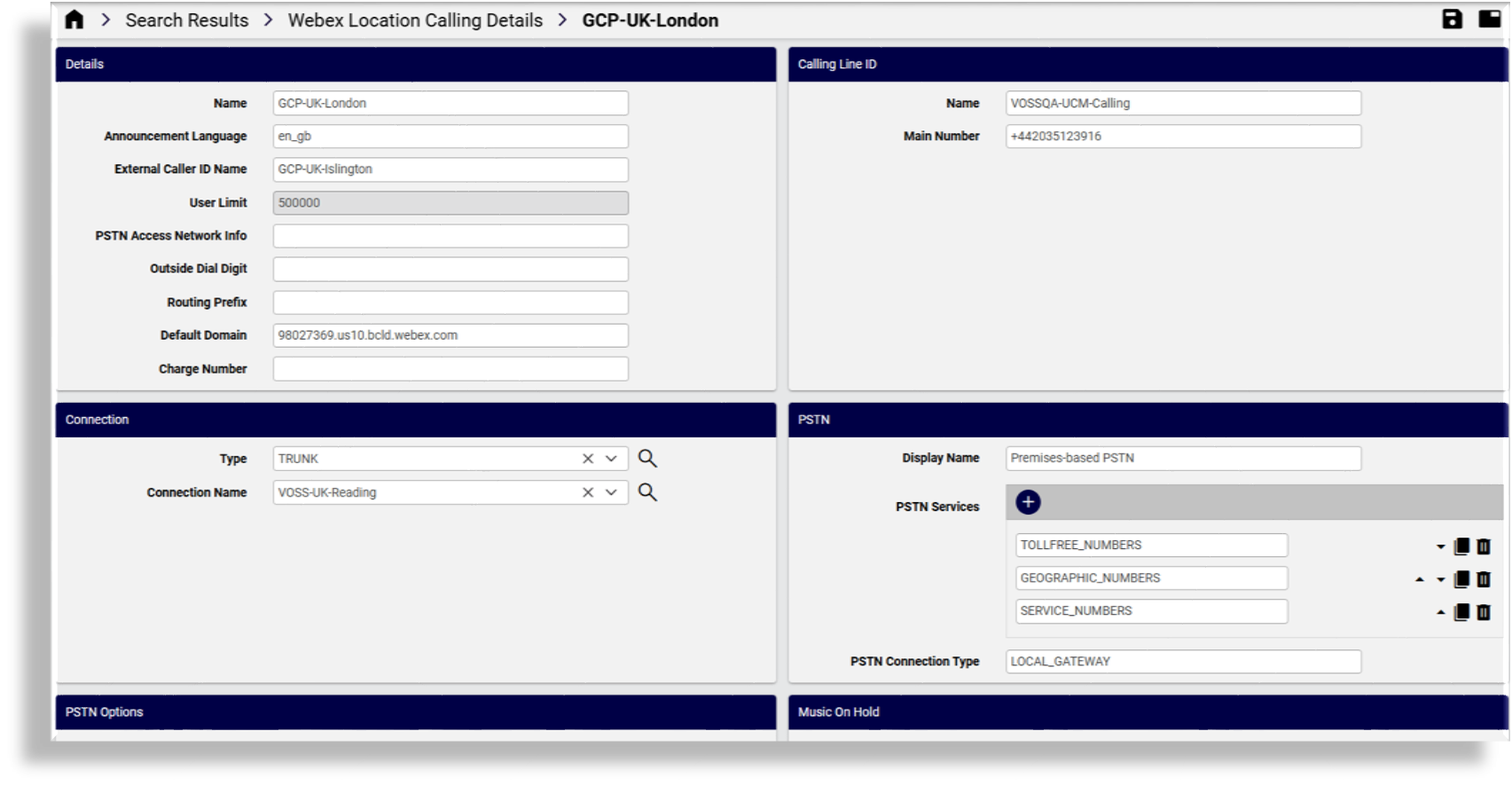
On the Webex Location Calling Details page (
relation/WebexCallingLocationDetails), you can set the PSTN connection type (trunk or route group) and an ID for either trunk or route group, for a Webex location.VOSS includes device models (
device/spark/Trunks,device/spark/RouteGroup,device/spark/DialPlans) that allow for the management and selection of the route groups as connection type, thereby supporting call handling over trunks to Webex supported devices.
Related topics