
Microsoft License Alerting Setup#
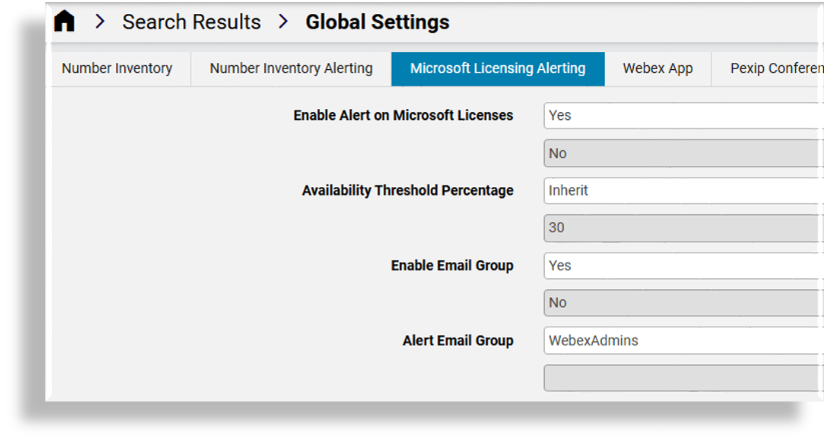
Microsoft alerting for licenses is configured via the Global Settings, on the Microsoft Licensing Alerting tab.
Note
If alerting is disabled but user license enforcement is enabled, license transactions that result in exceeding available allocations will fail without a prior threshold alert warning.
Prerequisites:
Microsoft licenses are available
Licenses are synced from devices to the organization hierarchy level
License data syncs are configured:
Microsoft License Data Syncs
Microsoft License Model Type Lists
Microsoft License Schedules
Note
VOSS offers default syncs and schedules that can be modified and used to manage license syncs at a hierarchy.
An alerting schedule,
MicrosoftLicenseAlert, can be configured to schedule alerts if license alerting is enabled.Quick Import is enabled by default for syncs related to
data/MSGraphthat sync Microsoft license data from Microsoft Graph.
To enable Microsoft licensing alerting:
Go to Global Settings.
On the User tab, set Enable Microsoft User License Enforcement to Yes. The default is No/Inherit.
On the Microsoft License Alerting tab, configure the following:
Set Enable Alert on Microsoft Licenses to Yes.
The default is No. Alerts are raised only if this is set to Yes. A license allocation transaction above a threshold of available licenses will fail and the alert will be created.
Select a percentage value from the Availability Threshold Percentage dropdown. Options are 10%, 15%, 20%, 25%, Inherit. When the percentage value of available licenses is reached, an alert is triggered.
At Enable Email Group, define whether to enable sending of Microsoft license alerting to a group.
If Enable Email Group is set to Yes, then at Alert Email Group, choose the default email group to send licensing alerts to.
For details on setting up email groups, see Email Groups.