
User settings for admins and end users#
Overview#
This section describes the user settings for admins and end users.
You can select the following tabs/panels to view and manage admins and users:
An additional More Actions toolbar overflow menu also provides additional user management actions on the System User Details form. See Additional user settings (More Actions).
Note
Click the toolbar Switch to Tab/Panel layout option to toggle between a panel or tab layout.
User Details tab/panel#
This section describes the user details settings.
User Name: Mandatory. The sign-in username.
Note
This is not the same as vendor-specific usernames (for example, Cisco UCM or Microsoft usernames), which are managed automatically by provisioning workflows.
First name, Last Name, Title, Email Address
Local Password: The local, VOSS system password (the password specified when the user is manually added or provisioned in VOSS)
Role: Mandatory. This user’s role (which will determine their menu layouts and dashboards). Available roles include those with the current hierarchy in the Permitted Hierarchy Types list. See Role-based dashboards and menus.
For a provider, reseller, customer, or site administrator or operator, the available roles are limited to those applicable to the hierarchy level. For an intermediate node administrator or operator, the available roles are limited to those associated with the nearest non-intermediate node above the intermediate node in the hierarchy. For more details on roles, see Role-based dashboards and menus.
Entitlement Profile: A profile that specifies devices and services that may be assigned to a user. This setting may not be available for Admin users.
Language: User’s preferred language.
If you don’t choose a language, the language is inherited from the nearest hierarchy node (at or above the user’s hierarchy) that has a default language configured. If no default language is configured anywhere in the hierarchy at or above this admin user, their preferred language is set as English.
If you’re choosing a language on the Admins page, the language remains unchanged even if the admin user is moved to a different hierarchy. However, if language is inherited, the admin’s language changes if they’re moved to a different hierarchy, to the default language at that new hierarchy.
- Exclude from Directory: Defines whether to exclude the user from the corporate directory
accessed via VOSS Phone Services. See Configure phone services for details. This setting may not be available for Admin users.
Authentication Method: The type of authentication that will be used. See User authentication methods. Options are:
Local (VOSS user)
Automatic: Choose this option if LDAP or SSO set at hierarchy or above.
LDAP: See LDAP authentication users
SSO: See Single Sign On (SSO) Overview
For user authentication method (Auth Method) changes when updating, see Authentication method setting rules.
LDAP Server: Displays only when authentication method is LDAP. The LDAP server the user must authenticate against.
LDAP Username: Displays only when authentication method is LDAP. The login attribute of the associated LDAP device model instance.
SSO Identity Provider: Displays only when authentication method is SSO. The entity ID of the SSO Identity Provider.
SSO Username: Displays only when authentication method is SSO. The name identifier used for an SSO authenticated user. Defaults to VOSS username.
Sync Source: Read-only. User’s sync source. Sync source is “Local” when the user is created on VOSS. The application from which the user (and user data) was synced, that is, LOCAL (VOSS), UCM, MS-LDAP. Sync source determines the the master of the data. Data in the user mode will be derived from the fields of the master application (for example, CUCM, CUC, MS-LDAP). Default is LOCAL.
Sync Type: The user’s sync type. Identifies the user type that was synced from the device as indicated by sync source information, for example CUCM-Local, CUCM-LDAP, LOCAL. Default is LOCAL.
User Type: Read-only. The user’s login type. Default is Admin. Determined by the role interface (administration or selfservice). User types may be one of:
Admin (defined by the admin role)
End User (not an admin user; end user only, therefore won’t display as a value for admin user)
End User + Admin (defined by a
data/AuthorizedAdminHierarchyinstance associated to the user as well as a self-service role)
See Authorized Admin Hierarchies and Roles under Introduction to role-based access control
Authorized Admin Hierarchy: Selected for users with multiple user roles to enable admin capabilities for end users or for admins who have permissions to a restricted set of hierarchies. See Authorized Admin Hierarchy Roles
Related topics
Account Information tab/panel#
This section describes user account information settings.
Change Password on next Login: Defines whether the user must be forced to change their password the next time they log in.
Credential Policy: Policy for rules governing the user’s credentials.
Disabled: Defines whether the account is disabled. When True, the user won’t be able to log in until an admin user enables their account again.
Reason for Disable: The reason the account is disabled, if applicable.
Time Locked Due to Failed Login Attempts: Date-time stamp for when the user account was locked as result of the number of failed login attempts exceeding the permitted thresholds.
Time of Last Successful Login: The last time the user last logged in successfully.
Locked: Defines whether the account is locked to prevent the user from logging in.
Number of failed login attempts since last successful login: Total number of failed login attempts since last successful login.
Time of last password change: Date-time stamp indicating the last time the user changed their password.
Time of last password change by user
License Audit Details: Read-only
License Audit Status: Read-only. The user’s license audit status, either “Licensed”, “Unlicensed”, “Unknown”.
Last Checked: The last time the license audit details were updated.
Provisioning Status tab/panel#
This tab/panel is relevant only to end users. Provides a read-only view of a user’s provisioning status, including multi-vendor provisioning (if applicable).
Select the Provisioned checkbox to view additional UCM’s if applicable.
If the user is added to an LDAP server (see the LDAP section below), then the provisioning status will also show the server at the LDAP field.
Contact Information tab/panel#
This tab/panel is relevant only to end users.
Defines contact information for the user, such as employee number, employee type, country, state, state, street, department, manager, Fax number, directory URL, Jabber ID, telephone number, mobile, and IP phone.
Hybrid Status tab/panel#
This tab/panel is relevant only to end users and is available if the Global Setting Enable Cisco / Microsoft Hybrid is enabled on the Enabled Services tab/panel in the Global Settings. See Global settings.
For details on the Hybrid Status tab and managing hybrid users, see: Provision and manage hybrid Cisco-Microsoft users.
Assigned Lines tab/panel#
This tab/panel is relevant only for hybrid multi vendor scenarios. The fields are blank by default.
The fields on this tab are used to capture line details for users set up with an integrated service between two vendors (for example, Cisco and Microsoft).
Services tab/panel#
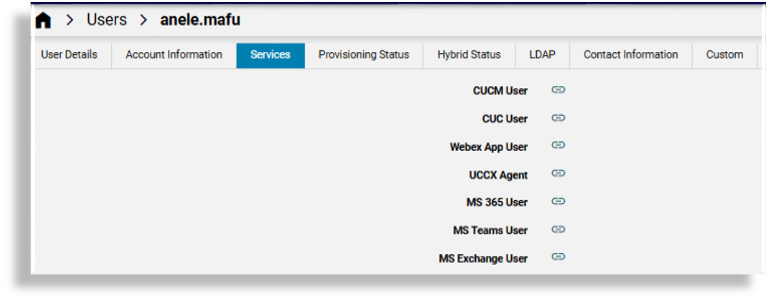
This tab/panel is relevant only to end users, and provides direct links to the user’s services, typically only their available and enabled services, which may include Cisco UCM user, CUC user voicemail, Webex App user, Pexip, UCCX Agent, MS 365, MS Teams, or MS Exchange. Clicking on the link for the service opens the settings for that service. For example, clicking the link for MS Exchange user opens the user’s User Mailboxes settings page.
Note
You can choose to show or hide disabled services via the Enabled Services tab in the Global Settings.
Custom tab/panel#
This tab/panel is relevant only to end users. User defined customized strings and booleans.
LDAP tab/panel#
If a user is added as a Microsoft Active Directory LDAP user; then:
The VOSS user settings page displays additional fields and the LDAP-related values are saved to the Microsoft Active Directory LDAP server.
If changes to the user are made directly on the Microsoft Active Directory LDAP server, these updates are synced in to VOSS the next time the user is synced in to VOSS (via the VOSS system Sync & Purge tool).
If a secure Microsoft Active Directory LDAP server (port 636) is
configured higher in the user hierarchy and the server has
Enable Write Operations checked, user details can be managed on
the server if it is selected from the LDAP Server drop down list.
Only secure LDAP servers are listed. If no suitable servers have been set up, then the tab will not display any fields.
If no such Microsoft Active Directory LDAP server is configured and enabled, the tab will show a message to indicate this.
For setup server details, see:
If the Microsoft Active Directory LDAP server is configured and the user already exists on this server, the tab will show a message to indicate this.
The Description field will display in the Microsoft Active Directory Users and Computers interface.
The User Account Control dropdown supports the following UserAccountControl values (associated with codes):
Normal Account (512)
Disabled Account (514)
Enabled, Password Not Required (544)
Disabled, Password Not Required (546)
Enabled, Password Doesn’t Expire (6648)
Disabled, Password Doesn’t Expire (66050)
Enabled, Password Doesn’t Expire & Not Required” (66080)
Disabled, Password Doesn’t Expire & Not Required” (66082)
Important
User management on the LDAP server from this tab/panel is not supported if the LDAP server is not secure, in other words if indicated with port
389.When adding a user to the LDAP server for the first time:
A Password is required.
The Push To Ldap menu must be used to add the user. The Save menu can then be used upon subsequent user updates on the LDAP server. (If the Save button is used the first time, other user details will be saved, but no LDAP user is added.)
When the LDAP user is added, the User Details tab/panel will show the
Sync Source and Sync Type of the user as LDAP.
For details on updating and deleting the user on the LDAP server (Delete from LDAP, Push to LDAP), see Additional user settings (More Actions).
Note
If SSO is enabled for the hierarchy node where the user is added, the corresponding SSO user is created.
IdPs are not configured at the site hierarchy node. Therefore, you can enable SSO for a user created at the site level only by performing these steps. Go to the SSO User page, click Add, and choose the IdP that can authenticate the user.
Additional user settings (More Actions)#
The System User Details user management page (relation/User) contains a More Actions overflow menu
that provides additional tools for managing users.
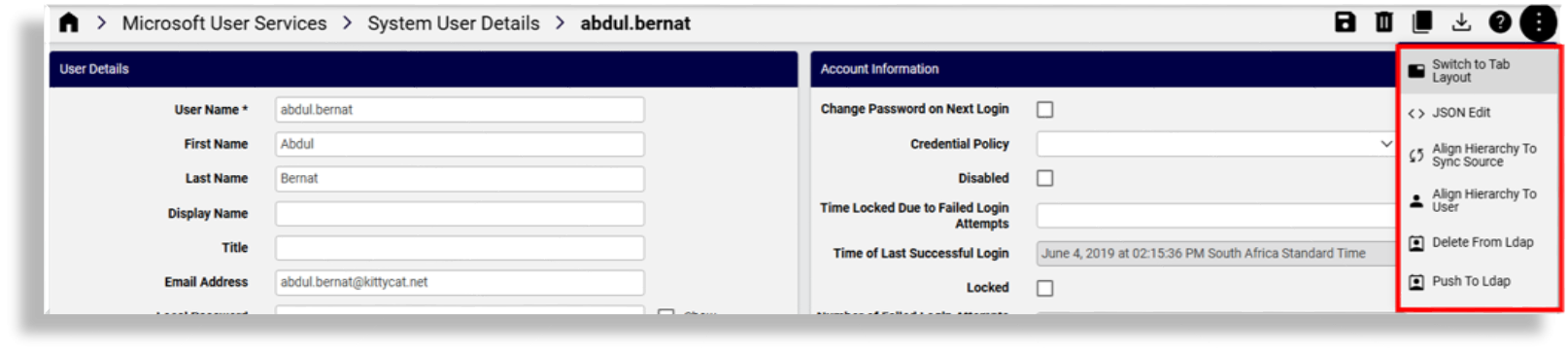
The table describes additional user management functionality available in the More Actions overflow menu:
Align Hierarchy to Sync Source |
For example, if the user’s sync source is UCM, the
|
Align Hierarchy to User |
All other related instances of the user (e.g. UCM,
|
Delete From Ldap |
Relevant only for Microsoft Active Directory LDAP server. The
delete transaction succeeds only for users on Microsoft
Active Directory LDAP servers on port If there is an associated Cisco UCM user, the UCM user and the Automate user are updated. In this case:
|
Push To Ldap |
Creates an LDAP user (if the LDAP user does not exist). Requires availability of an LDAP server that allows write back and is configured as a secure Microsoft Active Directory server. This server must be on port 636, with Enable Write Operations checked. Used when adding user details on the LDAP form tab for the first time and first adding the LDAP user. Clicking the Save button when you’re done also updates the LDAP user details on the LDAP server. However, if any user details have been updated for the LDAP server, this Push To Ldap menu option will also save these. On the Users list view:
This menu option can’t be used for Automate LDAP-synced users (in which case a system message on the LDAP tab displays the following error message: Push to LDAP is not allowed). |
Related topics