
Manage product license#
Overview#
This topic covers the licensing of the VOSS system. License enforcement is enabled on all deployments, including production and lab environments.
Starting with Automate 21.4, a 7-day temporary license is issued for new installs or upgrades to allow administrators to carry out the required licensing. You must replace the temporary license with your new license token (license key) within 7 days from install or upgrade.
Important
You won’t be able to log in to the system once the temporary license expires.
Each deployment ships with a unique Deployment or Platform ID. The Platform ID is required to generate a license token. A license token is only valid for a deployment with the related Platform ID.
Related topics
Licensing workflow#
sys-admin
Obtain the license tokens (JSON Web Tokens) from VOSS. These tokens are used to license your product.
Choose a licensing method:
Log in to VOSS as
sysadminuser.Go to the Manage License page in the GUI. Follow the steps described in Add a license in VOSS via the GUI.
Note
This method is not available for license renewal when the existing license token has already expired.
From the system Command License Interface (CLI), as platform user:
To update a license token from the system CLI, the following commands are available:
license add token [<token string>]license add file <token_file>
Follow the steps in the Product Licensing topic in the Platform Guide. Follow this method for expired license renewal.
When your license expires, follow the steps for your license type to renew it.
Add a license in VOSS via the GUI#
sys-admin
This procedure adds a new license token (license key) in VOSS via the GUI.
Note
You can also add a license via the CLI. See the Platform Guide.
Obtain your license token from VOSS.
Log in as the system administrator user (
sysadmin), then go to Manage License.Note
You won’t be able to log in to the system once your license expires. It is recommended that you renew and apply your license prior to the expiry date.
Review the Manage License form details. The table describes the fields on this form:
Note
Date format of
<date-time>is localized to the browser locale.Field
Description
Platform ID
<platform ID> - The ID to submit when renewing a license.
Licensed Application Name
The name of your application, for example, “Automate”.
License Status
The status of your license. On install or upgrade, a 7-day temporary license is provided. It is important that you apply your new license before the expiry date.
When a valid license exists, and is outside of the expiry alert period, the status is Licensed.
Sync Status Last Changed
<date-time>
License Last Checked
<date-time> - The last time the license was checked.
Refer to the Product Licensing topic in the Platform Guide for details on the use of the
voss check-licensecommand, which is used to check your license with VOSS.License Sync Message
The status messages of communication with the License service.
License Token Identifier
<token ID> - Used by VOSS Support.
License Expiry
<date-time>
Current License Token
The <token string> for your current license (the license that will expire or is due to expire).
New License Token
The <token string> for the new license that you obtain from VOSS. Once you paste the new license token into this field and save, it overwrites your current (expired) license.
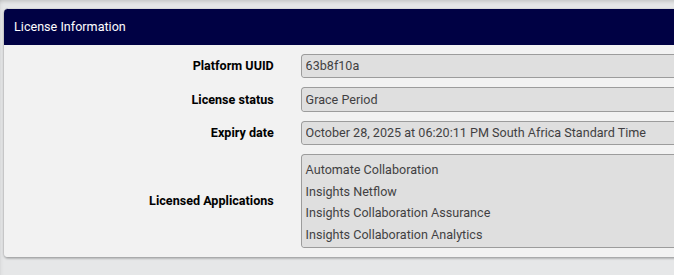
Licensed Applications
The list of applications are shown, matching licensed application modes.
For details on the available application modes, contact VOSS.
The available licensed applications also enable related data sources that are available to dashboard widgets. For details, refer to the topic on License modes and data sources in the guide.
At the New License Token field, paste your new license token (the license token obtained from VOSS).
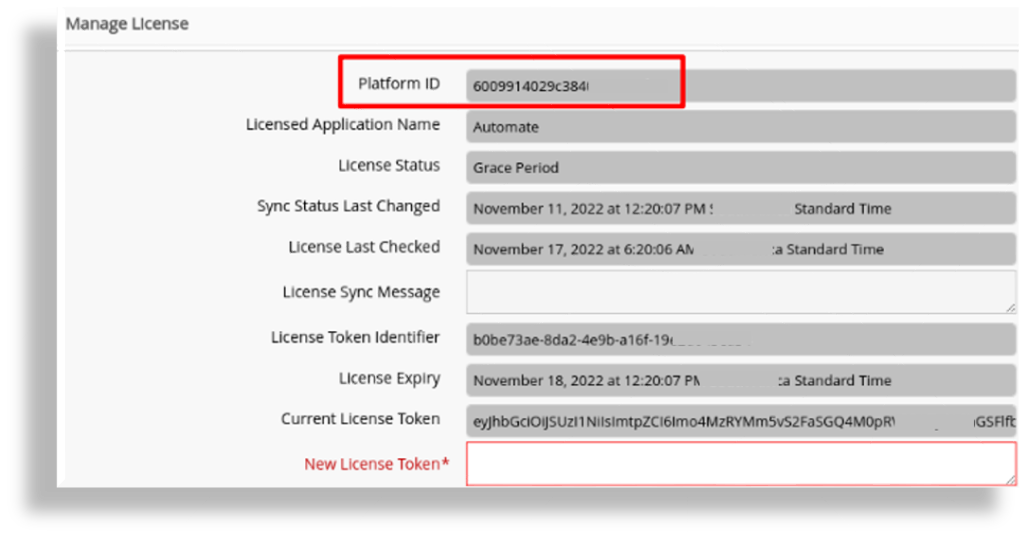
Click Save to apply your new license token.
License expiry alert notifications#
VOSS sends alerts to Provider administrators in the VOSS Admin Portal to notify these users that the system license will expire. The alert type depends on the number of days before the license expires:
Alert type |
When sent? |
Info |
120 days prior to license expiry |
Info |
90 days prior to license expiry |
Warning |
60 days prior to license expiry |
Warning |
30 days prior to license expiry |
Warning |
Daily, from two weeks prior to license expiry |
View your product license status#
This section describes the ways in which you can access and view the status of your product license.
View your product license in the VOSS GUI#
You can access and view your product license in the VOSS GUI via the About menu, Login screen, via alerts sent from the
system, via the Licensing menu, and via the Dashboard link (as sysadmin user):
About menu
On the License sub-menu, the License Information is displayed, as show in the example below:
Login screen
You won’t be able to log in to the system and access the Admin Portal GUI once your license expires. It is recommended that you renew and apply your new license before the expiry date. Your system administrator may log in via the CLI to update the license. Once the new license is applied, log in via the GUI is re-enabled. See the Product Licensing topic in the Platform Guide.
Alerts
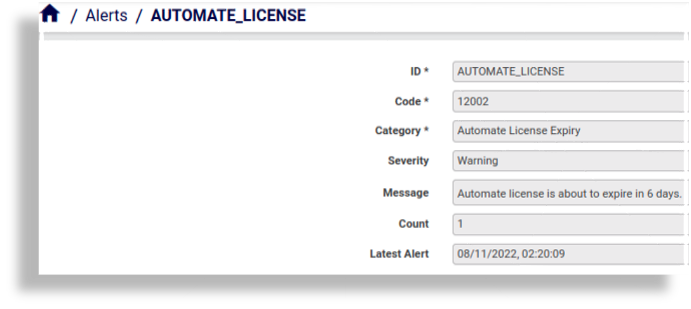
When logging in during the license expiry notification period (up to 120 days prior to license expiry), Provider admins (and above) are shown license expiry notices.
Once logged in, Provider admins (and above) can view pending license expiry notices via the toolbar Notifications icon. These alerts are also posted via the Notifications icon when VOSS is unable to communicate with the license service.
Alerts are generated if a license is within 120 days of expiry. The image shows an example of a license expiry warning:
Example of license service error message:
"alert_id": "AUTOMATE_LICENSE",
"alert_severity": "ERROR",
"alert_category": "Automate License Service Error",
"alert_message": "Automate License Service communication error since <date-time>"
Note
Alerts can also be configured to send email messages - see the
notifycommand in the Platform Guide.SNMP traps are also generated - see the License section under Notification Messages in the Platform Guide.
Menu for
sysadminuserThe
sysadminuser can view license expiry details via the Manage License page.Dashboard link for
sysadminuserThe
sysadminuser can view license expiry details via the Manage License link on their Dashboard.
View your product license in the platform CLI#
You can access your product license details via the VOSS platform CLI:
Login display, health display - only on unified nodes in a unified node topology and application nodes in a modular cluster topology.
Use CLI command
license token list, and view the output of this command. See further details in the Product Licensing topic in the Platform Guide.
Renew a license#
You won’t be able to log in to the system via the Admin Portal GUI once your license expires. It is recommended that you renew and apply your license before the current license expires.
Your system administrator will need to contact VOSS to renew the license. Provide the platform ID which is shown on the Manage License form.