
Detailed Teams Users#
Microsoft
Overview#
Automate supports configuration of calling (voice) settings for Microsoft users with enabled accounts, from within the Admin Portal. Configurable settings include voicemail, call settings, and dial out policy, such as call forward and delegation.
Important
If you’re upgrading to Automate 21.4 from an earlier version, you may need to run an import to ensure all user call settings are imported and are in sync with the settings for this functionality in the Microsoft Teams cloud portal.
User calling settings display and are configurable only for Microsoft users with enabled accounts that can have user calling settings. For example, resource accounts do not have calling settings.
Note
Call delegation allows you to assign another user to make or receive calls on your behalf, for example, when you’re out of office or otherwise unable to make or receive calls from your device. In this case, VOSS Automate allows you to define user calling settings that assign the person authorized to make or receive calls on your behalf, including whether this user may change your call settings.
Note
Microsoft Teams identity values displayed on this page (for example, the user principal name used to identify and configure calling settings) are maintained automatically by Microsoft provisioning and update workflows. These values are derived from the Microsoft tenant configuration and are not updated via the Detailed Teams Users page.
On the Detailed Teams Users page you can:
View and configure a user’s lines, services, and policies
View the user’s details
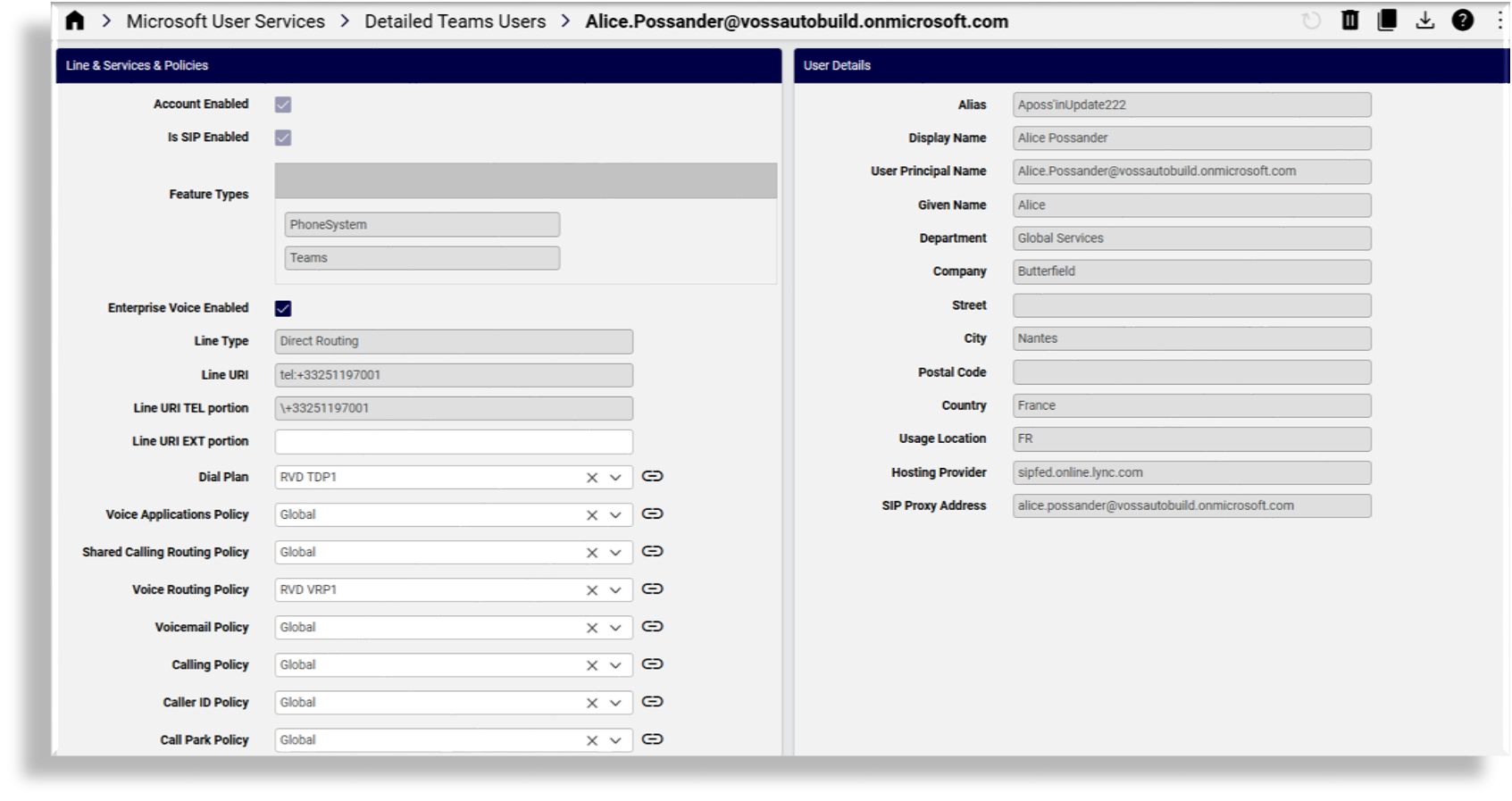
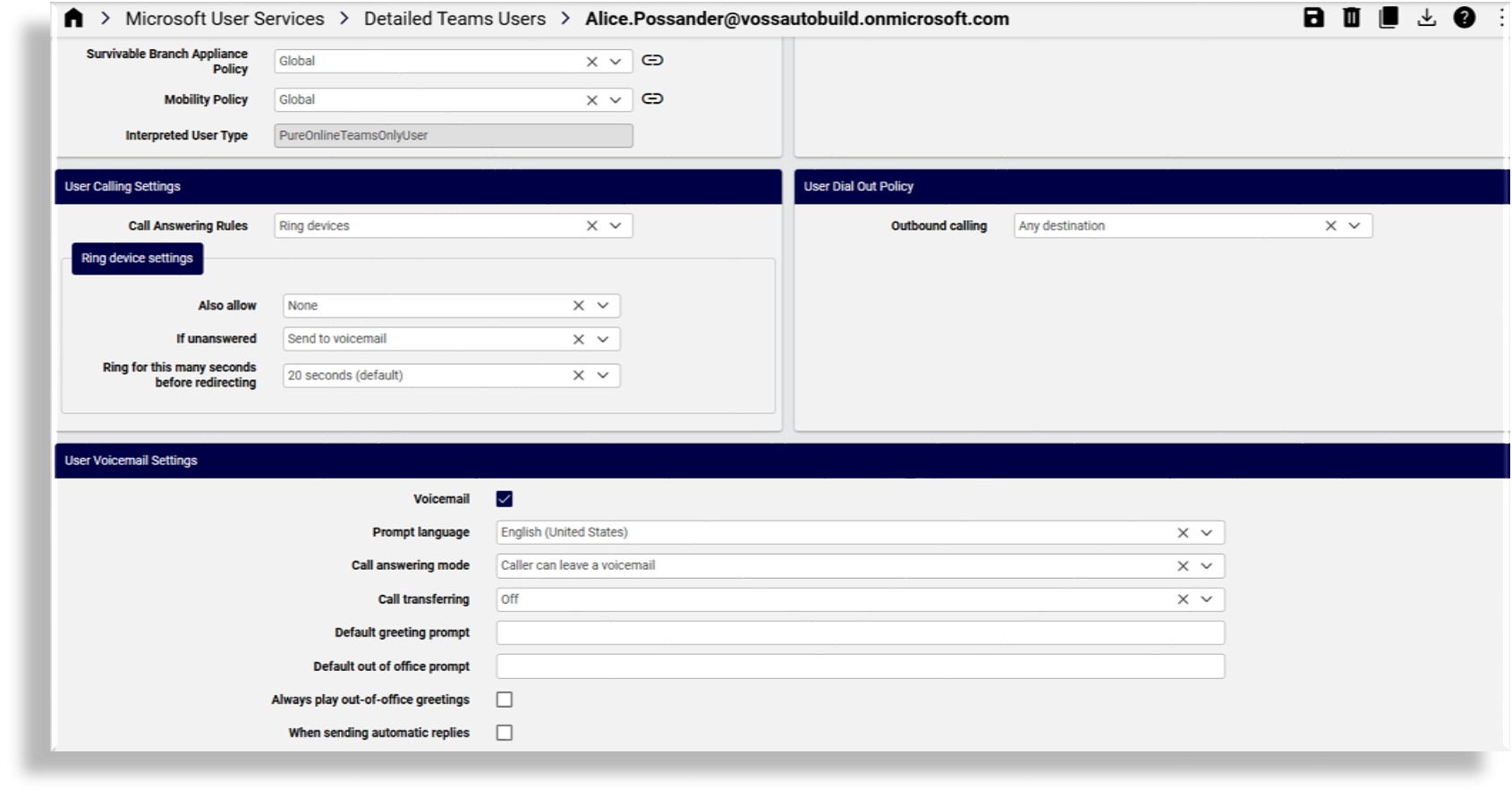
Configure call forward and delegation (user calling settings and dial out policy). See Microsoft Online User Dial Out Policy Mapping.
View and configure the user’s voicemail settings
Related topics
Configure call forward and delegation#
This procedure adds and updates user calling settings.
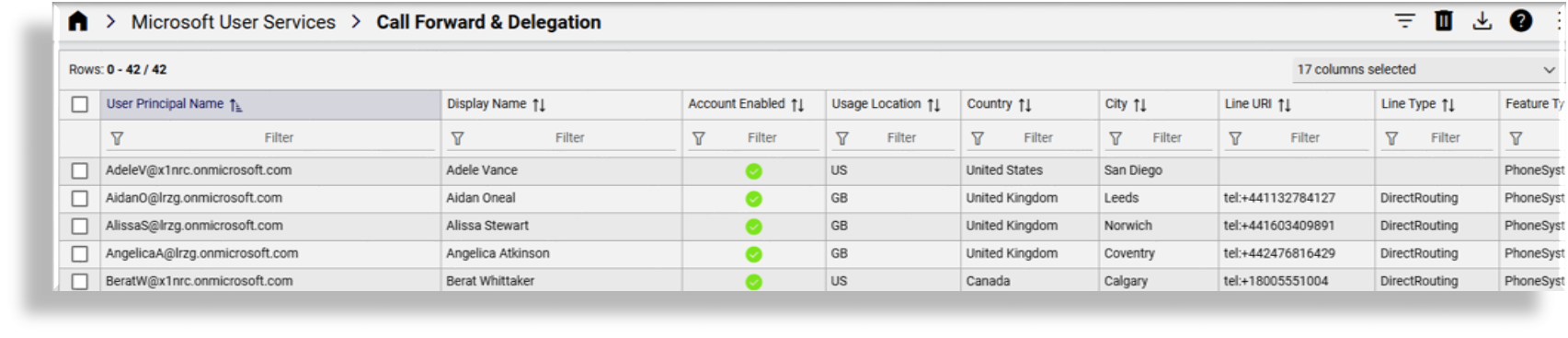
Go to Microsoft User Services, then, in the Quick Actions, click Call Forward & Delegation.
The list view displays configured user calling settings, with a default sort by user principal name.
Note
Alternative step: You can also view and edit call forward and delegation settings (user calling settings and user dial out policy) for a Microsoft user via the Detailed Teams Users page.
Click on a user in the list view that has the Account Enabled column set to True (green check icon), to open their calling settings configuration page.
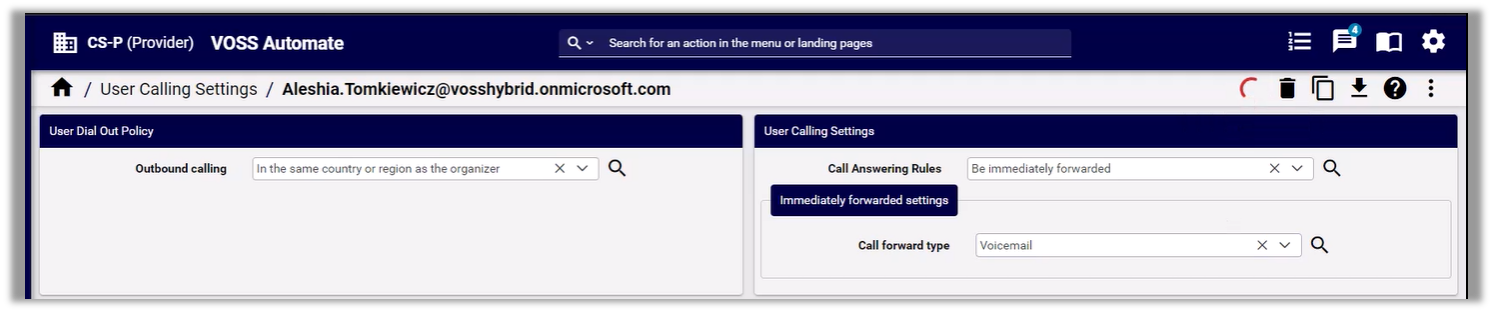
At User Dial Out Policy, select an outbound calling setting from the drop-down. Options are:
Any destination
In the same country or region as the organizer
Don’t allow
At User Calling Settings, configure call answering options for this user:
Note
User calling settings display and can be configured only for Microsoft users with enabled accounts, that can have user calling settings (for example, resource accounts do not have user calling settings).
The table describes configurable options, which depend on the call answering rule you choose:
Call Answering Rule |
Description |
|---|---|
Ring devices |
When call answering rule is Ring devices, choose one of the following Ring device settings for these Also allow options:
|
Be immediately forwarded |
When your call answering rule is to immediately forward the call, at Call forward type, choose one of the following options, and configure forwarding settings:
|
Save your changes.
Configure Microsoft user voicemail settings#
This procedure configures voice mail settings for a Microsoft user in Automate.
Note
Automate supports syncing and management of Microsoft Teams user voice mail settings. Any changes you make for these settings in Automate or in the Microsoft Teams online portal are automatically and immediately synced between Automate and the Microsoft online portal.
The Microsoft user voice mail service can also be applied via Microsoft Quick User and a Quick Add Group (QAG) that includes the voice mail settings.
Log in to the Admin Portal, then go to Detailed Teams Users to display the list view of Microsoft users.
Click on the relevant user to view and edit the user’s settings.
Locate User Voicemail Settings on the page.
Update voice mail settings for this user, any of the following:
Enable/disable voicemail.
Select the prompt language.
Select the call answering mode, either of the following:
Caller can leave a voice mail
Play an outgoing message to the caller
Service declines the call with no message
Enable/disable call transferring.
Optionally, fill out a default greeting prompt and a default out-of-office prompt.
Define whether to always play out-of-office greetings.
Define when to apply the voice mail settings, either when sending automatic replies and/or when the calendar shows out-of-office.
Click Save. Your changes are immediately and automatically updated for this user in the Microsoft Teams online portal.
Related topics