
Workspace Device Configuration Profiles#
Overview#
Automate ships with the following default device configuration profiles for Webex:
|
Used for activating a device. |
|
Used for resetting an already active device. |
Note
You can access device configuration profiles via the Device Configuration Profiles page.
The profiles can be cloned down and customized as required.
Configuration models used by device configuration profiles#
Workspace device configuration profiles may apply different configuration models depending on the Webex device.
Some Webex devices use a traditional configuration model based on the RoomOS configuration and command APIs, where device settings are defined using XML configuration blocks.
Other Webex devices use a dynamic configuration model, where settings are supplied as key-value pairs and applied by the Webex platform at runtime. For these devices, configuration profiles may not expose the same configuration blocks or XML structure.
The configuration model used by a profile depends on the capabilities of the target Webex device.
Note
Dynamic configuration values are interpreted by the Webex platform when applied.
Related topics
Configuration Blocks#
The device configuration profiles can contain configuration blocks, such as Configuration, Command and Activation, depending on the configuration model used by the Webex device.
Configuration Blocks |
Description |
|---|---|
Configuration |
The step uses the configuration API for the device. |
Command |
This step uses the command API, and may be used for customization, for example, of buttons and widgets for the device user interface. The |
Activation |
This step is only present in the |
Note
You can log in to your RoomOS device and view the API developer documentation for a description of the XML in each step.
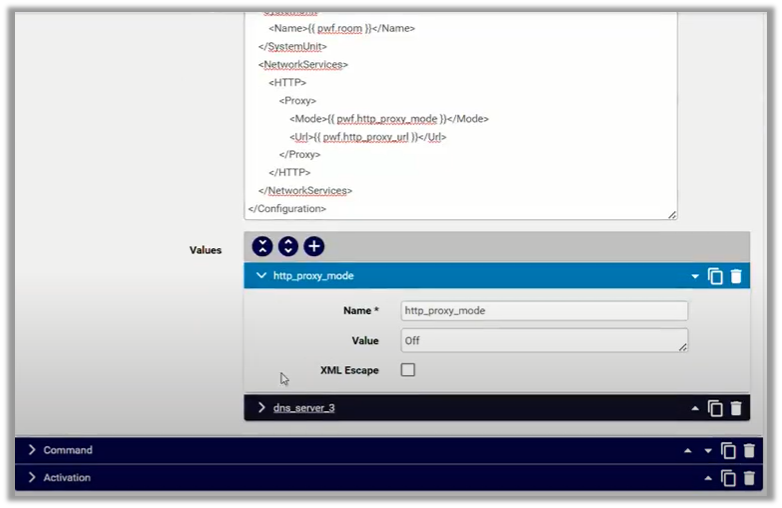
Values used inside the configuration blocks (e.g. {{ pwf.http_proxy_mode }}) can be managed
as name-value pairs (e.g. http_proxy_mode: Off) in the Values fieldset of the profiles.
When specifying icons or images in the configuration file, the default file contains two samples:
teams_buttonmm_button
The .png files you’re referencing in the configuration must be uploaded
into VOSS Automate first via the File Management page. If the files
are not uploaded, the configuration step will fail.
Custom device configuration profiles can be added and tested by selecting on the Test Device Configuration Profile Rendering page.
Dynamic configuration and key-value settings#
For Webex devices that support dynamic configuration, workspace device configuration profiles may use key-value settings instead of XML-based configuration blocks.
For these devices:
Configuration values may be entered and stored as key-value pairs
Some settings are automatically managed by the system
Certain fields may be read-only or not visible in the profile
This behavior is expected. Legacy Webex devices and dynamically configured Webex devices can coexist, and device configuration profiles adapt based on the device type.