
Text widgets#
Overview#
Text widgets let you place custom HTML or Markdown content on a dashboard. Text widgets can be:
Static, displaying fixed content such as headings, notes, or instructions
Dynamic, rendering content from query results and updating automatically based on dashboard filters and the selected date range.
Use text widgets to provide context, summaries, or supporting information alongside charts and tables.
Note
Dynamic text widget templates support variable placeholders and loop blocks.
Related topics
When to use a text widget#
Common scenarios:
Section headers / calls-to-action that frame groups of charts
Contextual notes (for example, definitions, caveats, data freshness)
Data-aware summaries (for example: totals, KPIs, “no issues detected”) using dynamic templates
Compact tables or lists that you want to fully control in HTML/Markdown
Static vs dynamic text widgets#
Choose static text widgets for fixed notes, headings, and instructions; choose dynamic content text widgets to turn the Content field into a template that renders your query data and responds to dashboard filters and the date picker.
Static text widgets:
Do not use a data source
Display exactly the content entered
Best suited for headings, explanations, and fixed instructions
Dynamic text widgets:
Use a data source and render query results
Update automatically based on dashboard filters and the date picker
Suitable for short summaries or data-driven messages
Dynamic content#
When Dynamic Content is enabled, the Content field is treated as a template that renders data returned by the selected data source.
The rendered output:
Reflects the dashboard’s filters
Responds to the selected date range
Static text widgets do not use a data source and do not respond to filters or date changes.
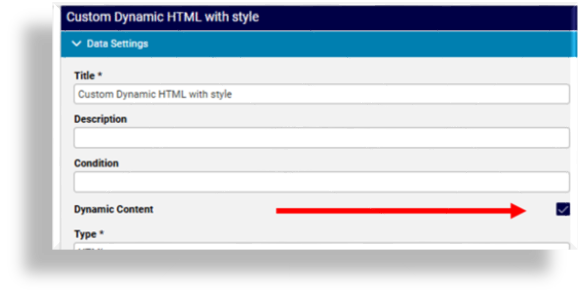
Conditional display#
Admins can optionally use a system macro to attach a condition so that a text widget only appears on a dashboard when the condition evaluates to either True or False, based on whether certain features, services, or devices are available and enabled in the Global Settings. See for example the macros listed in Links widgets.
Note
Macro-enabled conditional display controls widget visibility and does not affect dynamic content, template variables, or data rendering.
Exporting text widgets#
Export behavior depends on the text widget type:
Static text widgets typically export with no data.
Dynamic text widgets export the rendered output of the widget.
If no data is returned, the export indicates that no data is available.
Configure a text widget#
This procedure adds and configures a text widget.
Add a widget and select Text as the widget type.
Choose HTML or Markdown.
Note
Default is HTML. Markdown is recommended for most use cases.
Fill out widget content.
(Optional). Enable Dynamic content to render query data.
Select the required data source and fields.
Use Preview to verify the output.
Save the widget and place it on your dashboard.
Configuration fields
Text widgets support standard chart configuration fields:
Data Source (datasource): Data source identifier (where the data comes from)
Resource (resource): Resource name (for example, Hierarchy, Microsoft Teams Users)
Fields (fields): Array of field definitions for the query
Custom fields: see Fields common to widgets.
Filters (filters): Array of filter definitions
_lowerTs, _upperTs: Time range boundaries
_limit, _offset: Pagination parameters
interval: Time interval
timezone: Timezone setting
Template data structure (dynamic content)#
When Dynamic Content is enabled, the following objects are available to the template.
headers
An array of header objects describing the query columns.
Each header includes:
name: Original header name (for example, action)
displayName: Display name (for example, Action)
index: Column index (0-based)
rows
An array of objects, one per result row.
Property names are derived from the query headers. Access values using either:
row[header.name]
row[header.displayName]
data
Available only when exactly one row is returned.
Provides direct access to values:
data[header.name]
data[header.displayName]
metadata
Provides information about the query result set.
Available properties:
numRows: Number of rows returned
numHeaders: Number of columns returned
Text widget examples#
Static text widget
The image shows an example of a text widget using static HTML:
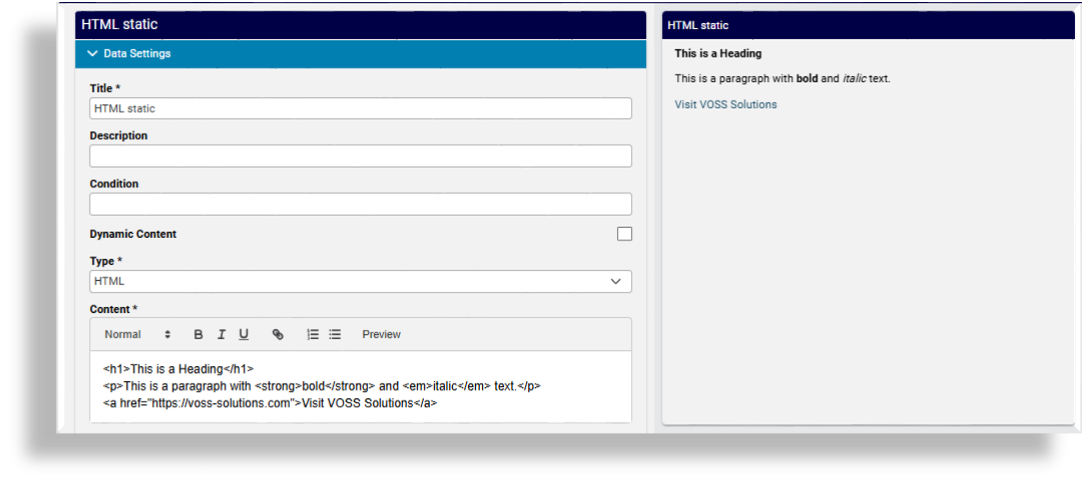
<h1>Dashboard Notes</h1>
  <p>This dashboard shows usage data for the selected period.</p>
Dynamic Markdown text widget
| Field | Value |
|------|-------|
{% for row in rows %}
{% for header in headers %}
| **{{ header.displayName }}** | {{ row[header.name] }} |
{% endfor %}
{% endfor %}
Best practice for text widget use#
Use Markdown for simplicity: Create headings, lists, and simple tables.
Use dynamic text sparingly for short, timely summaries. For example, “5 new requests in the selected period.” Keep the main analysis in charts/tables.
Preview before saving to verify the layout and wording.
Keep it readable. Aim for concise headlines and one to two lines of supporting text.
Plan for exports. Static text usually exports as “No data available for this widget.” If you need exportable values, use a dynamic text widget or a table widget.