
Webex users#
Overview#
You can view, update, and add Webex users into VOSS via:
Note
In environments where Cisco Webex Control Hub is configured for LDAP Directory Sync, updates triggered by LDAP synchronization may not update Webex users when the user is already LDAP synced. This prevents LDAP data from overwriting Control Hub-managed Webex users.
Updates triggered from other sources (for example, administrator actions or subscriber workflows) continue to update Webex users as normal.
Webex User Services > System User Details (add record) (
relation/User)Webex User Services > Onboard User (at site) (
view/AddSubscriberFromProfile)Webex User Services > Webex User Details (at site) (
relation/SparkUser)Webex User Services > Webex Quick User (at site) (
view/WebexTeamsSubscriberQas)
Note
Webex-specific identity values on the system user (such as the Webex username) are automatically populated and maintained by provisioning, update, and offboarding workflows. These values are derived from the Webex Control Hub or associated directory sources and are not manually edited as part of Webex user management in VOSS.
Note
VOSS also allows for the periodic logging and inspection of changes made to data directly in the
Webex Control Hub. Contact VOSS if this functionality is to be exposed.
The view/WebexAuditEvent and data/WebexAuditEvents models are used for this purpose.
Related topics
LDAP sync behavior with directory-synced Control Hub#
When Cisco Webex Control Hub is configured for LDAP Directory Sync (DirSync), VOSS applies additional safeguards to prevent LDAP-triggered user updates from overwriting Webex-managed user data.
In this scenario, VOSS treats the Webex Control Hub as the source of truth for Webex user attributes.
Skip behavior for LDAP-triggered updates
VOSS skips updating the Webex user record (device/spark/User) during a user update only when all of the following conditions are met:
The user is a Webex user
The user has been top-down LDAP synced (that is, a corresponding
device/ldap/Userrecord exists)The user update is triggered by LDAP synchronization (that is, the update originates from
data/Uservia LDAP sync)Cisco Webex Control Hub is configured as LDAP Directory Synced
When these conditions apply, the UserUpdateWebexTeamsUser step is intentionally skipped. No Webex user attributes are updated or overwritten by LDAP data.
This behavior is by design and prevents conflicts or errors that can occur when attempting to modify Webex users that are managed by a directory-synced Control Hub.
When Webex user updates are not skipped
Webex user updates continue to run as normal in the following cases:
The user is not LDAP synced
The update is triggered by a non-LDAP source (for example, an administrator action,
relation/Userupdate, or another workflow)Cisco Webex Control Hub is not directory-synced
The user is not a Webex (Spark) user
In these cases, LDAP or administrative updates can update the Webex user record according to standard provisioning rules.
Operational impact
If an administrator observes that a Webex user is not updated during an LDAP sync, verify whether:
The user is LDAP synced, and
Control Hub is configured for LDAP Directory Sync.
If both conditions are true, the skipped update is expected behavior.
If updates from administrator actions or workflows continue to modify the Webex user, this is expected behavior and does not indicate an issue with LDAP sync.
Manage Users#
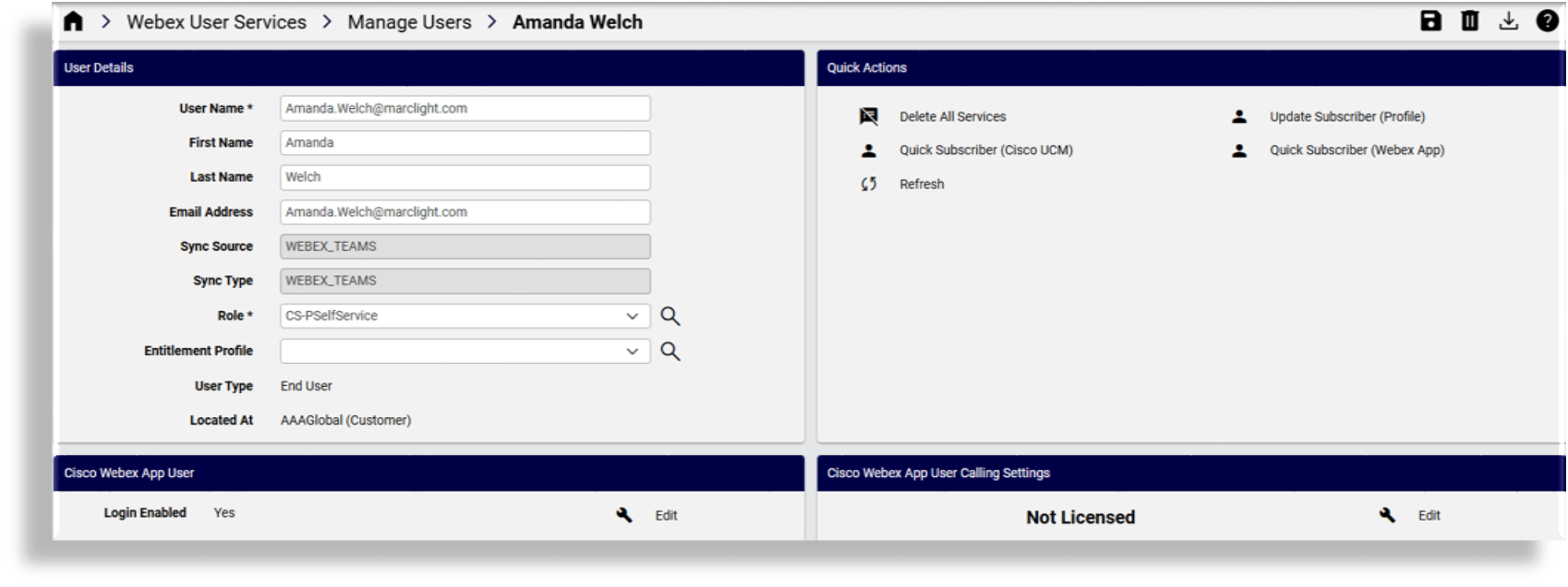
On the Webex User Services > Manage Users page (relation/MultiVendorSubscriber) you can
select a user to view and manage their user details, licenses, calling settings, phones, or services. You
can also access quick actions available for the user, and enable or disable their login.
Note
If the user is associated with a phone (device) you can click the link adjacent to the
device to go to relation/WebexDevice to view and manage the device settings.
Multiple Jabber devices can be added to a Webex user as long as the user does not have an existing device of the same device type.
Access profile dependency for Add Cisco Webex (+)
To enable the Add (+) quick action for Cisco Webex on a user’s management page, your access profile must include the following entry:
Access profile model:
device/webex/UserRequired operations: read, create
Note
This dependency applies only to the Add quick action (the + icon) for provisioning Cisco Webex on a user.
It does not replace other Webex workflows (for example, Webex Quick User via view/WebexTeamsSubscriberQas).
Related topics
Sync Webex user with flow through provisioning#
Sync with flow through for Webex users requires pre-configuring several settings in VOSS (including flow through provisioning criteria) before the initial sync from the Webex Control Hub. See: Flow through provisioning (FTP).
Enable flow through provisioning in the Global Settings for a hierarchy (see: Global settings)
Configure Webex settings matching the user’s location in the Site Defaults (see: Site defaults) so that the move filter criteria are
webexUserModelFilterCriteria. These criteria are used as a part of a user profile.The
AddSubscriberFromProfileworkflow at site uses the following configuration template:Webex_FlowThroughProvisioning_SubscriberFromProfile
This set up allows VOSS to apply the correct configuration, licenses, and services to imported users, and to move users to sites. Once you run the sync, users are imported, provisioned, licensed, and moved to the correct synced in sites, as users - in accordance with configured Webex App user model filter criteria and user profile.
Important
For Webex Control Hub users with Webex Calling Professional licenses and a location assigned, this location won’t be overwritten by any site setting configured in the system user move component (model filter criteria) of flow through provisioning.
The flowchart sets out the sync with flow through of Cisco Webex users and services.
Related topics
Provisioning users with Cisco Webex#
This section describes how to provision Cisco Webex for a user, either via the Users list view, or via Webex Quick User.
Related topics
Provision Cisco Webex via Cisco User list view#
This procedure provisions a user with Cisco Webex, via the Cisco User list view.
Prerequisite:
The users entitlement profile must have Cisco Webex enabled (Webex App checkbox must be selected).
Unless Cisco Webex service assigned is Message only, new users must have an input line specified, and existing users must have either a primary extension, or an input line must be specified.
To provision a user with Webex:
In the Admin Portal, go to Cisco Users.
From the Users list, click on a user you wish to provision with Cisco Webex.
On the Webex App tab/panel, at Webex App User, expand and then fill out settings:
Note
The Invite Pending checkbox is read-only, and defines whether the user’s Webex account is active (checkbox is flagged). When the checkbox is clear, the Webex account is not active.
Options in the Manager ID field and Location field depend on the Cisco Webex server to which the Cisco Webex Service is synced.
At Calling Behavior, choose an option, either of the following:
Calling in Webex App
Calling in Webex App (Unified CM)
Cisco Jabber app
Third-Party app
At Assigned Licenses, select a license. Options depend on the Cisco Webex server to which the Cisco Webex Service is synced.
At Roles, select relevant roles.
No administrator privileges
.
Full administrator privileges
Access to all of Portal features, including:
Assign roles
Company policy and templates
Device management licenses and upgrades
Read-only administrator privileges
View only access to privileges available to a full administrator.
Support Administrator
Access to user information and support logs.
User and Device Administrator
.
Device Administrator
.
Save your changes.
The user is provisioned with Cisco Webex. To verify, ensure the value in the Webex App column in the Cisco Users list view is set to Enabled.
Provision Webex user via Webex Quick User#
This procedure enables Cisco Webex for a user via Cisco Quick Add User.
Prerequisite:
The user’s entitlement profile must have Cisco Webex enabled (Webex App checkbox must be selected).
Unless Cisco Webex service assigned is Message only, new users must have an input line specified, and existing users must have either a primary extension, or an input line must be specified.
See Webex User Details and Add Webex App service using Quick Add User
In the Admin portal, select the relevant site.
Go to Webex Quick User (
view/WebexTeamsSubscriberQas).At Username, select the user to be provisioned with Cisco Webex.
Select the Webex App checkbox to enable Cisco Webex for the user.
From the Webex Teams User Template drop-down list, choose the template you want to assign to the user.
Click Save. Cisco Webex is provisioned for the user.
To verify that Cisco Webex is enabled for the user, ensure the Webex App column in the Users list view displays the text, Enabled.
Note
When Cisco Webex Calling (with UCM) is removed from a Webex User, the ‘On-Prem UCM Calling’ license is removed from the Webex User.