
Microsoft Defender for Office security management and policies#
Microsoft
Overview#
Automate provides support for Microsoft Defender for Office that addresses email security threats. Supported functionality includes:
Rapid data sync of a large volume of quarantine messages
Hierarchy-specific data management
Management of email quarantine messages, safe attachment policies, safe link policies
Request staging areas for quarantine email messages and for requests to create and update of policies
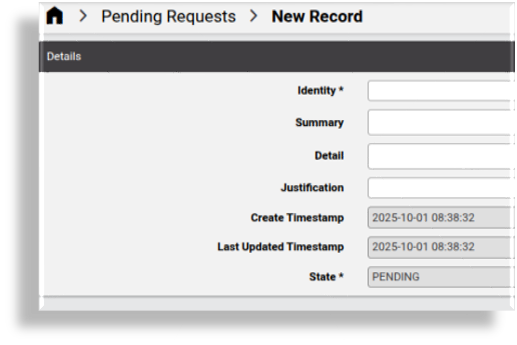
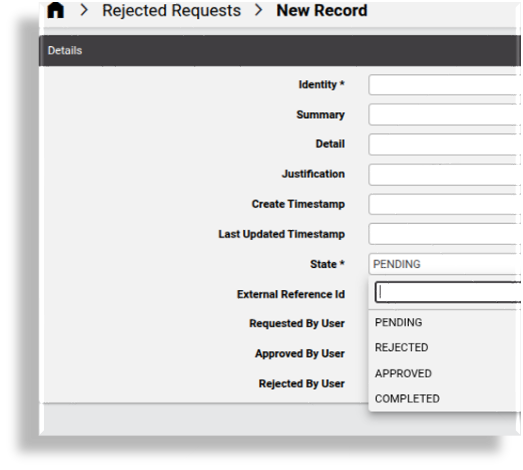
Requests can then have the State that can be managed during the request cycle:
PENDING
REJECTED
APPROVED
COMPLETED
Management of policy configuration templates, allowing customization
Note
The following entry under Global settings, Enabled Services needs to be enabled: Enable Defender for Office - see: Global settings.
For further setup and configuration, see: Microsoft Defender setup, sync, and overbuild.
Microsoft Defender for Office dashboards#
The admin GUI provides dashboards for viewing and managing Microsoft Defender for Office data:
- Security Management - Defender for Office Overview
- Security Management - Defender for Office Actions
The Microsoft Defender for Office dashboards display default counters for data totals, and quick actions for viewing and managing this data:
Defender for Office Overview dashboard
Displays counters, charts, and tables showing total count details for quarantine messages visible from the admin’s hierarchy. For example, the total number of quarantine messages over time, and the top ten senders and recipients, as well as quarantine policy types.
Defender for Office Actions dashboard displays:
Counters with totals for quarantined and released emails, and release requests (pending and rejected requests), and quick actions to view details for these emails and to request release from quarantine.
Counters with totals for safe link policies, and quick actions for viewing, managing, and requesting safe link policies and safe link policy requests
Counters with totals for safe attachment policies, and quick actions for viewing, managing, and requesting safe attachment policies
Customizing Microsoft Defender for Office dashboards
The system allows you to customize dashboards:
Resources are available to dashboard widgets, where Data Source is Automate Analyzed. For example:
Quarantine Messages, shows diagnostic information about the Microsoft Quarantined messages,
device/msexchangeonline/QuarantineMessageQuarantine Message Staging, shows diagnostic information about the Microsoft Quarantined Staging messages,
data/MicrosoftDefenderQuarantineMessageStaging
Quarantine Email Actions#
When synchronizing and overbuild on existing items that are in quarantine, these are moved to the relevant hierarchy node associated with the user.
Automate will sync a high volume quarantine messages using the data collection capability.
The data/DataModel called: “DataCollection” provides this lightweight collection of data from external sources.
Administrators can carry out a number or list and request actions:
View Quarantined Emails and Request Release
View Released Emails
View Release Requests
View Quarantined Emails and Request Release#
A list view of quarantined email messages visible from the current hierarchy can be inspected and instances can be selected to request the message release.
Automate provides a staging area for requests (maintained in the data model: data/MicrosoftDefenderQuarantineMessageStaging).
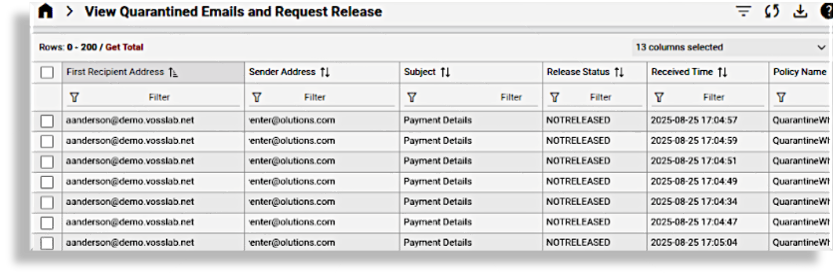
An instance from this list can be selected, inspected and managed:
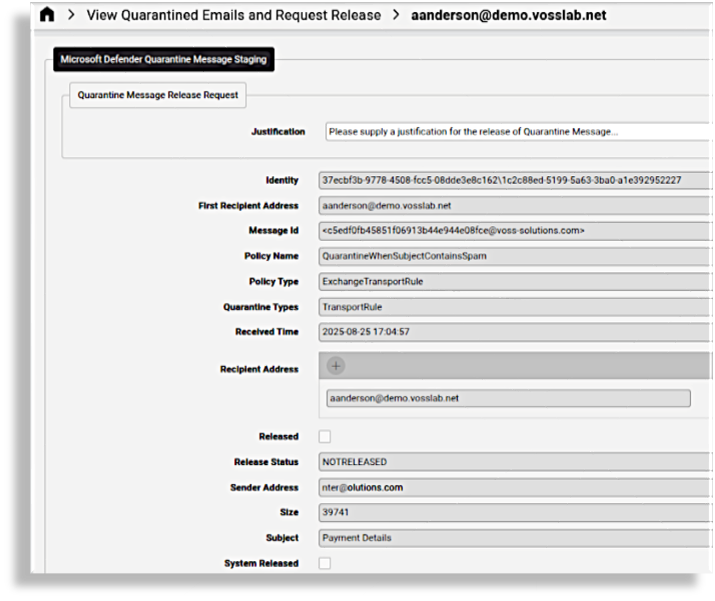
For example, administrators can select a message from this list and request the release of the quarantined email message so that it will have a State as PENDING:
Similarly rejected requests can be managed:
View Released Emails#
By default, a separate list view is available to inspect all messages that have been released from quarantine.
View Release Requests#
Following on requesting the release of quarantined messages, the requests can be listed.
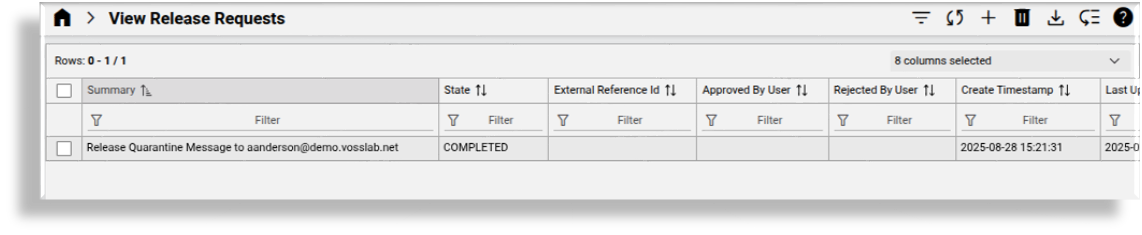
Release request instances can be inspected.
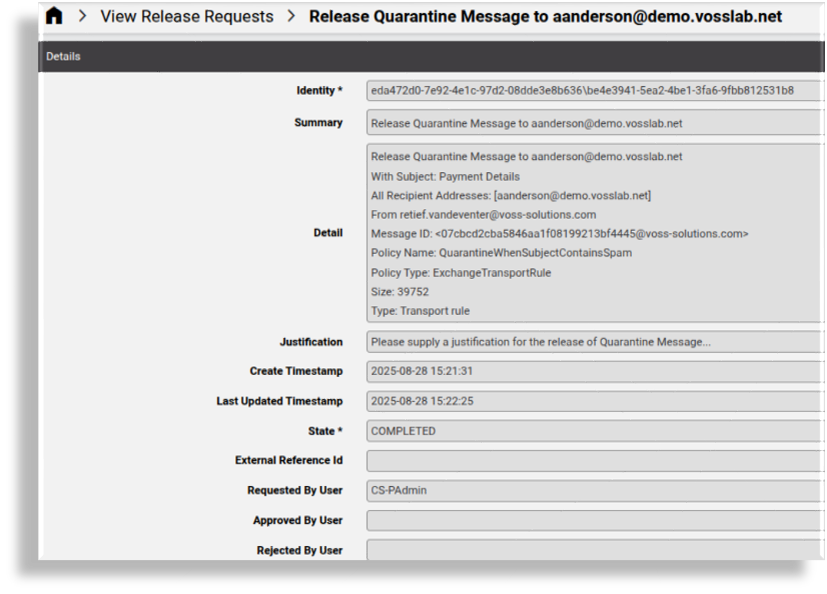
Safe Link Policies#
Manage Safe Link Policies#
Related device model: device/msexchangeonline/SafeLinksPolicy
Administrators can view and manage Safe Link policies in Automate. This includes the creation and configuration of policies.
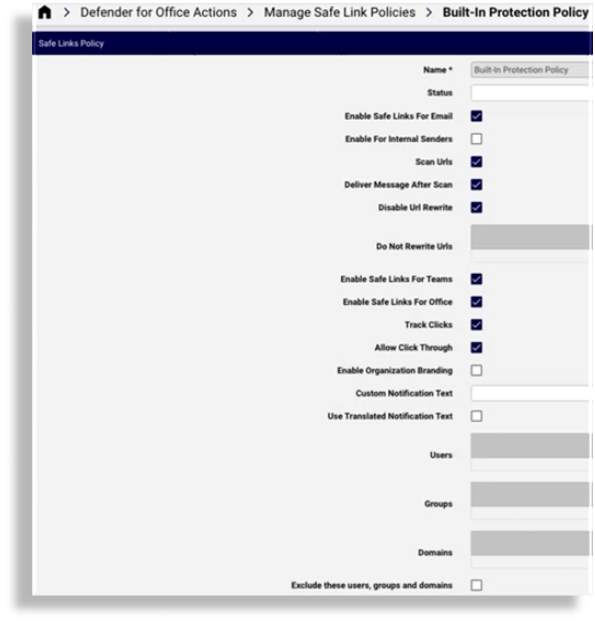
Request New Safe Link Policy#
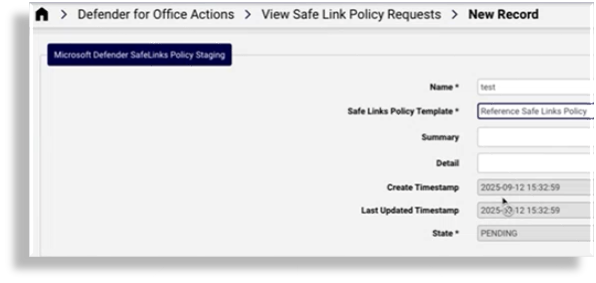
Automate provides a staging area for requests (maintained in the data model: data/MicrosoftDefenderSafeLinksPolicyStaging).
Administrators can therefore submit requests for Safe Link policies, according to:
a selected Safe Links Policy Template
with State set as PENDING
View Safe Link Policy Requests#
By default, a separate list view is available to inspect all Safe Link policy requests that have been made, and to select a request for management.
Safe Link Policy Templates#
Automate provides a reference configuration template for device/msexchangeonline/SafeLinksPolicy,
called: Reference Safe Links Policy, but administrators can clone and manage these templates according to their needs
when submitting policy requests.
Safe Attachment Policies#
Manage Safe Attachment Policies#
Related device model: device/msexchangeonline/SafeAttachmentPolicy
Safe Attachments in Microsoft Defender for Office opens attachments in a virtual environment before the messages are delivered.
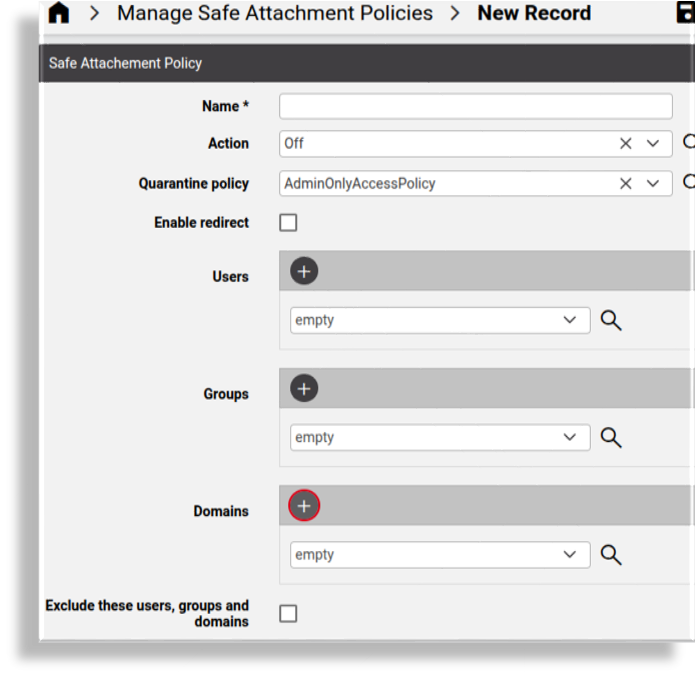
Safe Attachments policies can apply to specific users, groups, or domains and can be managed in Automate.
The Quarantine policy selected when managing a safe attachement policy in Automate is managed on the Microsoft Defender portal.
The default Microsoft Defender quarantine policies are:
AdminOnlyAccessPolicy
DefaultFullAccessPolicy
DefaultFullAccessWithNotificationPolicy
NotificationEnabledPolicy (in some organizations)
Request New Safe Attachment Policy#
Automate provides a staging area for requests (maintained in the data model: data/MicrosoftDefenderSafeAttachmentPolicyStaging).
View Safe Attachment Policy Requests#
By default, a separate list view is available to inspect all Safe Attachment policy requests that have been made, and to select a request for management.
Safe Attachment Policy Templates#
Automate provides the following reference configuration template for device/msexchangeonline/SafeAttachmentPolicy:
Reference Safe Attachment Policy
Admins can clone and manage these templates according to their needs.
Related topics
Microsoft Defender for Endpoint security management and policies
Model filter criteria for Microsoft Defender overbuild usage