
Alerting on the Core Framework#
Overview#
Core Alerting is a built-in capability in the VOSS Core Framework that enables administrators to detect, track, and respond to conditions in platform data. It allows you to define alert rules, evaluate them on a schedule, and trigger automated actions when conditions are met.
Key concepts
Alert rules define what to monitor.
Alert rule groups define where rules run.
Workflows define what actions to take.
How it works
Core Alerting extends dashboard analytics into an automated alerting framework. Any data that can be queried and visualized in a dashboard can also be evaluated as an alert rule.
Alert evaluation is hierarchy-aware. Rules are evaluated within Provider, Customer, or Site contexts, ensuring alerts are scoped correctly while supporting centralized configuration.
Core Alerting uses the VOSS Alert Manager to evaluate rules in the background. It detects state changes and sends results to the Core API (which handles persistence and workflow execution).
Alerting runs continuously, regardless of user activity.
Results and visibility
When conditions are met, Core Alerting updates alert state and invokes workflows such as email notifications or ServiceNow incidents.
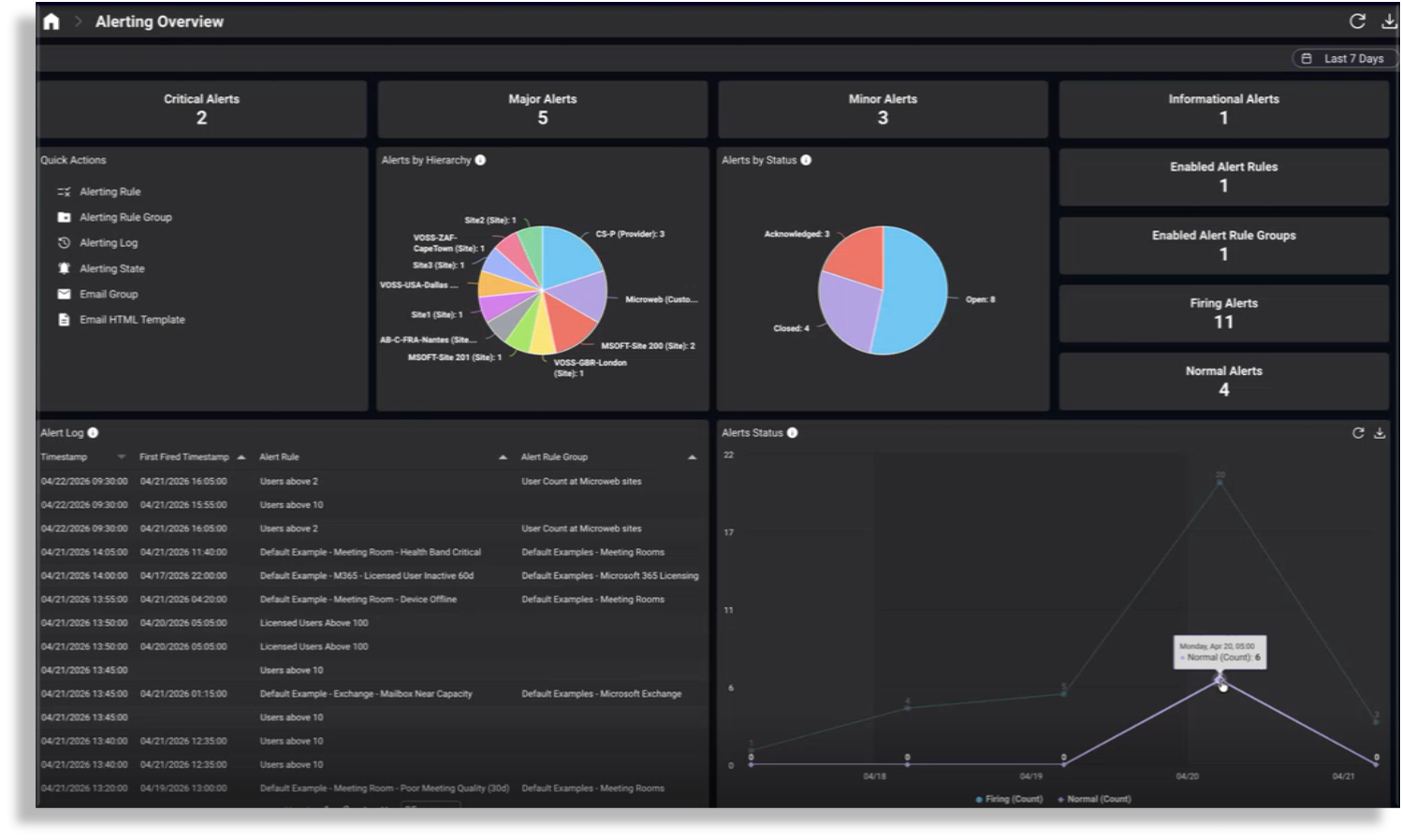
View and manage alerts on the Alerting Overview dashboard.
Core alerting key capabilities#
Core Alerting provides:
Data-driven alert rules: Create alert rules using structured queries against Insights data, including filters, aggregations, and time windows.
Standalone evaluation: Alert rules are evaluated automatically by the VOSS Alert Manager on a fixed schedule.
Hierarchy-aware evaluation: Evaluate rules within Provider, Customer, or Site hierarchies.
Reusable rule groups: Apply rules to multiple hierarchies without duplication.
Alert state tracking: Track normal and firing states with timestamps and counts.
Automated actions: Trigger workflows when alerts evaluate as firing or transition to resolved. Firing actions run on every evaluation; resolved actions run on state change.
Visibility and reporting: Monitor alerts using dashboards and logs in the Admin portal.
How Core alerting differs from other alerting mechanisms#
Core Alerting is designed for analytics-based alerting, driven by structured platform data rather than infrastructure or log-based monitoring.
Alerts are evaluated on a scheduled basis using Insights data and are suited for threshold breaches, trend indicators, and operational metrics derived from the VOSS platform.
This approach complements, rather than replaces, traditional monitoring and logging systems. Core Alerting does not evaluate syslog messages, SNMP traps, or real-time event streams, and it focuses on data-driven conditions rather than real-time event capture.
Related topics
How core alerting works#
This section explains how Core Alerting evaluates rules, tracks alert state, and triggers actions, with the VOSS Alert Manager serving as the central evaluation component.
Core components#
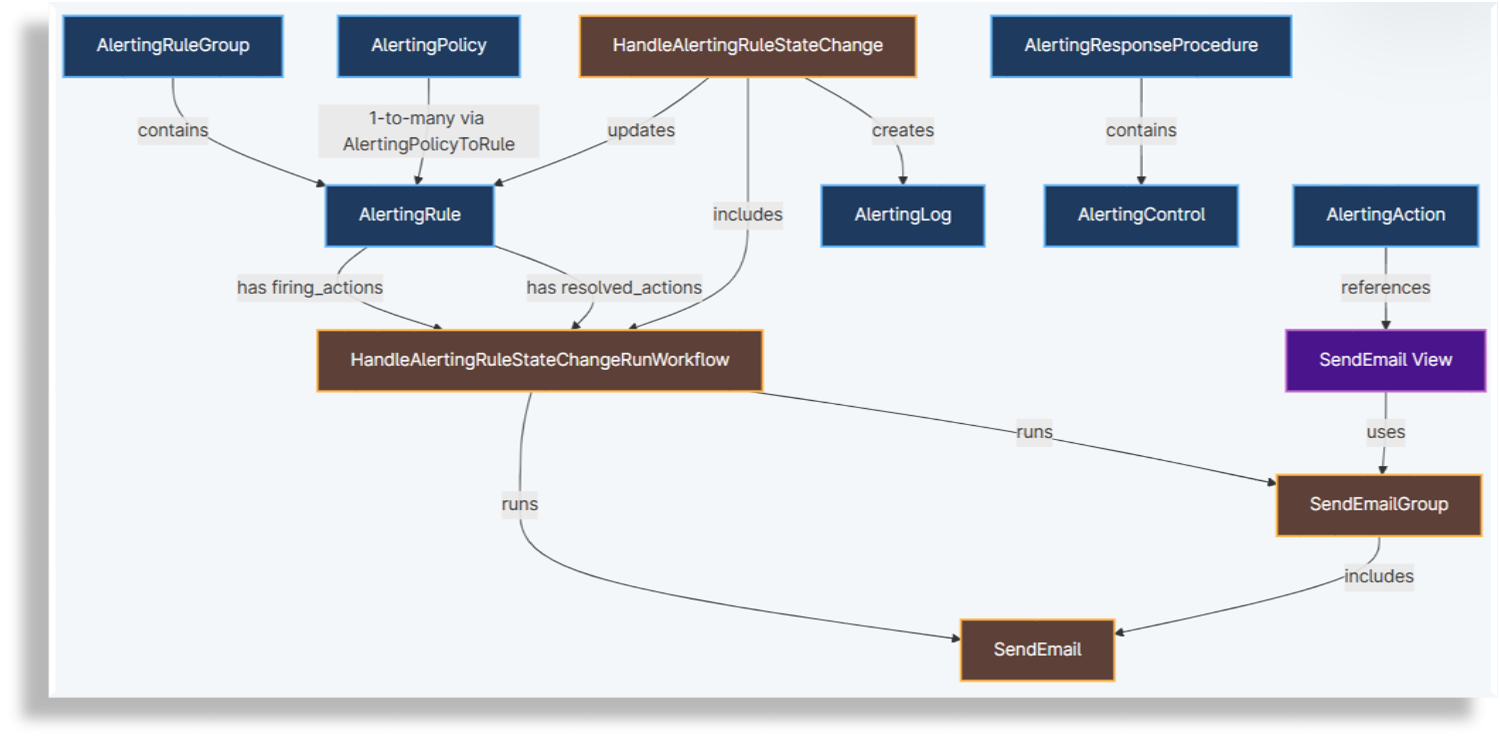
Core Alerting is composed of the following main components:
Alert rules: Definitions that specify what data to evaluate and which conditions constitute an alert
Alert rule groups: Containers that determine where alert rules execute
VOSS Alert Manager: A standalone Core service responsible for evaluating rules, detecting state changes, and forwarding results to the Core API
Workflows: Automated responses executed when alerts evaluate as firing or transition to resolved
Alert dashboards and logs: User interface components for monitoring alert status and history
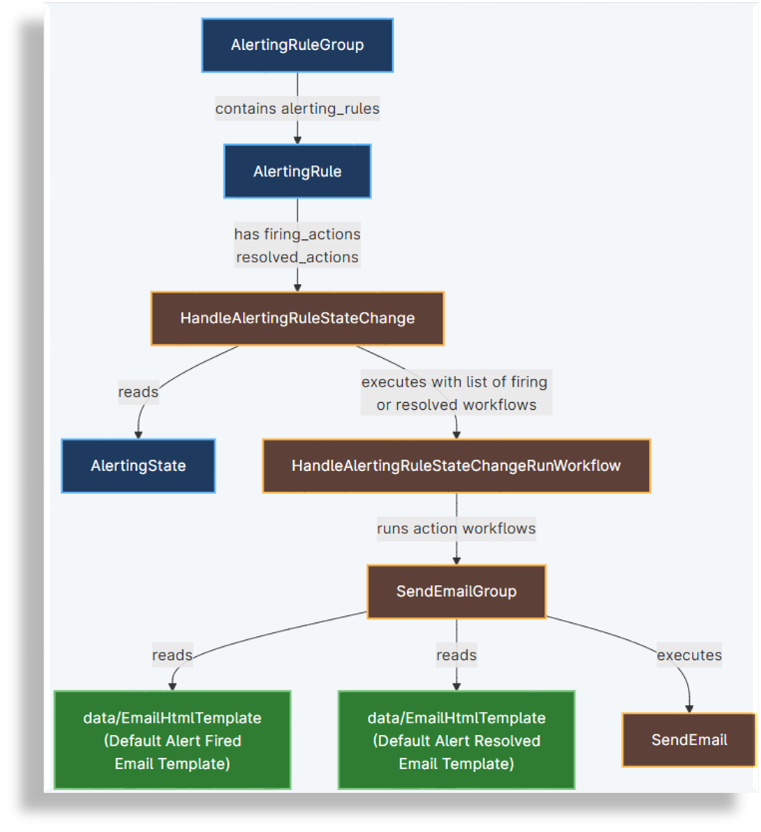
The image illustrates model and workflow interactions for Core Alerting, including alert rules, state tracking, and workflow execution.
Responsibilities of the VOSS Alert Manager#
The VOSS Alert Manager evaluates alerting rules and detects when defined conditions are met. It runs continuously in the background and is not tied to user sessions.
At a glance
Evaluates rules on a schedule
Detects state changes
Maintains temporary (in-memory) state during evaluation
Core API responsibilities:
Persisting alert state in
data/AlertingStateRecording alert events in
data/AlertingLogTriggering configured workflows
This design separates evaluation from persistence and workflow execution.
VOSS Alert Manager responsibilities
Retrieving enabled alerting rules and their associated hierarchy scope
Executing the underlying data queries defined in each rule
Evaluating query results against rule conditions
Determining alert state changes (normal or firing)
Maintaining temporary alert state during evaluation cycles
Sending detected state changes and firing events to the Core API
Internal components
The Alert Manager includes the following internal components:
Scheduler: Periodically retrieves and evaluates alerting rules.
Evaluator: Executes rule logic and evaluates query results against configured conditions.
State Store: Tracks alert state for each rule evaluated in a given hierarchy context.
Metrics: Exposes operational metrics for monitoring the Alert Manager service.
Alert evaluation flow#
Each evaluation cycle follows a consistent sequence:
Rule and group collection: The Alert Manager retrieves enabled alert rules and alert rule groups from Core.
Hierarchy scoping: For each alert rule group, the Alert Manager determines the hierarchy context (provider, customer, or site) in which the rules should execute.
Data query execution: The Alert Manager executes the rule’s data query using the Insights API, applying filters, aggregations, and time windows as defined in the rule.
Condition evaluation: Query results are evaluated against the rule’s configured conditions to determine whether the alert should be considered firing or normal.
State change: If the evaluated state differs from the previous state, the Alert Manager identifies a change.
Core API interaction: When an alert evaluates as firing or changes state, the Alert Manager sends this information to the Core API, which updates
data/AlertingState, createsdata/AlertingLogentries, and triggers the configured workflows.
Alert states and state changes#
Core Alerting tracks both current alert state and individual alert events:
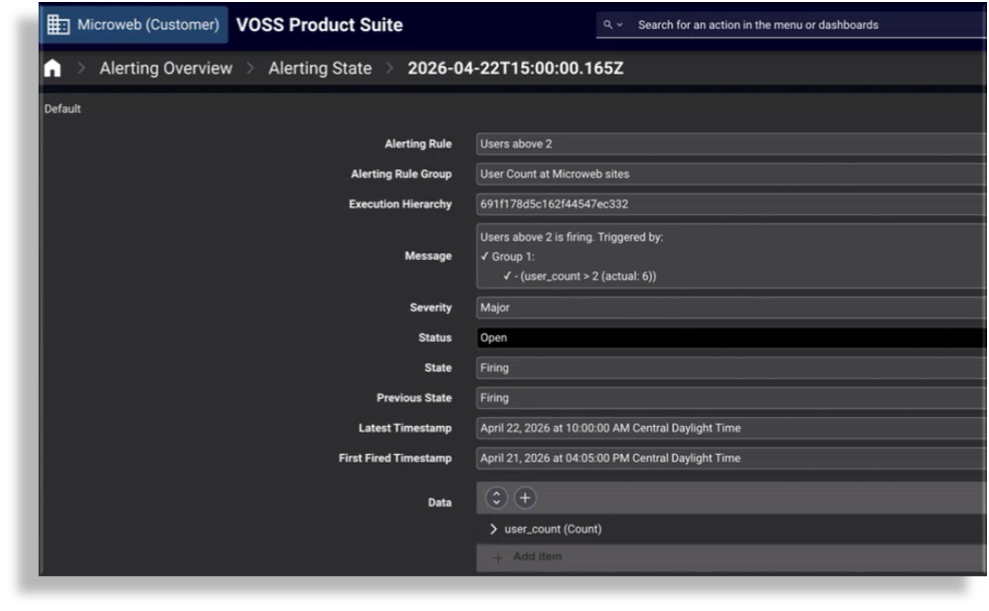
data/AlertingStatestores the current state (normal or firing) per rule and hierarchy.data/AlertingLogrecords each firing and resolution event over time.
Note
An alert is considered “firing” when conditions are met, and “resolved” when it returns to a normal state.
State model
A rule is either in a normal or firing state.
When an alert fires
The following values are recorded:
First-fired timestamp
Last-fired timestamp
Firing count
These values are stored in alert logs and reflected in the current state.
While firing
The firing count increments on each evaluation.
When resolved
The alert transitions to normal.
Resolved actions are triggered.
Logging
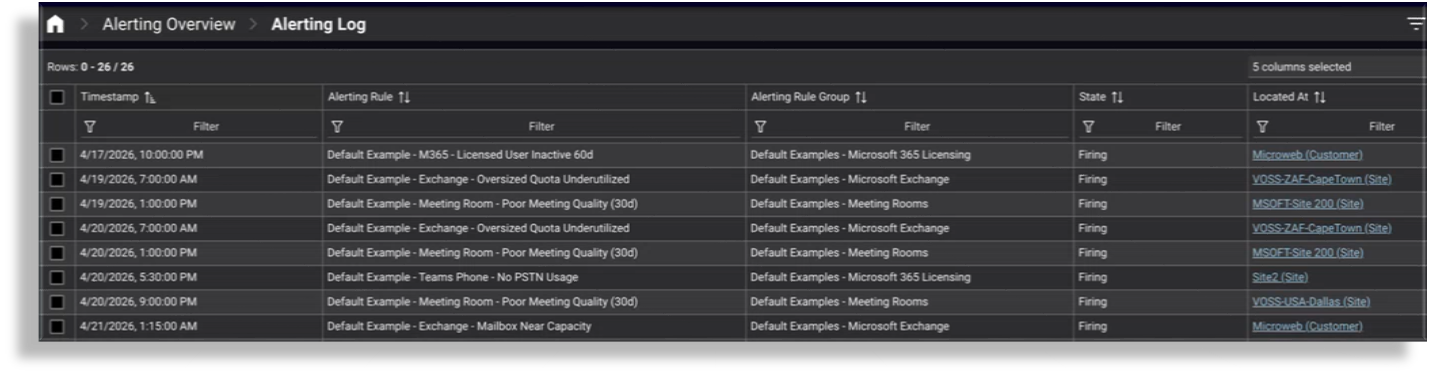
Alert logs are updated on state changes.
From alerting to action#
Execution model
Workflows are configured on alerting rules and run automatically when alerts evaluate as firing or transition to resolved.
Flow
The Alert Manager detects a condition or state change.
It sends the result to the Core API.
The Core API invokes the configured workflows.
Behavior
Firing actions run on every evaluation.
Resolved actions run on state change.
Supported actions
Email notifications
ServiceNow incidents
Alerting rules#
Summary
Define what data to evaluate
Define when an alert fires
Define which workflows run
Alerting rules define the conditions to evaluate and the workflows executed when alerts evaluate as firing or resolve. They are the foundational components of Core Alerting and remain independent of hierarchy context.
Each rule defines the data to evaluate and the conditions that trigger a firing state.
By separating detection logic from execution context, Core Alerting enables consistent, reusable, and centrally managed alert definitions that can be applied flexibly across the VOSS platform.
Alerting rules are data-driven. They are built using structured queries against Insights data and use the same query model that is available for dashboard widgets. This includes filters, aggregations, and time windows.
VOSS ships with the following example alerting rules at the system hierarchy (sys):
Three predefined alerting rules for Microsoft Exchange
Three predefined alerting rules for Microsoft licensing
Three predefined alerting rules for Meeting Rooms functionality
Alerting rules and rule groups#
An alerting rule is evaluated when either of the following is true:
The alerting rule itself is enabled, in which case it executes as a standalone rule at its own hierarchy.
The alerting rule is included in an enabled alerting rule group, in which case it is evaluated at all hierarchies defined in the group.
When executed via a rule group, the enabled state of the individual alerting rule is ignored.
Alerting rules define alert behavior, while alerting rule groups define where rules are evaluated.
Alerting rules define what conditions are evaluated and which workflows run when alerts evaluate as firing or transition to resolved. Each rule includes its detection logic, evaluation settings, and the workflows configured as Firing Actions and Resolved Actions.
Alerting rule groups define where those alerting rules are evaluated by applying them to specific provider, customer, or site hierarchies. A rule group determines the hierarchy context in which a rule runs but does not define workflows.
When a rule is evaluated within a rule group and its state changes, the configured workflows run within that hierarchy context.
This allows rules to be reused across rule groups and hierarchies.
Alerting rule workflows#
When an alerting rule evaluates as firing or a state change occurs, the Core API invokes the configured workflows based on input from the VOSS Alert Manager.
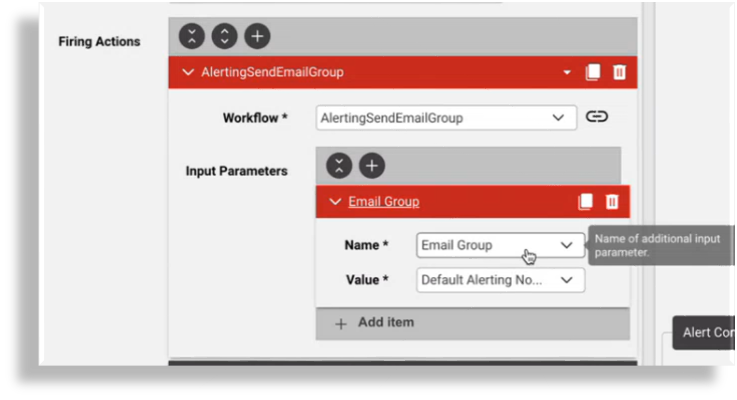
You can attach one or more workflows to an alerting rule:
Workflows attached to the alerting rule Firing Actions field run every time the rule evaluates as firing, including consecutive evaluations where the alert condition remains true. For example, to send an email to a specified recipient/s and/or to create an incident ticket in ServiceNow (if that integration is set up).
Workflows attached to the alerting rule in the Resolved Actions field run when the alert transitions from firing to normal.
Note
Firing actions are currently executed on every evaluation where the alert condition is met.
VOSS ships with two reference workflows:
Send email notification (Email group / Email HTML template support):
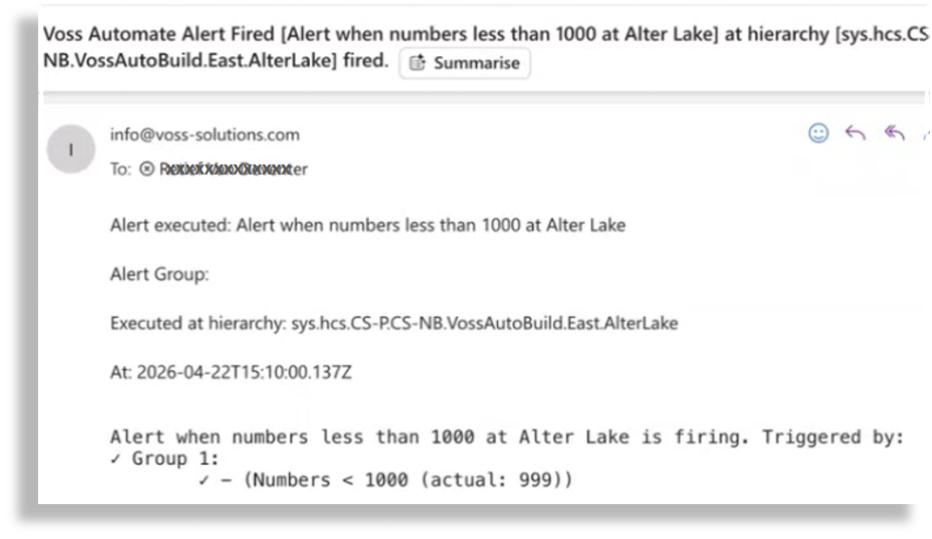
This workflow sends an email notification when an alert is triggered or resolved, using a predefined HTML email template (AlertingSendEmailGroup), which is based on the standard, configurable VOSS email group HTML template. You can clone the HTML template to create your own email template. The template has access to the data that triggered the rule. The email message in the shipped template notifies you that the alert condition evaluated as firing based on the alerting rule and provides details about the alert:
Alert firing or alert resolved
Hierarchy the alert executed at
Timestamp
Alert message
Input parameters for the workflow in the alerting rule allow you to choose a default email recipient group or to override the default and choose another email group. If you don’t specify input parameters, the defaults apply. The logs will show whether the sending of the email notification succeeded.
Create ServiceNow incident:
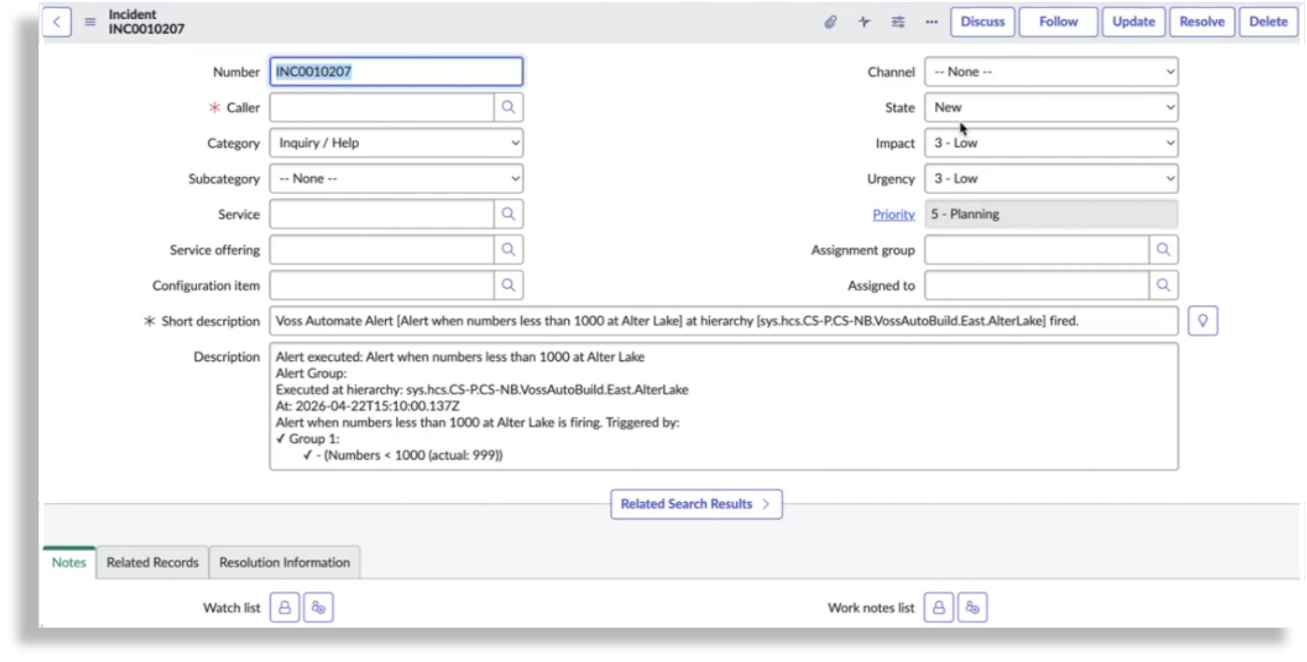
This example reference workflow supports the ability to integrate with ServiceNow to create ServiceNow incidents as part of the Core Alerting workflow. If using this workflow, you can choose a ServiceNow connection you want the alert to work for. If you don’t specify input parameters, the defaults apply. The logs will show whether the connection and incident creation succeeded.
Note
Customers will be able to map workflow fields for the alert and incident reporting relevant to their ServiceNow implementation. Contact VOSS support for details.
Related topics
Alerting rule settings#
Each alerting rule includes the following high-level elements, which together describe what to check and when a condition should be considered an alert.
Rule Settings
Rule Name: Mandatory. The name of the rule.
Description: A description of the rule.
Enabled: Defines whether a rule can run and is eligible for evaluation.
Enabled rules can be evaluated independently as standalone rules at their own hierarchy, or as part of an enabled rule group.
Disabled rules are not evaluated as standalone rules, but can still be evaluated if they are included in an enabled alerting rule group.
Enablement state does not determine where the rule runs or what actions are taken. An alert rule is evaluated when either of the following is true:
The alerting rule itself is enabled (standalone execution), OR;
The alerting rule is included in an enabled alerting rule group (group execution)
Severity: Mandatory. Assigns a severity level to the alert when the rule is firing (Informational, Minor, Major, or Critical).
Evaluation Frequency: Mandatory. Defines how often the rule is evaluated by the VOSS Alert Manager.
Firing Actions: The workflows (one or more) to be executed when this alerting rule evaluates as firing.
Contains the following fields:
Workflow: Choose from a collection of predefined workflows.
Input Parameters: The name and value to use for the workflow. If you’re using an email workflow, you can
Note
VOSS ships with email notification support as the primary ready-to-use workflow and ServiceNow workflows as reference examples for the Core Alerting feature.
Resolved Actions: The workflows (one or more) to be executed when this alerting rule transitions from a firing state back to a normal state. Contains the following fields:
Workflow: Choose from a collection of predefined workflows.
Input Parameters: The name and value to use for the workflow.
Note
VOSS ships with email notification support as the primary ready-to-use workflow and ServiceNow workflows as reference examples for the Core Alerting feature.
Rule Condition
Data Source: The data source used to retrieve data for evaluation. Options are:
Automate Analyzed
Assurance
Netflow
Data Source Instance: Specify the data source instance when selecting Netflow or Assurance as the data source.
Resource: Choose a resource specific to what you select as the data source. Options in the drop-down depend on the selected data source.
Query Date Range: Date range for the query, for example:
Last 5, 30, or 60 minutes
Last 12 or 24 hours
Last 7 or 30 days
Last 3, 6, or 12 months
Previous hour, day, week, month, or year
Through today, or through yesterday
Over Time: Whether to enable over time lookup. Defines whether the query should be evaluated over time. When enabled, also specify the interval.
Interval: Relevant when evaluating the query over time. The interval for the query, such as Monthly, Weekly, Daily, Hourly, Minute, Second.
Fields: The fields you want to alert on from the selected resource.
Filters: Filters to be applied to the data.
Alert Condition: (Logical AND, Logical OR) Defines the comparison logic used to evaluate the query results, such as greater than, less than, or equal to a specified threshold. The field used in alert conditions must reference the friendly name of the field selected in the Fields section. For certain operations, such as grouping counts, the Insights API automatically returns values in predefined fields (for example, Count). These fields must be used when defining alert conditions.
Alerting rule groups#
An alerting rule group defines where alerting rules are evaluated by applying them to specific hierarchy levels. It provides the execution context for one or more alerting rules.
Alert rule groups are hierarchy-aware. When a group is applied to one or more hierarchies:
Each alerting rule in the group is evaluated separately for each hierarchy
Alert states are tracked independently per hierarchy
Actions are executed within the context of the hierarchy where the alert fired
This allows centrally defined rules to operate correctly and independently across multiple organizational levels.
While alerting rules define alert conditions and associated workflows, alert rule groups determine:
Which hierarchies the rules apply to
Whether the rules are active in those hierarchies
This separation allows alerting rules to be reused across multiple hierarchies without duplicating rule definitions.
Alerting rule group settings#
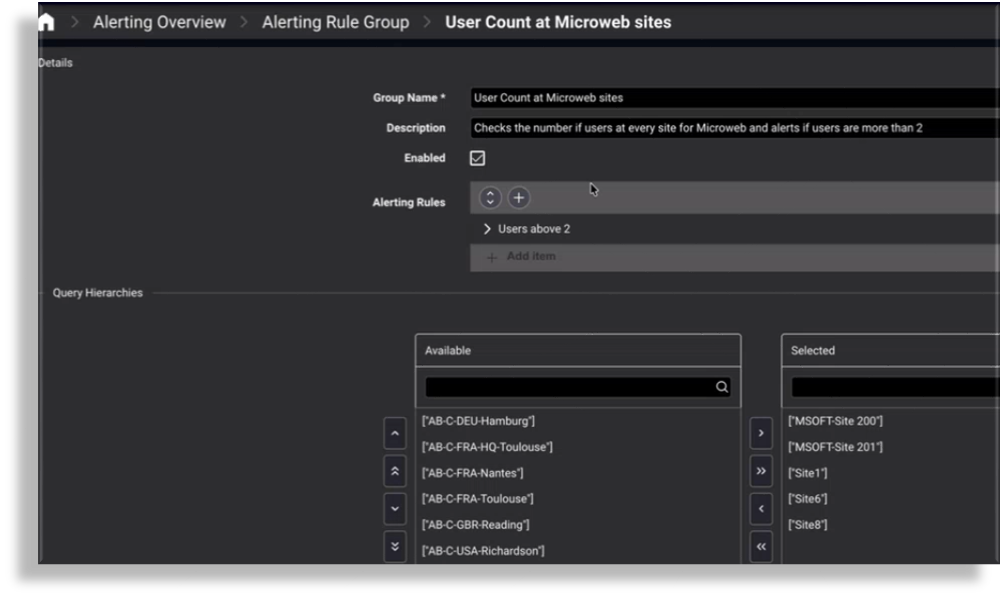
Each alert rule group includes the following key elements:
Group Name: Mandatory. The alerting rule group name.
Description: A description for the alerting rule group.
Enabled: Defines whether the alerting rule group is active and eligible for evaluation:
Enabled groups: The VOSS Alert Manager evaluates all enabled rules in the group for each configured hierarchy:
Each assigned alerting rule is evaluated independently
A firing condition in one rule does not affect evaluation of other rules
If multiple rules fire, each firing results in its own alert state tracking
All rules included in an enabled alerting rule group are evaluated, regardless of their individual enabled state.
When an alert state change occurs for a rule in the group, the workflows configured on the alerting rule are executed in the context of the group’s hierarchy scope.
Disabled groups: No rules in the group are evaluated, regardless of the rule’s individual enablement state.
Alerting Rules: One or more alerting rules whose conditions are evaluated as part of the group.
Target Hierarchies: Defines the provider, customer, or site hierarchies where the group is applied.
Working with core alerting#
Create an alerting rule#
This procedure creates a rule, defines its conditions, and configures how often it runs.
Note
Alerting rules define what conditions are evaluated and what actions occur when alert state changes. They do not define where the alert runs.
Prerequisites
Permission to manage alerting rules.
Relevant Insights data available for evaluation.
To create an alerting rule
In the Admin portal, go to Alerting Rule.
From the list view, clone a relevant default example alerting rule to the hierarchy where you want to have the alerting rule evaluate, or click the Plus icon (+) to create a new alerting rule at your current hierarchy.
In alerting rule’s Rule Settings, provide the following:
Rule Name: Mandatory. Enter a unique name for the rule.
Description: Describe the purpose of the rule.
Enabled: Enable the rule if it should be available for evaluation.
Severity: Select the severity level for the alert.
Evaluation Frequency: Choose how often the rule should be evaluated.
In the alerting rule’s Rule Condition, configure the data query:
Select the Data Source and Resource.
Define the Query Date Range.
Choose the Fields to evaluate.
Apply any required Filters.
Define the Alert Condition (for example, greater than a threshold).
Click Save.
The alerting rule can be reused across alert rule groups. It can run either as a standalone enabled rule at its own hierarchy or when it is included in an enabled alert rule group.
Attach workflows to an alerting rule#
This procedure configures workflows for alert execution.
Workflows are configured directly on alerting rules and are executed when the rule’s alert state changes.
Prerequisites
An alerting rule already exists.
Required workflows (email or ServiceNow) are available.
To attach workflows to an alerting rule
Go to Alerting Rule.
In the list view, select the alerting rule you want to modify.
Expand Firing Actions; then:
From Workflow, select the workflow that should run when this alert fires.
From Input Parameters, provide input parameters relevant to the workflow.
Add more workflows, if needed.
Expand Resolved Actions; then,
From Workflow, select the workflow to run when the alert resolves.
From Input Parameters, provide input parameters relevant to the workflow.
Add more workflows, if needed.
Click Save.
Workflows in Firing Actions run every time the alert evaluates as firing, including consecutive evaluations where the condition remains true.
Workflows in Resolved Actions run when the alert transitions from firing to normal.
Workflows execute in the hierarchy context defined by the alert rule group.
The alerting rule is now configured to trigger automated actions when alert state changes occur.
Create an alerting rule group#
This procedure creates an alert rule group to apply alerting rules to specific hierarchy levels.
Alert rule groups define where alerting rules are evaluated. They do not define alert conditions or workflows.
Prerequisites
One or more alerting rules exist.
To create an alerting rule group
Go to Alerting Rule Group.
From the list view, clone a relevant default example alerting rule group to the relevant hierarchy, or click the Plus icon (+) to create a new alerting rule group at your current hierarchy.
Provide the alerting rule group details:
Group Name: Mandatory. Enter a name for the group.
Description: (Optional) Describe the purpose of the group.
Enabled: Choose whether the group should be active.
In Alerting Rules, add one or more alerting rules to the group.
In Target Hierarchies, select the provider, customer, or site hierarchies where the rules should apply.
Click Save.
The alerting rule group applies the selected alerting rules to the chosen hierarchies. Rules will be evaluated when either the rule is enabled (standalone execution) or the rule is included in an enabled alerting rule group.
Enable and disable alerting using rule groups#
This procedure controls whether alerting is active by enabling or disabling alert rule groups.
Using rule groups allows alerting to be rolled out or paused without modifying individual alerting rules.
To enable or disable alerting using rule groups
Go to Alerting Rule Group.
Select the rule group you want to manage.
Toggle the Enabled setting:
Enable the group to allow alert evaluation.
Disable the group to stop all alert evaluation for its rules.
Click Save. Alerting is enabled or disabled for the specified hierarchies without changing rule definitions.
Alerting rules are evaluated when:
The alerting rule itself is enabled (standalone execution), or
The alerting rule is included in an enabled alerting rule group.
Disabling a rule group immediately stops alert evaluation for all rules in that group.
Monitor active alerts on the dashboard#
This procedure displays active alerts so that you can monitor them.
Note
Dashboard views reflect the most recent evaluated alert state.
Go to Alerting Overview.
In the dashboard widgets and counters, view the following:
Current alert status, trend data, and alerts grouped by status
Alerts by severity
Alerts by hierarchy, showing alerts grouped by the hierarchy they’re evaluating at
Alert log, showing alerts changing states between firing and normal
The number of enabled alert rules
The number of enabled alert rule groups
The number of firing alerts (indicating active conditions)
The number of normal alerts (indicating resolved conditions)
Use available filters in the list views via Quick Actions to narrow results by hierarchy or state.
Review alert history and state changes#
This procedure reviews alert logs to analyze alert behavior and history.
Note
Alert logs record individual firing and resolution events over time.
Firing counts increment on each evaluation cycle while an alert remains firing.
Go to Alert Log.
Select an alert entry to view detailed state information.
Review the following fields:
Alert state (normal or firing)
First-fired timestamp
Last-fired timestamp
Firing count
Associated rule and hierarchy