
Microsoft users and licensing#
Overview#
Microsoft users must be onboarded in VOSS before they can be fully provisioned and managed. Onboarding involves importing users and related data from the Microsoft Cloud, placing users in the correct customer and site hierarchies, and applying configuration, policies, and licenses through automated workflows.
Once users are synced at the customer or site level, administrators can manage Microsoft users centrally from the VOSS UI. Targeted backend synchronizations continuously poll for changes at the device model layer to:
Maintain data integrity
Manage licenses
Automate number auditing
Ensure alignment with Microsoft Entra ID and Microsoft Teams
Note
License management for Microsoft users is available only when Enable Microsoft User License Enforcement is set to True (Yes) in Global Settings (User settings). When enabled, users can be added only if sufficient license allocation exists for their hierarchy.
Related topics
View and edit Microsoft users#
View a summary list of all Microsoft users#
This procedure displays a list of Microsoft users at the selected hierarchy.
Log in to the VOSS Admin Portal.
Choose the hierarchy.
Go to the Microsoft User Details page.
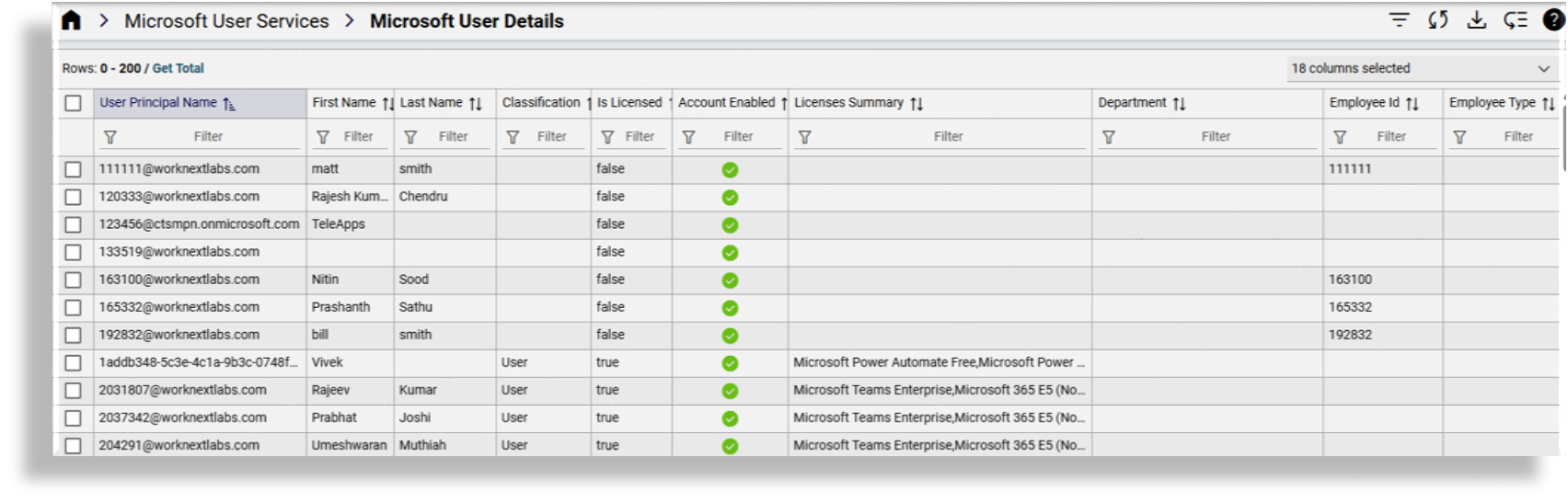
View a summary of Microsoft users at the current hierarchy.
The list view shows the following details for each user:
User Principal Name (UPN)
First and last name
Whether the user is licensed (Is Licensed, True or False)
Account enabled status (Microsoft Entra account, True or False)
Assigned licenses (Licenses Summary)
Department
Employee ID and Employee Type
City, country, phone number, office, company name
User type
Location (hierarchy)
Associated device
From the list view you can click on a user to open their settings, or select one or more users to apply bulk actions via the toolbar icons (filter, refresh, export, or move).
Related topics
View and update a Microsoft user#
This procedure displays and edits details for an individual Microsoft user.
Note
This workflow applies to Microsoft-only users. For Cisco-Microsoft hybrid users, use the hybrid multi vendor actions. The Hybrid Status Message field displays the user’s hybrid state. See Provision and manage hybrid Cisco-Microsoft users
Log in to the VOSS Admin Portal.
Select the required hierarchy.
Go to the Microsoft User Details.
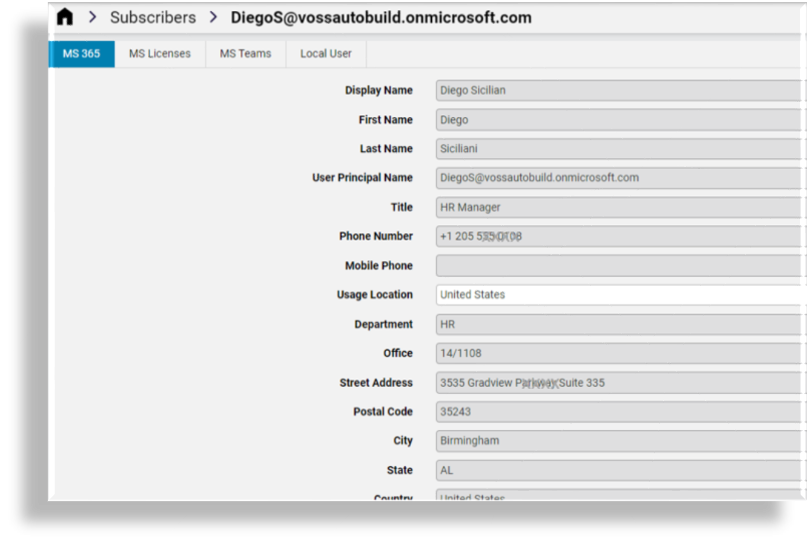
Click on a user in the list to open their settings.
Select a tab (or panel) to view and update settings:
Note
VOSS supports either a tab or panel layout via a toolbar button. The tabs/panels that display depend on enabled functionality.
Related topics
Microsoft user details (tab/panels)#
This section describes Microsoft user settings available via Microsoft User Details:
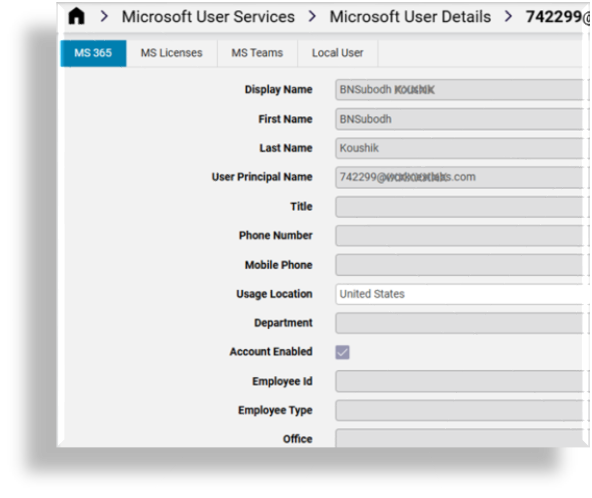
MS 365: Microsoft user attributes such as display name, first and last name, User Principal Name (UPN), title, contact details, usage location, department, employee ID, employee type, groups, and Microsoft Entra account enabled status.
Exchange Custom Attributes: Read-only. Available only when Microsoft Exchange is enabled and licensed for the user. These fifteen attributes can be used for:
Filtering users imported from Microsoft Entra ID
Flow Through Provisioning
Advanced user selection for onboarding and automation
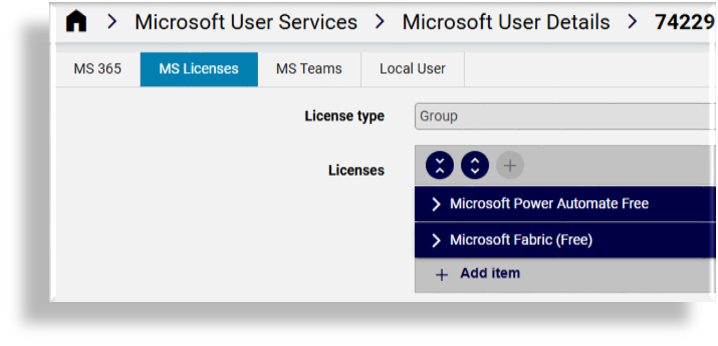
MS Licenses: View and update the Microsoft license assignments for the user.
Note
When the license type is “Group”, all license details (SKU and service plans) are read-only.
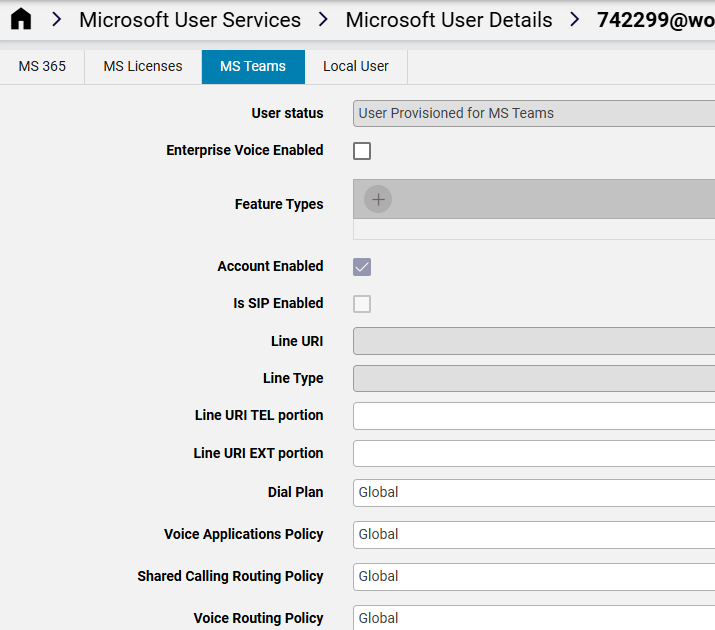
MS Teams: Displays Microsoft Teams configuration. The following fields are read-only:
User status
Interpreted User Type
Country or Region
Feature Types
Line URI
Line Type
Enterprise Voice can be enabled or disabled only if the user has a PhoneSystem license. Numbers can be assigned only when the PhoneSystem licenses is present.
Local User: The local VOSS user associated with the Microsoft user.
Related Topics
User account enabled state#
The read-only AccountEnabled attribute indicates whether a Microsoft Entra ID (Azure AD) user account is
enabled. This value is synced from Microsoft and cannot be modified in VOSS.
VOSS uses this attribute to determine whether a user should be included in analytics reporting, and license optimization workflows:
Disabled accounts are automatically excluded from inactive user lists
Disabled and deleted users are excluded from savings candidate identification
Usage, trend, and cost analytics include only enabled accounts to improve reporting accuracy
Migration behavior
To avoid excessive resynchronization and performance impact during upgrades, AccountEnabled defaults to True during migration. After synchronization completes:
Users with enabled Microsoft accounts remain set to True
Users with disabled Microsoft accounts are updated to False
Manage a user’s MS Teams policies#
This procedure updates Microsoft Teams policies assigned to an individual user.
Note
Some policies support full CRUD (create, update, delete) operations in VOSS. This workflow applies to Microsoft-only users.
Go to the Microsoft User Details.
Select a user.
Open the MS Teams tab.
Review currently applied policies.
Select alternative policies from the drop-down lists as required.
Save your changes.
Policy updates are synced back to Microsoft during an overbuild or synchronization.
Related topics
Introduction to Microsoft Teams policies (Core Feature Guide)
Licensing for Microsoft users#
Overview#
This section describes how licensing is applied, enforced, and managed for Microsoft users in VOSS
VOSS supports assigning, modifying, and removing Microsoft licenses for users as part of onboarding, offboarding, and ongoing user management.
To enable license management:
Set Manage Licenses and Allow User Staging in the site defaults (MS Teams tab).
Ensure Enable Microsoft User License Enforcement is enabled in Global Settings.
When license management is enabled:
Users are placed in a staging state while license data syncs from Microsoft.
Users are automatically provisioned (with a line and available number) based on service profiles and license assignments.
Assigned numbers are added to inventory and associated with the user.
Licensing during onboarding and offboarding#
Licensing can be applied automatically during onboarding via Quick User workflows.
Targeted syncs poll Microsoft for licensing changes.
During offboarding, direct licenses can be removed only if all licensing groups are also removed.
Important
VOSS requires the LicenseAssignment permission to manage Microsoft licenses.
Group-based and direct licensing behavior#
Group-based licensing always takes precedence over direct licensing.
If any group-assigned license exists, VOSS does not apply direct licenses.
When a user is removed from a licensing group, the user becomes unlicensed.
Direct licenses cannot be added if a base license is assigned via group.
This behavior applies across onboarding, updates, and offboarding workflows.
Licensing via Quick Add Groups and Flow Through Provisioning#
Licensing by group membership can be configured:
During onboarding and offboarding using Quick Add Groups
Through Flow Through Provisioning associated with Subscriber Profiles
Manually using Manage Group Membership
VOSS provides reference configuration templates:
MS Groups Add Template
MS Groups Remove Template
Best practice is to use separate Quick Add Groups for onboarding and offboarding to avoid overlapping add/remove behavior.
Related topics
Configuration templates for MS groups#
VOSS provides reference configuration templates that control Microsoft group membership during onboarding, offboarding, and flow through provisioning. These templates can be cloned to a hierarchy, renamed, and modified to customize the group membership changes applied by an operation.
The templates are available on the Configuration Templates page. The menu and model associated with the
configuration templates is view/MsGraphManageGroup.
The following reference templates are provided:
Reference Microsoft Groups Add Template: Adds one or more entries to the Group list to assign Microsoft group membership to a user. If the user is already a member of a specified group, that entry is ignored.Reference Microsoft Groups Remove Template: Removes one or more entries from the Group list to revoke Microsoft group membership. If the user is not a member of a specified group, that entry is ignored.
Group names must be entered manually. Available groups can be inspected via the Groups page. If Microsoft licenses are associated with a group, they are applied or removed according to the configuration template Operation setting.
For cloned templates, the User and Operation values do not need to be modified if the original template behavior is to be preserved.
Important
Do not select both Add and Remove configuration templates containing the same group list when creating a Quick Add Group. Doing so results in the same group being added and removed in a single operation.
Best practice is to define separate Quick Add Groups for onboarding and offboarding, each containing only the required configuration templates.
In scenarios where a fixed set of groups must be enforced for both onboarding and offboarding, templates can be combined deliberately to achieve the desired outcome.
These configuration templates can be applied to Quick Add Groups for use in on-boarding, off-boarding, and flow-through provisioning workflows.
Related topics
View a user’s Microsoft licenses#
To view a user’s licensing details:
Go to the Manage Users list.
Select a user.
View the user’s currently enabled licenses in the Microsoft 03658 panel.
Related topics