
MS License Allocation#
This procedure allocates Microsoft licenses to a hierarchy.
Pre-requisites:
Microsoft licenses have been synced in at high level organizational hierarchy.
To allocate Microsoft licenses:
Go to MS License Allocation.
Navigate to required hierarchy.
Click the Plus icon (+) to add a new record, then fill out license allocation details:
License Name: Select from the dropdown showing the names of available licenses (SKU part names) at the selected hierarchy.
Note
These license names are mapped on the Microsoft License Name Mappings page. There is a single, unique allocation instance for a license name at a hierarchy.
Maximum Limit Allowed: A read-only number of the maximum limit allowed is displayed for the selected license. This is the number of licenses un-allocated at or up the hierarchy.
License Allocation Limit: Hard limit for the number of licenses that can be consumed. Fill out a value for the selected license name and hierarchy.
If alerting thresholds are set for this limit, this number is used to determine the threshold value. If this limit is reached during subscriber licensing provisioning (for example, using Microsoft Quick User), the transaction will fail.
Note
When entering a license allocation limit at a hierarchy, the selected number may be less than the number of licenses currently consumed at the selected hierarchy, as reflected when viewing the added record. In this case, the new record requires modification in order to adjust this allocation limit.
The maximum License Allocation Limit for a specified hierarchy is obtained by the following calculation:
parent license allocation limit (the first instance found searching up the hierarchy)

less

the sum of (all license allocation limits set at the same hierarchy level)
If no parent license allocation limit exists, the total active units value is used, as sourced from the
device/msgraph/MsolSkuAccountmodel.
Save your changes.
View the new record in the MS License Allocation list view with the following details:
Licenses Consumed: The current number of consumed licenses as calculated for the hierarchy and lower.
License Allocation Limit: The value you provided for the license allocation limit. This number should not be higher than the value for Licenses Consumed.
Licenses Available / Licenses Available %: These values are calculated for the hierarchy and lower.
Located At: The hierarchy name.
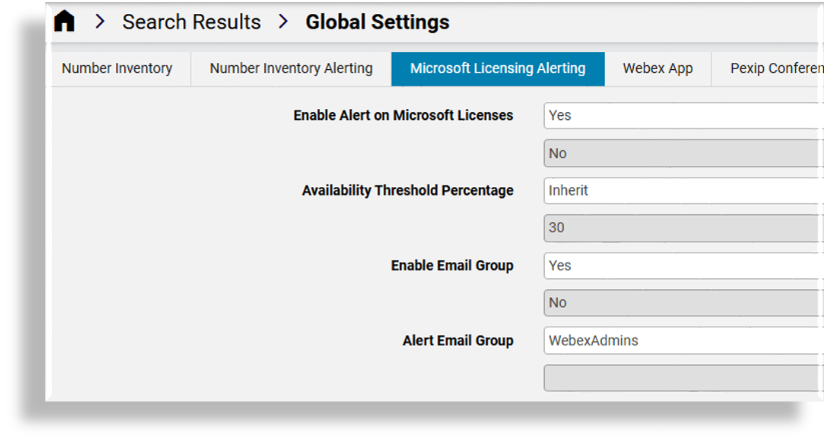
Go to Global Settings, then on the Microsoft Licensing Alerting tab, from the Availability Threshold Percentage, select threshold percentages per license at a hierarchy.
If alerting is enabled and the threshold is reached, an alert is raised and also sent by email (if enabled).
Note
If alerting email groups is enabled in the Global Settings (Microsoft Licensing Alerting tab), then ensure that you’ve selected alert email groups.
For details around setting up email groups, see Email Groups.
Related topics