
View system details and VOSS licenses#
The About menu provides details for your system, including version, patches, adaptations, and VOSS licenses.
Note
The About toolbar icon provides only version details.
Version#
Release: Installed product release version.
The version naming convention is:
new: <YY>.<num>, for example: 19.3 is the 3rd release of 2019.
legacy: <major>.<minor>.<revision>, where major=YY,minor=num,revision=revision of num.
Patch Bundle: The installed Patch Bundle (PB) number, if any.
Build Number: Product build number.
Release Date: Date when this version was released.
Deployed Mode: Current deployment mode type, for example:
Provider
Enterprise
Note
You can use the toolbar Copy icon to copy version release text to the clipboard.
Patches#
If any patches have been installed on the system, these are listed under the Patches menu. Details of installed patches are also provided for reference and enquiries, for example:
Version: in this context, the patch version (there can be multiple versions of the same patch).
Defect IDs: Automate internal IDs for reference
Models: any models and model Instances added or affected by the patch
Adaptations#
If any adaptations are installed on the system, these are listed. Select an adaptation from the list to see more details, for example:
Adaptation Tag(s): the tags can be used to find all models that are a part of the adaptation, using a search query such as
(tag IS <tag1>) or (tag IS <tag2>)
where
<tag1>and<tag2>are the names of tags.Note
The search for models is carried out from the user hierarchy and down.
Upgrade Risk: an indication of the impact of an adaptation on an existing system:
High: Core changes
Medium: Standalone adaptation using core workflows
Low: Standalone feature
License#
This menu provides details for your current license, including the platform UUID, license status, and expiry date.
Related topics
License counts#
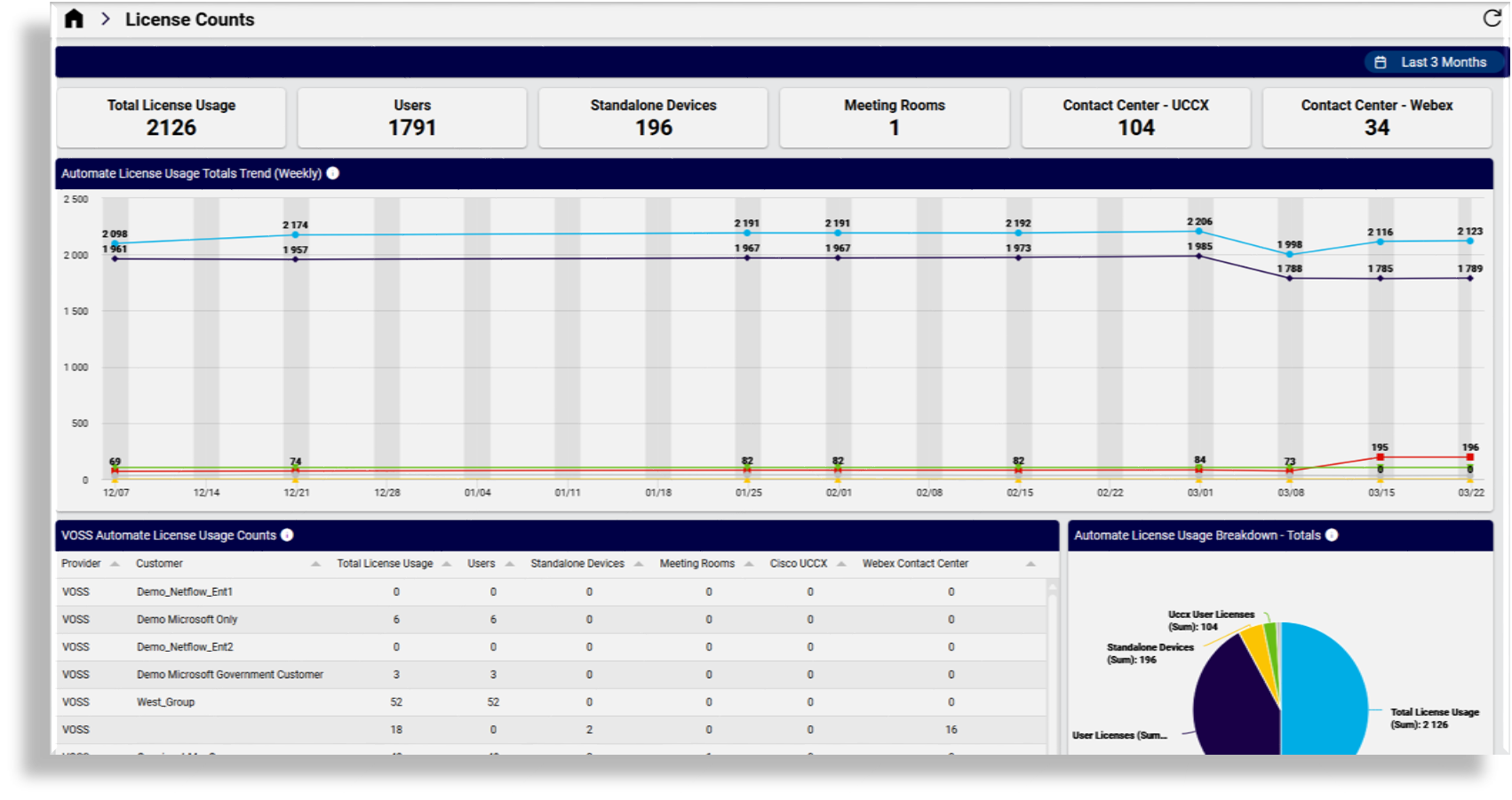
This menu opens the VOSS License Counts dashboard, providing counters, tables, and charts, centralizing all license-related information in the system.
Counters
Default counters for VOSS platform license usage totals:
License usage
Number of users
Standalone devices
Meeting rooms
Contact Center - UCCX
Contact Center - Webex
Tables and Charts
VOSS License Usage Totals Trend (Weekly): Weekly license usage totals.
VOSS License Usage Counts: License usage data, used to determine license counts, broken down by hierarchy, including consumption fields per standard VOSS license definition (this may vary depending on your contract terms)
License Information only fields: Detail fields from the license audit process (does not count towards usage)
License - Microsoft User Information Fields: Microsoft analysis/counts for information (not license counts). Only shows customers with Msol user records.
VOSS License Usage Breakdown - Totals: Chart showing a breakdown of license usage by metric
License Usage Metrics - full data set: Full data set of license audit details (can be useful for export and external use)
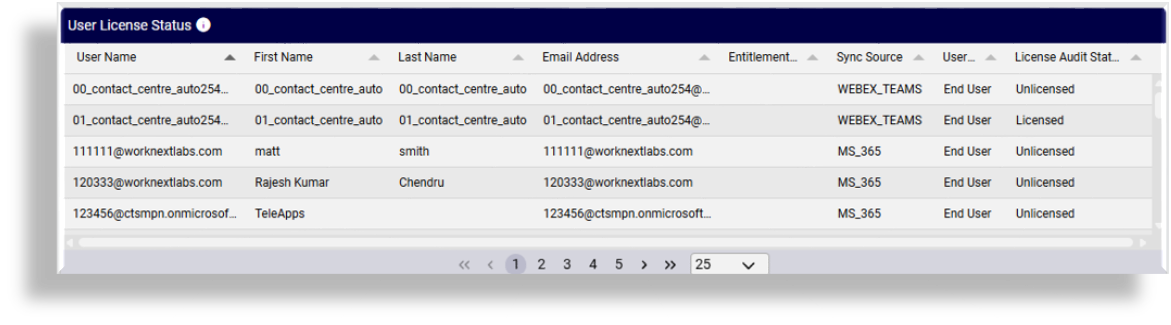
User License Status: Displays the license status of users in the system (whether they’re consuming a license), along with core identity and profile fields for context, providing admins with a single place to review and licensing information for each user:
User name and email address
Entitlement profile
Sync source (e.g., MS_365, LOCAL, WEBEX_TEAMS, LDAP, CUCM)
User type (e.g., End User, End User + Admin)
License audit status (licensed/unlicensed)
You can filter the list, to see only licensed users for example, and click on a user in the table to view their full account details and services.
Note
To modify the dashboard, refer to the topic on managing dashboards and widgets.
Related topics
Licensing and User Data Export Guide