
Email Groups#
Overview#
Provider administrators can test email messages and manage email templates, provided that:
An email SMTP server configured with your domain
Domain records may need to exist on your email server and you may need to add your From email addresses to a whitelist (depending on your mail forwarder)
From email address must be valid for the SMTP server you’re using
Emails are enabled via the Email tab of the Global settings
Email functionality is available for the following:
Component |
Description |
|---|---|
Quick Add User - Cisco (QAS) |
Enable email functionality via the Email tab in the Global Settings, then select a checkbox in QAS to send a welcome email to new users added via QAS. |
Quick User - Microsoft |
Enable email functionality via the Email tab in the Global Settings, then select a checkbox in Quick User to send a welcome email to new users added via Quick User. |
File Transfer Destinations |
Configured by high level system administrators to transfer audit data for licensing. See the Licensing and Data Export Guide. |
Number Inventory Alerting |
Enable email groups on the Number Inventory Alerting tab in the Global Settings, and choose an email group for alerts. |
Microsoft Licensing Alerting |
Enable email groups for license alerts on the Microsoft Licensing Alerting tab in the Global Settings, and choose and email group for alerts. |
Alerting on VOSS Core |
Attach workflows for sending email notifications when alerts are triggered or resolved on conditions identified in platform data |
Related topics
Send test email#
On the Send Test Email page you can allow an email message to be sent to and from a specified email address, and select an email HTML template to test in the email body.
Email HTML templates#
You can view and work with email templates on the Email HTML Templates page.
Email HTML templates contain placeholders for the email subject and body text, in HTML markup. The HTML markup can be:
Previewed by using the Preview menu option in the editor
Modified as required.
Default email templates#
By default, the system provides the following email templates:
Note
When adding a HTML template from the list view, the Name can only be “Test Email Template”, “Quick Add User”, or “Number Inventory Alerting”.
Default email templates |
Description |
|---|---|
Alert Fired Email Template |
Email template for sending an email based on a core alert fired based on alerting rules set up on selected data sources (Automate Analyzed, Assurance, Netflow) and resources related to these data sources. |
Alert Resolved Email Template |
Email template for sending an email when a core alert that was previously fired, is resolved. |
Test Email Template |
This default template is read-only. You can’t modify it or change its name. To use this template, you can clone it to your hierarchy and customize the clone. |
Quick Add User |
This default template is read-only. You can’t modify it or change its name. To use this template, you can clone it to your hierarchy and customize the clone. You can use this template only if the setting is enabled via the Global Settings. Values from the Quick Add User input form can be used to populate the template by adding variables to the HTML template. |
Number Inventory Alerting |
This default template is read-only. You can’t modify it or change its name. To use this template, you can clone it to your hierarchy and customize the clone. You can use this template only if the setting is enabled via the Global Settings. Values from Number Inventory Alert message can be used to populate the template by adding variables to the HTML template. |
Related topics
Default Alert Fired / Resolved Email Template variables#
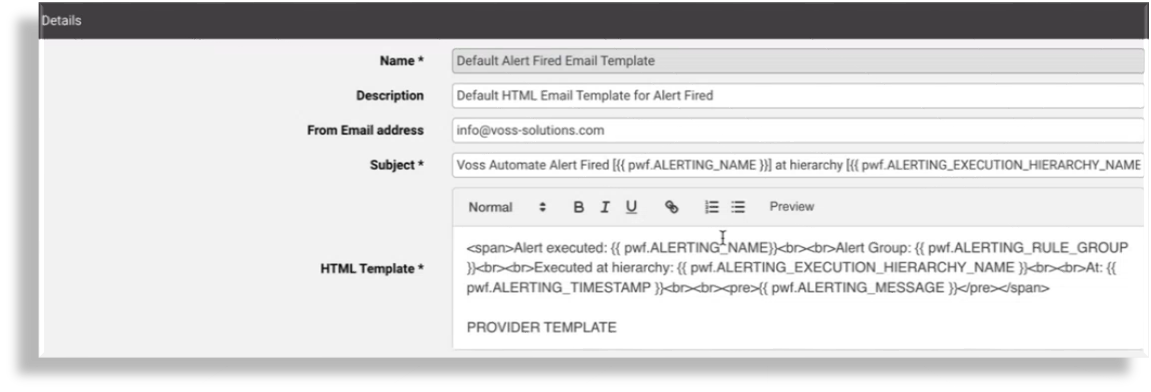
VOSS provides support for alerting on the Core Framework, and the system ships with default email templates for the email send notification when an alert is fired and when an alert is resolved.
These templates can be cloned and customized at lower hierarchies.
Default provisioning workflow alert HTML templates and variables contain the text ALERTING in their name for easy
identification. For example, pwf.ALERTING_NAME for the default alert fired email template name.
Quick Add User email template variables#
Values from the Quick Add User page can be used to populate the Quick Add User email template by adding variables to the HTML template.
The table lists the available variables for the Cisco Quick Add User email template:
Field name on input form |
Variable available in HTML |
|---|---|
Username |
|
First name |
|
Last name |
|
One time password |
|
One time PIN |
|
Access Code |
|
|
|
Extension |
|
Mobile Number |
|
Entitlement Profile |
|
Phone Type |
|
Phone Names |
|
Jabber Device Names |
|
Extension Mobility Name |
|
External E.164 number |
|
Note
When sending the welcome email to users added via Quick Add User, if there is more than one E.164 number associated with the user’s extension, only the primary E.164 number displays. If there are no E.164 numbers associated with the user’s extension, then no E.164 number value displays.
The table describes the default variables for the Microsoft Quick user email template:
Field name on input form |
Variable available in HTML |
|---|---|
Username |
|
First name |
|
Last name |
|
One time password |
|
|
|
Extension |
|
Mobile Number |
|
Phone Number |
|
Example user details you can add to your QAS HTML template:
<p>Username: {{ pwf.EMAIL.username }}</p>
<p>First name: {{ pwf.EMAIL.firstname }}</p>
<p>Last name: {{ pwf.EMAIL.lastname }}</p>
Number inventory alerting email template variables#
Values from the Number Inventory Alert message can be used to populate the Number Inventory Alerting email template by adding variables to the HTML template. The table describes the variables available for this template:
Name on alert message |
Variable available in HTML |
|---|---|
Threshold of available (%) |
|
Threshold reached (True/False) |
|
Hierarchy node type |
|
Hierarchy friendly name |
|
Hierarchy full path |
|
Total Numbers Available |
|
Total Number count |
|
Total percent available |
|
Table of usage per site |
|
Example HTML
<h1>Number Inventory Threshold Report</h1>
<table border='1' style='border-collapse:collapse'>
<tr><td><b>Hierarchy node name</b></td><td><center>{{ pwf.INI_ALERT_HIERARCHY_NAME }}</center></td></tr>
<tr><td><b>Hierarchy node type</b></td><td><center>{{ pwf.INI_ALERT_HIERARCHY_NODE_TYPE }}</center></td></tr>
<tr><td><b>Hierarchy full path</b></td><td><center>{{ pwf.INI_ALERT_HIERARCHY }}</center></td></tr>
<tr><td><b>Total numbers available</b></td><td><center>{{ pwf.INI_ALERT_TOTAL_INI_AVAILABLE }}</center></td></tr>
<tr><td><b>Total numbers</b></td><td><center>{{ pwf.INI_ALERT_TOTAL_INI_COUNT }}</center></td></tr>
<tr><td><b>Total percent available</b></td><td><center>{{ pwf.INI_ALERT_TOTAL_PERCENT_AVAILABLE }}%</center></td></tr>
</table>
<p></p>
<p>{{ pwf.INI_ALERT_NODES_EXCEEDED_THRESHOLD_TABLE }}</p>
Example message
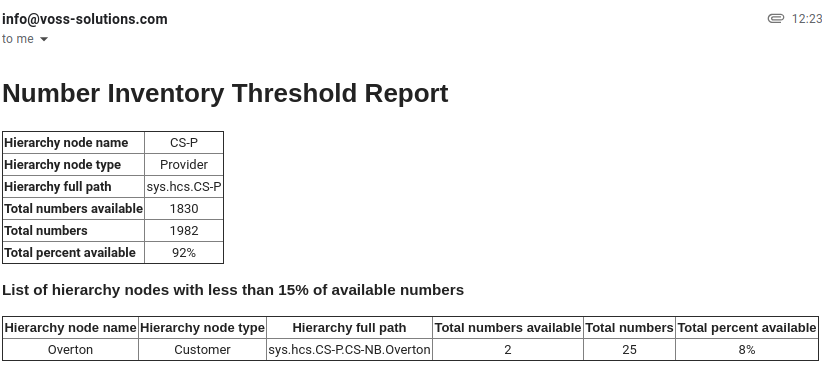
The email alert message also includes an attachment file called NumberThreshold.csv
that contains the alert report in CSV format, for example:
Hierarchy Node Name,Hierarchy Node Type,% Available,Total Numbers Available,Total Numbers
CS-P,Provider,92,1830,1982
CS-NB,Reseller,92,1830,1982
AAAGlobal,Customer,91,1428,1557
Overton,Customer,8,2,25
LOC001,Site,74,284,382
LOC002,Site,83,20,24
LOC003,Site,90,46,51
Email groups#
You can manage a group of email recipients via the Email Groups page:
Add a name and a description to create the group
Add a list of email addresses
The email group is now available and can be selected where email groups are selected.
See for example Global settings, for:
Webex App email to specify recipients of generated CSV files.
Number Inventory Alerting - email group to receive alerts.
Related topics