
Microsoft Defender for Endpoint security management and policies#
Microsoft
Overview#
Automate provides support for Microsoft Defender for Endpoint, which addresses user devices (laptops, phones, tablets, PCs) and network devices (access points, routers, firewalls).
Note
The following entry under Global settings, Enabled Services needs to be enabled: Enable Defender for Endpoint - see: Global settings.
For further setup and configuration, see: Microsoft Defender setup, sync, and overbuild.
Microsoft Defender for Endpoint dashboards#
The admin GUI provides dashboards for viewing and managing Microsoft Defender for Endpoint data:
- Security Management - Defender for Endpoint Overview
- Security Management - Defender for Endpoint Actions
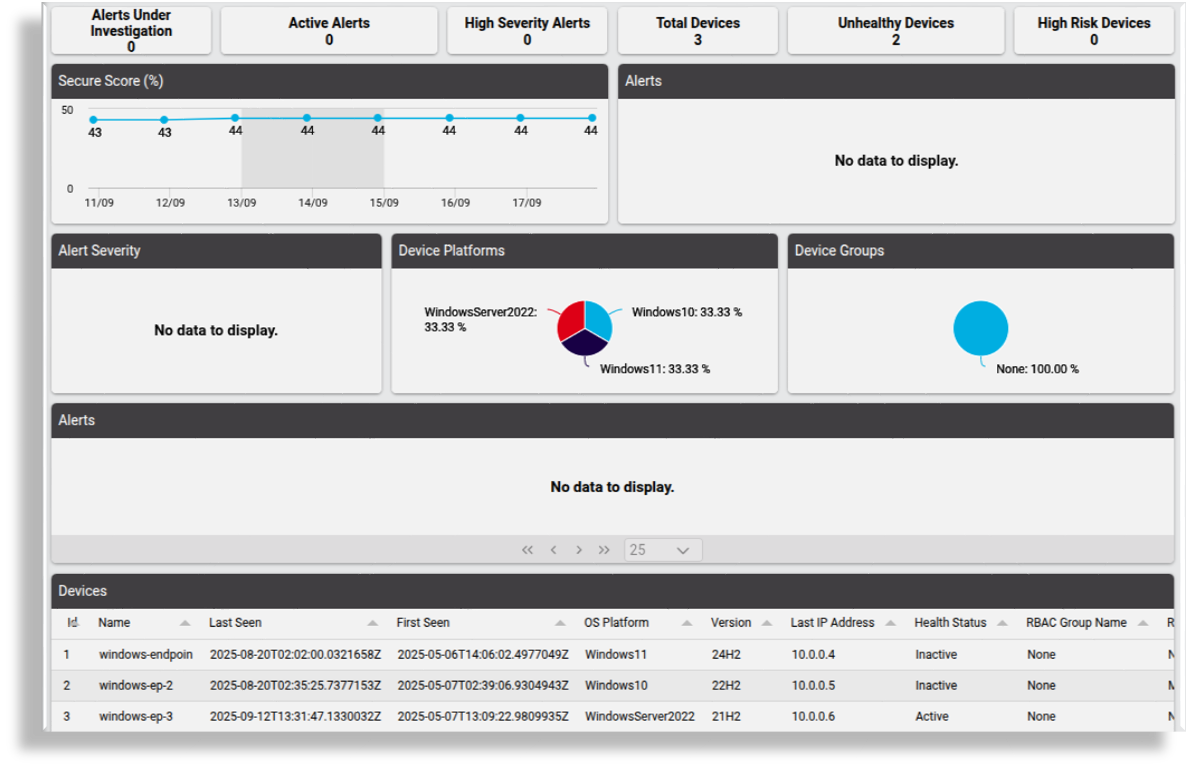
The Microsoft Defender for Endpoint dashboards display default counters for data totals, and quick actions for viewing and managing this data:
Defender for Endpoint Overview dashboard
Displays counters, charts, and tables showing total count details for alerts and devices visible from the admin’s hierarchy. For example, the total number of alerts under investigation, active alerts, high severity alerts, devices, unhealthy devices, and high risk devices. This dashboard also displays data showing percentage secure score trends, daily alerts trend, alert severity metrics, a count of devices per platform, a count of devices by device group, and alerts and devices.
Defender for Endpoint Actions dashboard displays:
Top ten action counts by machine (machines with the highest action counts)
Device count by exposure (count of machines by exposure level)
Device count by status (machine actions by type of action)
Action count by type (machine actions by type of action )
Quick actions on this dashboard allow you to:
View alerts and incidents
View devices
Perform bulk actions
Manage isolation of devices
Manage code execution on devices
Stop and quarantine files on devices
View and manage machine actions
Initiate scans on devices
Offboard devices
Collect investigation data from devices
Customizing Microsoft Defender for Endpoint dashboards
The system allows you to customize dashboards:
Resources are available to dashboard widgets where Data Source is Automate Analyzed. For example:
Defender Actions, Shows Microsoft Defender actions,
device/mssecurity/MachineActionDefender Alerts,Shows Microsoft Defender alerts,
device/msgraphsecurity/AlertDefender Devices,Shows onboarded Microsoft Defender devices,
device/mssecurity/MachineDefender Exposure Score by Device Group,Shows Microsoft Defender exposure score by device group,
device/mssecurity/ExposureScoreByMachineGroupsDefender Incidents,Shows Microsoft Defender incidents,
device/msgraphsecurity/IncidentDefender Secure Score,Shows Microsoft Defender Secure Score,
device/msgraphsecurity/SecureScore
Incident and Alert Actions#
This panel provides access to quick actions for Microsoft Defender incidents and alerts.
View Incidents: Link to a summary list view of Microsoft security incidents in the system and their details (
device/msgraphsecurity/Incident)View Alerts: Link to a summary list view of Microsoft security alerts in the system for the selected hierarchy their details (
device/msgraphsecurity/Alert)
View incidents#
Go to Defender for Endpoint Actions.
Click View Incidents.
View the summary list of incidents, providing the following details for each incident:
Display name
Status
Severity
Created date time
Last update date time
Located at (hierarchy)
Click on an incident in the list view for further details, including, for example, the Incident Web URL at
security.microsoft.com.Details example in JSON:
{
    "id": "5",
    "tenantId": "f372af60-59d5-4e03-a849-9e46a432aac0",
    "status": "redirected",
    "incidentWebUrl": "https://security.microsoft.com/incident2/5/overview?tid=...",
    "redirectIncidentId": "1",
    "displayName": "[Test Alert] Suspicious Powershell commandline",
    "createdDateTime": "2025-05-07T13:12:59.9233333Z",
    "lastUpdateDateTime": "2025-05-07T13:13:12.24Z",
    "classification": "unknown",
    "determination": "unknown",
    "severity": "informational",
    "customTags": [],
    "systemTags": [],
    "lastModifiedBy": "Microsoft 365 Defender-AlertCorrelation",
    "comments": []
}
View alerts#
Go to Defender for Endpoint Actions.
Click View Alerts.
View the summary list of alerts, providing the following details for each incident:
Title
Device tags
Severity
Status
Category
Detection source
Created date time
Last update date time
Classification
Determination
Assigned to
Description
Located at (hierarchy)
Click on an alert to view and manage the alert instance. The following alert properties can be managed:
Status
Classification
Determination
Assigned to
Details example (JSON):
"category": "Execution",
"status": "resolved",
"severity": "informational",
"classification": "falsePositive",
"determination": "malware",
"serviceSource": "microsoftDefenderForEndpoint",
"detectionSource": "microsoftDefenderForEndpoint",
"createdDateTime": "2025-05-06T14:13:19.0633333Z",
"lastUpdateDateTime": "2025-08-21T02:47:29.24Z",
"resolvedDateTime": "2025-08-21T02:47:29.17Z",
"firstActivityDateTime": "2025-05-06T14:06:51.7300174Z",
"lastActivityDateTime": "2025-05-06T21:45:13.6345713Z",
"deviceEvidence": {
...
},
"userEvidence": {
...
},
"productName": "Microsoft Defender for Endpoint",
"deviceDnsName": "windows-endpoint",
"deviceTags": [
...
],
"userAccountName": "defender-admin",
"userSid": "..."
Device Actions#
This panel provides access to quick actions for Microsoft Defender devices.
View devices: Link to view device information for a selected hierarchy as reported by the Microsoft security machine objects (
device/mssecurity/Machine)View and Manage Machine Actions: Link to a list of actions initiated and status for devices (
relation/MachineAction)Bulk Actions: Link to perform bulk actions on Defender devices (
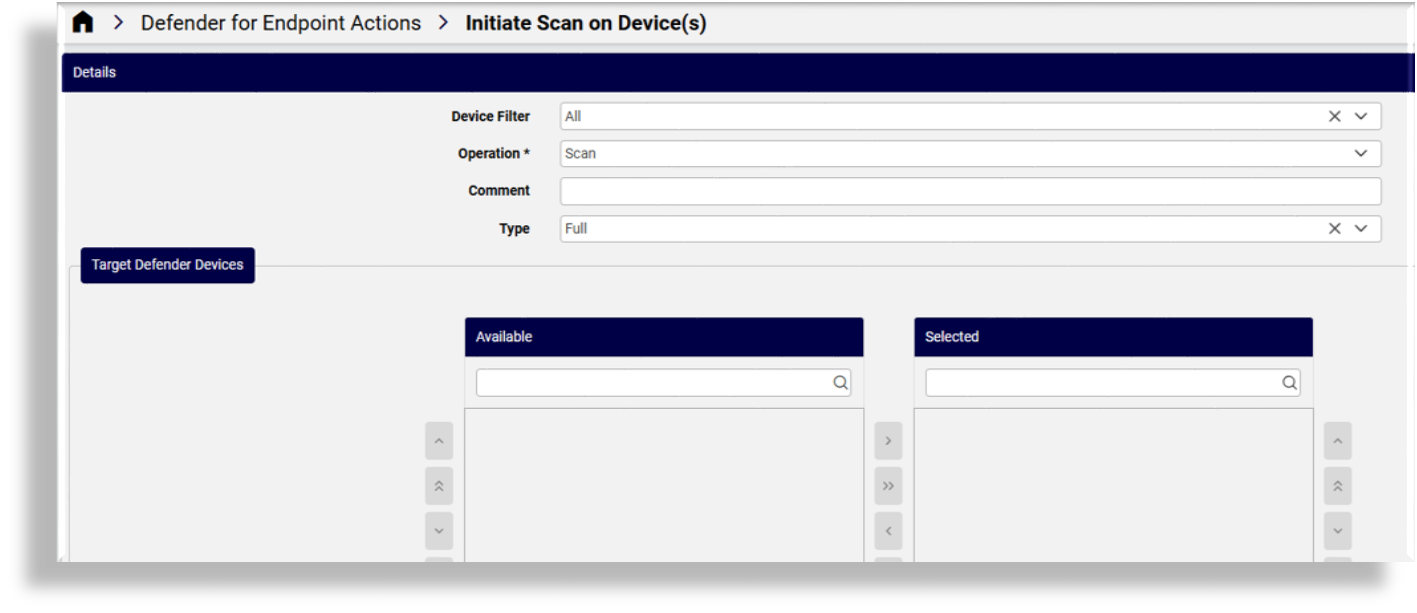
view/DefenderBulkActions)Initiate Scan on Device(s): Link to a form for initiating a scan on one or more devices with the associated type (
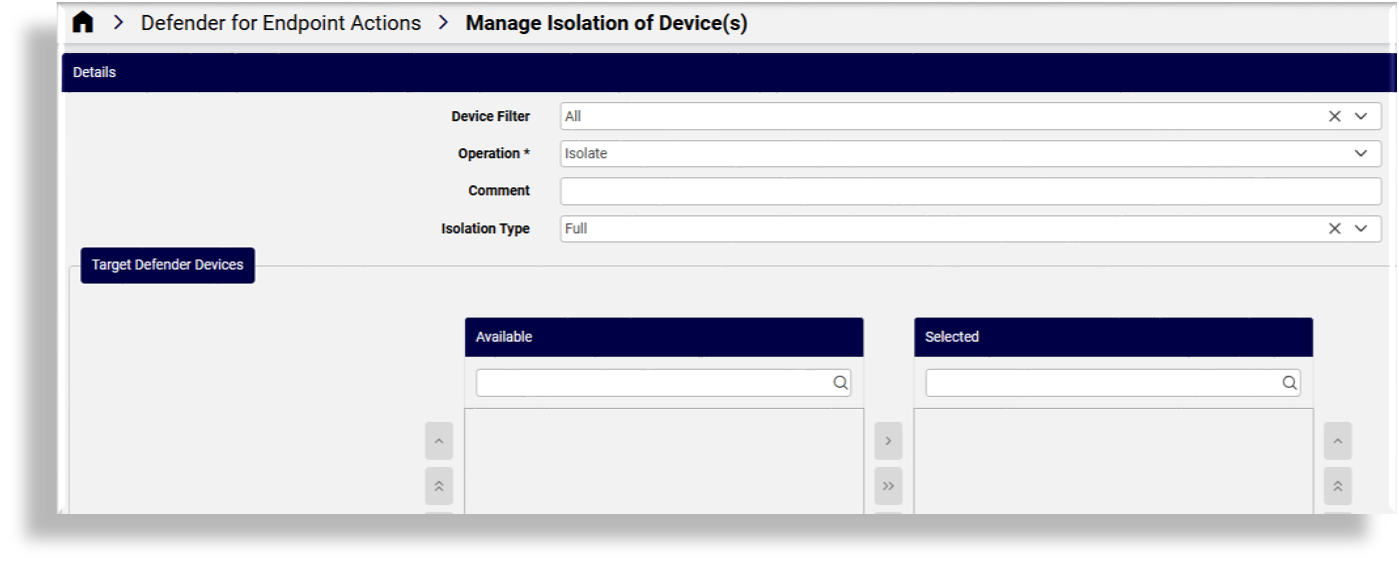
view/DefenderBulkActions)Manage Isolation of Device(s): Link to a form where you can choose to isolate or unisolate on one or more devices with the associated type (
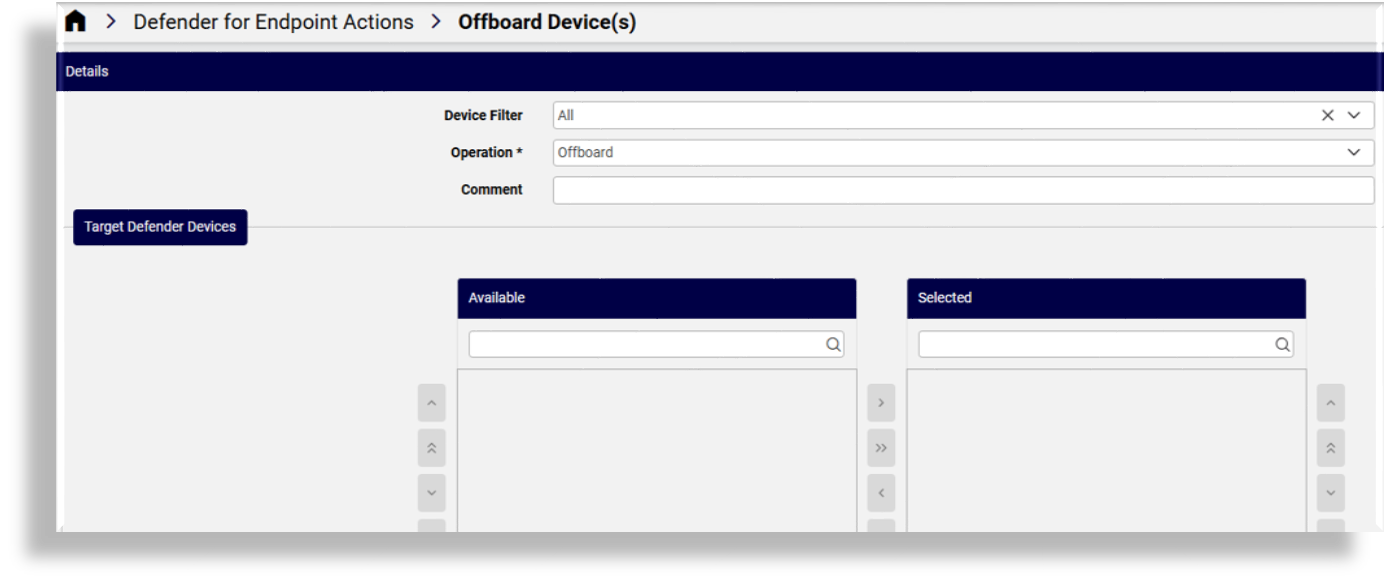
view/DefenderBulkActions)Offboard Device(s): Link to a form where you can initiate offboarding of one or more devices from the system (
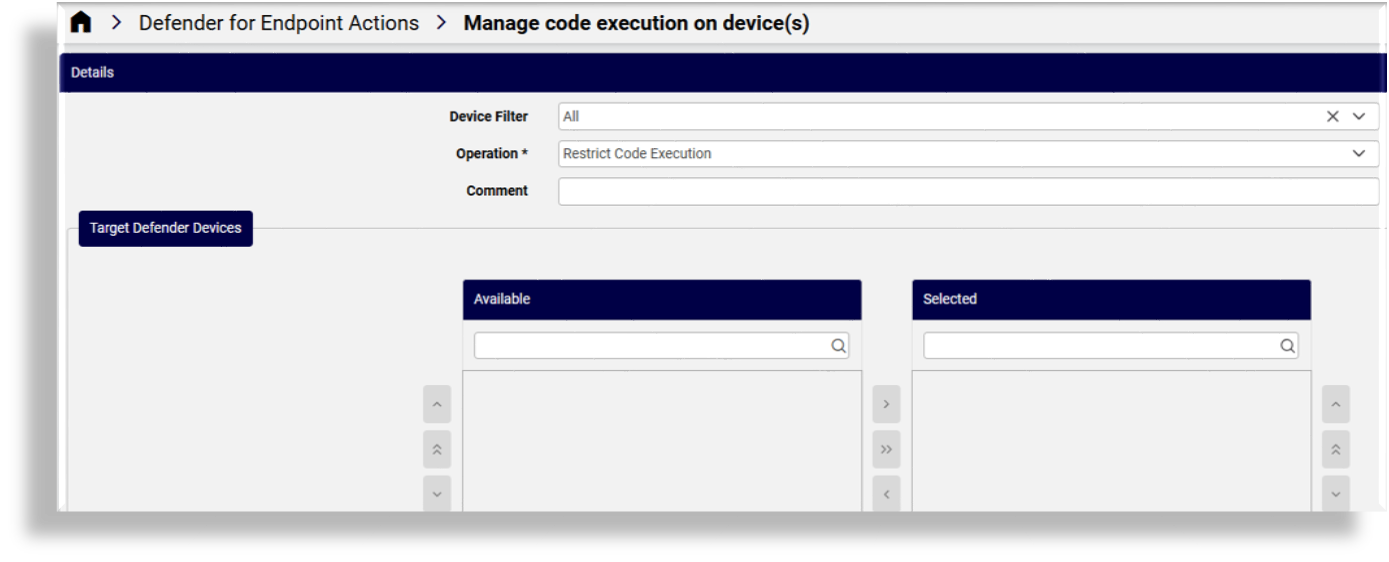
view/DefenderBulkActions)Manage code execution on device(s): Link to a form where you can restrict or unrestrict code execution on one or more devices (
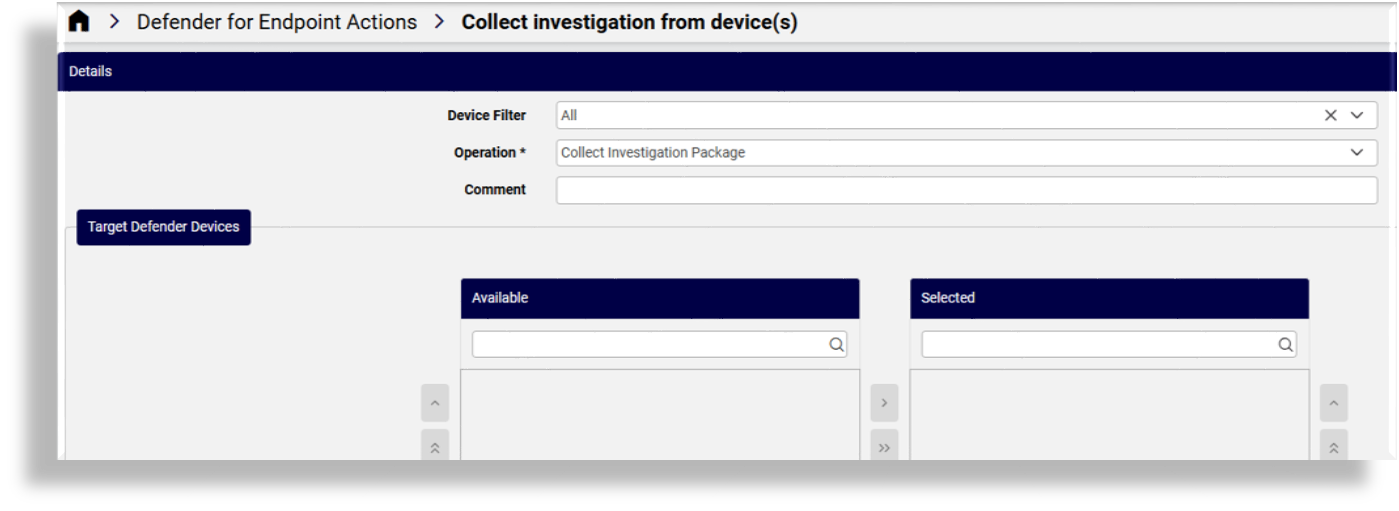
view/DefenderBulkActions)Collect investigation from device(s): Link to a form for collecting investigation package from one or more devices (
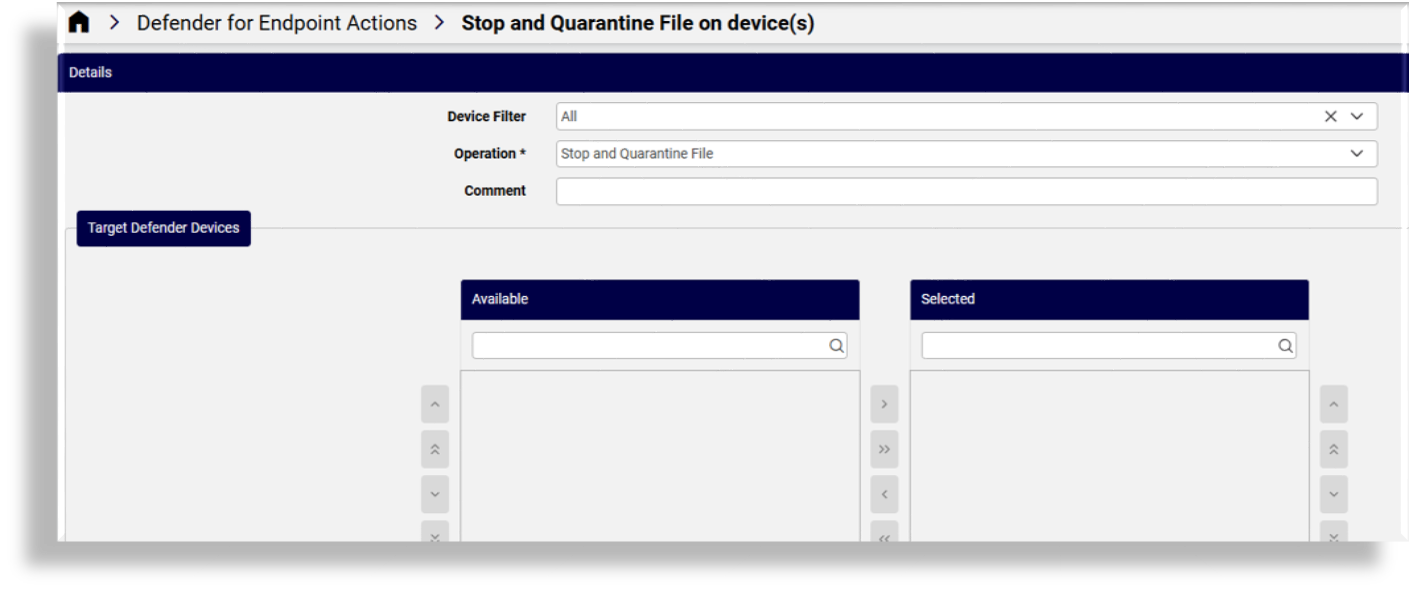
view/DefenderBulkActions)Stop and Quarantine File on device(s): Link to a form where you can stop and quarantine a file on a device (
view/DefenderBulkActions)
View devices#
The Microsoft Defender View Devices list view displays device details, including the device’s Last IP Address, Health Status, Exposure Level, and the device located at hierarchy.
View and manage machine actions#
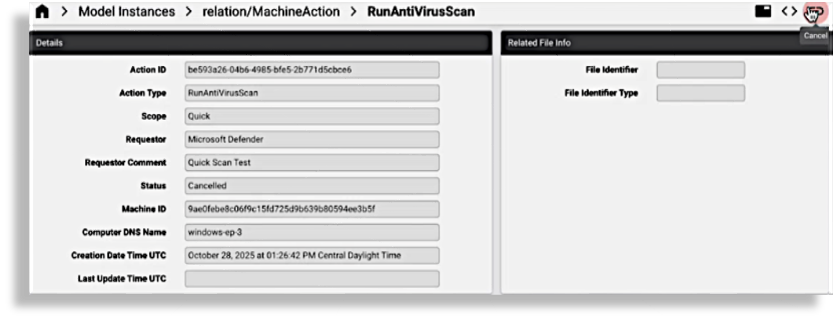
The relation/MachineAction model is available to allow for the execution of Cancel action.
(This action sends a request to device/mssecurity/MachineActionCancel.)
Bulk device actions#
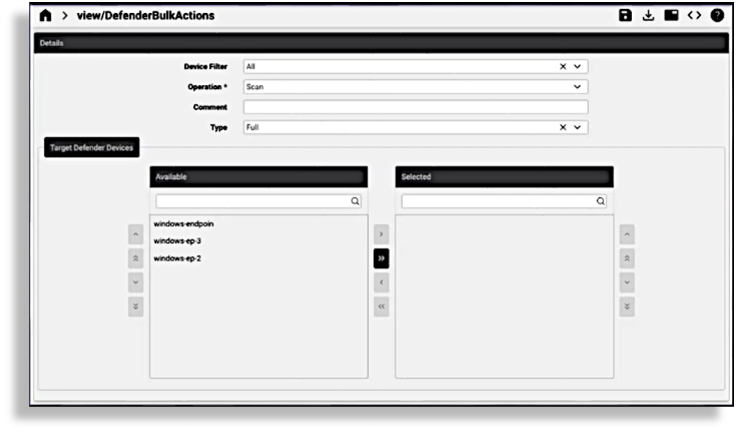
Automate provides several interfaces to perform bulk actions on one or more devices:
Go to Defender for Endpoint Actions.
Choose the relevant site.
Choose a bulk action, either of the following:
Bulk Actions
Initiate scan on devices
Manage isolation of devices
Offboard devices
Manage code execution on devices
Collect investigation from devices
Stop and quarantine file on devices
(Optional). Select a device filter (by operating system), either all, Windows, macOS, Linux, Android, or iOS.
(Mandatory). Select an operation, either of the following: Scan, Isolate, Un-isolate, Offboard, Restrict code execution, Unrestrict code execution
(Optional). Provide a comment to explain the action.
(Optional). Select type, either Full or Quick.
At Target Defender Devices transfer boxes, select relevant devices (one or more) from the Available field then click the single or double arrow to move these devices to the Selected field.
Click Save.
Initiate scan on devices
Manage isolation of devices
Offboard devices
Manage code execution on devices
Collect investigation from devices
Stop and quarantine file on devices
Related topics