Probe Configuration#
Overview#
On the Probe Configuration screen you can assign a group of scripts to an asset that can run on a set interval. The scripts allow data collection from many device types. The protocols can be API, SNMP, or custom CLI scripts. SNMP v3 is also supported.
The return data from the probes can then be injected into the system for correlation or can be stored in the database to allow for analysis on the Dashboard/Reporting server.
For PRI and SIP Trunk probes for Cisco Voice Gateways, reference:
Arbitrator Cisco PRI and SIP Probe Configuration for instructions.Add a probe group#
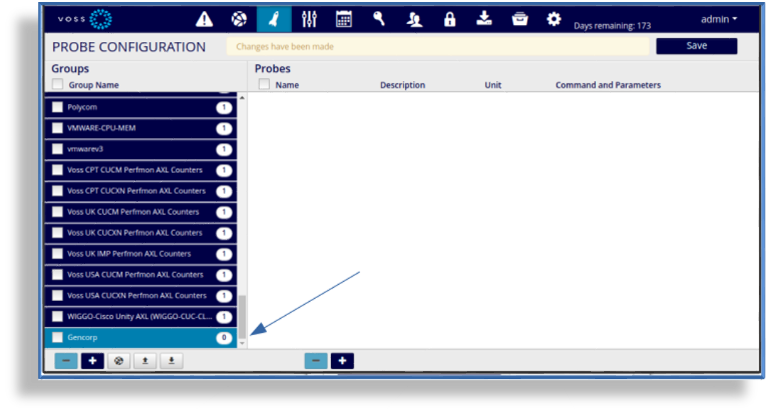
Click the toolbar Probe icon to open Probe Configuration.
Click the Plus icon (+) below the Groups pane.
Fill out a name for the probe group.
Click Save.
Clone a probe group#
To clone an existing Probe Group:
Click the Probe icon from the Menu bar.
Select a Probe group to clone from.
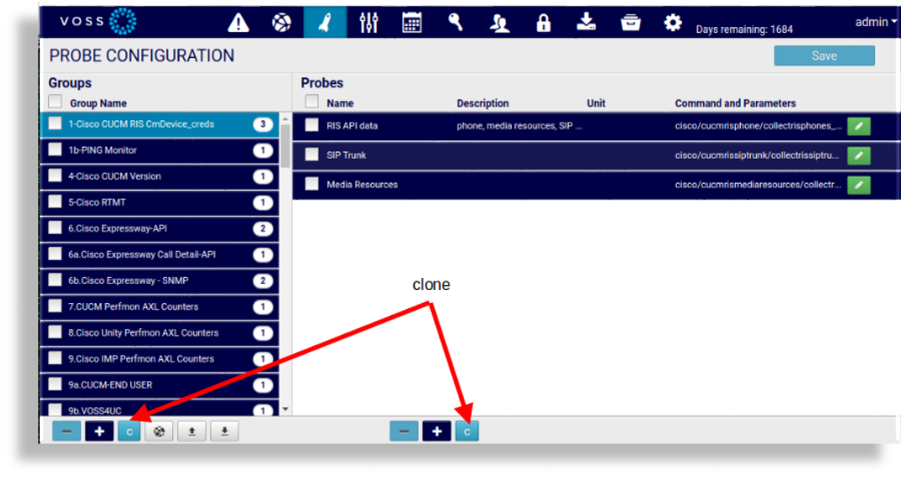
Click the “C” icon within the Groups pane in the bottom left corner.
The cloned “Group” name shows: <source group name> clone. Modify this name to the required name.
Click the “Save” icon to save the added Probe.
The probes contained in this new group can also be modified. Refer to the steps to add, clone and modify probes.
Create a probe#
To create a new probe:
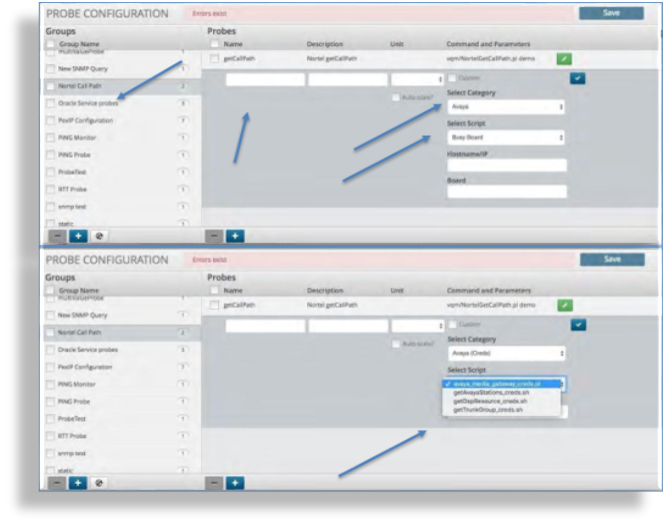
Click the group in which you wish to create a new probe.
Click the Plus icon (+) within the Probes panel.
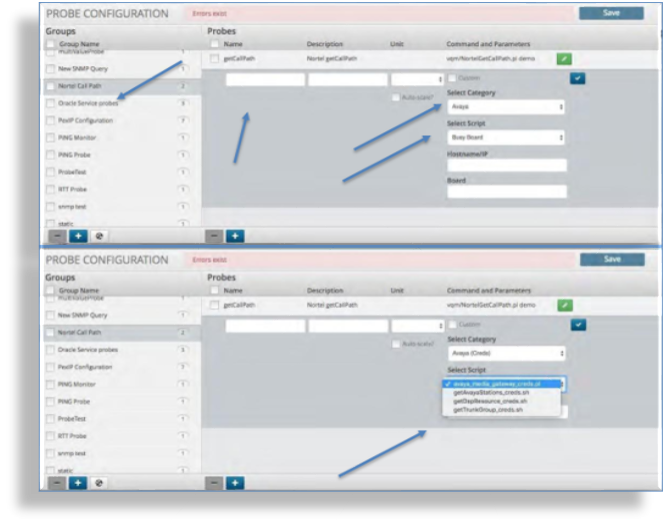
Enter the name and description of the probe.
Clear (uncheck) the Custom field. This field is utilized when putting a custom probe in place versus utilizing the ones within the system.
Select the probe category from the drop-down list to populate the scripts available in the selected category within the Select Script drop-down.
Select a script from the script drop-down list.
Enter any additional information required by the selected script, such as the hostname, IP, etc.
Click the check mark icon to close the probe in the far right of the Probe panel.
Click Save to add the new probe.
Clone a probe#
Since devices such as Cisco UCM and Unity Connection require dedicated probes, it is useful to clone (create a copy) and modify an existing probe for this purpose.
To clone a probe:
Click the probe from which you wish to clone.
Note
Insights also provides a list of templates that can be cloned for the specific purpose.
Click the Clone probe icon (C) at the bottom of the Probes panel.
The clone is created, displaying with naming format, <source probe name> clone. Modify this name to the required name, and update any other required properties.
Note
For a Cisco UCM probe, this typically includes Cucm Ip Address.
Click the Done icon (blue check mark to the right of the clone’s properties panel).
Click Save to add the new probe created from the clone.
Create a custom probe#
To create a new probe:
Click the group in which you wish to create a new probe.
Click the Plus icon (+) in the Probes panel.
Enter the name and description of the probe.
Select and click the check icon from the field titled “Custom”. This field is utilized when putting a custom probe in place versus utilizing the ones within the system.
Enter the path and script that you wish to run.
Click the “Check” icon to close the probe in the far right of the Probe panel.
Click Save to save the new probe.
Delete a probe group#
To delete a probe group:
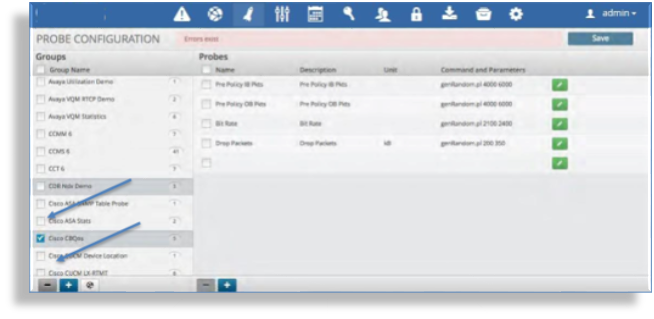
Click the check box next to the group name you wish to delete.
Click the Minus icon within the Probe Group panel in the bottom left.
Click Save to save the changes.
Delete a probe#
To delete a probe:
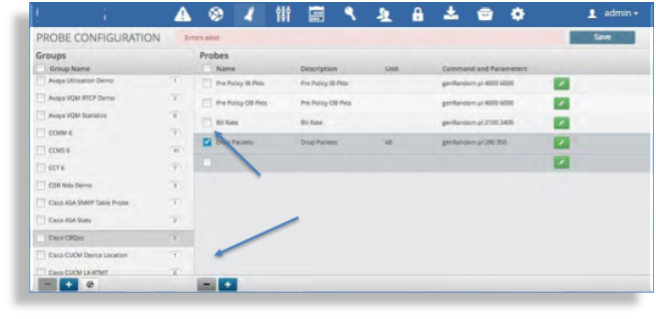
Click the check box next to the Probe name you wish to delete.
Click the Minus icon within the Probe panel in the bottom right.
Click the “Save” icon to save the changes.
Export and import a profile#
Important
This import/export is special. Since we do not have a Profile main screen, the import/export profiles are in Probe Configuration; the same as the legacy push button (right next import/export buttons).
Within the PROBE CONFIGURATION section, you can export and import the profiles that you exported from another system.
A new system log table insights_system_log has also been added
to log user actions and a user can create a dashboard to view these actions.
Related topics
- Log Search
Export a profile#
Click the down arrow below the PROBE CONFIGURATION panel.
Since this is a probe configuration, we cannot select individual profiles, so it will export all profiles in the system.
In the Export CSV dialog, fill out a CSV file name (You do not have to add the
.csvfile extension), then click Export.The Export finished dialog shows when the export file has been created.
Click Download to save the CSV file to your selected download location.
Import a profile#
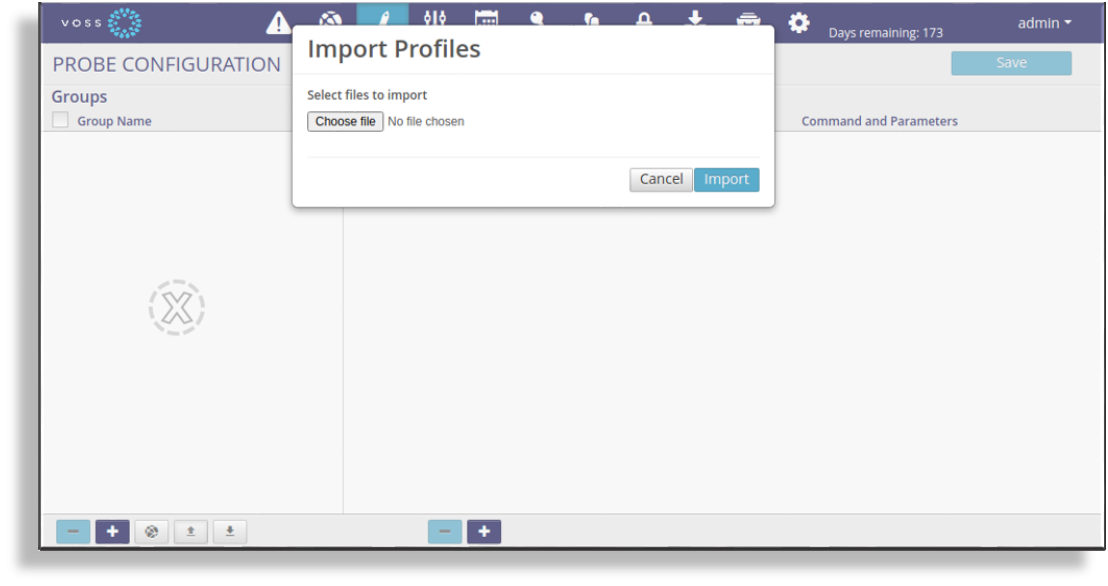
Click the up arrow at the bottom of the PROBE CONFIGURATION panel.
On the pop-up that displays, select the file.
Click Choose file, and select the exported CSV file that you have saved to your computer.
Click Import.
Profile CSV format#
The following columns are in an exported CSV file:
"Row Action","Asset Name","IP Address","Customer Name",
"Site Name","Probe Group Name","Credential 1 Name",
"Credential 2 Name","Frequency (s)",Enable
Note
The
"Row Action"column is used when importing and if it contains “delete”, then the row will be deleted upon import.“Probe Group Name” must be unique.
Combination: “IP Address”,”Customer Name”,”Site Name” must to be unique.
“Asset Name” is used as a reference of the asset.
When importing and if an asset and a probe group are found, then a profile will be updated/inserted. If not, nothing to import.
Assign a probe to an asset#
A probe group assigned to an asset can be modified using a profile CSV file import by specifying the related “Asset Name” and “Probe Group Name” in the CSV file.
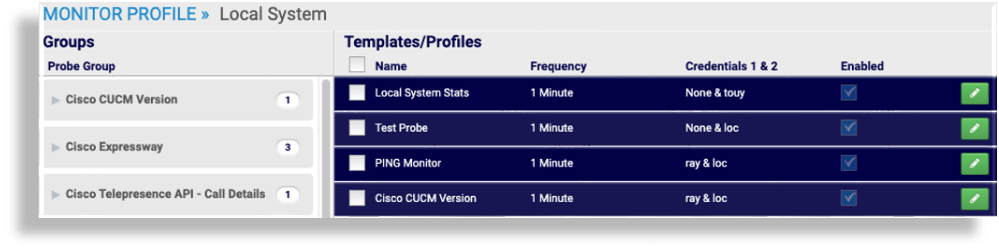
For example, consider an asset “Local System” that has 3 profiles:
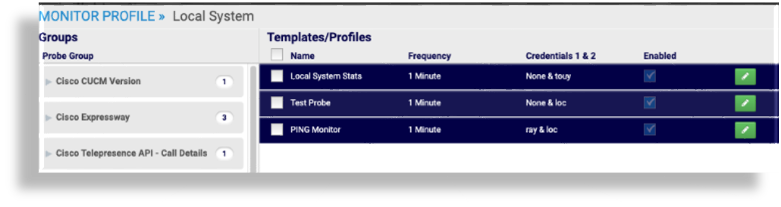
We can assign probe “Cisco CUCM Version” to asset “Local System” as a CSV file import:

After importing, the profile is added to the probe group.