
Introduction to License Management#
Overview#
In Microsoft 365 environments, user licenses are typically available at the tenant level and shared across the entire organization. VOSS extends this model by enabling organizations to allocate and manage Microsoft 365 licenses across internal business units and departments, represented in VOSS as hierarchies.
Through the License Management capabilities in VOSS, administrators can:
Distribute Microsoft 365 licenses from a global tenant pool to individual hierarchies
Monitor license availability, allocation, and consumption at each hierarchy
Enforce license availability rules and thresholds to prevent overallocation
Important
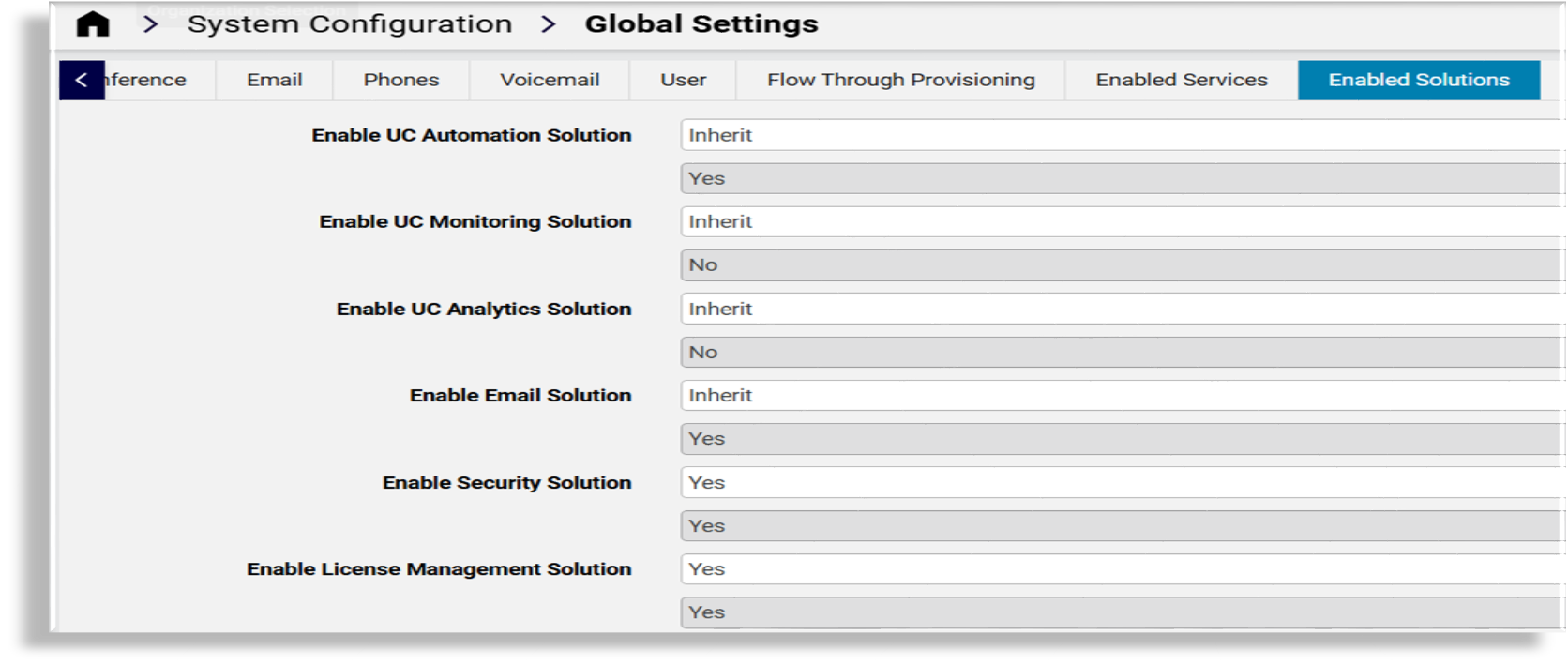
The License Management module must be enabled in the Global Settings
before license management features and functionality are exposed in the system. For example, the
availability and display of license allocation widgets on the dashboards, such as
License Allocation - E5 License Consumption Trend - Weekly, which requires the
following macro to resolve to True in order to have the widget display on a dashboard: {{ macro.is_microsoft_license_enforcement_enabled }}.
License allocation at the hierarchy level is managed from the License Management dashboard.
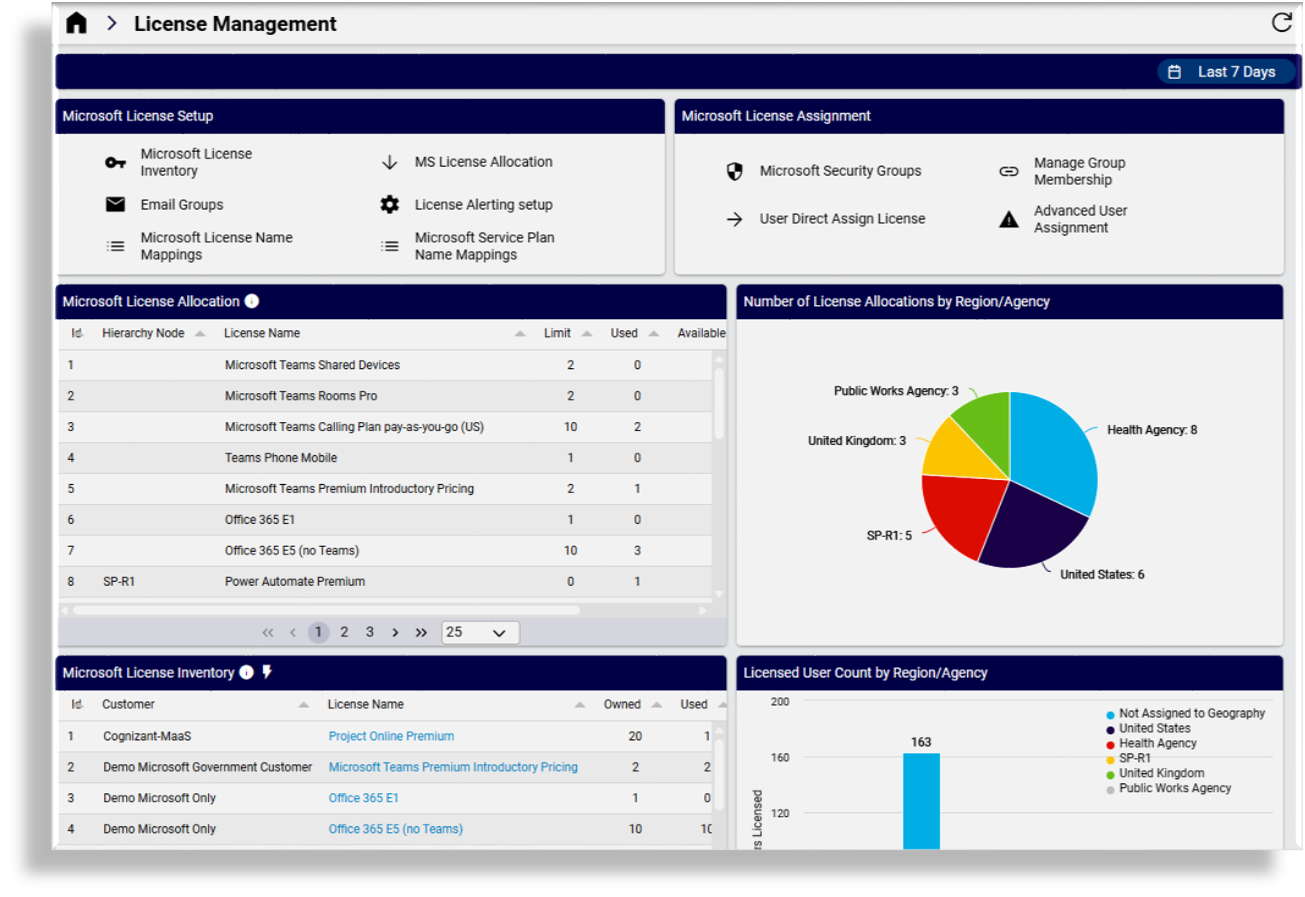
In addition, administrators have access to multiple Microsoft license summary charts, tables, and counters that provide visibility into:
License allocation per hierarchy
Available and consumed licenses
Overall license usage trends
Related topics
Automatic Teams user activity syncs#
When the License Management solution is enabled for a Microsoft tenant, VOSS automatically provisions the data ingestion required to support license optimization insights.
Enabling License Management triggers the creation of the following resources per tenant:
Data collection: A Microsoft Teams User Activity Data Collection (
data/DataCollection) is created to ingest Teams usage data from Microsoft Graph. The collection includes the following MS Graph device model types:device/msgraph/UserActivityCountdevice/msgraph/UserActivityUserCountdevice/msgraph/UserActivityUserDetail
Schedule: A schedule (
data/Schedule) is automatically created to run the Teams user activity data collection every 7 days (weekly).
How the syncs are provisioned
The automatic setup occurs as follows:
Enable License Management solution in Global Settings.
Enable License Management when configuring the Microsoft tenant.
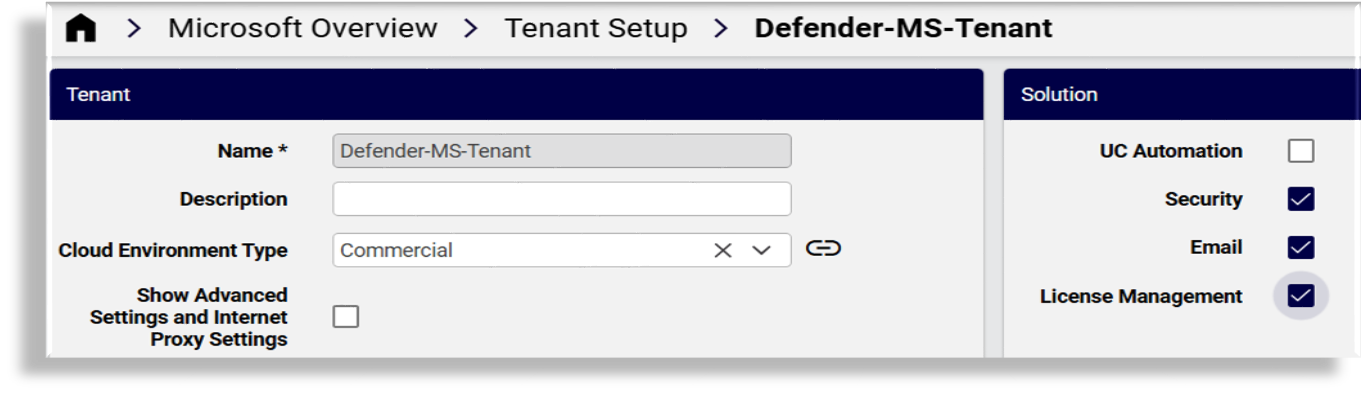
The system creates the MS Graph Data Collection Defender sync (Microsoft Teams User Activity Data Collection).
A weekly schedule is created and associated with the collection.
No user action is required beyond enabling the License Management solution.
Dashboard insights and license optimization
The weekly sync of Teams user activity data enables:
Trend analysis across Microsoft Graph reporting periods
Filtering of active and inactive users in dashboards
Identification of underutilized licenses for optimization and reclamation
By ensuring consistent and up-to-date user activity data, License Management dashboards can provide actionable insights without requiring manual data sync configuration.
License Enforcement and Threshold Management#
VOSS extends license management by allowing administrators to define license enforcement rules and usage thresholds at the hierarchy level.
Key capabilities include:
Enforcing license availability when assigning licenses to subscribers
Preventing license assignment if no licenses are available at the hierarchy
Configuring threshold availability percentages per hierarchy
Triggering scheduled email alerts when license usage thresholds are reached
These alerts are sent to configured email groups, enabling administrators to take timely action before licenses are exhausted.
Related topics
Requirements and Initial Configuration#
For license enforcement, threshold configuration, and alerting features to function correctly, the following prerequisites must be met:
Microsoft licenses must be available in the tenant.
License data must be synced from devices to the organization hierarchy level
The Microsoft License Inventory link on the Microsoft License Management dashboard displays a list view of the global license pool, showing:
Active licenses
Consumed licenses
Available licenses (incl. percentage) per hierarchy
License data syncs must be configured. The License Management feature provides:
Microsoft License Data Syncs
Microsoft License Model Type Lists
Microsoft License Schedules
These include default sync setups and schedules, which can be customized and applied at the hierarchy level to manage ongoing license synchronization.
Note
An alerting schedule named
MicrosoftLicenseAlertis available and can be further configured to control alert timing when license alerting is enabled.Quick Import is enabled by default for syncs related to
data/MSGraph. These syncs retrieve Microsoft license data directly from Microsoft Graph.Configure the following Global Settings as needed:
Enable Microsoft User License Enforcement:
Default value: No / Inherit
When enabled, license allocation per hierarchy is enforced.
Microsoft License Alerting:
When enabled, alerts are sent when configured license usage thresholds are reached for a hierarchy.
This setting requires that Enable Microsoft User License Enforcement is enabled.
Note
For setup instructions, see Microsoft License Alerting Setup. For related configuration details, see Global Settings.
Configure mappings:
To ensure accurate license identification and cost tracking, administrators must configure the following mappings:
Microsoft License Name Mappings: For each Microsoft license, map the SKU part number to License ID, License name, and Cost per user per month.
Microsoft Service Plan Name Mappings: For each service plan, map the service plan ID to a corresponding service plan name.
For additional details, see Microsoft License Name Mapping, and Global Settings.
Related topics
License Management Dashboards#
The License Management dashboards represent centralized license reporting within the License Management feature and support Microsoft Teams usage data, charts/visualizations showing user and license usage trends over time, cost calculation per SKU/user, and trending and historical analysis.
Note
Dashboards appear only when the License Management module is enabled.
The following License Management dashboards are available:
License Management: Provides a centralized view of Microsoft 365 license inventory, allocation, and usage within VOSS. It allows users to access license setup, allocation, alerting, mappings, and assignment functions, while visual charts and tables show license usage, availability, and user assignments across organizational hierarchies.
License Analysis: Provides focused insights into Microsoft 365 license consumption and allocation trends. It highlights licensed and unlicensed users, E5 license usage, weekly consumption and allocation trends, and identifies licenses nearing exhaustion through charts, counters, and tables that surface low-availability inventory across hierarchies.
License Usage Analysis: Provides visibility into Microsoft Teams user activity and license utilization. It shows user activity distribution, identifies active and inactive licensed users, and presents detailed per-user usage data, including meetings, calls, and messaging, to help assess whether assigned licenses are being effectively used. For example, to identify misaligned or underused licenses.
The License Management dashboards include the following additional features:
Drill-down capabilities: On drill-down-enabled widgets, users can click in the widget to access more detailed views and related dashboards to inspect the underlying data.
Refresh capabilities: Refresh data on demand to ensure you’re viewing the most up-to-date license information.
Filtering capabilities: Apply filters to charts and tables to focus on specific hierarchies, time periods, or license types for more targeted analysis.
Date range selection: Select specific date ranges to analyze license consumption and usage trends over time.
Related topics