
Microsoft Online User Dial Out Policy Mapping#
Overview#
The VOSS Microsoft Online User Dial Out Policy Mapping tool expands outbound calling policy selection beyond the three dial-out policies (which were hardcoded in VOSS prior to release 25.4).
Admins can expose additional Microsoft- and tenant-supported policies and keep them updated via the mapping tool, Microsoft Online User Dial Out Policy Mapping, and assign them directly to licensed users in their call forward settings in VOSS.
Note
Previously, admins would need to assign the additional policies during onboarding via PowerShell. Expanding the mapping removes the need for the manual PowerShell steps.
The three originally supported policies are enabled by default in VOSS for user calling settings, while the mapping for the additional supported policies can be extended and enabled when needed.
Each policy can be enabled or disabled at different
hierarchies but only one instance of a policy is allowed per hierarchy. Admins can clone one or more policies
at relevant hierarchies below the sys hierarchy, where the clone can be modified and the
policy can be enabled or disabled.
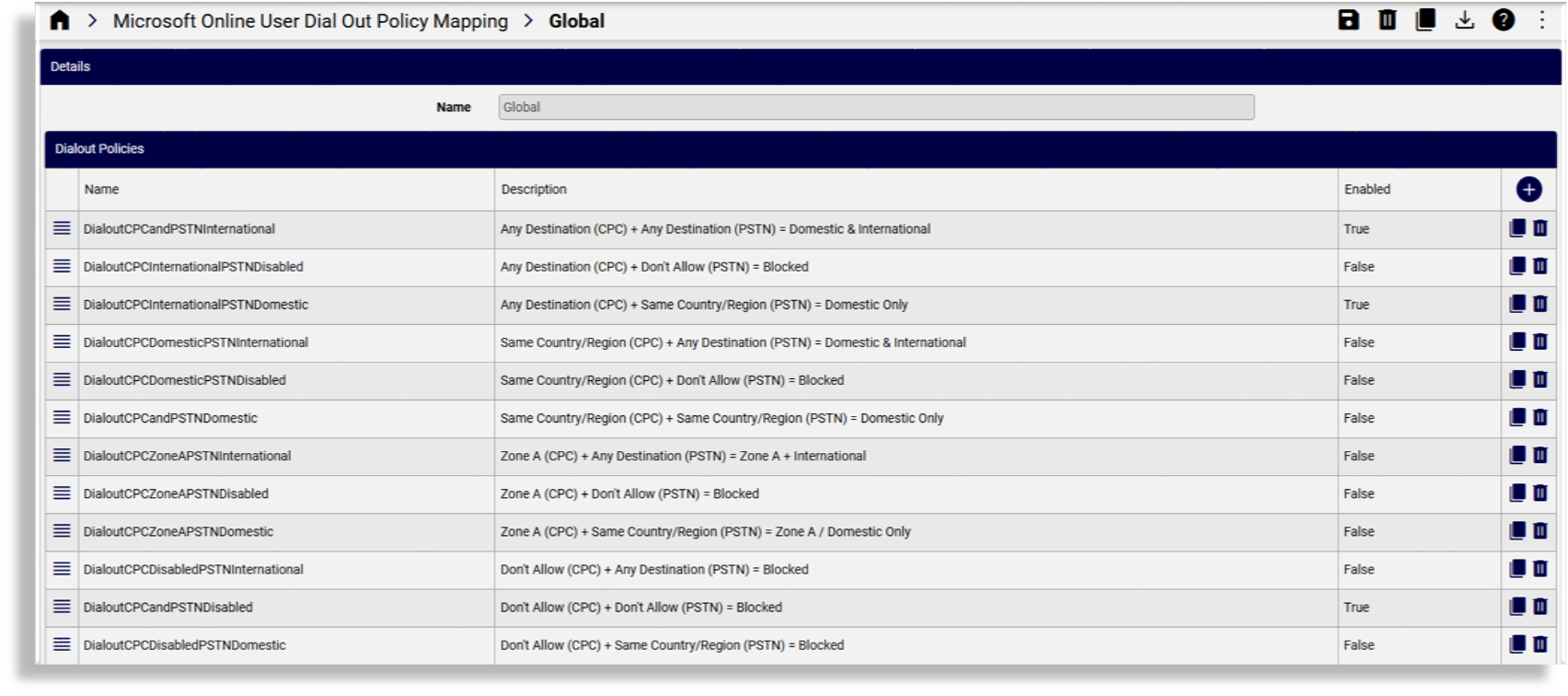
Expand dial out policy mapping#
This procedure expands the dial out policy options that can be assigned to user in their outbound calling settings.
Note
Dial out policies are assigned via the user’s outbound calling settings. See Detailed Teams Users.
Go to Microsoft Online User Dial Out Policy Mapping.
Locate the policy you want to update.
Switch to the relevant hierarchy below the
syshierarchy level, for example, Provider or Customer, then clone the policy.Note
Admins can clone the mapping per hierarchy to extend or limit policy options per customer/site. There can only be one instance of any policy at
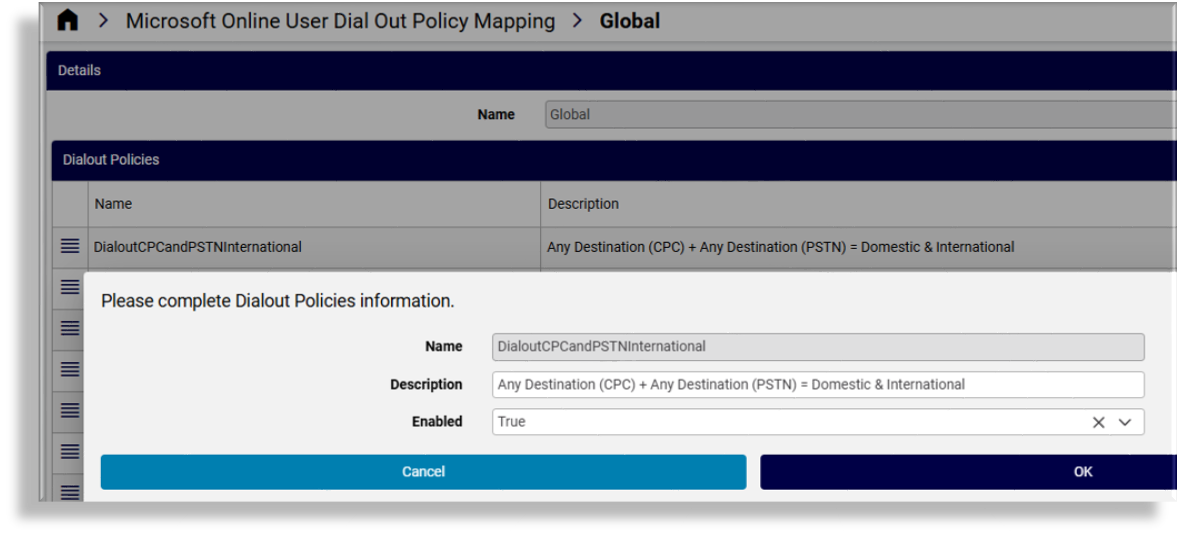
syslevel so you’ll need to clone a policy (at the relevant lower hierarchy level) before modifying it. A policy with the name Global cannot be renamed. It can only be cloned with that name.In the list view, click on the cloned instance of the policy to view and update its settings. You can:
Update the policy description
Enable or disable the policy at the hierarchy you’re at.
Note
The policy name is read-only.
Related topics
Update a user’s dial out policy#
Go to Detailed Teams Users or to Call Forward & Delegation.
Locate the relevant licensed user, then click on the user to view their settings.
Update the user’s dial out policy in their outbound calling settings. See Detailed Teams Users for details.
Note
If no cloned or modified mapping exists, only the three default (hard-coded) policies are shown in the Outbound calling drop-down. To expose additional Microsoft or tenant-specific dial-out policies, clone and extend the mapping at the relevant hierarchy via the Microsoft Online User Dial Out Policy Mapping tool.
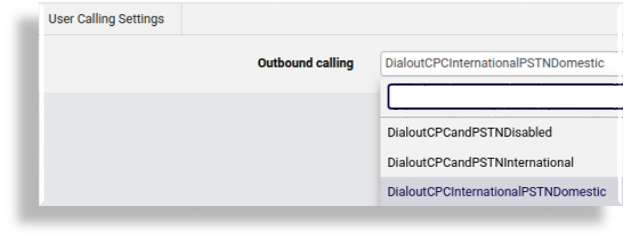
Save. The selected policy is granted to the user.
Related topics