
CUCM Presence servers#
Add a CUCM Presence server#
This procedure adds a IM and Presence server (previously, CUP) within a Cisco Unified Communications Manager (Cisco UCM) cluster.
Log in as the appropriate hierarchy administrator.
Creating a shared instance? Log in as Provider or Reseller admin.
Creating a dedicated instance? Log in as Customer, Provider, or Reseller admin.
Set the hierarchy path to the correct level:
Creating a shared instance? Set the hierarchy to the Provider or Reseller level.
Creating a dedicated instance? Set the hierarchy to the Customer level.
Go to the CUCM Presence Servers, then click the Plus icon (+) to add a new server.
Configure Base tab/panel details:
Note
Fields available on the tab/panel are assigned via the field display policy. For example, the following options may not be available:
Migrate from HCM-F to CUCDM: When checked, indicates a migration of HCM-F Models to CUCDM Models; when unchecked, all new models are created. Default: false
Migrate from HCM-F to CUCDM: When checked, indicates a migration of HCM-F Models to CUCDM Models; when unchecked, all new models are created. Default: false
Access Type: Either Read-only (RO) or Read/Write (RW). Default is RO.
At CUP Server Name, fill out the name of the UC application instance.
At Publisher, define whether the UC application instance is a publisher. When unchecked, this is a subscriber.
When enabled (checked), the Publisher tab/panel displays, where you can select the version of the CUPs within the cluster.
At Cluster Name:
If Publisher is enabled, fill out the name of the UCM cluster for the publisher.
If Publisher is not checked, select the UCM cluster under which the subscriber is managed.
Configure Network Addresses:
Address Space: Select SERVICE_PROVIDER_SPACE address space.
Hostname: Fill out the hostname of the UC application instance.
IPv4 Address: Fill out the IPv4 address of the UC application instance.
Note
Either the hostname or the IP address is required. Ensure that the hostname or IP address does not contain a trailing blank space. VOSS cannot validate an entry that contains a blank space at the end of the hostname or IP address.
Domain: Fill out the network domain of the UC application instance.
Description: Fill out an optional description of the network address.
If NAT is used, repeat these steps to also configure an APPLICATION_SPACE network address.
Add credentials for credential type ADMIN.
ADMIN is required for Service Inventory to generate reports for UC applications.
Other credential types are SNMP_V1, SNMP_V2, SNMP_V3, PLATFORM, WMI, IOS_ENABLE, HTTP, CLI, OPERATOR, SFTP, JTAPI
User ID / Password: Mandatory. Fill out the user ID and password associated with this credential.
User ID and password were configured when the IM and Presence Service was installed. If Credential Type is SNMP_V1 or SNMP_V2, the Password represents the SNMP community string.
Provide an optional description for the credential.
Click the Plus icon (+) to add more credentials.
Configure Publisher tab/panel details:
Version: The version of the CUPs within the cluster.
Multi-Tenant: Defines whether the cluster applications are dedicated to a customer or shared across multiple customers
Multi-cluster or single cluster configurations#
Previously, IM and Presence service (CUP) was set up in a multi-cluster configuration (separate from the CUCM cluster). However, the IM and Presence Service servers are set up as part of the UCM cluster itself in a single-cluster configuration.
Advantages of a single-cluster configuration
A single cluster configuration is recommended. Service providers are encouraged to use a single cluster configuration for any new clusters.
Advantages:
Correctly represents the UCM cluster with its IM and Presence Service servers in the management layer
Eliminates the confusion that multi-cluster configurations can cause for administrators when these servers are shown in different clusters.
Hierarchy considerations for migrating CUP nodes
Migrating CUP nodes to a UCM cluster is hierarchy-specific. A Customer CUP node can only be migrated to a Customer UCM cluster (not to a Provider or Reseller cluster).
A Publisher IM_P node is added first, then Subscriber nodes.
Migration conditions
The following conditions apply when migrating your CUP to a UCM cluster:
Cluster versions must be the same for both the clusters
The IPv4 address or hostname and domain configuration must not be duplicated within the cluster
Two devices cannot have the same server name
No more than one CUP publisher can be migrated to the same UCM cluster
Multiple users can be migrated to the same UCM cluster
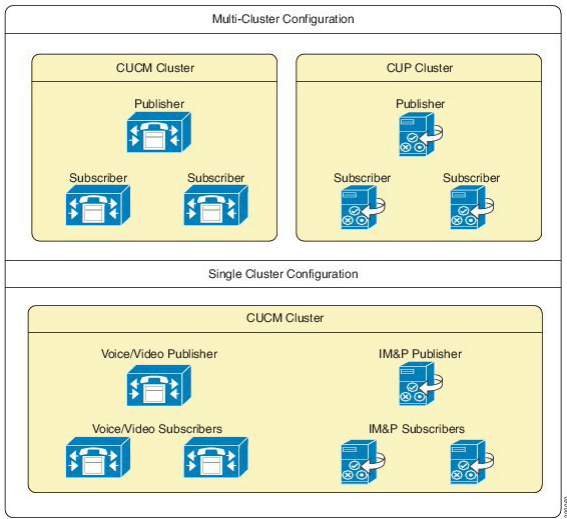
Deprecation of multi-cluster configurations
Multi-cluster configurations are deprecated and strongly discouraged. However, VOSS continues to support multi-cluster configurations for backward compatibility and upgrades.
Migrate CUP nodes from multi-cluster to single cluster configuration#
This procedure migrates your IM and Presence Service (CUP) nodes from an existing multi-cluster configuration to a UCM single-cluster configuration (recommended).
Log in to the VOSS UI as Provider, Reseller, or Customer admin, depending on the hierarchy where the CUP cluster was configured.
Set the hierarchy path to the hierarchy node where the CUP cluster was configured.
Choose an option:
Shared configuration: Set the hierarchy to Provider or Reseller node.
Dedicated configuration: Set the hierarchy to a Customer node.
Go to (CUP - deprecated) Migrate CUP to CUCM Cluster.
At From CUP Cluster, select the CUP cluster to migrate.
At To CUCM Cluster, select the UCM cluster to which you want to migrate the CUP cluster.
Save your changes.
The migrated CUP server is removed from the (CUP) Servers list, and displays instead on the (UCM) Servers list as server type, IM_P.
The cluster name for the migrated servers is now the same as the UCM cluster name.