
User voice mail settings#
Overview#
Automate supports syncing and management of Microsoft Teams user voice mail settings. Any changes you make for these settings in Automate or in the Microsoft Teams online portal are automatically and immediately synced between Automate and the Microsoft online portal.
Note
The User Voicemail Settings page is associated with model
device/msteamsonline/CsOnlineUserwith theCsOnlineUser_VoicemailSettings_FDPapplied.The Microsoft user voice mail service can also be applied via Microsoft Quick User and a Quick Add Group (QAG) that includes the voice mail settings.
Related topics
Configure voice mail#
This procedure configures voice mail settings for a Microsoft user in Automate.
Note
You can also configure these settings on the Microsoft Teams online portal. Automate fetches any updates when you load the Voicemail Settings page.
Log in to the Admin Portal, then go to User Voicemail Settings to display the list view of Microsoft users with voice mail settings.
Click on the relevant user in the list to open their voice mail settings management page.
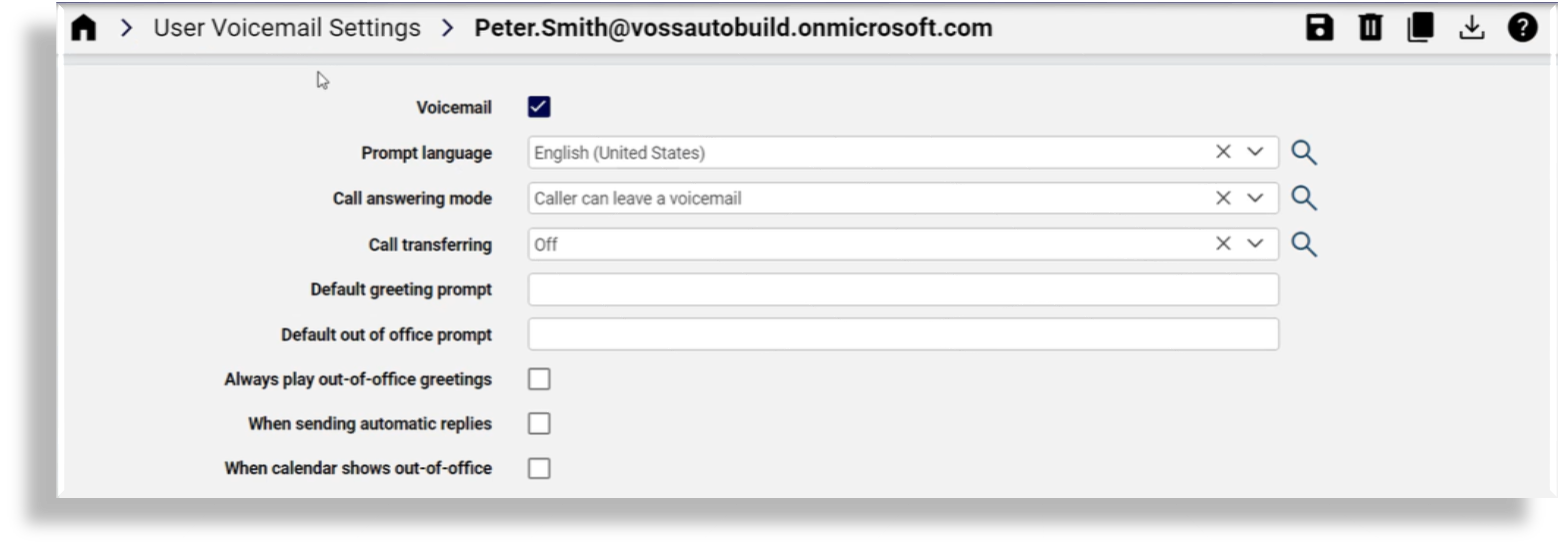
Update voice mail settings for this user, any of the following:
Enable/disable voice mail
Select the prompt language.
Select the call answering mode, either of the following:
Caller can leave a voice mail
Play an outgoing message to the caller
Service declines the call with no message
Enable/disable call transferring.
Optionally, fill out a default greeting prompt and a default out-of-office prompt.
Fill out a default out-of-office prompt.
Define whether to always play out-of-office greetings.
Define when to apply the voice mail settings, either when sending automatic replies and/or when the calendar shows out-of-office.
Click Save. Your changes are immediately and automatically updated for this user in the Microsoft Teams online portal.