
Configure Microsoft tenant connection parameters#
Microsoft provider-only
Note
References in this section to “PowerShell Proxy” refer to the MS Windows host running PowerShell commands. References to just “Proxy” refer to the HTTP proxy server that the the Windows PowerShell host uses to access the tenant in the cloud.
This procedure configures the following connections:
From Automate to the PowerShell Proxy
Between the PowerShell Proxy and the tenant
The Graph API connection between Automate and the tenant
Prerequisites:
You will need:
The FQDN or IP address of a single-node PowerShell Proxy, or the FQDN corresponding to your load balancer’s virtual IP address. See:
The credentials for the local service account you created on the PowerShell Proxy
Proxy authentication credentials (if the outbound Internet Proxy requires authentication)
Note
Authenticated proxy is not supported.
The client ID and tenant ID
Either the client secret (supported for Teams and Graph only, not Exchange) or the certificate (supported for Teams, Graph, and Exchange, and mandatory for Exchange), that you created when registering Automate as an application object with Microsoft Entra ID. For greater security, certificate is preferred.
If an Arbitrator is configured on Automate, the secret is required. See:
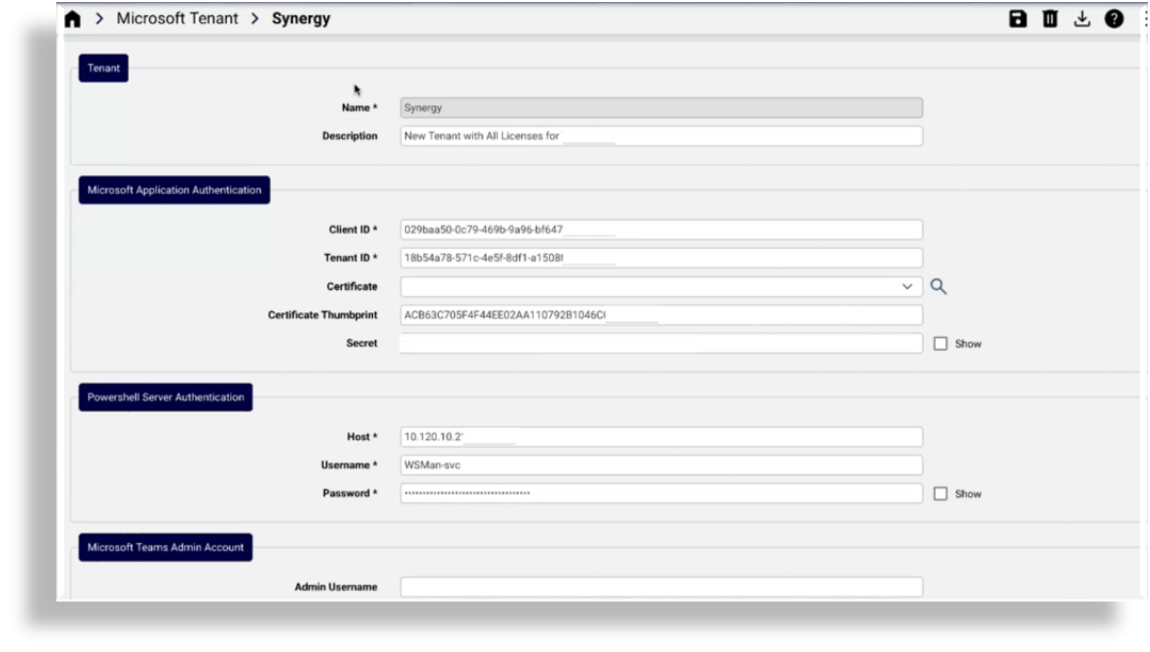
To add and configure the Microsoft Tenant
Log in to the Automate Admin Portal as a Provider administrator, then go to the Microsoft Tenant page.
Note
By default, the Provider administrator role is the only role that has the ability to create Tenant connections.
Click the Plus icon (+), then choose the hierarchy, typically, Customer.
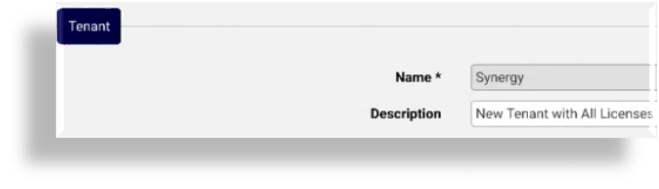
Fill out a name and a description for the tenant.
At Microsoft Application Authentication, fill out values for the application authentication:
Note
For more details around configuring application registration, see Shared central application registration:
Fill out the Client ID and Tenant ID values recorded in the application registration setup.
Note
The tenant ID and the client ID identify the tenant in the Microsoft cloud.
Select a certificate from the drop-down.
Note
It is strongly recommended that you use a certificate and not a secret. Secret is used only if you don’t select a certificate. If you have a certificate and you select it here, the certificate is used for authentication for MS Graph, MS Teams, and MS Exchange.
If an Arbitrator is configured on Automate, the secret is required. See:
ArbitratorsIf you’re using MS Exchange, you must use a certificate as secrets are not supported for MS Exchange.
The value for Certificate Thumbprint is auto-populated when you select the certificate.
If you set up shared central application registration with the certificate you’ll need to import the certificate into Automate then select it here when adding the tenant.
Choose an option, either of the following:
Generate a certificate in Automate and upload it to MS Entra ID. See:
If you already have a signed certificate from another source in your organization and it’s already uploaded to MS Entra ID, you can upload that certificate into Automate and have Automate manage it on itself and on the PowerShell proxy. See:
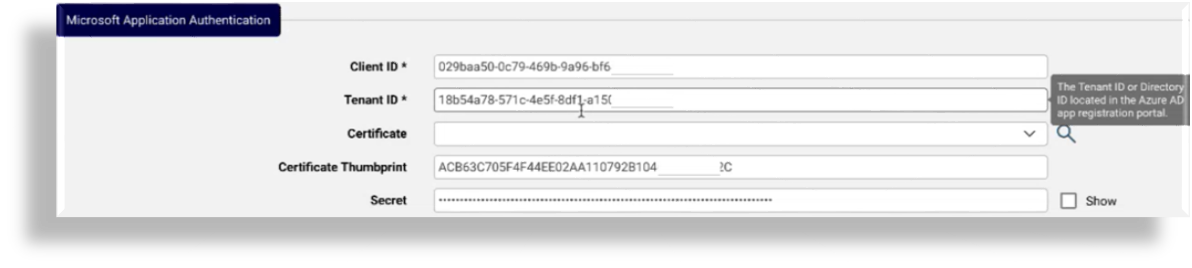
Fill out the Secret if an Arbitrator is configured on Automate, the secret is required. See:
Configure PowerShell server authentication details:
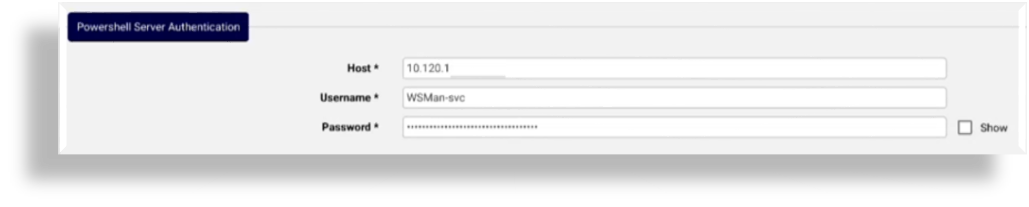
At Host, fill out the FQDN or IP address of a single-node PowerShell proxy, or the FQDN corresponding to your load balancer’s virtual IP address.
Note
For details around the local hosts file and the TrustedHosts WinRM configuration, see:
At Username and Password, fill out the credentials for the local service account you created on the PowerShell Proxy. See:
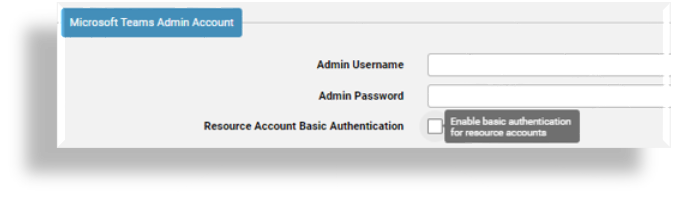
At Microsoft Teams Admin Account, ignore these fields unless you must use basic authentication (basic auth).
By default, the Resource Account Basic Authentication checkbox is clear (disabled), which means that you can only import (sync in) resource accounts. You’ll need to enable this functionality to add, modify, or delete resource accounts with basic auth in Automate. However, once Microsoft enforces multifactor authentication, the ability to add, modify, or delete resource accounts in Automate will no longer be possible, regardless of whether this checkbox is selected.
Important
Basic auth requires service account credentials and will stop working when Microsoft enforces multi-factor authentication on all service accounts (starting July 2024). It is strongly recommended that you use application authentication instead of basic auth. See Shared central application registration.
If you must use basic auth, you’ll need to contact system support for assistance to set up the required service account.
Configure outbound internet proxy connection parameters in the PowerShell Server HTTP proxy fields:
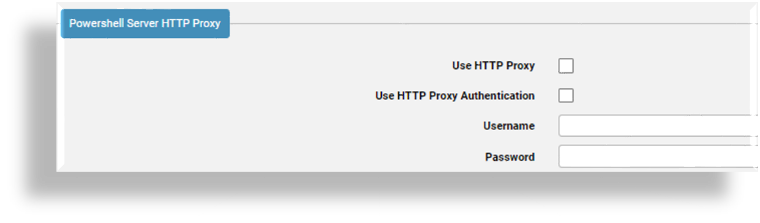
If you have an outbound internet proxy deployed between the PowerShell proxy and the public internet, select Use HTTP Proxy.
Note
If there is no outbound Internet Proxy deployed between the PowerShell and the public internet, leave both Use HTTP Proxy and Use HTTP Proxy Authentication unchecked, and leave the Username and Password fields blank.
Authenticated proxy is supported.
If the outbound Internet proxy requires authentication, select Use HTTP Proxy Authentication, fill out a username and password.
Note
You will have already provisioned the outbound internet proxy’s IP address (or FQDN) and port number when you set up the PowerShell proxy. See Run PowerShell proxy server setup script, and note the caveat regarding proxy authentication described at:
Add Microsoft 365 HTTP Proxy details to the Microsoft tenant:
At MS 365 HTTP proxy / MS 365 HTTPS proxy, set the outbound internet proxy server if required for traffic outbound to the public internet.
The proxy setup defines the route for the MS Graph API communications that the system uses for communication with the MS 365 Cloud tenant.
For HTTP proxy traffic, fill out a MS 365 HTTP proxy value with the following format:
http(s)://[user:password]@host:port/. Special characters in either the user or password must be URL encoded. Verify the required format with the proxy administrator.For HTTPS proxy traffic, fill out a MS 365 HTTPS proxy value with the following format:
http(s)://[user:password]@host:port/. Special characters in either the user or password must be URL encoded. Verify the required format with the proxy administrator.
Note
MS 365 HTTP proxy and MS 365 HTTPS proxy values will almost certainly be identical unless your proxy administrator has clearly told you that HTTP and HTTPS traffic are being proxied through different servers. It is not required that the MS 365 HTTP proxy address begin with
http://or that the MS 365 HTTPS proxy address begin withhttps://.It is perfectly acceptable to proxy HTTP traffic to anhttps://address or HTTPS traffic to anhttp://address.In both cases the host can be a FQDN if resolvable via DNS or the IP address of the internet proxy.
At Microsoft Exchange:
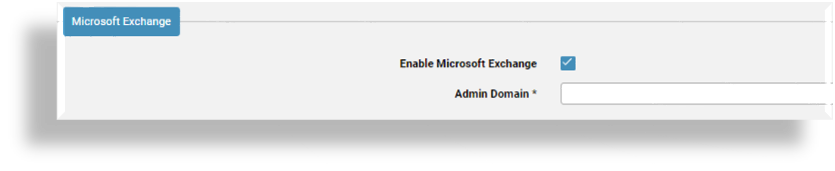
If you’re using Automate to manage Microsoft Exchange online, select Enable Microsoft Exchange.
At Admin Domain, specify the Microsoft Exchange admin domain (the domain of the tenant) used to authenticate.
Note
The Admin Domain field displays once you select Enable Microsoft Exchange.
Configure advanced settings. The table describes fields in the Advanced Settings fieldset:
Field
Description
MS 365 MsolUser page size
Defines the maximum number of records to retrieve at a time from the API related to
device/msgraph/MSOLUser.For optimal performance, leave this field blank to use the default value, 999.
MS 365 Group page size
Defines the maximum number of records to retrieve at a time from APIs related to
device/msgraph/Group.For optimal performance, leave this field blank to use the default value, 999.
MS Teams Number page size
Defines the maximum number of records to retrieve at a time from APIs related to the
msteamsonline/Numberdevice model. Starting January 2025, Microsoft has set the page size limit for phone number retrieval to a maximum of 1000 numbers per query. Requests exceeding this limit will result in an error.See the Automate 24.2-PB1 release notes for the upgrade notes for EKB-22837, for details.
MS Teams CsOnlineUser page size
Defines page size for the
msteamsonline/CsOnlineUserdevice model. Only set this value if the amount of data returned when using the default value is causing an error.Maximum Rendered Template Size
The maximum allowed size of any rendered template for all models for all managed drivers. Size in bytes, so 900000000 is 900MB. Only set this value if the amount of data returned when using the default value is causing an error. Default is 900MB.
Auto filter Teams users
Defines whether to add a default, automatic filter to all CsOnlineUser syncs to only return records matching MsolUsers in the cache. Default is False.
When enabled (True), no other sync filters can be used for CsOnlineUser syncs. Using additional filters will trigger a system error in this case.
Cloud environment type
The cloud environment type to authenticate to. Automate’s default cloud environment for a Microsoft tenant is “Commercial”. On upgrade or install, the cloud environment type is set to this default value.
Automate also supports authentication to high security cloud environment types, allowing an admin to identify their Microsoft customer tenant as one that is operating in a high security cloud environment, either DoD (United States Department of Defense) or GCCH (Microsoft 365 Government Community Cloud High).
When the tenant cloud environment type is set to either DoD or GCCH, Automate sets the appropriate environment names for the Microsoft Teams and Microsoft Exchange PowerShell modules, and appropriate URLs are used for the Microsoft Graph API.
Save your changes.
Note
When saving the tenant with the certificate selected, the certificate is deployed to the PowerShell proxy and installed. You can then import the certificate on the tenant App registration in Microsoft Entra for authentication of all apps (MS Exchange, Teams, and Graph).
Test your Microsoft tenant connection. You will be prompted to confirm the test.
Note
In this step you’re verifying that Automate can connect to the Microsoft tenant using the Teams and Exchange Powershell modules on the Windows server as well as using the Graph API on the Automate platform.
On the Microsoft Tenant page, choose the relevant tenant.
Click Test Connection.
Modifying a Microsoft Tenant
Modifying a Microsoft tenant will only overwrite those driver parameters in the underlying connections (MSTeamsOnline, MSExchangeOnline, MSGraph) that are managed by the tenant workflows. Other driver parameters will be left as is.
Also refer to the Advanced Settings above to modify the page size options for the Microsoft Tenant in order to adjust the synchronization performance.
Next steps
Verify that no changes are needed in user name mapping macros prior to sync. High level administrators with access to the
data/MultivendorUsernameMappingMacrosmodel instances should carry out this task.
Important
For release 21.5-PB5, Multivendor environments using the data/MultivendorUsernameMappingMacros model
at a hierarchy below sys level require an additional update. High level administrators with access to this model should ensure instances include:
"username_macro_ms_365": [
   "{{ input.UserPrincipalName }}",
   "(( fn.is_none_or_empty input.username == fn.true ))<NOT_FOUND>(( data.User.username | username:input.username != '' ))<{{ data.User.username | username:input.username }}><NOT_FOUND>",
   "(( fn.is_none_or_empty input.username == fn.true ))<NOT_FOUND>(( data.User.username | username_ms_365:input.username != '' ))<{{ data.User.username | username_ms_365:input.username }}><NOT_FOUND>",
   "(( fn.is_none_or_empty input.UserPrincipalName == fn.true ))<NOT_FOUND>(( data.User.username | email:input.UserPrincipalName != '' ))<{{ data.User.username | email:input.UserPrincipalName}}><NOT_FOUND>",
   "(( fn.is_none_or_empty input.UserPrincipalName == fn.true ))<NOT_FOUND>(( data.User.username | username_ms_365:input.UserPrincipalName != '' ))<{{ data.User.username | username_ms_365:input.UserPrincipalName }}><NOT_FOUND>",
   "(( fn.is_none_or_empty previous.UserPrincipalName == fn.true ))<NOT_FOUND>(( data.User.username | username_ms_365:previous.UserPrincipalName != '' ))<{{ data.User.username | username_ms_365:previous.UserPrincipalName }}><NOT_FOUND>",
   "(( fn.is_none_or_empty input.UserPrincipalName == fn.true ))<NOT_FOUND>(( data.User.username | username_ms_teams:input.UserPrincipalName != '' ))<{{ data.User.username | username_ms_teams:input.UserPrincipalName }}><NOT_FOUND>",
   "(( fn.is_none_or_empty previous.UserPrincipalName == fn.true ))<NOT_FOUND>(( data.User.username | username_ms_teams:previous.UserPrincipalName != '' ))<{{ data.User.username | username_ms_teams:previous.UserPrincipalName }}><NOT_FOUND>",
   "(( fn.is_none_or_empty input.UserPrincipalName == fn.true ))<NOT_FOUND>(( device.cucm.User.userid | userIdentity:input.UserPrincipalName != '' ))<{{ device.cucm.User.userid | userIdentity:input.UserPrincipalName }}><NOT_FOUND>",
   "(( fn.is_none_or_empty input.UserPrincipalName == fn.true ))<NOT_FOUND>(( device.cucm.User.userid | mailid:input.UserPrincipalName != '' ))<{{ device.cucm.User.userid | mailid:input.UserPrincipalName }}><NOT_FOUND>"
    ],
Perform a sync from the Microsoft tenant to import Microsoft users, tenant dial plan, licenses, and policies to the customer level. You will be prompted to confirm the syncs.
For Microsoft Exchange, ensure that instances for all 4 device models (User mailboxes, Shared Mailboxes, Room Mailboxes, and Distribution Mailboxes) are synced in at the level were the tenant exists.
Configure the customer-wide site defaults doc (SDD),
CUSTOMER_TEMPLATE. See Site Defaults Doc templates.Add network device lists (NDLs) with Microsoft 365 and Microsoft Teams tenant details. NDLs are required when adding sites. See:
Create sites.
Run the overbuild. See:
Go to:
Related topics