
Multi vendor users#
Overview#
Automate supports multi vendor users, which allows you to provision and manage services from one or more vendors on the Automate platform. For example, to use both Microsoft meeting and collaboration tools and Cisco tools.
Single vendor and multi vendor users
Automate supports provisioning for a number of categories of user, representing either a single or multi vendor deployment:
Single or Multi Vendor |
Description |
|---|---|
Single vendor user |
Users services from a single vendor, for example, either all Cisco services, or all Microsoft services. |
Multi vendor user |
Users using services from two or more vendors. |
Multi vendor hybrid user |
Users using services from two or more vendors, with services configured for integration, for example, with dial plans and routing. |
Related topics
View and manage multi vendor users#
This procedure displays and updates multi vendor users.
Note
On a multi vendor user’s configuration details page, you can also manage the user via any quick actions available on the page, but note the following:
Quick Actions for multi vendor user are defined via the Multi Vendor FDP (
MultiVendorFDP) in the field display policy (FDP) for the page. See Enable multi vendor users.For details around the available quick actions for multi vendor user, the user type they apply to, and the impact of changes via the Quick Actions, see:
In the Admin Portal, go to Manage Users.
Note
This list view makes use of an
[OR]condition to filter users:End User[OR]End User + AdminFor details on the filter, see: Working with lists.
View the summary list of the multi vendor users.
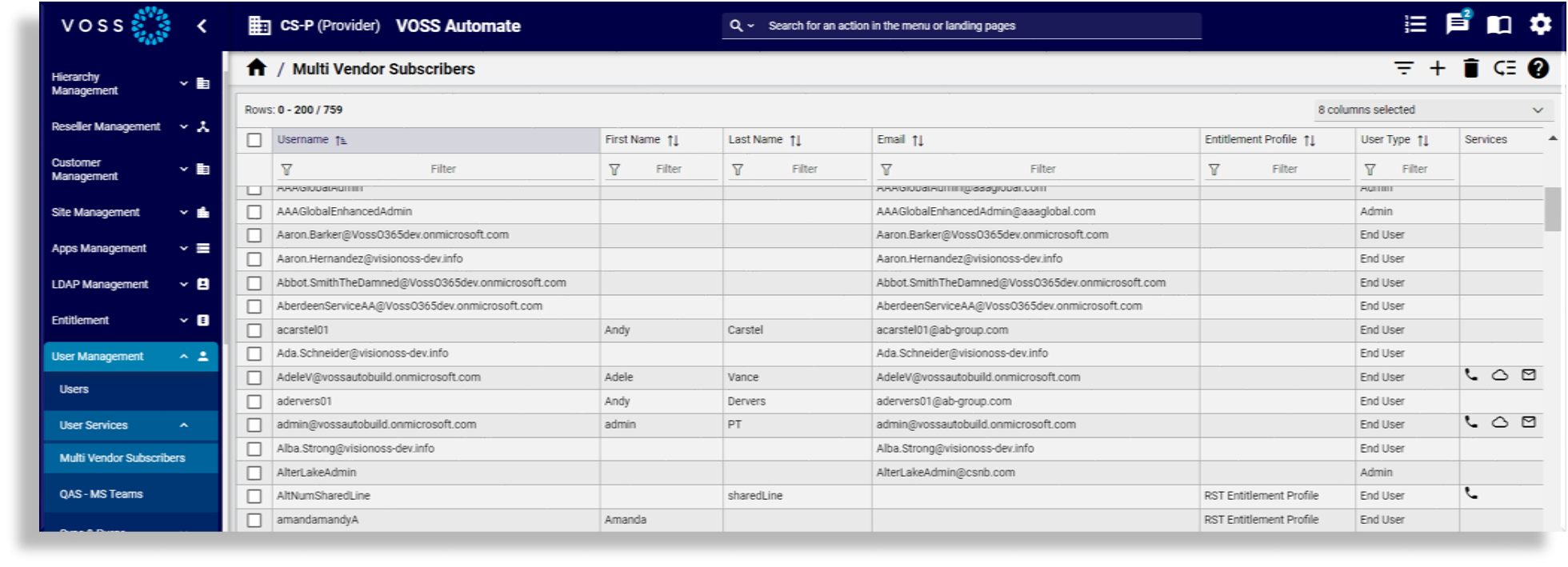
The table describes a few caveats around icons in the Services column of the list view:
Users with Microsoft services
The Voice icon (phone) displays only when the user has a feature type of PhoneSystem enabled, which means that they’re licensed for the voice service in Microsoft Entra.
The Collaboration icon (cloud) displays only when the user has a feature type of Teams enabled, which means that they’re licensed for Microsoft Teams IM/collaboration in Microsoft Entra.
The Feature type field displays read-only values in Quick Add User.
Clicking the MS Exchange icon (envelope) opens
device/msexchangeonline/UserMailbox(the user’s Microsoft Exchange mailbox settings).The Microsoft Voicemail icon displays when the user has the Microsoft voicemail service enabled. You can manage the user’s voicemail settings from within Automate or on the Microsoft online portal. Changes are immediately and automatically synced between Automate and the Microsoft online portal. Click on the icon to open the voicemail settings. You can also edit these settings from the Microsoft Voicemail Settings card on the multi vendor user’s management page.
Users with Webex App
Included icons may be for collaboration, conferencing, voice, and/or voicemail, contact center agent, provided the user has the required license. For example:
The Conferencing icon (monitor) displays when the user has a license where the name of the license (the pattern) contains the text “meeting” (for example, “Meeting 25”).
The Collaboration icon (cloud) displays when the user has a license where the name of the license (the pattern) contains the text “messag” (for example, “Messaging”).
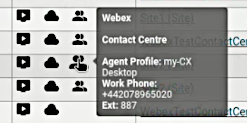
The 2 People icon displays when the user is a Contact Center agent. Additional details are provided when hovering over the icon, e.g. Agent Profile, Multimedia Profile, Skill Profile and Work Phone:
Headset and phone
A headset icon displays in the Services column for users that have a headset connected to an associated phone.
Manage multi vendor users from the list view. For example, you can:
Filter the list
Add a new multi vendor user
Move multi vendor users (one or more)
Delete multi vendor users (one or more)
Note
For all multi vendor users you delete from the list view, their services are also deleted, and, if applicable, their hybrid status is updated. Additionally, when deleting Microsoft multi vendor users, they are also off-boarded (that is, their licenses are removed).
The Automate user is retained only for LDAP or MS365 users.
To view or update the settings of a selected multi vendor user, click on the user in the list view to open their configuration details page. Here you can:
Choose an entitlement profile
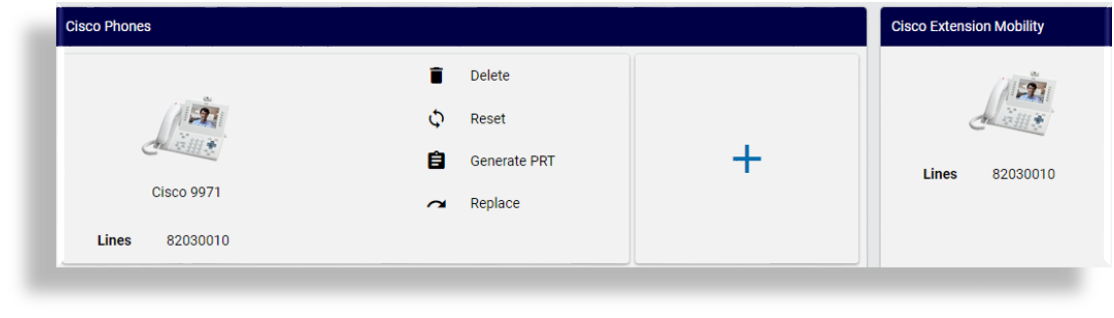
View and manage phones and lines
Note
For users with associated softphones, the phone product model name displays below the Phone icon on the cards. This is useful where the user has multiple phones and you need to easily distinguish between different phone models.
Delete the multi vendor user.
Note
When deleting a multi vendor user:
If applicable, the user’s hybrid status is updated
Non-Microsoft multi vendor user - deletes the user along with their services
Microsoft multi vendor user - deletes the user along with their services, and offboards the user (removes their license)
Bottom-up LDAP multi vendor user -
device/cucm/Useranddata/Useris deletedLDAP or MS365 users - the Automate user is retained:
Top-down LDAP user - deletes the user, and retains the
data/Useranddevice/ldapuser instances areMicrosoft provisioned user -
data/Useris retained if there is an associated Microsoft user
View and manage existing, available services, which may include Microsoft user calling settings, Microsoft voicemail settings, Microsoft Teams, Cisco Webex, Cisco Voicemail, and other enabled services.
Note
For users with multiple remote destinations associated to their single number reach (SNR), the Cisco Single Number Reach card on the management page displays only the first associated SNR remote destination profile and the first associated remote destination to that SNR.
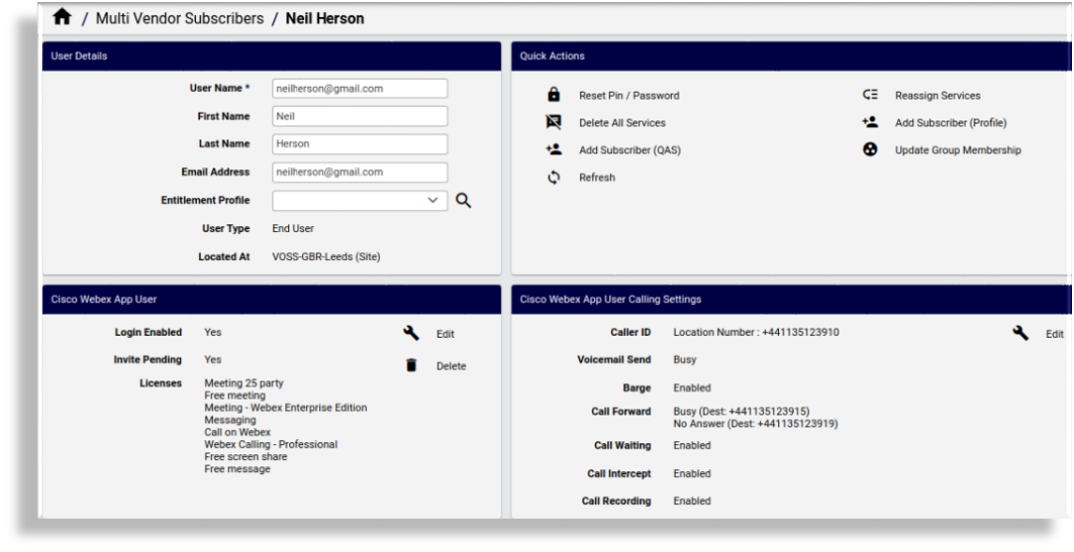
For users licensed with a Webex Calling Professional license, the following cards also display on their User Details view:
Webex Devices: for devices available to the user
Webex Voicemail: if the Voicemail setting is enabled, options for sendAllCalls, sendBusyCalls, sendUnansweredCalls, edit link to Voicemail.
Webex Calling Settings: Barge In, Caller ID, Call Forward, Call Recording, Call Waiting, Intercept, edit link to Calling Settings.
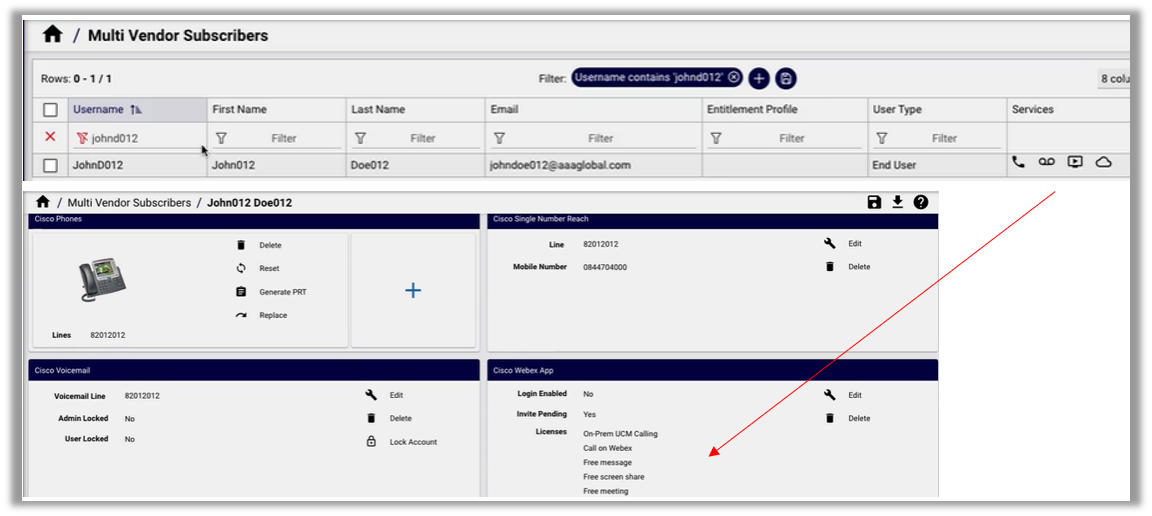
The image shows users with Webex App, and how they show up in the the list view and on their configuration details page:
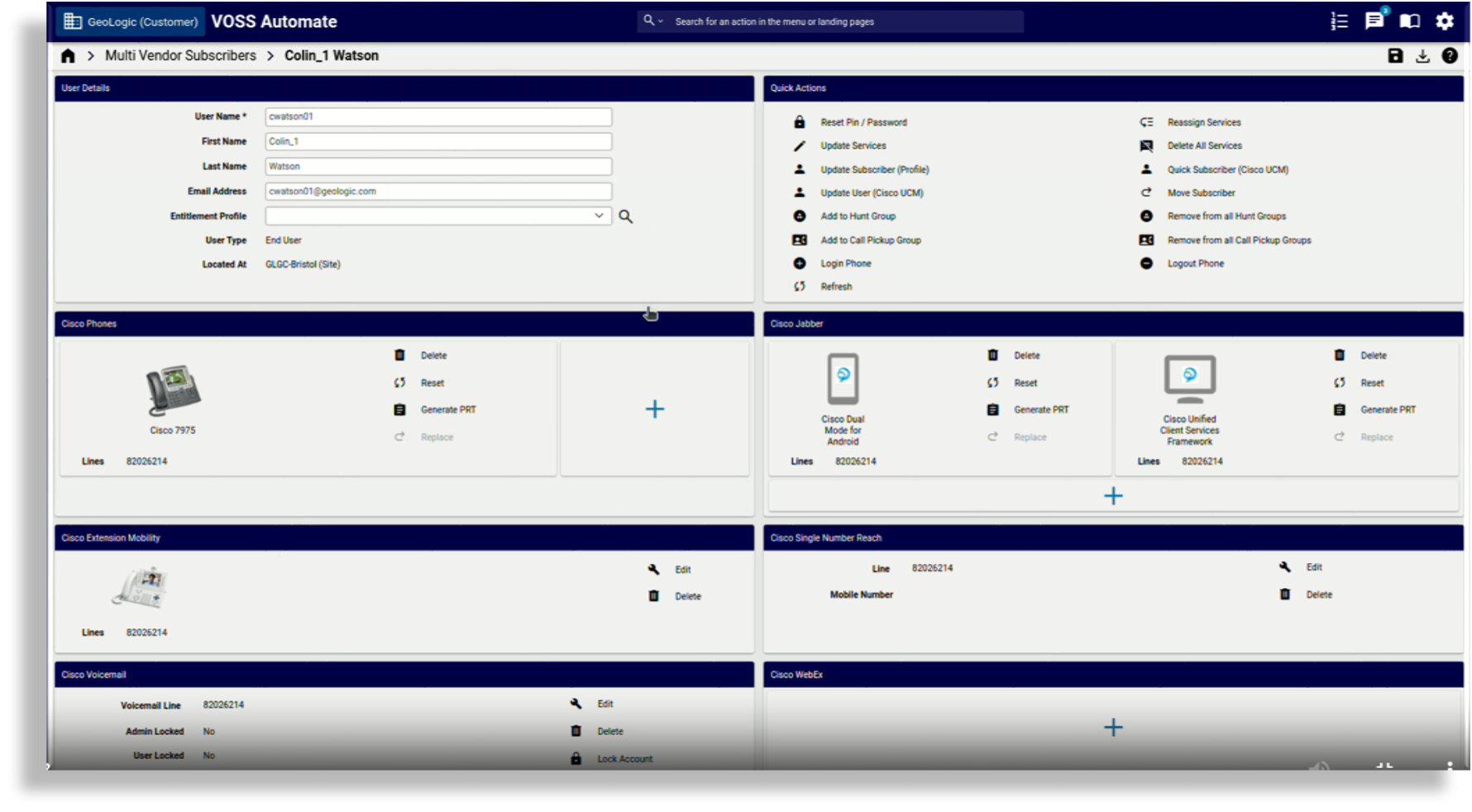
Example: Multi vendor user with Cisco services
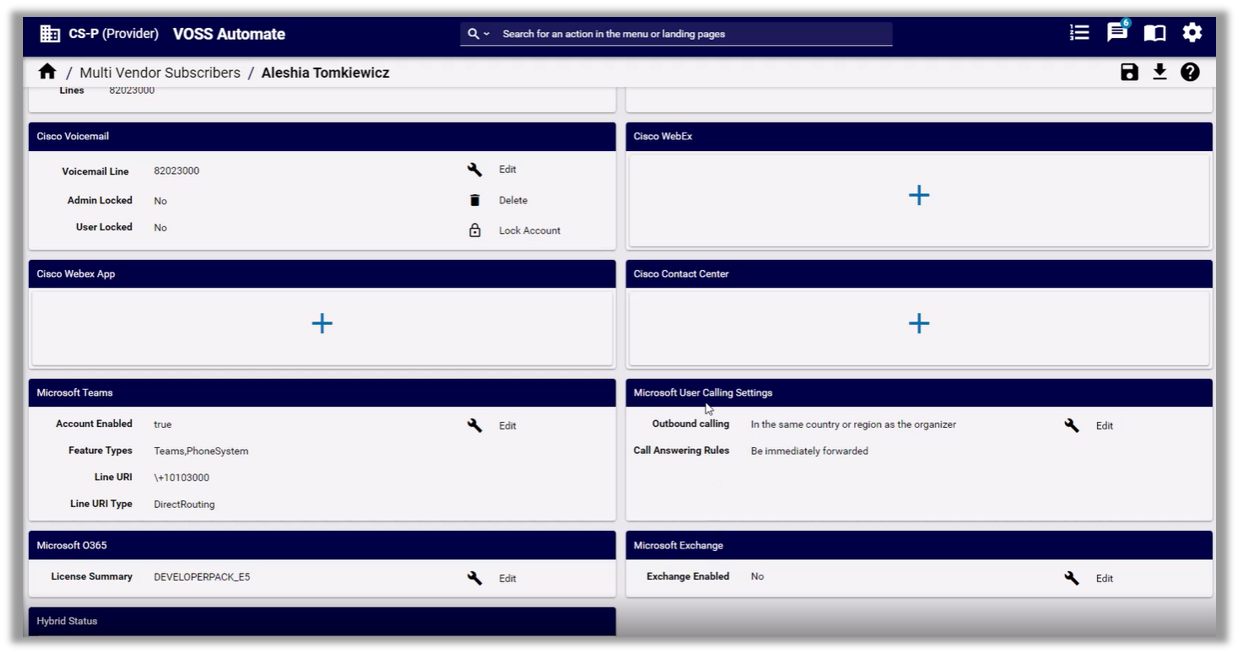
Example: Multi vendor user with Microsoft Teams
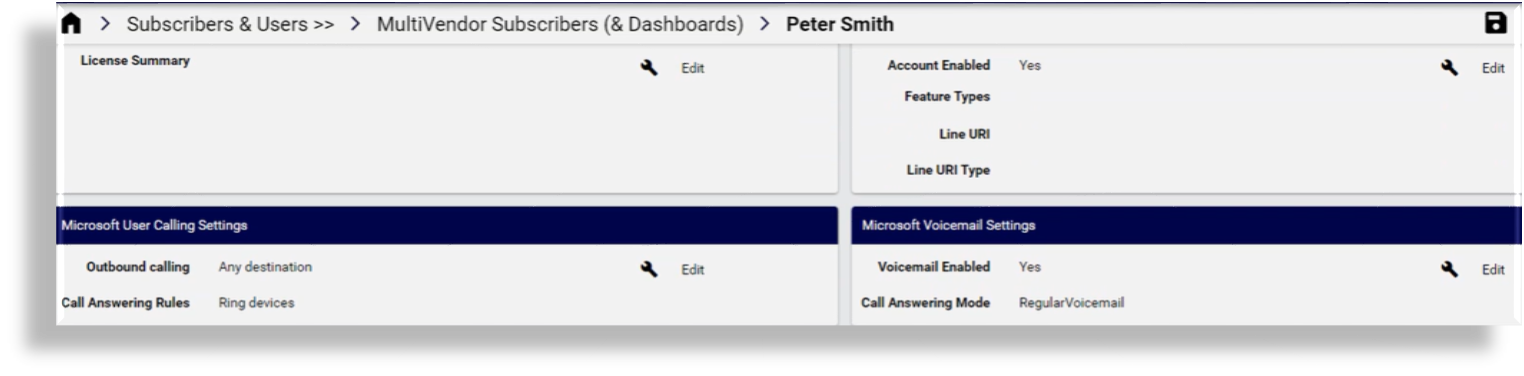
Example: Multi vendor user’s user calling and voicemail settings
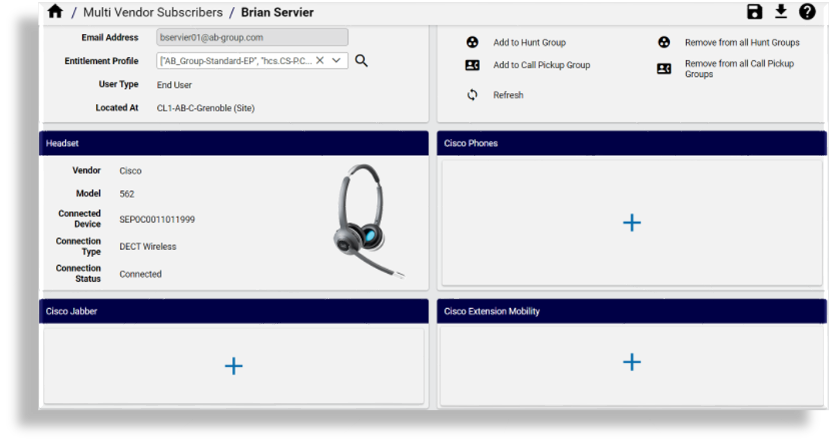
Example: Multi vendor user’s headset settings
Example: Multi vendor user - Cisco Webex App User with Webex Calling Professional license, showing Cisco Webex App User Calling Settings
Related Topics
Merge two users into a single multi vendor user#
Automate provides a merge tool for consolidating
duplicate user accounts from two different vendors (two data/User instances with the
same email address) that have been imported from different vendors,
into a single, Cisco-Microsoft multi vendor user.
This case is required where you have imported two user accounts from different vendors,
for example, Cisco and Microsoft, and you add or update their email addresses
to the same email address. In this case, the merge tool workflow (Merge_Relation_User workflow)
is triggered when it finds the duplicate email address for the two data/User instances.
You can use the view for the merge tool (view/ConsolidateUsers) to define the
primary user (which is retained once merged), and the secondary user (which is
deleted once merged). The services of the secondary user will then be merged into the primary user.
When consolidating these two accounts, the default provisioning workflow of the merge tool (ConsolidateUsers)
copies details of the secondary user into the primary user, and moves any device models associated with the
secondary user to the hierarchy of the primary user:
Copies the username (Cisco or Microsoft) of the secondary user to the primary user
Copies the Zoom username of the secondary user to the primary user
Copies the email address of the secondary user to the primary user
Copies the email address to the Cisco user, if the primary Cisco UCM user is local
Deletes the secondary user (the
data/Userinstance of the secondary user
Once successfully merged, a log entry is added to data/HcsUserManagementLogDAT, and
the primary user is assigned a system username, as a multi vendor user.
Note
The secondary user cannot be a UCM user (Cisco user) as it cannot be deleted. Only secondary users that match the primary user can be merged.
The secondary user cannot be configured as a hybrid user - remove this setting before merging users.
The merge tool does not allow consolidation of the user accounts if both the primary and secondary user accounts are UCM users.
Quick actions for multi vendor user#
Quick actions allow you to easily access frequently used activities, for example, to
reset a PIN or password, or to add a user. Multi vendor user includes a set of quick actions that are configured via the
multi vendor user field display policy (MultiVendorFDP; fallback FDP is default).
Quick actions added to
the MultiVendorFDP field display policy (FDP) appear as links on the Quick Actions card on
the management page of the selected multi vendor user.
While some quick actions are also available as stand-alone features or functionality that can be accessed via a menu or dashboard link (or via the Search bar), other quick actions, such as Update User (Cisco UCM), are only available as a quick action.
The availability of a quick action also depends on the user type or the environment, for example,
Cisco or Microsoft, multi vendor or hybrid. You’ll also require appropriate permissions on your access
profile to have some quick actions available to you. By default, the access profiles
that ship with the system (except for Operator access profiles) have read, write, and export permissions on
all multi vendor user quick actions and service card actions that are views, for example, view/DeleteCucmHuntGroupAllMembers
(quick action, Remove from all Hunt Groups), view/DeleteSubscriberService (quick action Delete all services), or
view/AddExtensionMobility (service card action, Add Extension Mobility).
Quick action links trigger the following behavior in the system:
Some quick actions, such as Update User (Cisco UCM), are only available as a quick action link that launches a dialog (or overlay) on the current page, and allows you to perform a specific action (related to the quick action).
Some quick actions are shortcuts to a menu or dashboard for the feature, such as the Cisco Quick User or Microsoft Quick User link, which opens the Quick Add User page directly from the quick link.
In some cases, the quick action launches a dialog (or overlay) on the current page for performing a specific action related to the quick action, such as Add to Hunt Group or Remove from All Hunt Groups, while the full functionality for the feature is also available via a menu or dashboard.
In this case, you may also access the functionality via the menu (or fill out the feature name, for example, Hunt Groups, in the Admin Portal Search bar, and press Enter to locate the page).
Related Topics
Quick actions (all users)#
The table describes quick actions that support all users:
Quick Action |
Description |
|---|---|
Refresh |
|
Delete all Services |
|
Note
You can find more information about Automate’s caching policies in Default Cache Control Policy.
Quick actions (Cisco and Microsoft)#
The table describes quick actions that support Cisco UCM and Microsoft:
Quick Action |
Description |
|---|---|
Update User (Profile) |
|
Quick actions (Cisco UCM)#
The table describes quick actions that support Cisco UCM:
Quick Action |
Description |
|---|---|
Quick Add User (Cisco UCM) |
|
Update User (Cisco UCM) |
|
Quick Action |
Description |
|---|---|
Move User |
|
Add to Hunt Group |
|
Quick Action |
Description |
|---|---|
Remove from all Hunt Groups |
|
Add to Call Pickup Group |
|
Quick Action |
Description |
|---|---|
Remove from all Call Pickup Groups |
|
Login Phone |
|
Logout Phone |
|
Reset PIN/Password |
|
Quick Action |
Description |
|---|---|
Update Services |
|
Reassign Services |
|
Quick actions (Microsoft)#
The table describes quick actions that support Microsoft:
Quick Action |
Description |
|---|---|
Quick Add User (MS) |
|
Update Group Membership |
|
Quick Action |
Description |
|---|---|
Microsoft Exchange |
|
Related topics
Quick actions (Webex)#
The table describes quick actions that support Webex:
Quick Action |
Description |
|---|---|
Quick Add User (Webex) |
|
Related topics
Configure quick actions for multi vendor users#
This procedure configures the quick actions that display on the Quick Actions card when viewing a multi vendor user.
To configure the quick actions that display on the card:
In the Admin Portal, go to Field Display Policies.
In the list view, search for and click on the default multi vendor user field display policy (
MultiVendorFDP).Clone the FDP, then edit the clone for your requirements:
Fill out a name and a description for the FDP.
Leave the target model type as
relation/MultiVendorSubscriber.For Display Groups As, choose whether the default display is panels, tabs, or field sets.
Click the down arrow at Quick Actions, then configure the fields to display:
Note
Leave the Quick Actions card in its default position at the top of the dashboard.
Add fields to the card by selecting and moving fields from Available to Selected.
Remove fields by selecting and moving fields from Selected to Available.
Important
You must select valid fields for the model (allowed services), which in this case is
relation/MultiVendorSubscriber.Only valid fields will display on the service cards once you apply the FDP. For multi vendor user, valid field names are prefixed
mvs_user_qa, where:mvsis the alias for multi vendor user*_qais Quick Action
If a service or action is disallowed in the global settings or in the entitlement profile, or if required servers are not installed for the service, the system verification check does not allow display of the service or action on the User Management dashboard (defined via the FDP), and the user can’t be provisioned with this service.
Click Save.
The next time you view the Quick Actions for a selected multi vendor user, you’ll be able to use the quick action to update the user.
Update Cisco user via quick actions#
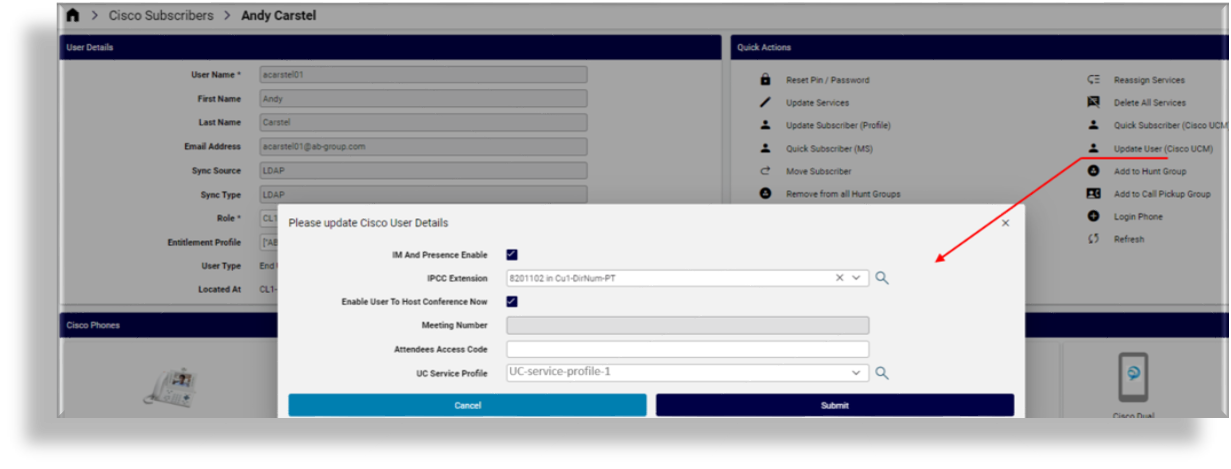
This feature allows you to enable or disable IM and Presence, to choose the IPCC extension, to define whether the user has permissions to host a conference, and to assign a UC service profile.
Note
Conference Now is a Cisco Call Manager Ad Hoc conference service, available only to Cisco users. See the Cisco Unified Communications Manager documentation for more information about Conference Now.
Note
The Update User (Cisco UCM) quick action is only available for Cisco users who are also multi vendor users, via the Quick Actions card on the Multi Vendor Users editing form.
The field for this quick action (mvs_user_qa.qa_update_cisco_user) must be added to the Multi Vendor Users’s field display policy (
MultiVendorFDP), in the Quick Actions card, via the Field Display Policies page.
To update a Cisco user for IM and Presence and/or Conference Now:
In the Admin Portal, go to Multi Vendor Users.
Click on the relevant user.
In the Quick Actions, click Update User (Cisco UCM) to open the dialog, then update the Cisco user:
To enable IM and Presence, select IM and Presence Enable.
Select the IPCC extension from the drop-down.
Note
The IPCC Extension drop-down lists the line/route partitions associated with this user.
To enable Conference Now, select Enable User to Host Conference Now. When enabling Conference Now:
The meeting number displays in the read-only Meeting Number field.
You can fill out an access code in the Attendees Access Code field.
Optionally, you can also assign a UC service profile via the drop-down.
Click Submit.