
Offboarding (Microsoft)#
Overview#
Offboarding Microsoft users in Automate is the process whereby the user is de-provisioned (their services are removed), and they’re moved from the site (default) back to the tenant level in the hierarchy, typically, customer.
Note
By default, Offboard user moves the user from the site. However, you can change the Retain User at Site after MS Offboard User global setting to Yes (default is No) so that the user won’t be moved. See Global settings.
If a user is moved from the site during offboarding and they had a Self-service role at the site, their Self-service role is retained when they move to the customer level and if you later move this user to another site.
When offboarding, the user’s Usage Location remains unchanged. Since Automate doesn’t automatically manage user licenses (you’ll need to grant Automate permissions to do this for Microsoft user licensing), the users licenses remain in place when offboarded unless Automate has license management permissions.
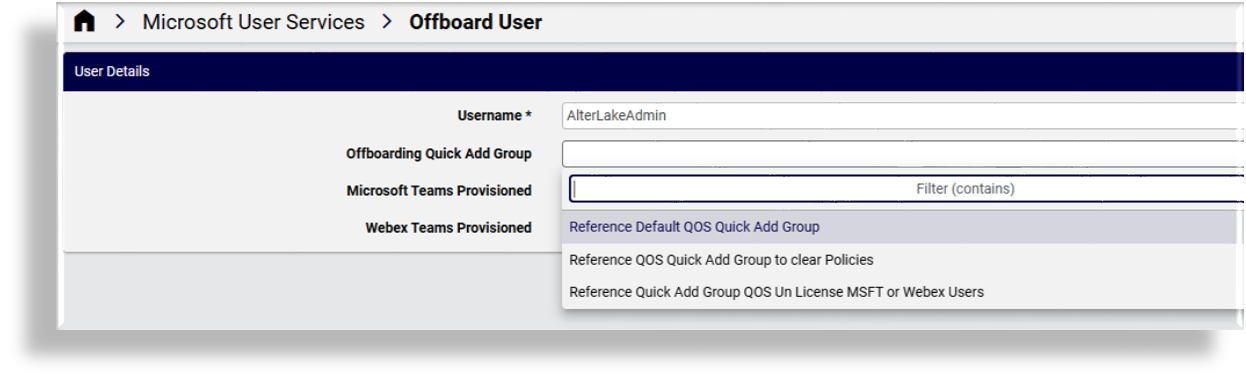
When running Offboard User for Microsoft you can choose from a filtered list of Quick Add Groups (QAGs) flagged for offboarding. These designated QAGs contain configuration templates (CFTs) that define how the user should be offboarded and de-provisioned. For example, via the CFTs in the QAG you can choose to:
Leave the usage location and licenses in place
Remove licenses (system default behavior)
Remove licenses via removal of groups
Automate ships with default offboard Quick Add Groups (QAGs). You can use the defaults or clone and customize a QAG to use for offboarding via Quick add groups. QAGs flagged for offboarding display in the Offboarding Quick Add Group drop-down on the Offboard User page.
Related topics
Configure a CFT for offboard user (Microsoft)#
The configuration template (CFT) to be included in a Quick Add Group flagged for user offboarding may be customized via referenced variables to define how a user should be offboarded and de-provisioned.
In the Quick Add Group, you choose the CFT to use and select the Subscriber Offboarding checkbox. The CFT is customized to run the offboarding workflow. When running user offboard for Microsoft you can choose a Quick Add Group flagged for offboarding, and the CFT referenced in this Quick Add Group runs the offboarding workflow.
Note
A MSOL CFT removes licenses. A CSOL CFT only removes voice services
(disables enterprise voice and removes the line). The CSOL CFT clears or changes values and
should contain fn.unset for any fields that need to be cleared, such as LineURI and
enterpriseVoiceEnabled. See the System Microsoft Teams Online User Template Un License User
CFT for an example of the minimum configuration required.
If you don’t select an offboarding Quick Add Group, the system default offboarding behavior applies.
Workflow when offboarding a Microsoft user#
The offboard user workflow for a Microsoft user is as follows:
The number assigned to the user in Microsoft Teams is removed and Enterprise Voice is disabled.
Any other setting defined in the Teams configuration template (CFT) in the Quick Add Group, such as policies, are applied.
The number is released in the Automate number inventory, and is either made available or placed into cooling, depending on your setup.
M365 user (
Msoluser) is updated based on configuration:Licenses
(Default) Remove licenses
The default behavior is that all licenses are removed from the user. The
LicenseAssignmentpermission is required in the system. If this permission is unavailable, the transaction ignores the error from Microsoft and continues to execute but leaves the licenses unchanged.(Recommended) Leave licenses as is
You’ll need to configure Automate to leave the licenses unchanged if you don’t wish to manage licenses. See the note below. It is recommended that you configure this behavior rather than relying on the default behavior (Remove licenses).
Remove from group(s)
This behavior is based on the Remove Groups configuration template included in the Quick Add Group.
Move the user and related Microsoft service records (Msoluser, Csonlineuser, Exchange, etc.) back to the tenant level in the hierarchy (typically, customer).
The user’s role is also updated to a Self-service role at that level in the hierarchy. The user is then ready for onboarding again if needed (for example, in another site).
Common offboarding scenarios and setup for a Microsoft user#
The table describes example common offboarding scenarios and the setup required when using Offboard user (Webex or Microsoft) for a Microsoft user:
Example onboard scenario |
Setup |
|---|---|
No update to Msoluser at all (usage location and/or licenses) |
To set this up, see the section headed Configuration to not remove licenses |
Remove licenses (direct licensing) |
System default behavior; no additional configuration required. |
Allow a Microsoft user to retain their licenses during user offboarding#
This procedure configures Automate to leave a Microsoft user’s licenses in place when running offboard user.
In this case, the default ProviderAdmin role (or any
cloned role with similar access) will need to clone the MicrosoftSubscriberMsolUser_Update CFT
to the customer hierarchy, and without making any changes to this CFT, just click Save.
Note
By default, for customers using Automate for license management and assigning license directly to users, offboard user removes all of the user’s licenses.
Configure the following in Automate:
Use the
MicrosoftSubscriberMsolUser_Updateconfiguration template (CFT) to configure license handling.By default, Automate attempts to remove all licenses assigned to the user. To change this behavior, clone the
MicrosoftSubscriberMsolUser_UpdateCFT to a lower level in the hierarchy (the hierarchy where you want to change the default behavior). For example:
Clone the CFT to Provider level if you want to apply it everywhere
Clone the CFT to a particular Customer level (if it’s customer-specific)
After cloning the CFT, the licenses array in the CFT should be blank. If it’s not blank for some reason, clear the licenses array in the cloned CFT before saving it.
To change back to the default behavior to clear the licenses, you can delete the cloned CFT to return to the sys level instance of the CFT.
Microsoft user updates when offboarding#
With regard to user updates in terms of usage location and licenses when offboarding, similar to onboarding, the LicenseAssignment permission is required to update the Usage Location and License fields via the Microsoft User Details page.
If permissions aren’t granted and you’re using direct licenses, it is recommended that you
adjust your field display policy (FDP) for relation/MicrosoftSubscriber to make the Usage Location and License
fields read-only for clarity to administrators.
Note
If you follow the steps in Offboard User to retain licenses on the user, any changes to licenses via the user won’t be applied. This is for the case where you won’t be managing licenses from Automate.