
Change LDAP user sync#
Overview#
In top-down LDAP user management, LDAP users are first added to VOSS Automate and then synced to Cisco Unified Communications Manager (CUCM).
This procedure describes how to change LDAP user sync from top-down to bottom-up, that is, LDAP users on CUCM are synced to VOSS Automate.
Before you start#
Prepare for the change:
Take a VM snapshot.
Ensure that the LDAP server is in sync with Automate and that Automate is in sync with CUCM.
Ensure that you have the correct LDAP server information.
Ensure that Cisco and VOSS (L3 support) are notified of this change before commencing.
Always first test the procedure for one user only, using a model instance filter. Contact VOSS support in the following cases:
If the model instance filter is to apply to the top-down LDAP to VOSS Automate synced user, it should be on the
device/ldap/userand the attributecn. You can obtain thecnfrom the LDAP synced users list.If the model instance filter is to apply to the bottom-up, CUCM to VOSS Automate synced user, it should be on the
device/cucm/userand the attributeuserid.
Check the following:
The Users list in Automate shows the user is “VOSS-LDAP Synced”, and on the Provisioning Status tab for the user, the user is synced with both LDAP and CUCM.

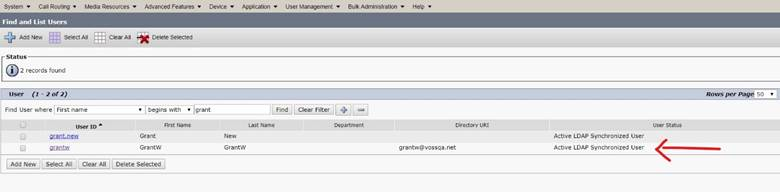
The User Status column for the user in CUCM displays “Active LDAP Synchronized User”.
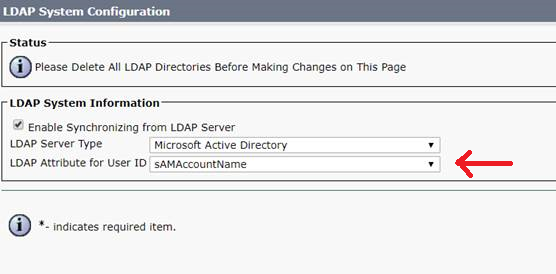
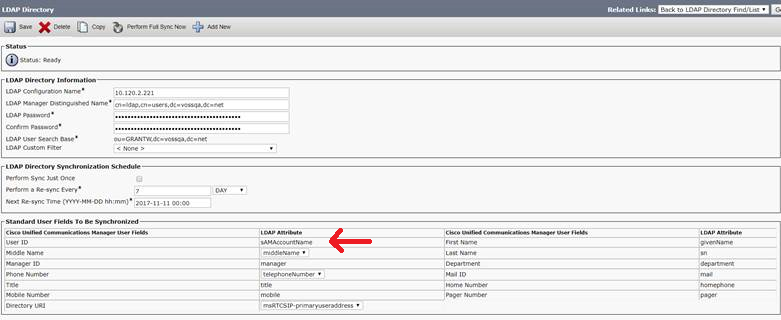
The LDAP server is configured on CUCM and the LDAP Attribute for User ID is the same as the Login Attribute Name on VOSS Automate. (On CUCM: System > LDAP > Server and System > LDAP > LDAP Directory and search to find it or add it.)
In the Automate schedules and transactions, confirm that recent LDAP - Automate syncs have occurred, and that CUCM has the same user count as Automate.
In Automate, ensure that on LDAP Management > LDAP User Sync the user modes for Move, Delete, and Purge are set to “Manual”. Saving this configuration triggers a full LDAP sync.
Make backups of LDAP server and configurations in Automate. The recommendation is to export to JSON data from the following menu paths:
LDAP Management > LDAP Sever
LDAP Management > LDAP User Sync
Administration Tools > Scheduling, LDAP Sync schedule
LDAP Management > LDAP Authentication Users
Note
Exporting to JSON data is done for troubleshooting in case of errors. However, export is limited to 200 at a time, so for a customer with for example a 5000 user count, this is impractical. In that case a VM snapshot is recommended.
Change the user sync from top-down to bottom-up#
Ensure you have performed the tasks to prepare for this change, then, to change the LDAP user sync from top-down to bottom-up:
In Automate, remove the instance under LDAP Management > LDAP User Sync for this customer.
Verify that the relevant users display as local users on both VOSS Automate (“CUCM Local”) and CUCM (“Enabled Local User”).


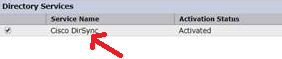
Enable the Cisco DirSync service on CUCM. Go to Cisco Unified Serviceability Tools > Service Activation. At the bottom of the page you will find Cisco DirSync Service. It will take some time to complete.
Run an LDAP sync from CUCM. Go to System > LDAP > LDAP Directory and select Perform Full Sync Now.
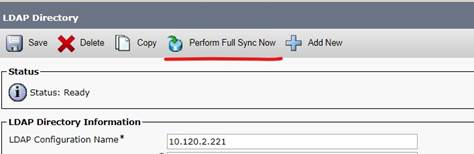
Check the user’s status in CUCM. The user status should now display as “Active LDAP synchronized user”
In Automate, add the LDAP User Sync again and enable the LDAP Authentication Only option.
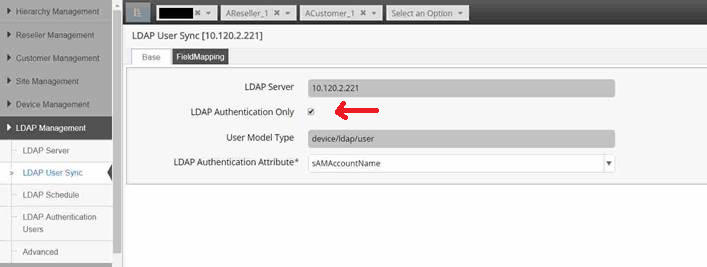
Run a DataSync from VOSS Automate with CUCM, that is, the data sync with name that starts with “HcsPull”.
Change the LDAP user data sync back to top-down#
Stop the DirSync service on CUCM.
Log into the CUCM Cisco Unified Serviceability page and go to Tools > Control Center - Feature Services. Select the Cisco DirSync service option and click Stop.
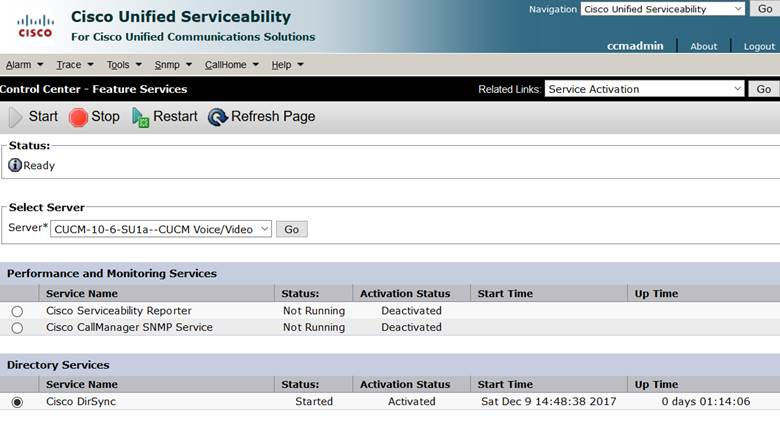
If this move is permanent, stop and deactivate the Cisco DirSync service on CUCM.
In Automate, remove the Authenticate Only LDAP User sync.
In Automate, add an LDAP User Sync to do full LDAP syncs. (Or you can just import the JSON file exported earlier.)
Go to User Management > Sync & Purge > LDAP Users and run the sync users from LDAP (Unselect the Remove Log Messages).
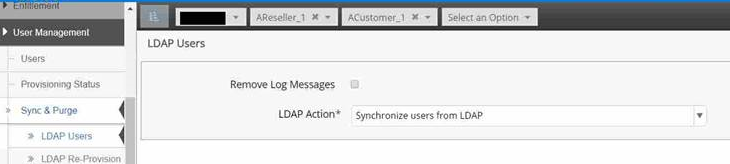
Check user in CUCM and in Automate. The user status should be:
CUCM: “LDAP Active Synced”
Automate: “VOSS-LDAP Synced”