
User profiles#
Overview#
User profiles allow you to group a number of services and resources into a profile that you can assign to a user via Quick Add Group (QAG) templates. The user profile can then for example be added to the QAG along with other configuration settings.
User profiles are used in the Admin Portal.
Flow through provisioning uses the user profiles to assign services to users once they’re synced in and moved to the sites. This is useful where you need to assign different sets of services to different categories of users, depending on their job role, for example IT or Sales.
Important
A Default user profile is created at system (sys) level. Only a system level
administrator may delete the system-level default profile. To add a new user profile,
it is recommended that you clone (create a copy) of an existing user profile and create
the new profile based on a valid (working) Quick Add Group.
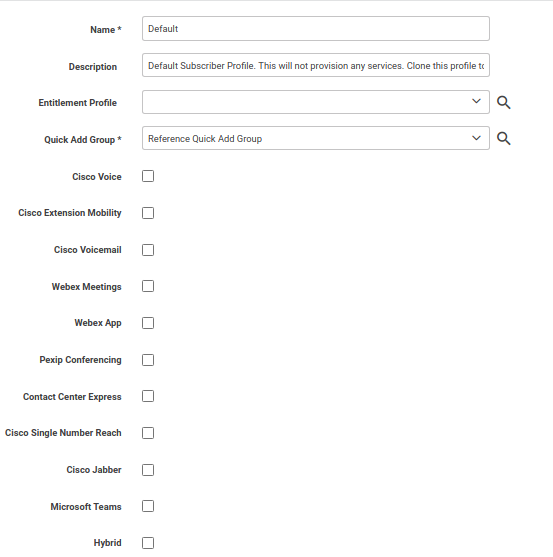
Configure user profile#
This procedure adds, edits, or deletes a user profile.
Go to the User Profiles page.
Choose an option:
To update an existing user profile, click on a profile in the list view. Go to step 3.
To delete an existing user profile, select the profile in the list view, and click Delete.
To add a new user profile, click Add. Go to step 3.
To add or update a user profile settings, configure fields on the form, then save your changes.
The table describes options for configuring user profiles:
Field |
Description |
|---|---|
Entitlement profile |
Select an entitlement profile to define the resources and services that may be assigned to a user. |
Quick Add Group |
The quick add group (QAG) defines the configuration templates to be used during service provisioning. QAGs are also used for Quick Add User (Cisco UCM and Microsoft). [1] Where the selected QAG contains details of MS Groups templates, flow-through provisioning will also assign or remove any MS licenses accordingly. [2] |
Cisco Voice |
Assigns voice services. When enabled, a desk phone is created. The phone template in the QAG defines the phone type. |
Cisco Extension Mobility |
The template in the QAG defines settings for extension mobility. The extension mobility template defines the device types available in the drop-down, and the selected device types define the available configuration settings. The default for Line is the first user line. User details define the values in Line Label and Line Display. Only one device profile can be added for extension mobility in VOSS Automate. If a user is associated with two or more extension mobility profiles on the Cisco UCM, and you sync with Automate, only the first extension mobility profile displays on the Users list view in Automate. |
Cisco Voicemail |
Assigns voicemail service for the profile. When enabled, and the service is added, the user can be added as a voicemail user. |
Webex Meetings |
Allows Webex service. |
Field |
Description |
|---|---|
Webex App |
A Webex App user profile may be chosen for the profile. In this case, the user profile defines the Webex App service that will be provisioned. When Webex App is enabled for the user profile, the user can be added as a Webex App user when the service is added. |
Contact Center Express |
When enabled, an agent profile may be chosen for the profile. In this case, you also need to choose the device type to use as the agent’s controlled device. When adding the service, the user default extension displays, as well as (depending on the selected controlled device type - phone or extension mobility), the user’s phone or device profile. |
Field |
Description |
|---|---|
Cisco Single Number Reach |
Choose whether to include single number reach (SNR) service for the profile. Only one remote destination profile may be added for single number reach. If a mobile number has already been configured for a user, it is used to pre-populate the Mobile Number field when adding SNR for that user. You can enter a different mobile number for SNR, if required. |
Cisco Jabber |
Choose whether to include Jabber service, and one or more Jabber device types. |
Microsoft Teams |
Allows Microsoft services. |
Hybrid |
Allows Cisco and Microsoft services. Selecting this checkbox displays:
|
Note
When both Microsoft Teams and Hybrid are selected in the user profile, the Hybrid Quick Add User steps are skipped when adding a user.
Related Topics