
UCPrep profiles#
Overview#
The UCPrep Profiles list view displays all created profiles at the administrator’s hierarchy and below.
UCPrep profiles are intended to be templates at a higher level in the hierarchy and are then cloned to a lower level for specific settings to a cluster. When cloning a UCPrep profile, the UCPrep profile name must be unique. UCPrep profile notes should also be descriptive so that this information is available when the UCPrep Profile Push tool is used.
For example, a provider level profile may contain global element configuration that are not site or cluster specific. At a customer or site level, this profile can then be cloned and updated with configuration elements that apply to the customer or site.
UCPrep profiles settings#
You can select the following tabs on this page:
UCPrep Profile
CUCM Date Time Groups
CUCM Groups
CUCM Host Adjustment
CUCM SIP Trunk Security Profiles
CUCM SIP Profiles
CUCM Audio Codec Preferences
CUCM Application Users
CUCM Feature Control Policies
CUCM Route Filters
CUCM Phone Services
CUCM SIP Normalization Scipts
Unity Authentication Policies
Unity User Templates
UCPrep Profile tab#
The table describes settings on the UCPrep Profile tab:
Field |
Description |
|---|---|
UC Prep Profile Name |
Friendly name for the UCPrep profile. This is the name populated into the push tooling above. |
UC Prep Profile Notes |
Fill out helpful information describing the UCPrep Profile. This is the field populated to the push tooling above. |

CUCM Date Time Groups tab#
Configuration templates can be customized and added so that these become available in the Date/Time Group Configuration Template drop-down list, for example to templates to customize the date format and listed on the UCPrep Configuration Templates page.
The UCPrep Friendly Timezones page can be used to manage the list available in the timezones drop-downs, for example to shorten the list to only include the timezones that are used in the Data/Time groups.
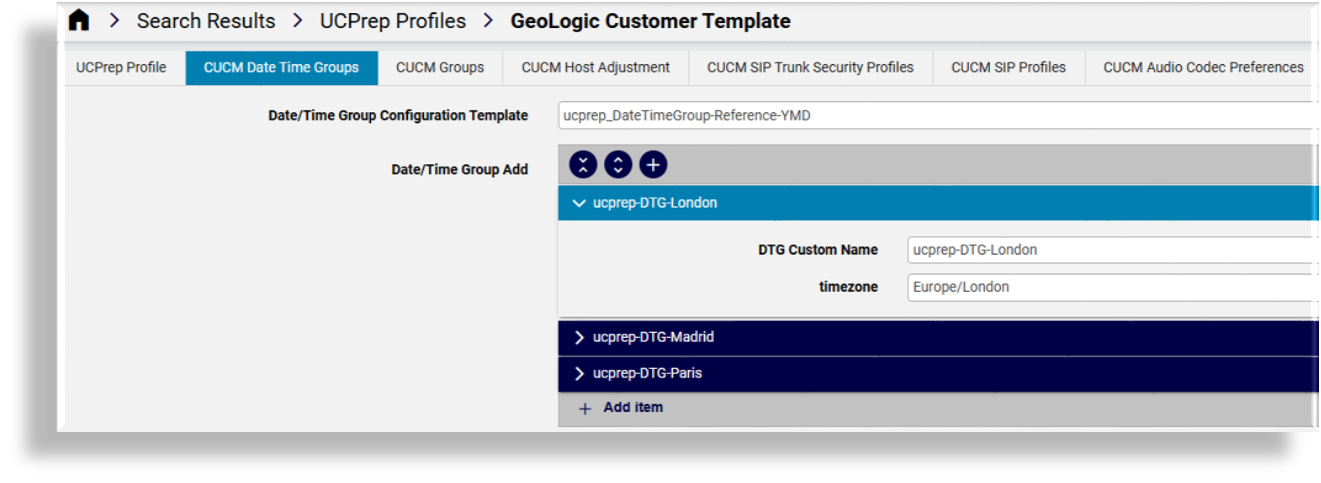
The table describes settings on the CUCM Date Time Groups tab:
Field |
Description |
|---|---|
Date/Time Group Configuration Template |
Configuration template used to configure the specific settings to a Data-Time Group in Call Manager. Options available in the Configuration template are date format, separator, Time format, and so on. Note: the name of the date time group is automatically configured
based on the chosen timezone entry. A timezone drop-down entry of
|
Date/Time Group Add |
Timezones are chosen and added via drop-down. Any number of timezones may be chosen. |
CUCM Groups tab#
The Members drop-down works once a UCPrep profile has been cloned to the level of the UC applications.
The order in which the members are added indicate primary and secondary members of the group.
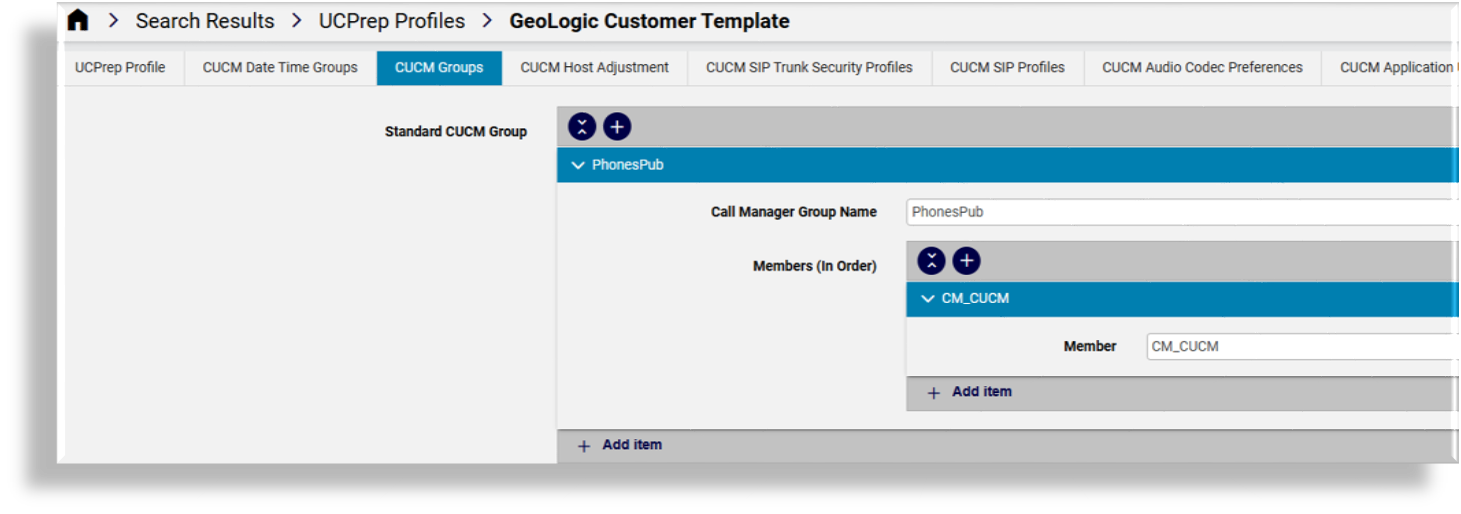
The table describes settings on the CUCM Groups tab:
Name |
Description |
|---|---|
Standard CUCM Group |
Entry mechanism to allow for configuration of an unlimited number of Call Manager Groups. |
Call Manager Group Name |
Free text entry box for Call Manager Group Name. |
Members (In Order) |
Add Call Manager nodes via drop-down by adding member entry boxes. The Call Manager nodes are added to the Call Manager Groups in the order presented in the input box. |
CUCM Host Adjustment tab#
Multiple nodes of the cluster at the hierarchy can be modified.
Considerations for Host Adjustment are:
Since the CUCM Host Adjustment modifies existing data in Call Manager, the data must be re-set or removed if a UCPrep Profile must be applied more than once.
The CUCM Host adjustment occurs after the Call Manager Group configuration because the Call Manager will internally adjust the node names within a Call Manager Group when the node is renamed.
If a node name is adjusted and a UCPrep profile is run a second or more times, the data on the CUCM Groups tab must be updated from the drop-downs to be the current CUCM node name.
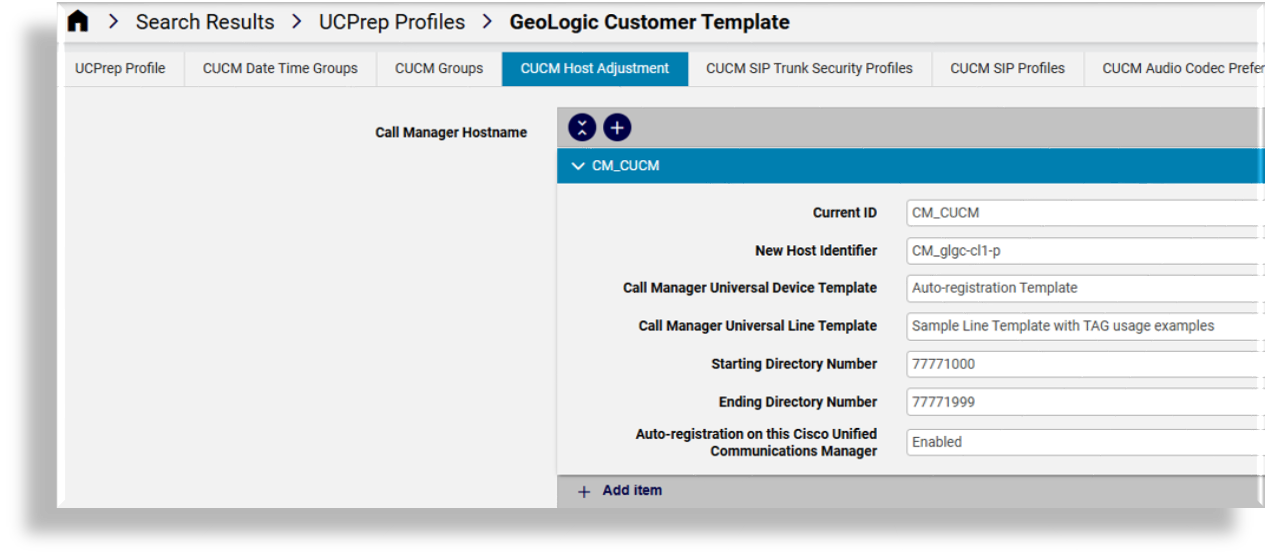
The table describes CUCM Host Adjustment tab settings:
Name |
Description |
|---|---|
Call Manager Hostname |
Entry area for multiple Call Manager Hostname adjustments. |
Current ID |
Drop-down providing the current Call Manager node names in the cluster. |
New Host Identifier |
Free text area to enter the new name as per business standards. |
Call Manager Universal Device Template |
Drop-down providing the CUCM configured Universal Device Templates. These templates are only required when configuring auto-registration on the Call Manager Node. |
Call Manager Universal Line Template |
Drop-down providing the CUCM configured Universal Line Templates. These templates are only required when configuring auto-registration on the Call Manager Node. |
Starting Directory Number |
Free text field for entry of starting directory number for auto-registration. |
Ending Directory Number |
Free text field for entry of ending directory number for auto-registration. |
Auto-registration Enabled on this Cisco Unified Communications Manager |
Check box to enable auto-registration on the Call Manager node. |
CUCM SIP Trunk Security Profiles tab#
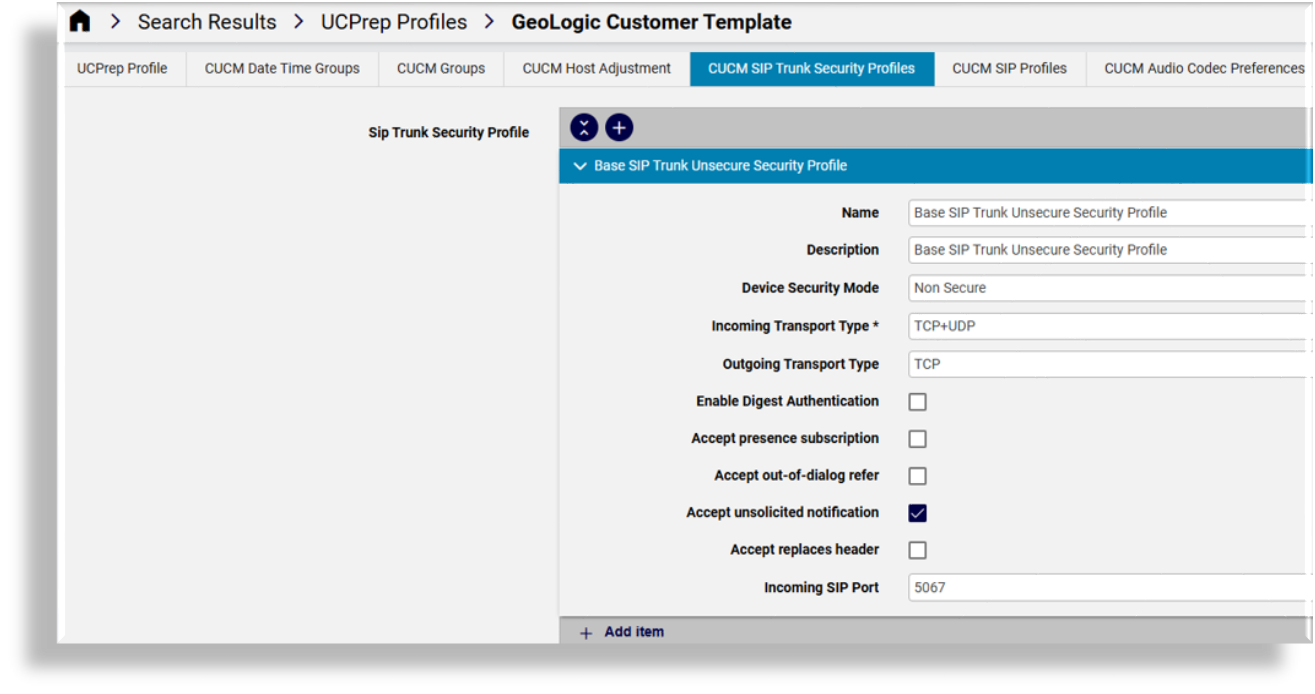
The table describes settings on the CUCM SIP Trunk Security Profiles tab:
Field |
Description |
|---|---|
Name |
Free text field to enter Sip Trunk Security Profile name. |
Description |
Free text field to enter Sip Trunk Security Profile description. |
Device Security Mode |
Drop-down providing options:
|
Incoming Transport Type |
Drop-down providing options:
|
Outgoing Transport Type |
Drop-down providing options:
|
Enable Digest Authentication |
Check box to enable Digest Authentication. |
Accept presence subscription |
Check box to enable Accept of presence subscription. |
Accept out-of-dialog refer |
Check box to enable Accept out-of-dialog refer. |
Accept unsolicited notification |
Check box to enable Accept unsolicited notification. |
Accept replaces header |
Check box to enable Accept replaces header. |
Incoming SIP Port |
Free text box to set Incoming SIP Port. |
CUCM SIP Profiles tab#
Where values or time settings display on the page when adding a profile, these are the static values corresponding with the Call Manager defaults.
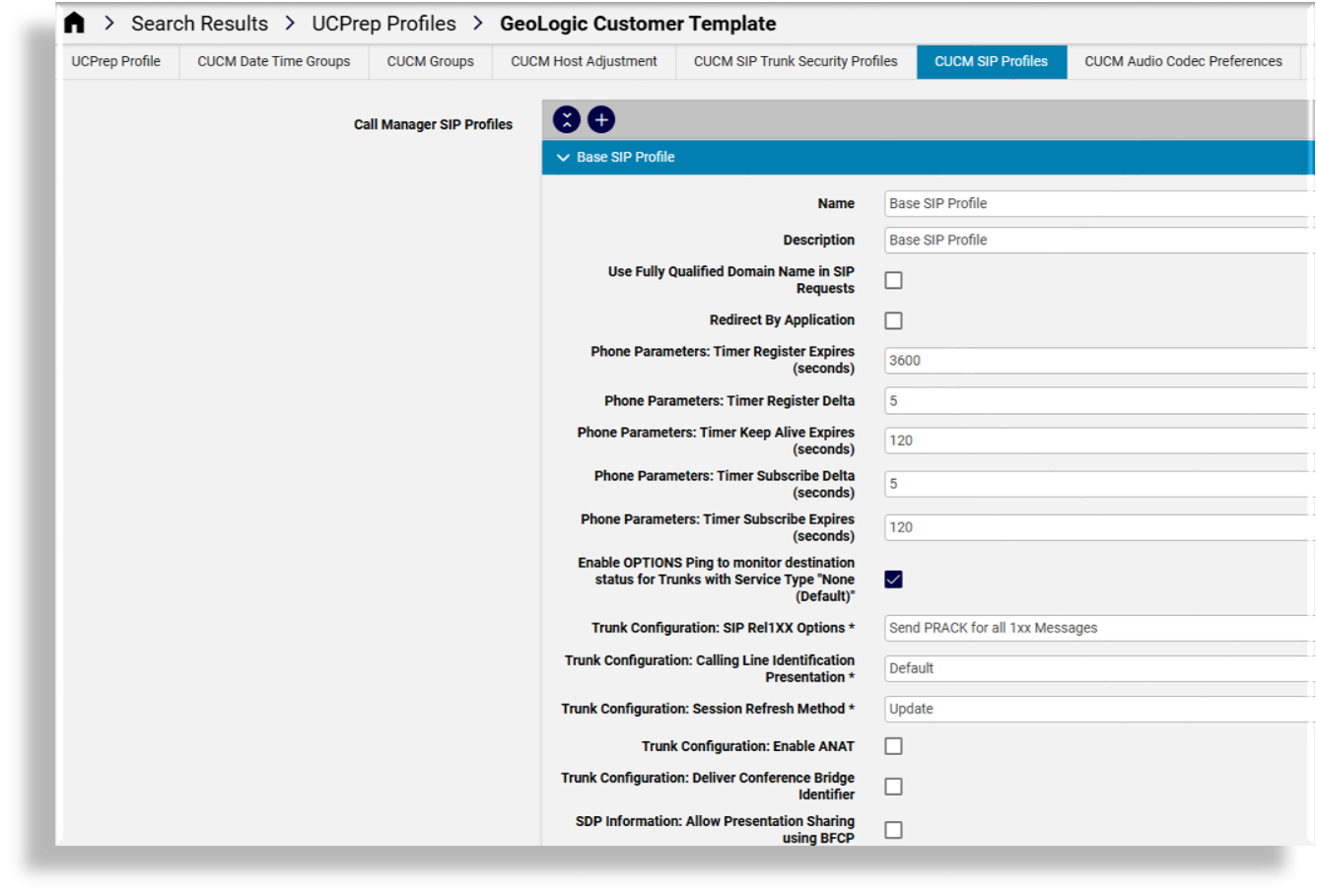
The table describes settings on the CUCM SIP Profiles tab:
Field Name |
Description |
|---|---|
Call Manager SIP Profiles |
Entry box to add any number of SIP Profile definitions. |
Name |
Free text field to enter name of SIP Profile. |
Description |
Free text field to enter description of SIP Profile. |
Use Fully Qualified Domain Name in SIP Requests |
Check box to enable Use Fully Qualified Domain Name in SIP Requests. |
Phone Parameters: Timer Register Expires (seconds) |
Free text box to adjust the Timer Register Expired timeout. Default 3600 |
Phone Parameters: Timer Register Delta |
Free text box to adjust the Timer Register Delta. Default 5 |
Phone Parameters: Timer Keep Alive Expires (seconds) |
Free text box to adjust the Timer Keep Alive Expires. Default 120 |
Phone Parameters: Timer Subscribe Delta (seconds) |
Free text box to adjust the Timer Subscribe Delta. Default 120 |
Enable OPTIONS Ping to monitor destination status for Trunks with Service Type “None (Default)” |
Check box to Enable OPTIONS Ping. |
Trunk Configuration: SIP Rel1XX Options |
Drop-down providing options
|
Trunk Configuration: Calling Line Identification Presentation |
Drop-down providing options
|
Trunk Configuration: Session Refresh Method |
Drop-down providing options
|
Trunk Configuration: Enable ANAT |
Check box to enable ANAT |
Trunk Configuration: Deliver Conference Bridge Identifier |
Check box to enable Deliver Conference Bridge Identifier. |
SDP Information: Allow Presentation Sharing using BFCP |
Check box to enable Allow Presentation Sharing using BFCP |
CUCM Audio Codec Preferences tab#
The Audio Codec Preferences List lends itself to be driven by a configuration template rather than a GUI input of a list of codecs.
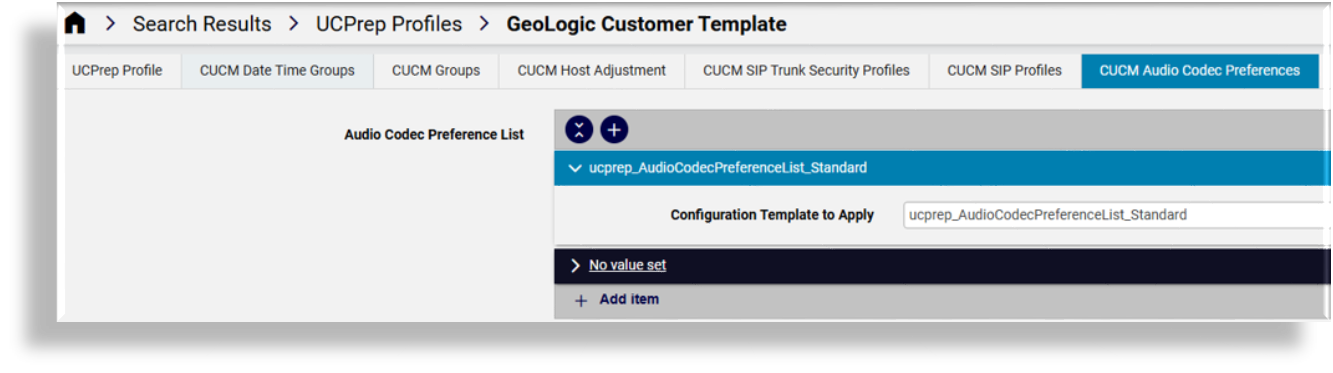
The lists are written to Call Manager by selecting any number of configuration templates that have been set up to list out groups of codecs. Typically, a configuration template from the menu UCPrep Configuration Templates list view is cloned and modified to show the required codecs and settings.
Audio Codec Preference List Configuration Template Example:
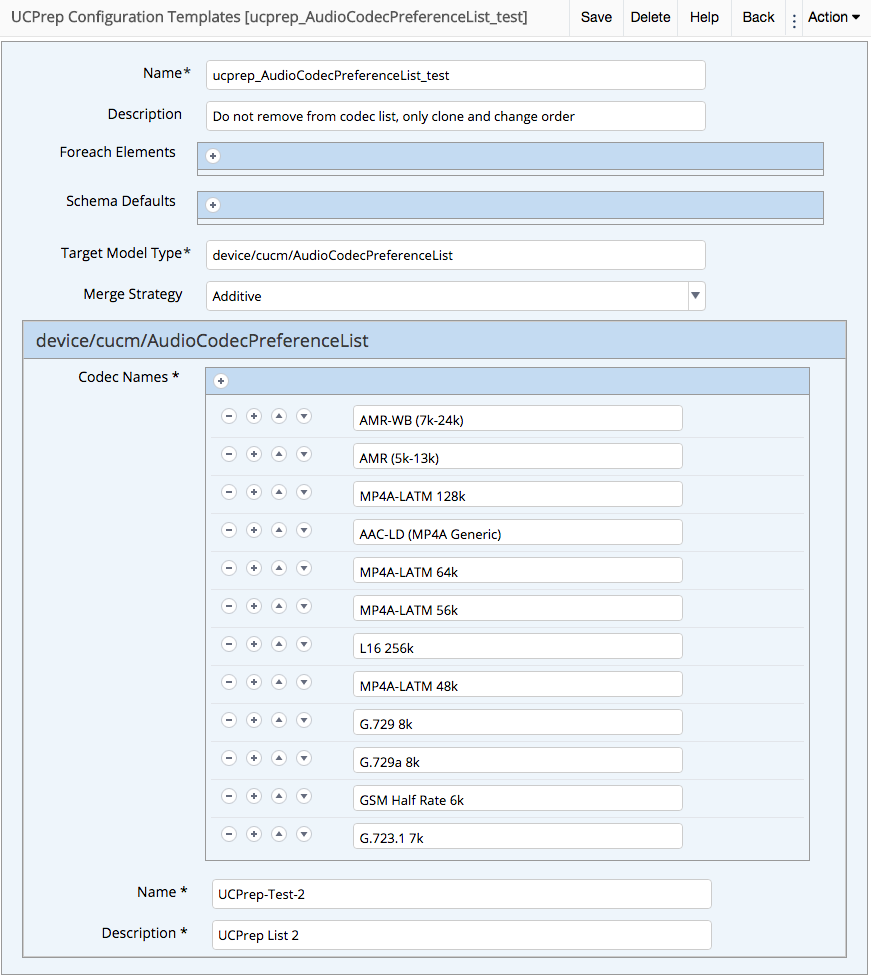
The table describes the settings on the CUCM Audio Codec Preferences tab:
Field |
Description |
|---|---|
Audio Codec Preference List |
Entry mechanism for any number of Codec lists. |
Configuration Template to Apply |
Drop-down providing a list of available configuration templates. |
CUCM Application Users tab#
Application users can initially be set up from the UCPrep Application User page, to be available from the Application Users drop-down on the input form of this tab.
New application users can also be added on the form by entering the user name directly into the Application Users input.
Application user roles are automatically added from the selected Group Permissions.
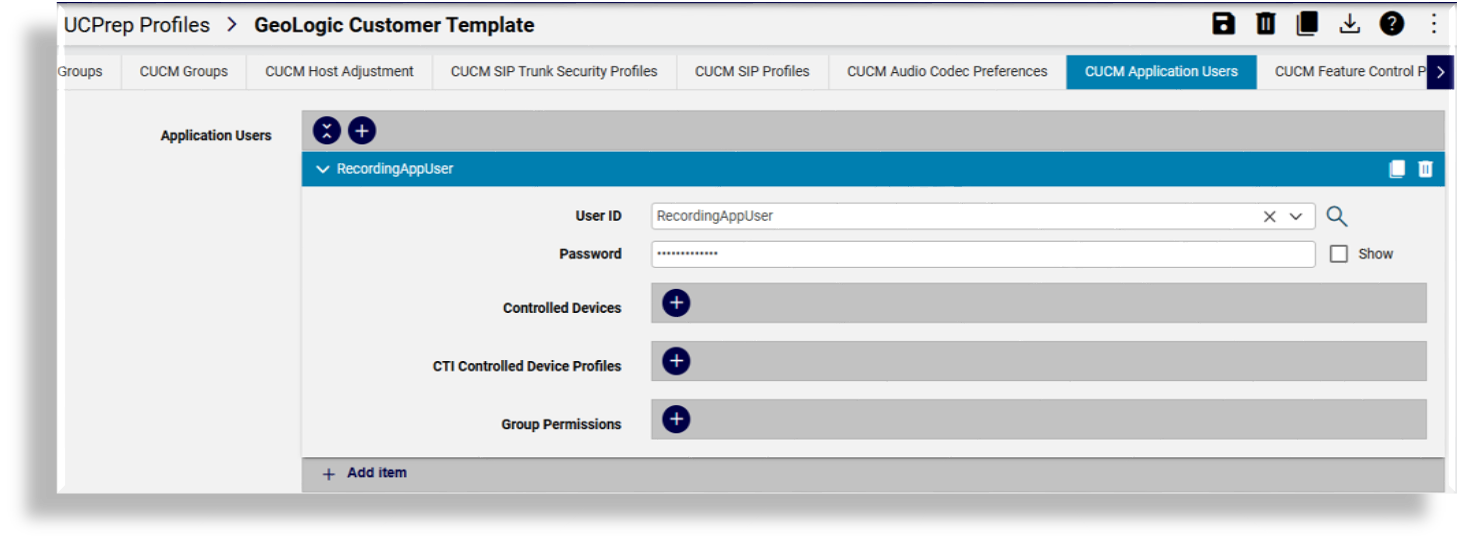
The table describes the settings on the CUCM Application Users tab:
Field Name |
Description |
|---|---|
Application Users |
Mechanism for adding an unlimited number if application users to a Call Manager. |
User ID |
The Application User ID. This drop-down is driven from the UCPrep Application User List in the menu. The idea behind this is to cut down on AppUser misspelling. |
Password |
Password for the application user |
Repeat Password |
Confirmation of entered password. |
Controlled Devices |
Drop-down that provides a list of configured devices on Call Manager should an association be necessary. |
CTI Controlled Device Profiles |
Drop-down that provides a list of configured device profiles on Call Manager should an association be necessary. |
Group Permissions |
Drop-down that provides the ability to build group permissions for the application user. The drop-downs will provide all configured groups from the Call Manager. |
CUCM Feature Control Policies tab#
Feature control policies are defined by entering policy names and selecting features from the list of checkboxes.
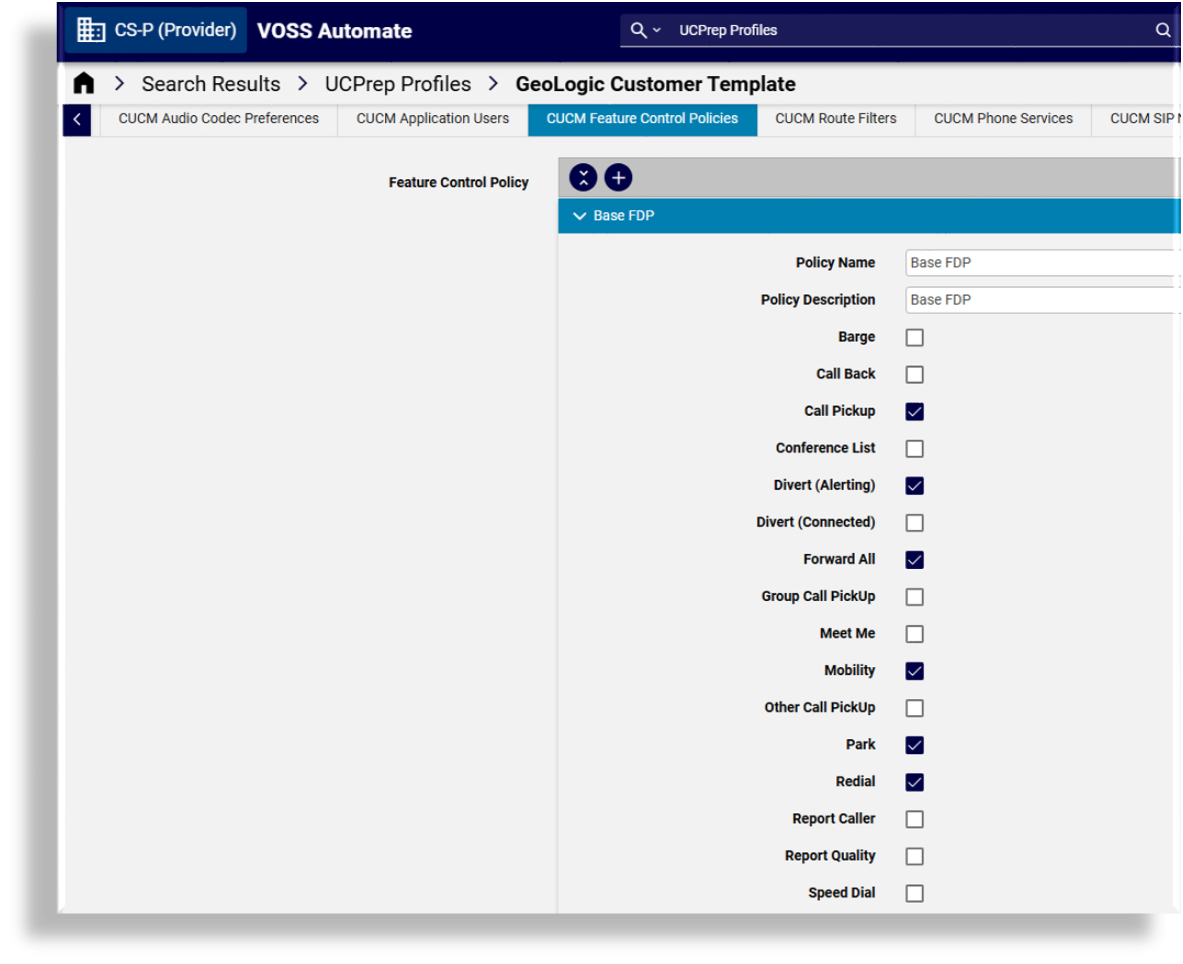
The table describes the settings on the CUCM Feature Control Policies tab:
Field Name |
Description |
|---|---|
Feature Control Policy |
Mechanism to enter an unlimited number of Feature Control Policies |
Policy Name |
Free text field for entry of Feature Control Policy Name. |
Policy Description |
Free text field for entry of Feature Control Policy Description. |
Check boxes to add the individual services into the Feature Control Policy |
|
CUCM Route Filters tab#
The Route Filter lends itself to be driven by a configuration template rather than a GUI input of clauses.
The filters are written to Call Manager by selecting any number of configuration templates from the Route Filter Template to Apply drop-down on the input form.
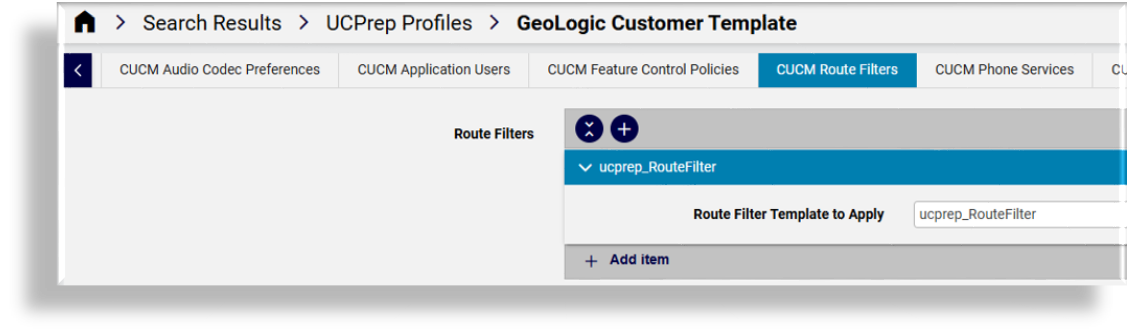
Typically, a configuration template from the menu UCPrep Configuration Templates list view is cloned and modified to show the required Route Filter settings.
Example of Route Filter Configuration Template:
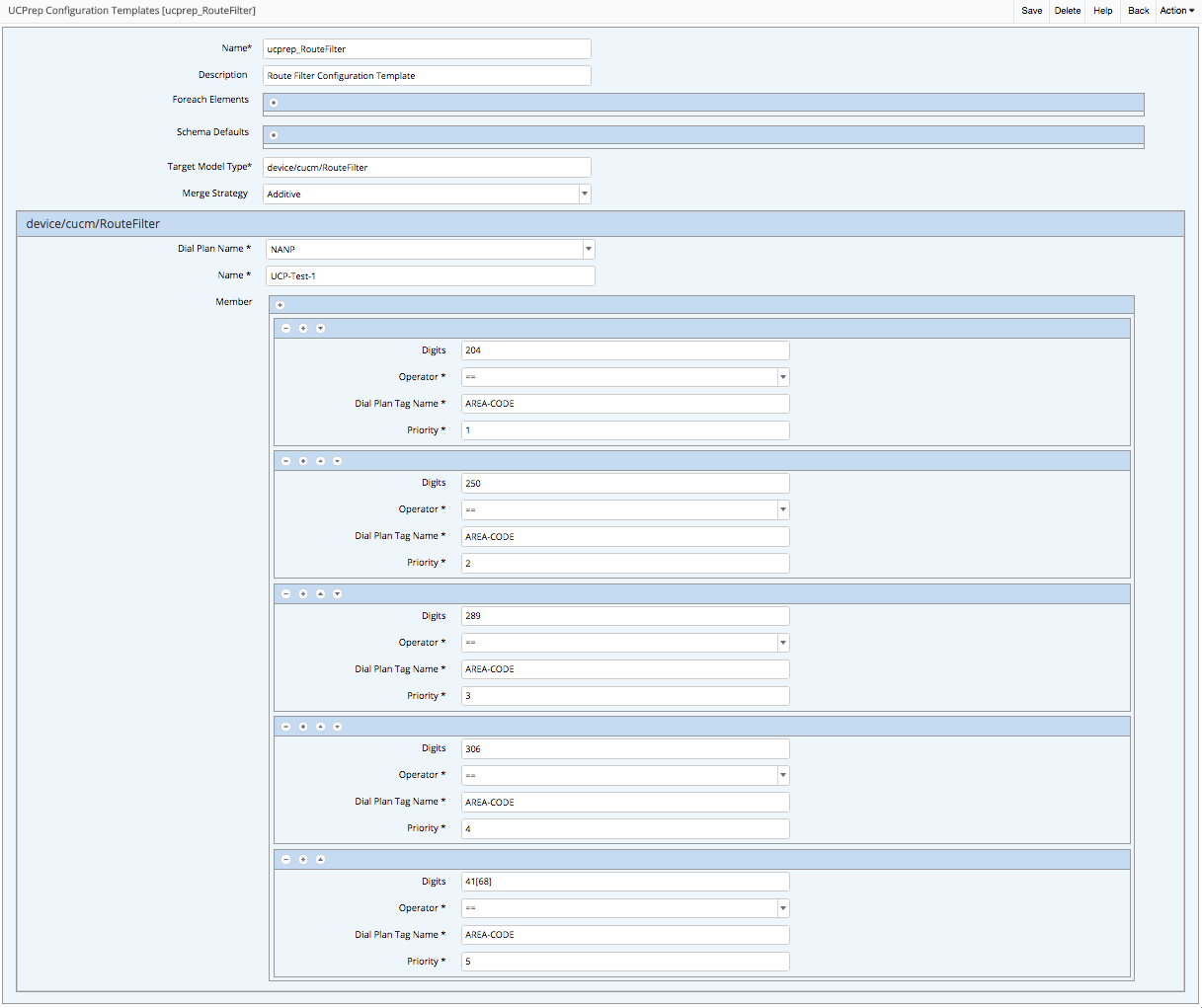
The table describes the settings on the CUCM Route Filters tab:
Field |
Description |
|---|---|
Route Filters Route Filter Template to Apply |
Mechanism to add an unlimited number of route filters via configuration template. Drop-down to provide a list of available configuration templates. |
Unity Authentication Policies tab#
The Unity authentication rule lends itself to be driven by a configuration template rather than a GUI input, since settings commonly do not change and the same group of settings are repeated.

Typically, configuration templates from the menu UCPrep Configuration Templates list view are cloned and modified to show the required Voice and Web Authentication Rules.
Example of Authentication Rule Configuration Template:
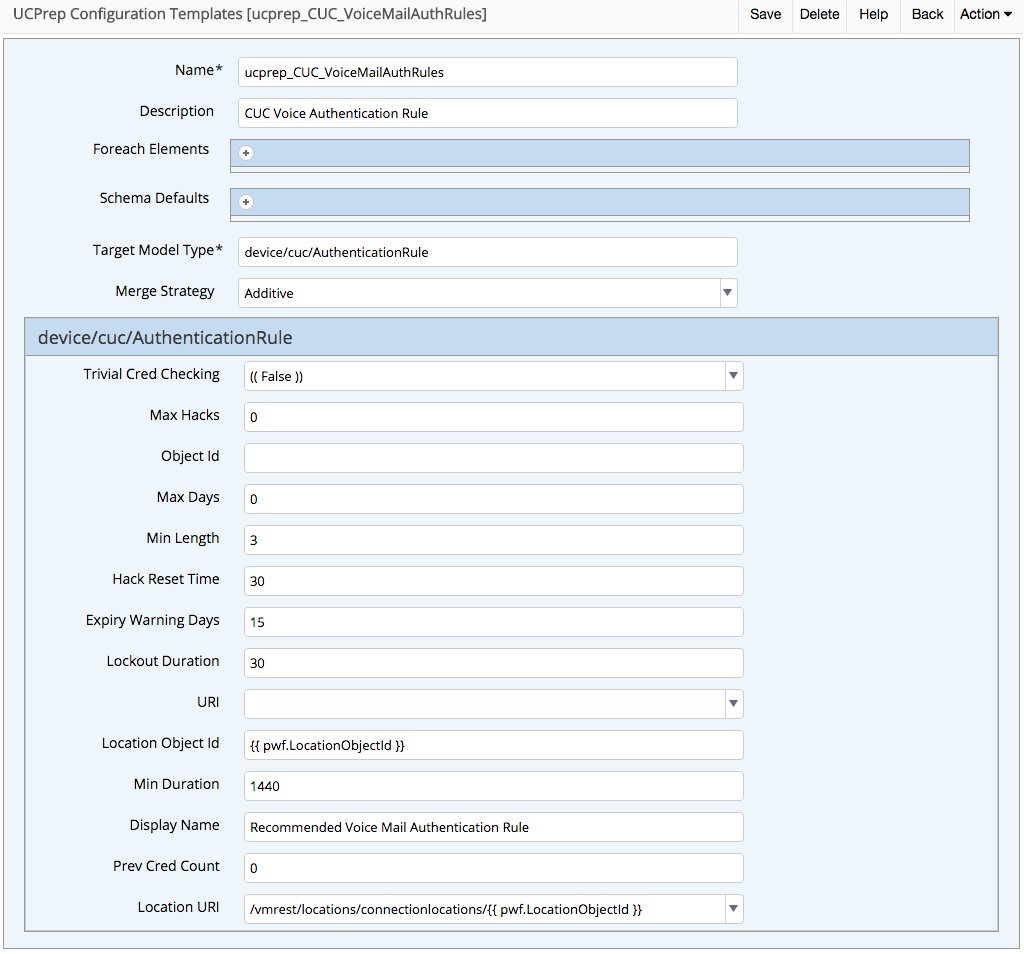
The table describes the settings on the Unity Authentication Policies tab:
Field |
Description |
|---|---|
Update Voice Mail Authentication Rules |
Check box to enable the update of the Voice Mail Authentication Rule from the UCPrep Profile. |
Voice Authentication Rule CFT |
Drop-down providing a list of available configuration templates. |
Update Web Authentication Rules |
Check box to enable the update of the Web Authentication Rule from the UCPrep Profile. |
Web Authentication Rule CFT |
Drop-down providing a list of available configuration templates. |
Unity User Templates tab#
The list of user templates shown on the input form are those that are most often changed. Own templates can be added as new entries and options selected from the available drop-downs.
Additional required fields can be added by selecting a created Configuration Template containing these from the CUC User Template CFT drop-down.
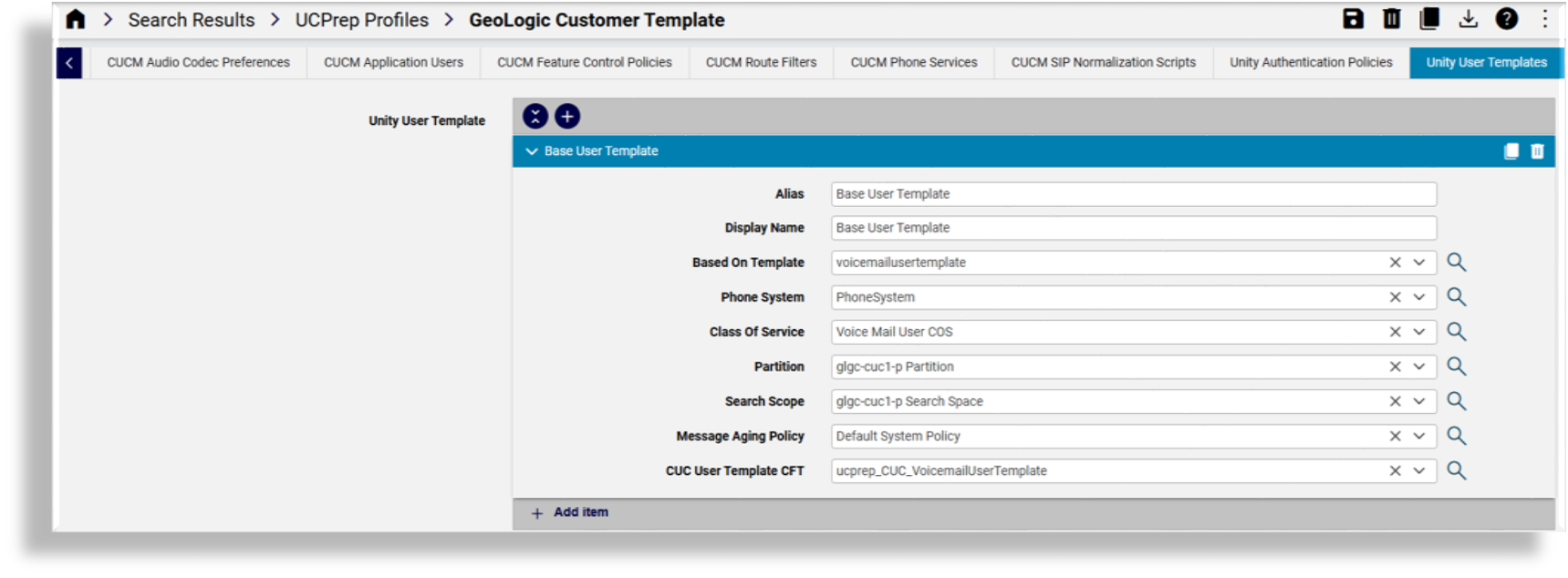
The table describes the settings on the Unity User Templates tab:
Field Name |
Description |
|---|---|
Unity User Template |
Mechanism to enter an unlimited number of user templates. |
Alias |
Free text field to enter the User Template Alias. |
Display Name |
Free text field to enter the User Template Display Name. |
Based On Template |
Drop-down providing a list of Unity configured templates to use as the required reference. |
Phone System |
Drop-down providing the Unity configured phone system. |
Class Of Service |
Drop-down providing the Unity configured and available Class of Service. |
Partition |
Drop-down providing the Unity configured and available Partitions. |
Search Scope |
Drop-down providing the Unity configured and available Calling Search Spaces. |
Message Aging Policy |
Drop-down providing the Unity configured and available Message Aging Policies. |
CUC User Template CFT |
The VOSS configuration template, which will be used to populate the unexposed fields of a User Template. |