
Transaction logging and audit#
Overview#
Transactions are a record of all activities that occur in Automate. You can inspect the summary list view of past and in-progress transactions in the Transaction Log, where you can drill into the details of a transaction and related sub-transactions, as well as view the logs to audit the transaction steps.
Note
You’ll only have access to the Transaction Log if your access profile permissions allow it
(read permissions on tool/Transaction).

Related topics
View a transaction#
In the Transaction logs you can click on a transaction to view the transaction details, and if available for this transaction, any sub-transactions, as well as the logs.
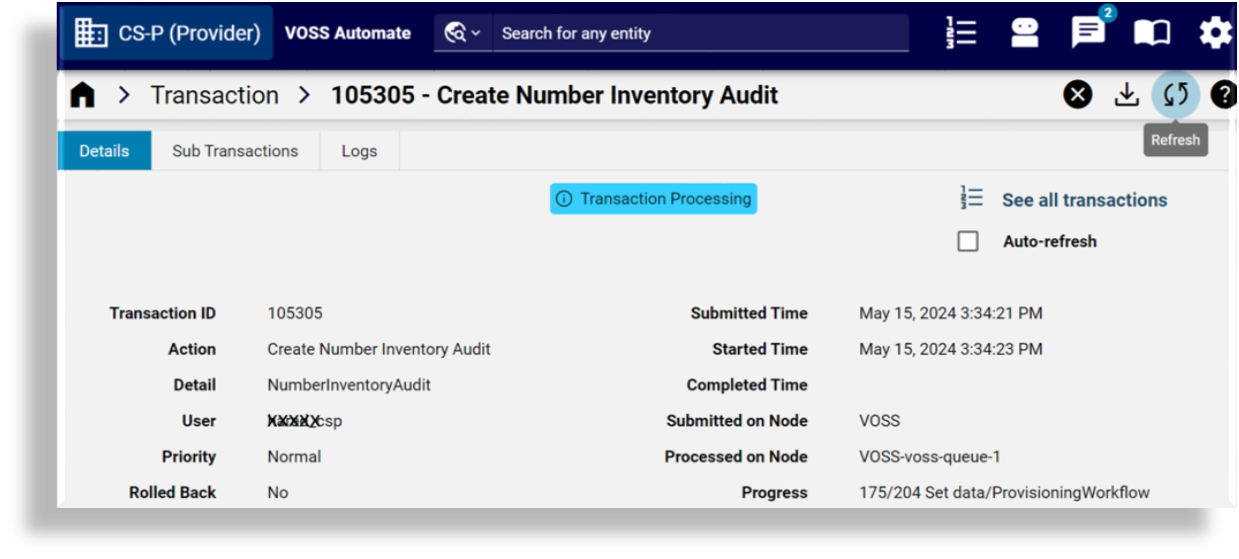
Additional tabs may display for transaction details:
Details
Sub Transactions
Logs
Failed Asynchronous Transactions
Transactions toolbar#
When viewing the details of a transaction the following toolbar actions may be available, depending, for example, on the transaction type, and on whether the transaction is in progress or complete, and whether it is a successful or failed transaction:
Refresh |
You can click the Refresh button while a transaction is running to update its progress and status in realtime |
Auto-refresh |
Automatically refreshes the transaction progress and its status, every 5 seconds, while the transaction is running. |
Cancel |
Cancels a transaction, if its still running. The status of a cancelled transaction updates to Fail with a system message that says Transaction canceled. If you cancel a transaction that has sub-transactions, a currently in-progress sub-transaction will complete, and then this sub-transaction as well as any preceding sub-transactions will rollback to their previous states. However, for a cancelled bulk transaction, the system views each bulk load sub-transaction as a main transaction, and thus only the currently in-progress sub-transaction is rolled back to its previous state. |
Replay |
For completed transactions, you can click the Replay button to repeat (replay) the transaction, if required. For example, let’s say a transaction fails because a target system service was not running. In this case, you can replay the transaction instead of having to re-input data on the form in the Admin Portal. |
Edit and Replay |
Click Edit and Replay to first open the form that was used for input data prior to running a transaction. You can now make changes to the input data that was used, and then re-run the transaction. This is useful where, for example, incorrect input data causes a transaction to fail. Note the following:
|
Note
If the transaction queue service stops and is restarted, any queued transactions
will resume processing, while processing transactions will fail and displays the following message:
Transaction aborted due to queue service restart.
Details#
This tab provides high level transaction details, such as the transaction ID, the user who initiated the transaction, duration, and so on.
The table describes the details available for transactions:
Field |
Description |
|---|---|
Transaction ID |
Unique identifier for the transaction. |
Action |
The type of action recorded in the transaction, for instance Execute, Create, Modify, Data Import and so on. |
Detail |
A brief description of the processed transaction. |
User |
The user who initiated the transaction. |
Priority |
The priority of the transaction, for example Normal. |
Status |
For transactions to process, this is Queued. For running transactions, this is In Progress; for completed transactions it is Fail or Success. |
Message |
The message displayed upon completion of the transaction. |
Submitted Time, Started Time and Completed Time |
The date and time indicating the transaction progress. |
Submitted on Node |
The host name of the application node that scheduled the transaction. On a clustered system, this can differ from the ‘Processed on Node’ name below. |
Processed on Node |
The host name of the application node that processed the transaction (this value will only be set once the transaction is processed). On a clustered system, this can differ from the ‘Submitted on Node’ name above. |
Rolled Back |
Indicates whether the transaction was rolled back or not. |
Duration |
The duration of the selected transaction. If there are sub-transactions, this parent transaction duration is the total duration of the transaction. This includes the total duration of import transactions that carry out provisioning workflows asynchronously. |
Sub-transactions#
Sub-transactions display in a list for transactions that have sub-transactions:
On the Admin Portal, the sub-transaction list will show below the transaction details if there are 10 or less sub-transactions. Otherwise, sub transactions display on a new tab on the page.
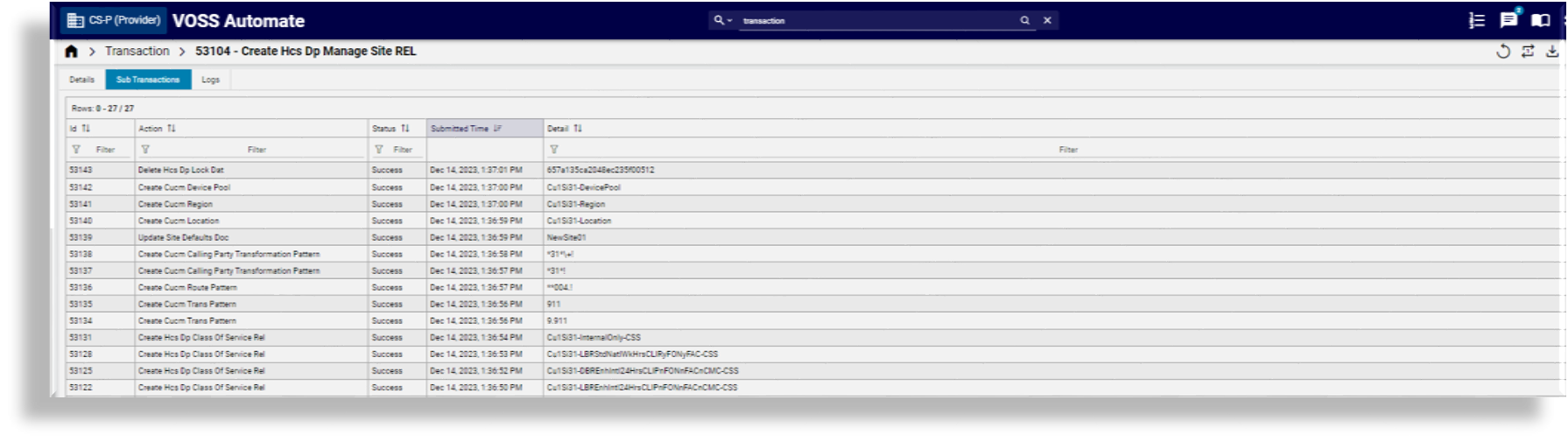
Sub-transactions contain links to their details and the sub-transaction form displays a link to its parent transaction.
Failed transactions show a Message of the error. However, a sub-transaction with a Create action that has a “fail on error” workflow condition for duplicates, may show its Status as Fail when not creating a duplicate, while the parent transaction then shows its Status as Success.
For asynchronous transactions and sub-transactions, refer to Parent and Sub-transactions for Asynchronous Transactions.
Logs#
The Logs tab displays a time stamp, Message and Severity details of transactions.
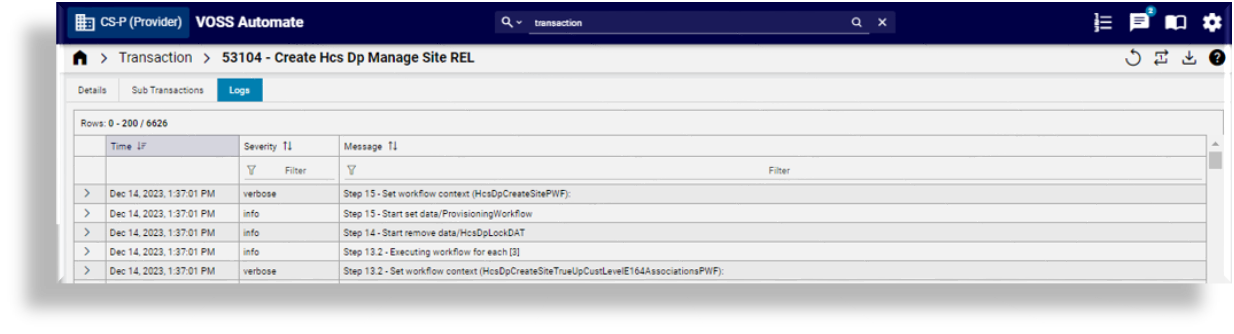
If the Severity has the status of error, the Message section can be expanded
to inspect the error, and optionally copy it and send it to Support.
If a workflow is inspected, a separate log entry provides details of each step with a log message as Step n, starting with Step 0.
Failed async transactions#
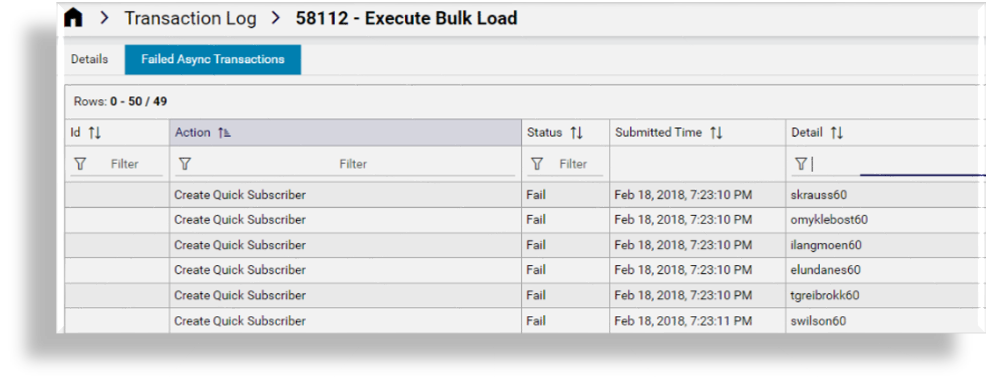
Failed asynchronous transactions display below the sub transactions.
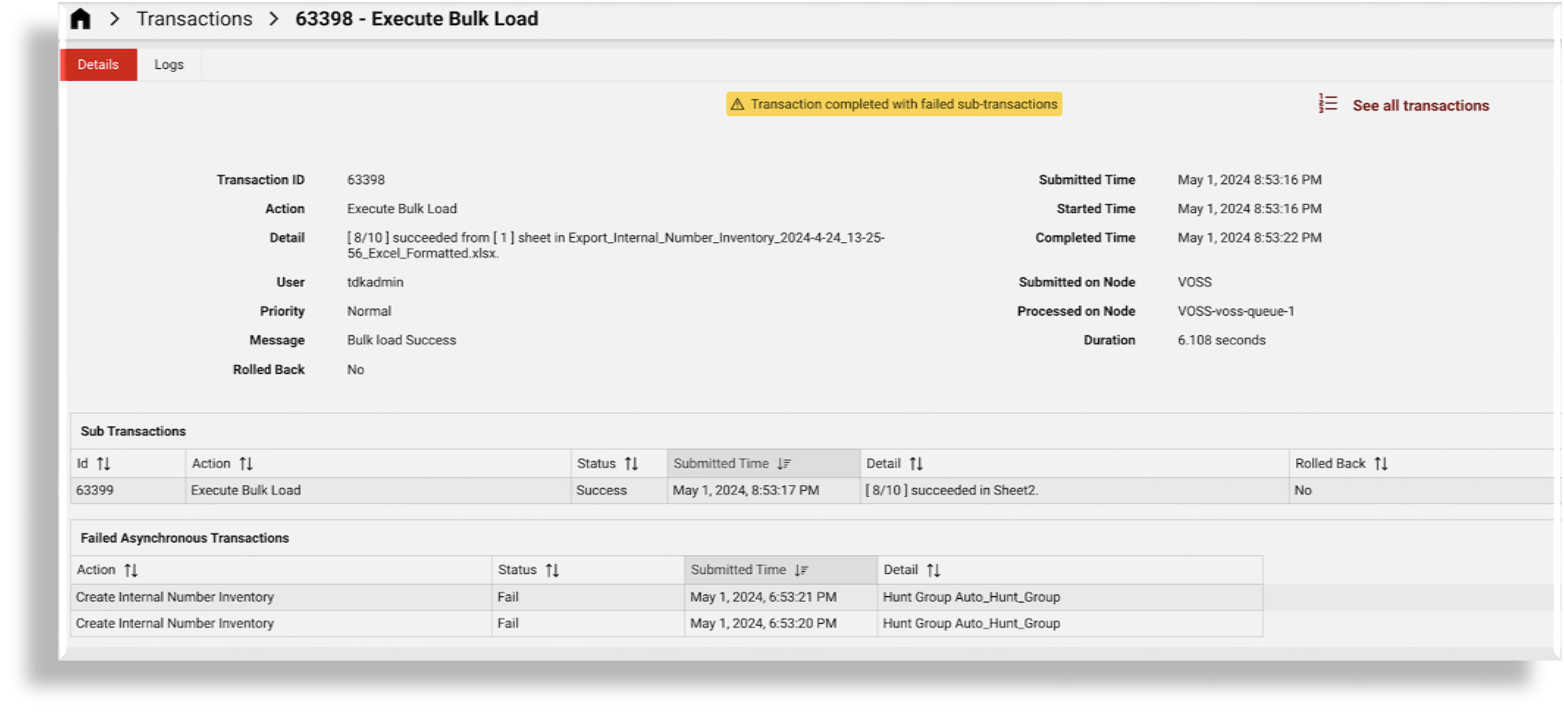
If there are more than 10 failed async transactions, these details display on a new tab on the page.
Resource or record#
Depending on the transaction type, an option is available to navigate to the original record where a resource changed.
Parent and sub-transactions for asynchronous transactions#
Parent and sub-transactions for asynchronous transactions are shown in the transaction logs as follows:
Parent transactions are in a “Processing” state until the last asynchronous child transaction completes (with either “Success”, “Success With Async Failures”, or “Fail”). These include:
Asynchronous workflows triggered by Device Import
Asynchronous operations triggered by Bulk Load (with parallel = true)
Asynchronous workflow steps
Asynchronous transactions for non-bulk operations are not grouped under the parent transactions. These include:
Asynchronous device import triggered by DataSync execute
Asynchronous event execute triggered by another operation
The status of top level transactions with failed asynchronous at any level of sub-transactions is “Success With Async Failures”. The detail view of the top-level transaction also shows the list of failed async transactions below the list of sub-transactions. This list allows for easy access to all failed async transactions. The Detail column of the sub-transactions also show the number of failed async transactions.
The details of parent transactions with the status “Success” also show the number of failed sub-transactions for the following:
Device Import
Workflows