
Call Pickup Groups#
Overview#
Certain default values for call pickup groups are populated via a site’s Site Defaults, which you can view and edit (depending on your log in level).
Automate’s call pickup group functionality provides the following:
A single interface for adding call pickup groups, and for choosing one or more lines as members of a pickup group.
Add CUCM call pickup groups and modify the call forward and call pickup settings of each CUCM directory number for membership to a newly added call pickup group.
When adding a call pickup group, if your administrator has enabled the number inventory functionality, the pattern can be selected from a drop-down list of available numbers.
If the feature is disabled, the Pattern field is a free text field or a drop-down containing only selected available numbers.
Add lines to an existing call pickup group by selecting the pattern (directory number).
When adding a member line, if your administrator has enabled the number inventory functionality, the pattern can be selected from a drop-down list of available numbers.
If number inventory functionality is disabled, the Pattern field is a free text field or a drop-down containing only selected available numbers.
The Route Partition Name field is populated automatically based on the selected pattern.
Delete existing call pickup groups, and delete one or more lines from an existing call pickup group.
The first member of the associated pickup group name is set the newly created pickup group, and associated pickup groups can be added as part of the workflow.
Related topics
Add a call pickup group#
This procedure adds a call pickup group in Automate.
Log in as Provider, Reseller, Customer, or Site administrator.
Set the hierarchy to the Customer or Site level.
If you’ve set the hierarchy level to Customer, choose the Network Device List. This step is not required if your hierarchy level is set to Site.
Go to Add Call Pickup Group.
Click the Plus icon (+) to open a new record.
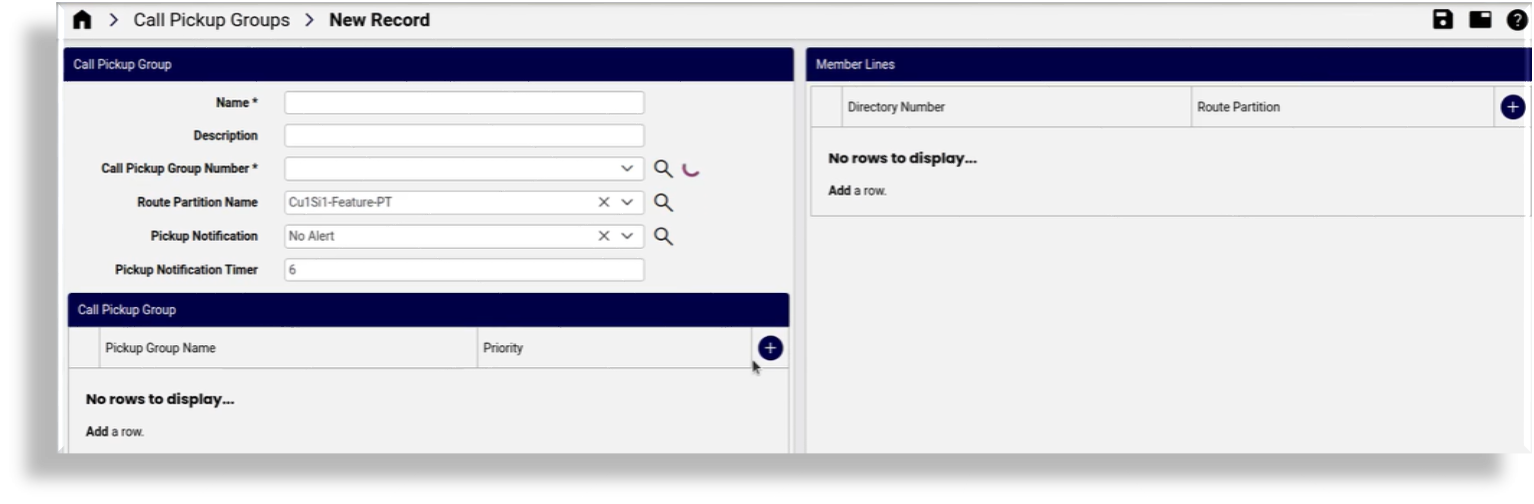
On the Call Pickup Group Details tab/panel, configure the following:
Fill out a name (mandatory) and a description.
Mandatory. At Call Pickup Group Number, choose the pickup group pilot number.
At Route Partition Name, choose the required route partition.
At Pickup Notification, choose the method, one of the following:
No Alert
Audio Alert
Visual Alert
Audio and Visual Alert
At Pickup Notification Timer, enter the required period, as a number of seconds.
If the call pickup group is associated with other pickup groups, click the Plus icon (+) at Call Pickup Groups to add an entry. Choose a pickup group name, and set a priority.
Note
This allows users to pick up incoming calls in a group that is associated with their own group. Note that the first member is automatically added, so there is no need to specify the first member as itself in an Add request.
For included pickup group names, ensure that the priority always starts at 1. When more than one included group exists, the group with Priority 1 has the highest the priority of answering calls for the associated group. Integer values are added in order of priority.
The associated Directory Name and Partition is automatically selected, based on the Call Pickup Group Name. Set any required Pickup Notification settings.
On the Membership tab/panel, add lines, one or more:
Click the Plus icon (+) at Directory Number to open a dialog where you can select a directory number.
Select a directory number, then click OK.
Note
The Route Partition field in this dialog is auto-populated when you select a directory number. You can select a different route partition, if required. Call pickup group members will only be successfully added if their directory number/s exist in a valid route partition. Directory numbers in a ‘null’ route partition appear as selectable members, but saving them results in an error.
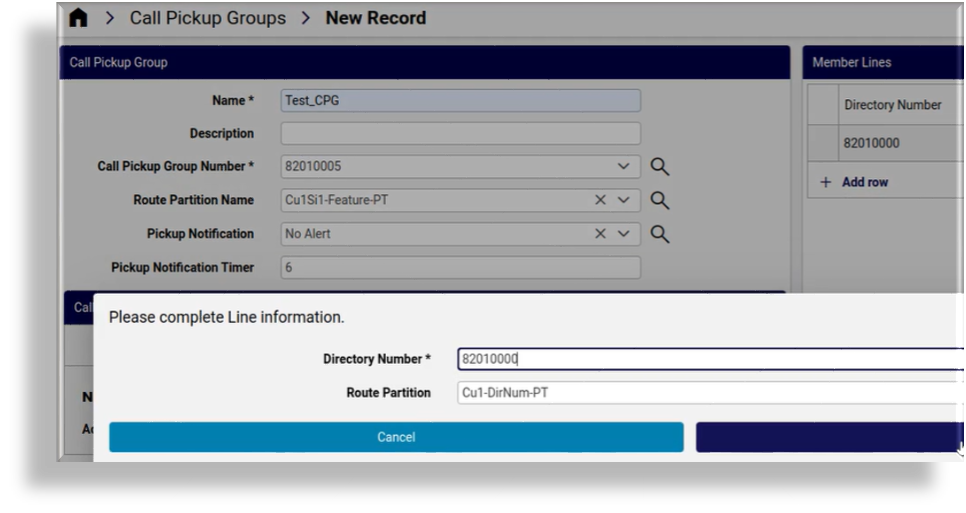
To add another line, click the Plus icon (+) again, choose another line, and click OK.
Repeat this step to add more lines to the call pickup group, if required.
Click Save to add the call pickup group.
Note
If you’re using partitions with the call pickup numbers, ensure that the directory
numbers that are assigned to the call pickup group have a calling search space (CSS) that
includes the appropriate partitions. The recommendation is to use CU{macro}-PreISR-PT partition
for the call pickup groups added at the customer hierarchy.
The selected Call Pickup Groups drop-down lists the call pickup groups created at the customer level and the site level. Select the required call pickup group from both the customer and the site level.
Adding a call pickup group at customer level with members across child sites, succeeds without error, and the configuration is pushed to the associated Unified CM (CUCM). However, when viewing the call pickup group configuration after it was added, the added members will not be seen. Added members are only seen if the call pickup group and its members are at the same hierarchy level
To verify the individual member line association with the call pickup groups, you can go to the Lines page. The call pickup group under Lines displays the associated call pickup group
Edit or delete a call pickup group#
This procedure updates or deletes a call pickup group in Automate.
Log in as provider, reseller, customer, or site administrator.
Set the hierarchy to the Customer or Site level.
Go to View Call Pickup Groups. Choose an option:
To edit a call pickup group, click on the call pickup group in the list to open it’s settings, make your changes, and save.
To delete a call pickup group, select the checkbox adjacent to the call pickup group in the list, then click the toolbar Delete icon.