
Hyper-V#
Installation hardware requirements by solution:
See Arbitrator Correlation Consolidation VM sizing specifications
See Arbitrator Correlation Consolidation VM sizing specifications
Download the install file#
Download for your solution and release from the New Installation folder on the client portal.
insights-<deployment>-hyper-v-<version>.zip
containing the .vhd file
Prepare the OS Disk#
Copy the
.vhdto the Hyper-V Settings/Virtual Hard Disks location of your choice.Rename it to your own requirements.
Create the VM#
In Hyper-V Manager, go to New > Virtual Machine.
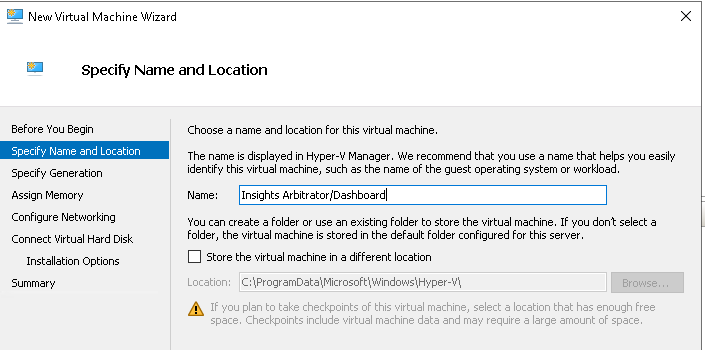
Specify Name and Location: Assign a suitable name to the VM.
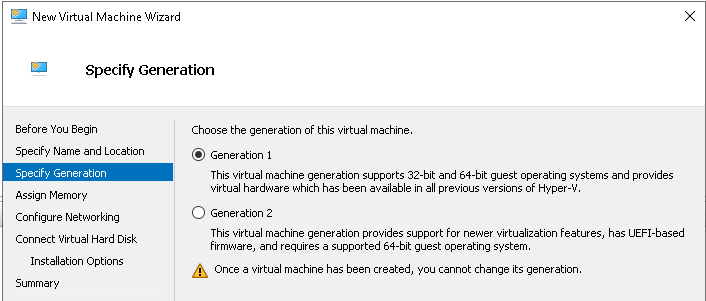
Specify Generation: Select Generation 1
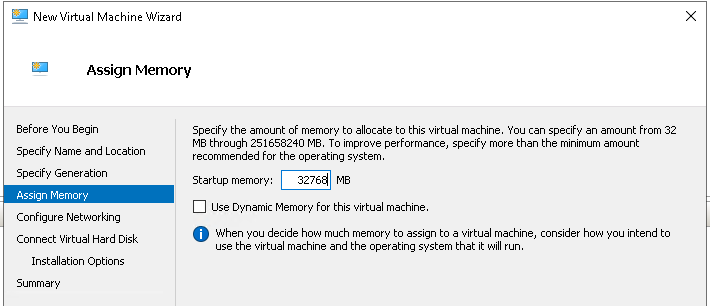
Assign Memory: Set the Startup memory according to the documentation
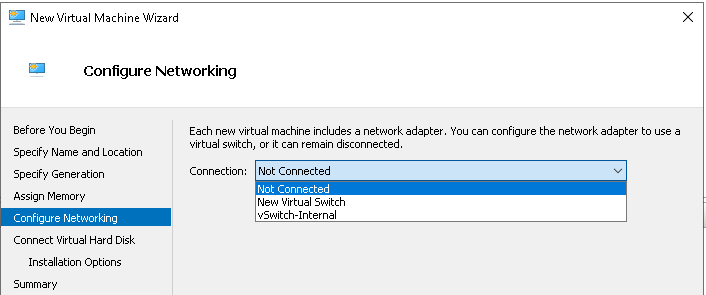
Configure Networking: Select the required Virtual Switch
Connect Virtual Hard Disk:
Select Use an existing virtual hard disk and select the
.vhdfile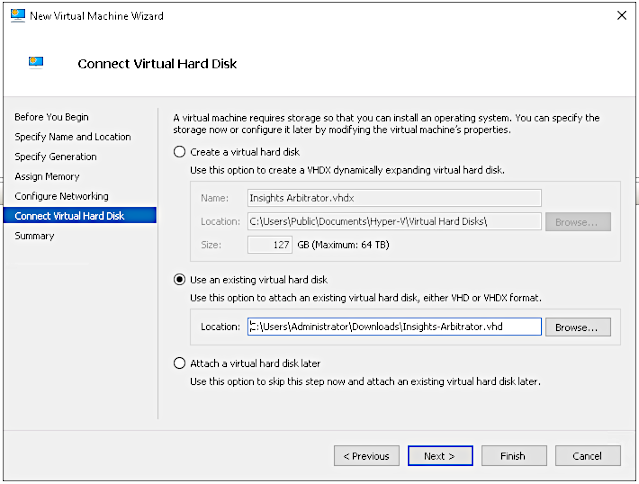
Click Finish.
Configure the VM#
Right-click the VM in the list > Settings
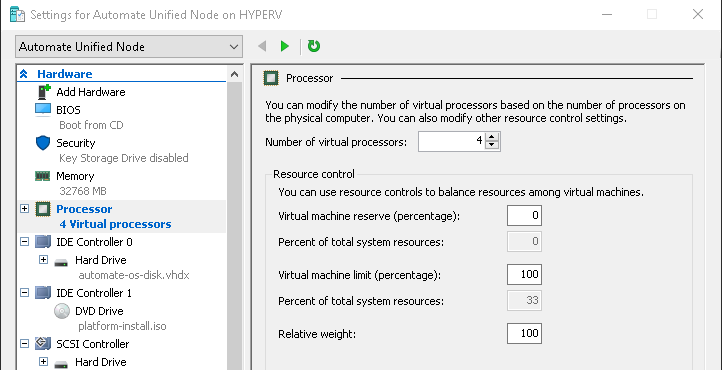
Configure the total processors#
Select Processor in the left pane. Set the Number of virtual processors according to the sizing specifications in the documentation.
Resize the OS Disk and Data Disk (DS9 only)#
Under IDE Controller 0 in the left pane, select the Hard Drive, Edit
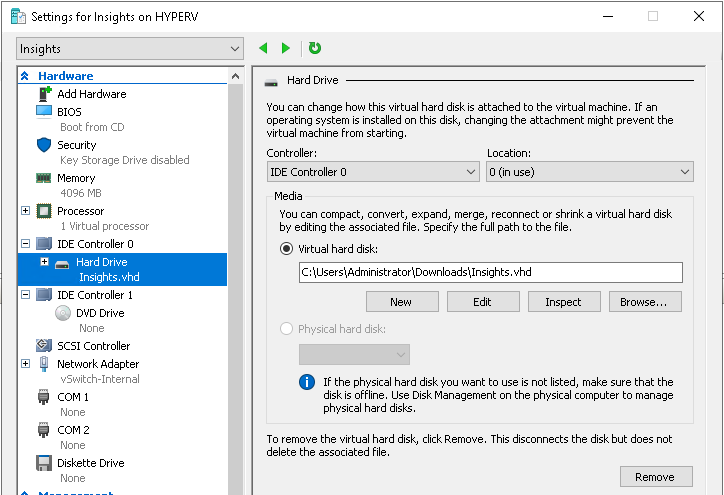
Select Choose Action > Expand
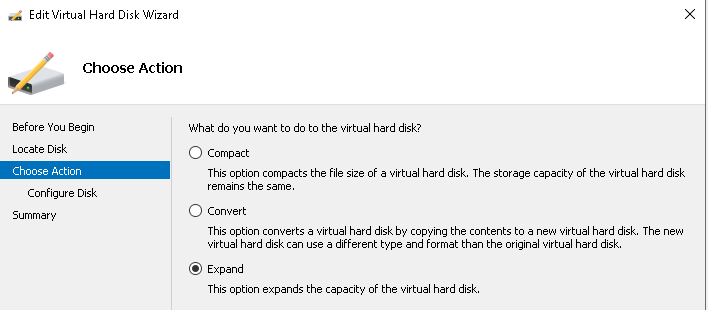
Configure Disk: Set the size according to the sizing specifications in the documentation.
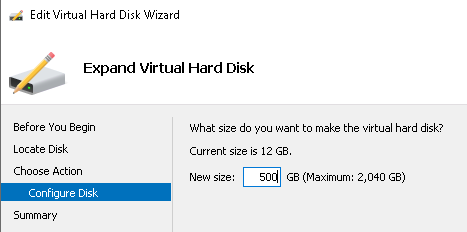
Click Finish.
Expand the Data disk if you are deploying DS9#
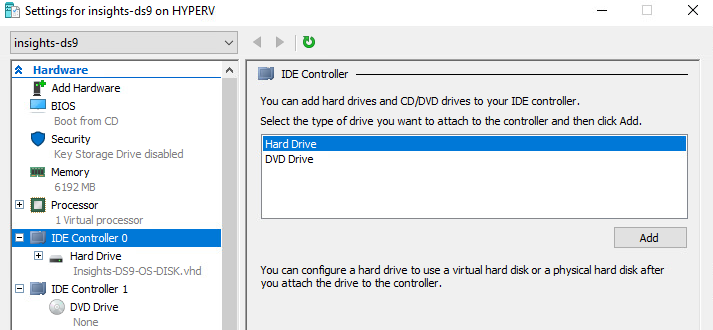
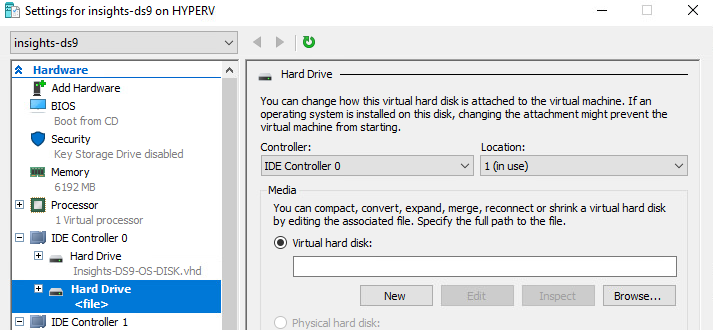
Select IDE Controller 0 in the left pane: Hard Drive > Add
Click Browse and select the
insights-ds9-data-disk.vhdExpand the disk as per above steps and documentation
Connect and start the Virtual Machine#
Right-click the VM, Connect and click Start.